

Web Development Best Practices for Fast, Secure, Accessible Sites
Follow best practices for web development: speed, security, accessibility, clean code, testing, and practice projects that help you build real sites.
Web development best practices in 2026 are essential habits for creating websites that load quickly, remain secure, are accessible to all users, and are easy to maintain. These practices are built upon several key principles: Core Web Vitals targets, WCAG 2.2 guidelines, OWASP security recommendations, automated testing, and a CI/CD pipeline. Most websites do not fail due to a single major error. Rather, they fail because of numerous small issues that accumulate over time. A slow-loading image here, a missing label there, or a password left in the code can lead to bigger problems. Adopting good habits early on can help prevent these issues.
This guide gives you seven practice areas, real before-and-after examples, five practice projects, and a build workflow in Enter Pro. Want to skip the setup? Jump to the Enter Pro section.
What Are the Core Best Practices for Web Development?
The best practices for web development rest on web standards. HTML gives a page its structure. CSS handles how it looks. JavaScript adds behavior. The W3C and WHATWG maintain all three. Best practices are the proven ways of using them that stop the same bugs, slowdowns, and security holes from coming back.
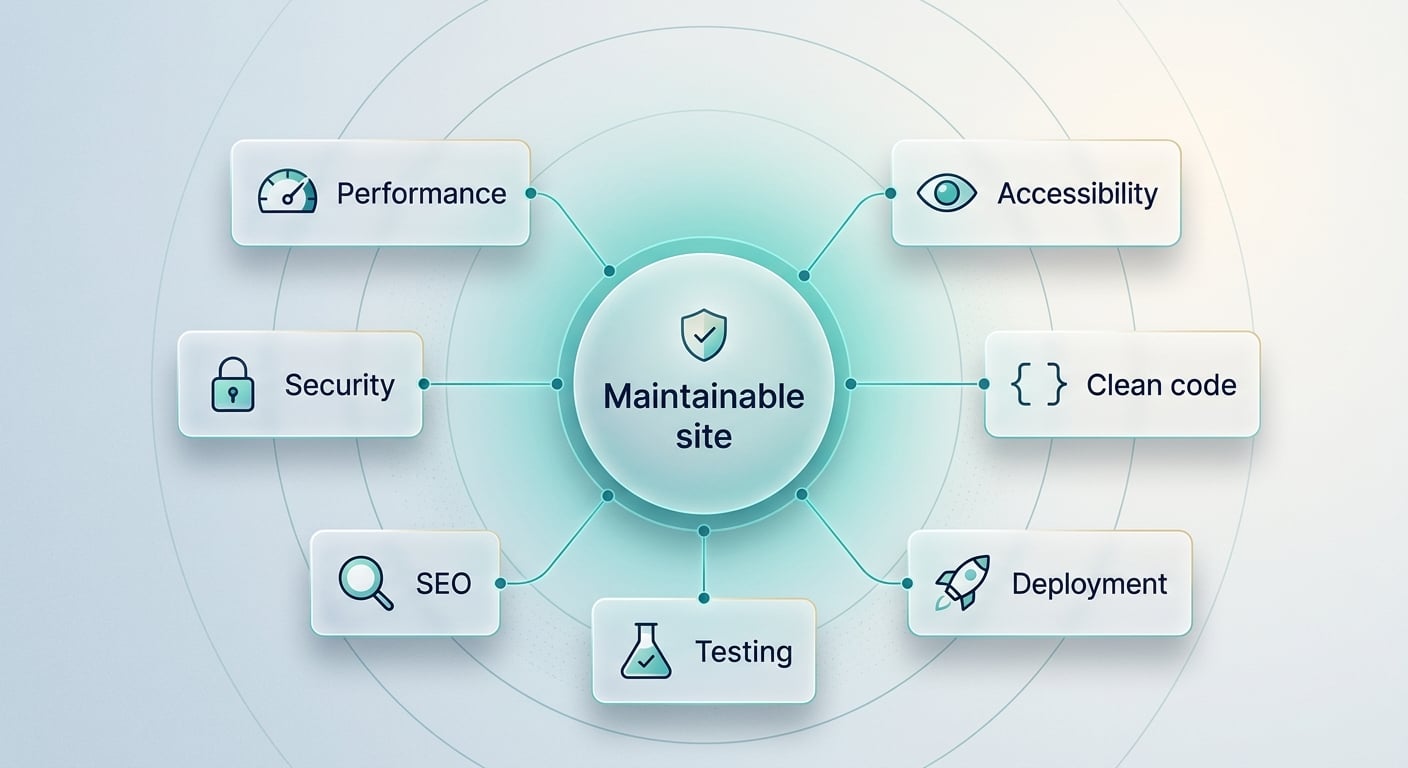
Every page follows one path. The browser requests it. The server returns HTML, CSS, and JavaScript. The browser renders what it gets. Each practice in this guide hooks into one of those steps. Once you see that, the checklists stop feeling random. Here are the seven areas we'll cover: performance, responsive and accessible design, security, clean code, testing, deployment and monitoring, and SEO.
Web Standards and Semantic HTML
Use a <div onclick> event to make it look like a button. While it works well with a mouse, it doesn't respond to keyboard interactions, and a screen reader won't recognize it as a button.
Instead, opt for a real <button> element. This approach provides built-in keyboard support, manages focus correctly, and conveys the right meaning to assistive technologies, all without any extra effort. The main rule is straightforward. Prioritize native elements whenever possible and only create custom ones when no native option is suitable. For more detailed information, refer to MDN's web standards guide.
Plan and Structure Your Project Before You Write Code
Planning for ten minutes can prevent days of unnecessary rework. Define the project's structure before writing the first line of code.
Define Scope and Pick the Right Rendering Approach
Start by listing your pages, users, and data. Then, decide how to build your pages. For a portfolio or marketing site, static generation is ideal. It’s fast, cost-effective, and easy to host. However, for a logged-in dashboard, you’ll need server-side rendering or a single-page application that communicates with an API. Choosing the wrong method can lead to issues. For instance, using a heavy single-page app for a marketing site can result in a slow initial loading time and poor search engine crawlability. This can negatively impact both user experience and search rankings.
Use Git From Day One
Keep the workflow small and strict:
- One branch per feature.
- Small commits with clear messages.
- A pull request review before every merge.
- A
.gitignorethat keeps generated files and local config out.
One rule has no exceptions: never commit credentials or private keys. Once a key hits the repo history, treat it as leaked.
Organise Files by Feature
Group code by what it does, not by file type. For example: /features/auth, /features/dashboard, /components/ui, and /lib. A new teammate finds where the API calls live in minutes. And related code changes together, so a fix touches one folder, not six.
Build Fast Sites: Performance Best Practices
Speed is a feature. Slow pages lose visitors, and visitors don't come back. Start with the three numbers that matter most, then fix them.
Core Web Vitals Targets
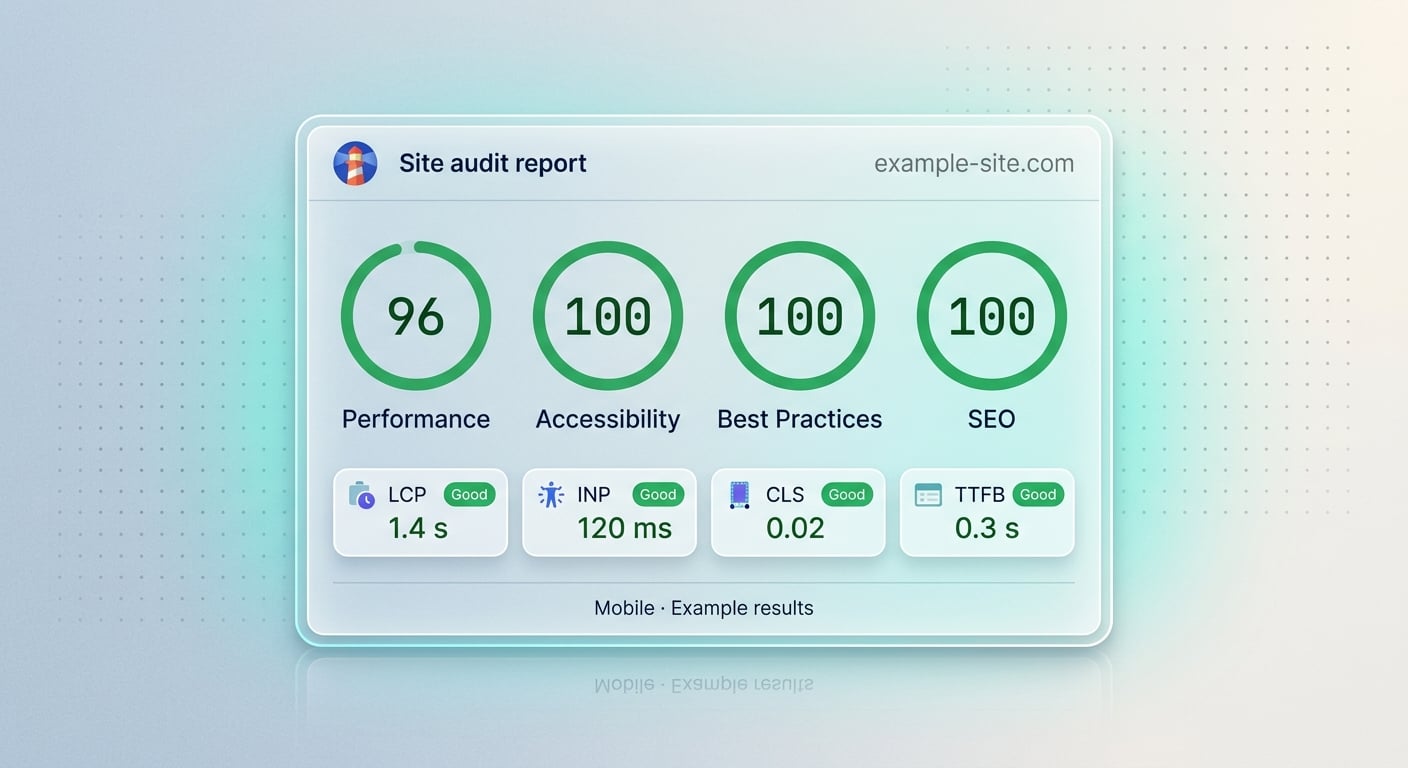
LCP measures loading. How fast does the main content show up? INP measures responsiveness. How quickly does the page react when someone taps or clicks? CLS measures visual stability. Does the layout jump around while loading? The good thresholds are LCP at 2.5 seconds or less, INP at 200 milliseconds or less, and CLS at 0.1 or less. Each is measured at the 75th percentile of real users. That means three out of four visits should meet the target.
| Metric | Good target | Typical cause | First fix |
|---|---|---|---|
| LCP | ≤ 2.5 s | Oversized hero image, render-blocking CSS | Compress and preload the hero image, inline critical CSS |
| INP | ≤ 200 ms | Long JavaScript tasks | Split long tasks, defer non-critical scripts |
| CLS | ≤ 0.1 | Images without width and height, late-loading fonts | Set image dimensions, use font-display: swap |
Does this really matter for business? Yes. Vodafone ran an A/B test on a landing page. The faster version had a 31% better LCP. It brought 8% more sales and a 15% better lead-to-visit rate. Same offer, same traffic. Only speed changed.
Optimize Assets, JavaScript, and CSS
Most slow sites share the same handful of problems. These are the quick wins:
- Scripts: add
deferorasyncso they stop blocking the page. - CSS: inline the critical above-the-fold styles.
- Fonts: use WOFF2 with
font-display: swapso text shows right away. - Images: serve WebP or AVIF, and lazy-load anything below the fold.
- Delivery: turn on Brotli or gzip compression and serve static files from a CDN.
One warning. Lazy-loaded content needs an SEO fallback. If crawlers can’t see it, it won’t rank.
Measure With Lab and Field Data
Lighthouse and PageSpeed Insights provide lab data through controlled tests, which are excellent for debugging. In contrast, the Chrome User Experience Report offers field data, reflecting the actual experiences of real visitors on real devices. It's important to utilize both types of data because a webpage may appear to perform perfectly in a lab environment yet still face issues in real-world scenarios. Additionally, establish a performance budget. For example, your team might agree on a limit for JavaScript file sizes.
Make Sites Responsive, Accessible, and Cross-Browser
More than half of web traffic comes from phones. And millions of people use keyboards, screen readers, or zoom. Build for all of them from the start.
Design Mobile-First
Begin with the viewport meta tag, as its absence results in phones displaying a shrunken version of the desktop page. Utilize Flexbox or Grid for creating flexible layouts, and ensure that your images are responsive. This prevents the phone from needing to download large files. Be sure to test your design at various widths using Chrome DevTools, rather than just focusing on a single width. A good example of responsive design is a three-column pricing grid that collapses to a single column for screen widths below 768 pixels. Start by designing for the small screen first, then gradually add complexity as screen space increases.
Meet WCAG 2.2 AA Basics
You can run these checks today:
- Semantic landmarks like
<header>,<nav>, and<main>. - Labelled form fields.
- Alt text on meaningful images.
- Contrast of 4.5:1 for normal text.
- Visible focus indicators.
- Pointer targets of at least 24 by 24 pixels.
- No interactions that only work by dragging.
Here's a worked example. Scan a sign-up form with axe DevTools. Expect three common failures: missing labels, low contrast, and a missing focus style. Fix those three, and you've cleared most of the problems on that form. See WCAG 2.2 guidelines.
Test Across Browsers
Don't test only in the browser you like. Check Chrome, Firefox, Safari, and Edge. Before you adopt a new CSS or JavaScript feature, check MDN and Can I Use for support. Where support is partial, add a fallback so nobody gets a broken page. For more on layout and interface choices, see UI design best practices.
Web Application Development Best Practices for Security and Data
One breach can end a small project's reputation overnight. Keep it defensive and simple.
Start From the OWASP Top 10
The OWASP Top 10 is the standard list of the most critical web application risks. In the 2025 edition, broken access control still sits at number one. Here's what that looks like. A user is viewing /orders/123. They change the URL to /orders/124. Suddenly they're reading a stranger's order. The fix is simple but easy to forget. Check ownership on the server for every single request. Hiding the link isn't secure.
Protect Input, Sessions, and Secrets
Never trust input. Validate it on the server, and encode output before showing it. Never build SQL by joining strings:
// Bad: db.query("SELECT * FROM users WHERE id = " + id)
// Good: db.query("SELECT * FROM users WHERE id = $1", [id])
Use HTTPS everywhere. Store sessions in HttpOnly, Secure cookies. Keep API keys out of frontend code, because anything in the browser is public. And run npm audit or Dependabot so known-bad packages don’t sneak in.
Handle APIs and Personal Data Responsibly
Always check response status codes. Handle timeouts and invalid responses without crashing. Validate incoming data with a schema library like Zod. For personal data, collect only what you need. Restrict who can access it. And follow the privacy laws that apply to your users, wherever they live.
Write Clean Code and Test It Early
Clean code isn't about looking smart. It's about the next person, who is often you in six months.
Clean, Consistent Code
Choose meaningful names for your components. Keep them small and manageable. Rely on tools to handle formatting; for instance, Husky can run ESLint and Prettier on every commit, ensuring that style discussions don’t intrude on code reviews. Additionally, TypeScript can catch a significant number of type errors before the code is executed.
A Simple Testing Stack
You don't need a huge setup. Three layers cover most projects:
- Unit tests with Vitest or Jest.
- Component tests with Testing Library.
- One end-to-end test of your main user journey with Playwright.
For example, write a unit test for a price-formatting function. Then add an end-to-end test that signs in and reaches the dashboard. If those two pass, your core is safe.
Ship, Monitor, and Maintain With a CI/CD Pipeline
Shipping isn't the finish line. It's the start of keeping the site healthy.
Automate Checks and Deployments
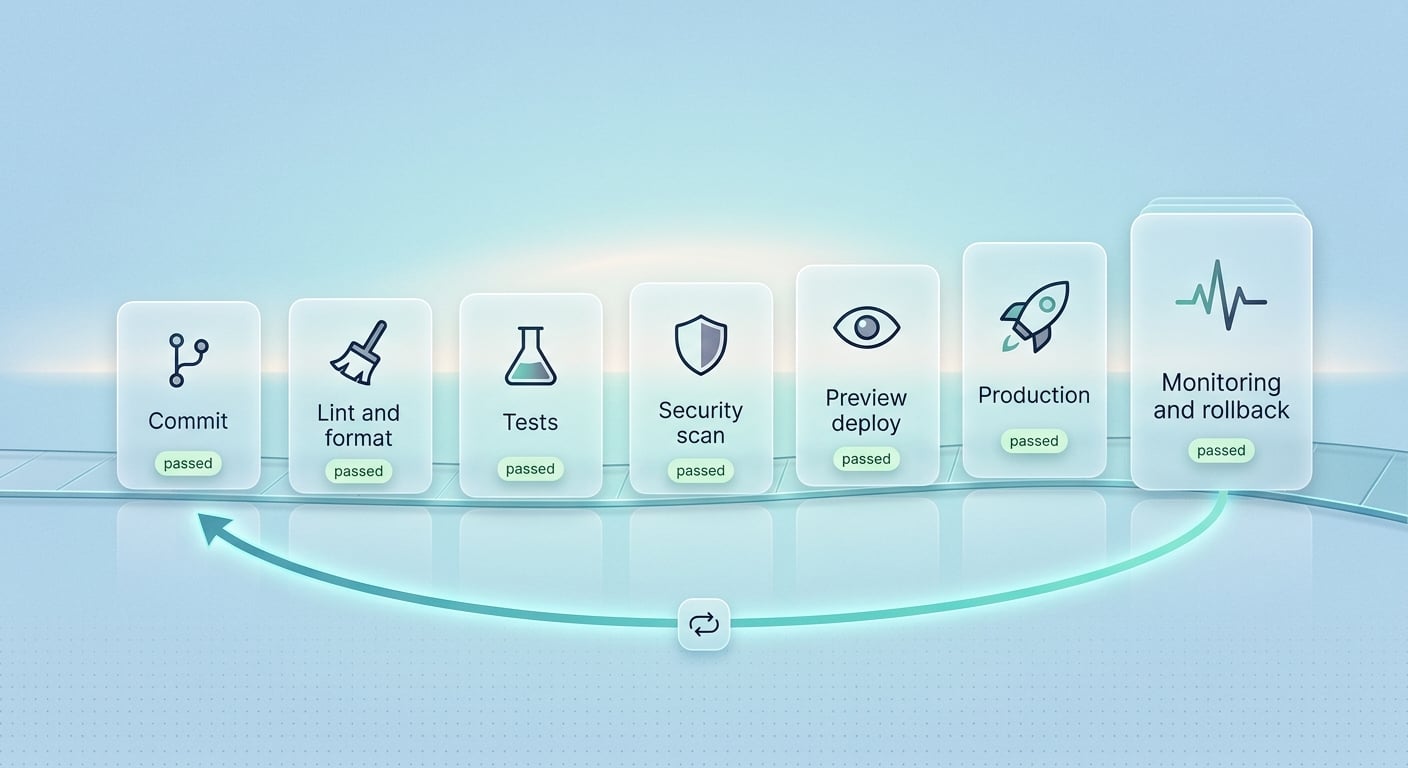
A minimal GitHub Actions flow does five things in order: lint and type check, run tests, scan dependencies, create a preview deployment, then deploy to production. Always have a rollback plan. And roll out in stages, like 5% of traffic, then 20%, then 100%. A bad release then hurts a few users, not all of them.
Monitor Errors and Real-User Performance
Use the right tool for each job. Sentry catches errors. A real-user monitoring service tracks Core Web Vitals. Set alerts so regressions reach you before they reach your customers. Lab scores alone miss problems with slow phones and weak networks, so real-user data matters.
Build SEO Into the Site
SEO is easier when it's built in, not bolted on. Serve public content as static or server-rendered pages. Use one H1 per page. Write a unique title (around 50-60 characters) and meta description (around 150-160 characters). Keep URLs clean. Submit an XML sitemap to Search Console, and validate structured data with Google's Rich Results Test.
Web Development Examples: Bad Habits vs. Best Practices
Rules stick better with code. Each example below has a task, a proof, and a limit.
Auth token storage
Bad: localStorage.setItem("token", t)
Better: send the token in an HttpOnly, Secure cookie.
Proof: scripts can't read an HttpOnly cookie, so injected code can't steal it.
Limit: you still need CSRF protection.
Blocking script
Bad: <script src="app.js"></script> in the head.
Better: <script defer src="app.js"></script>.
Proof: deferred scripts don't block rendering.
Limit: execution order still matters.
Clickable div
Bad: <div onclick="save()">Save</div>
Better: <button onclick="save()">Save</button>
Proof: keyboard and screen-reader support come built in.
Limit: you still need a visible focus style and a clear label.
Image gallery
Bad: <img src="a.jpg">
Better: <img src="a.jpg" width="400" height="300" loading="lazy">
Proof: reserved space removes layout shift, which is exactly what CLS measures.
Limit: never lazy-load the above-the-fold hero image.
A real-world case
Rakuten 24 A/B tested a version of its page optimized for Core Web Vitals. Revenue per visitor rose 53.37%. Conversion rate rose 33.13%. Nothing else on the page changed. See more performance code studies.
Web Development Practice Projects to Apply These Practices
Reading only gets you so far. If you want to practice web development, build small projects. Each one trains a few habits and ends with a clear done-when checked, so you know when you're finished.
| Project | Level | Practices you apply | Done when |
|---|---|---|---|
| Personal portfolio | Beginner | Semantic HTML, mobile-first layout, image optimization | No axe failures and mobile LCP is 2.5 s or less in PageSpeed Insights |
| Recipe or blog page | Beginner | Responsive Grid, readable contrast, meta tags | Passes a keyboard-only walkthrough. Every page has a unique title and description |
| To-do app with an API | Intermediate | Input validation, error handling, unit tests | Failed requests show a clear message. The main flow has an end-to-end test |
| Weather dashboard | Intermediate | API calls, loading and error states, caching, no secrets in frontend code | The API key is read only on the server |
| Sign-in SaaS dashboard | Advanced | Auth, access control, CI/CD, monitoring | A pull request runs tests and a scan automatically. A bad deploy can be rolled back |
Need layout ideas for the first project? See website homepage design.
Follow Web Development Best Practices With Enter Pro
Hand-coding gives you full control. It also requires more setup. Enter Pro turns a prompt into a working React, Vite, TypeScript, and Tailwind CSS project that you can review and edit. That makes it a quicker way to practice web development and to start from a solid base. It doesn't replace testing. You still review the code and audit the result.
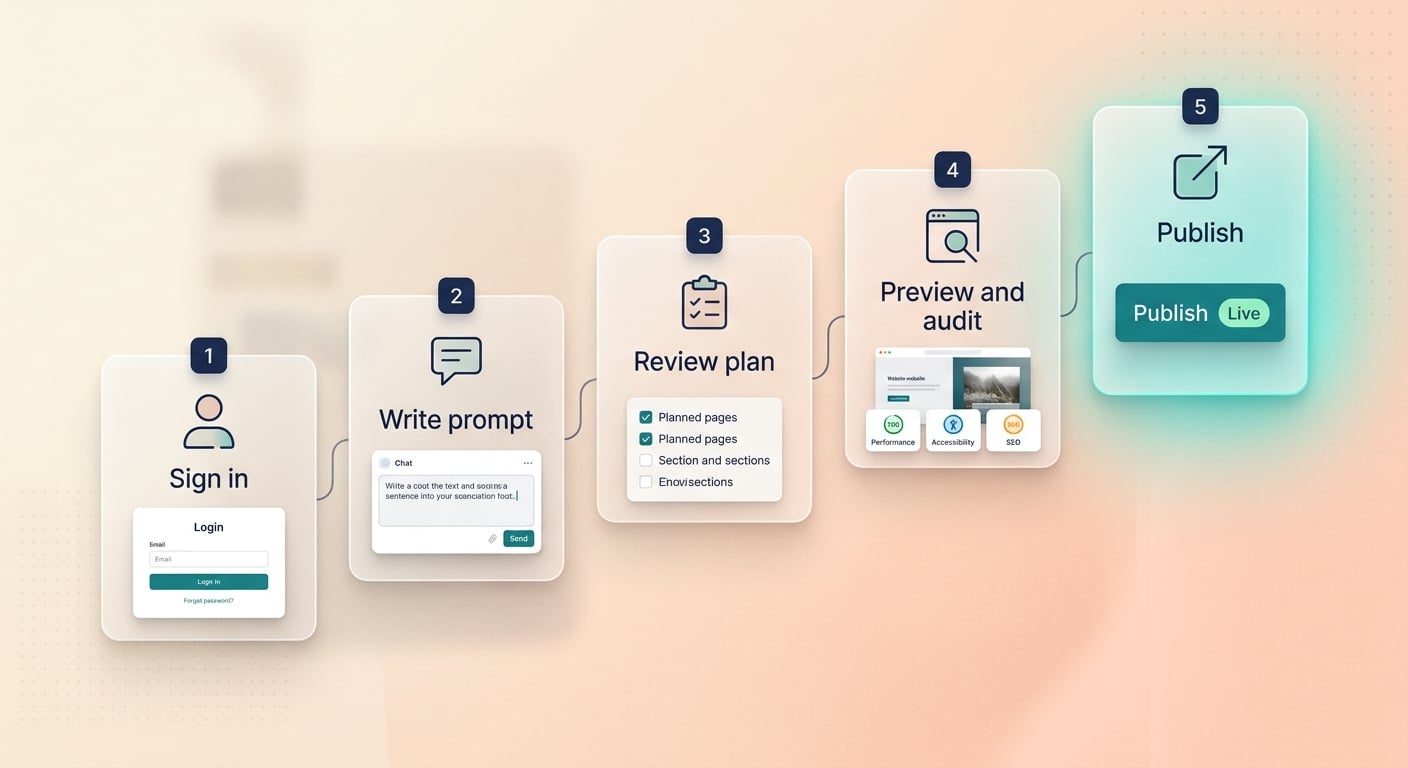
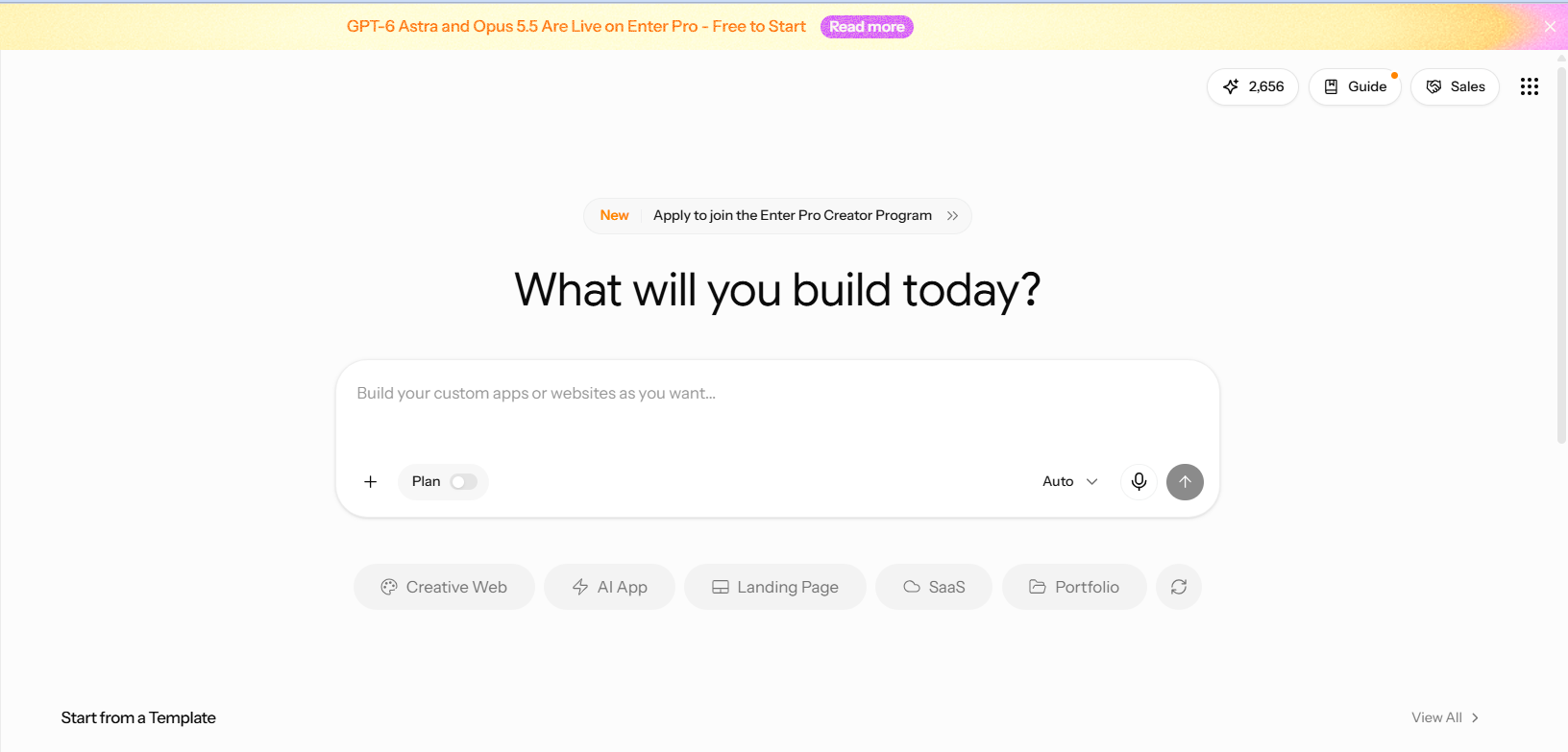
Step 1: Sign In to Enter Pro and Start a New Project
All you need is an account. There's nothing to install and nothing to configure. Open the workspace and start a new project.
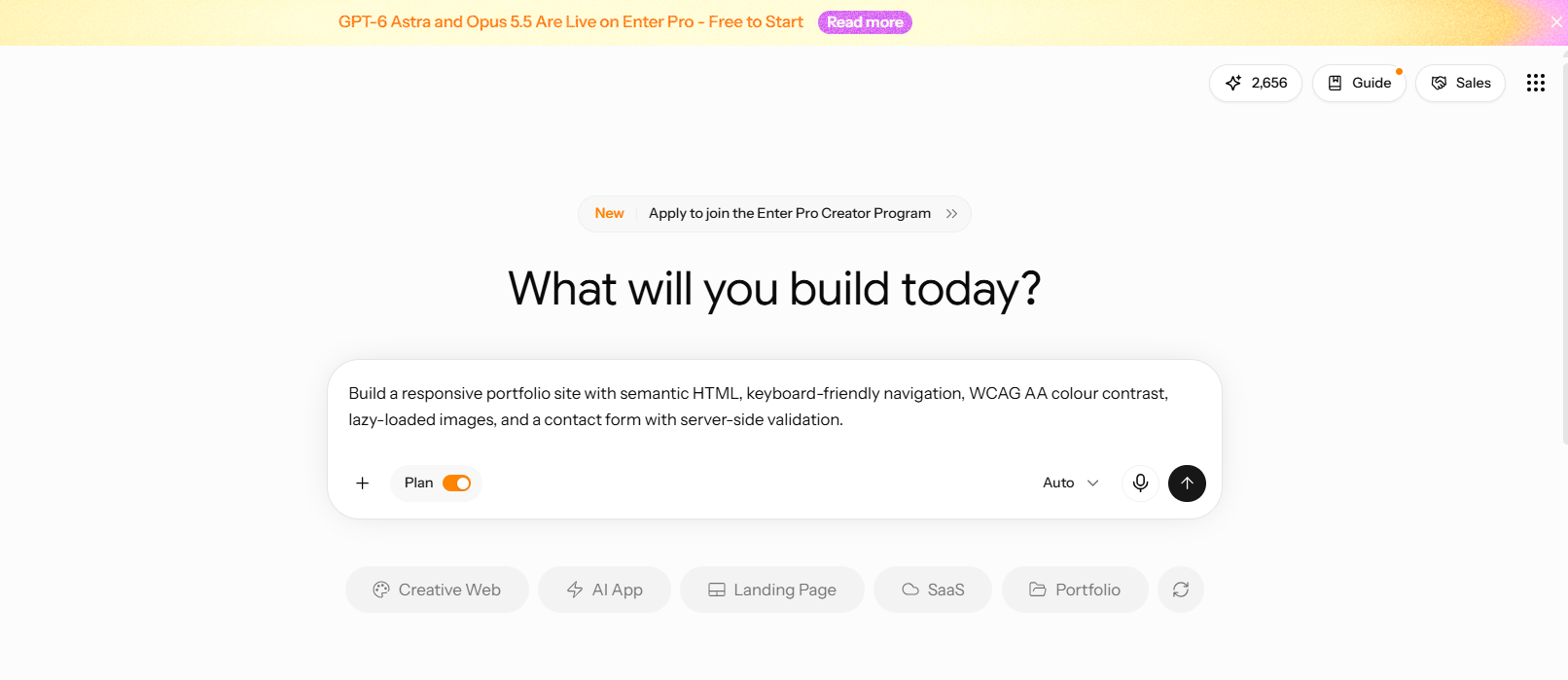
Step 2: Write a Prompt That Names the Best Practices
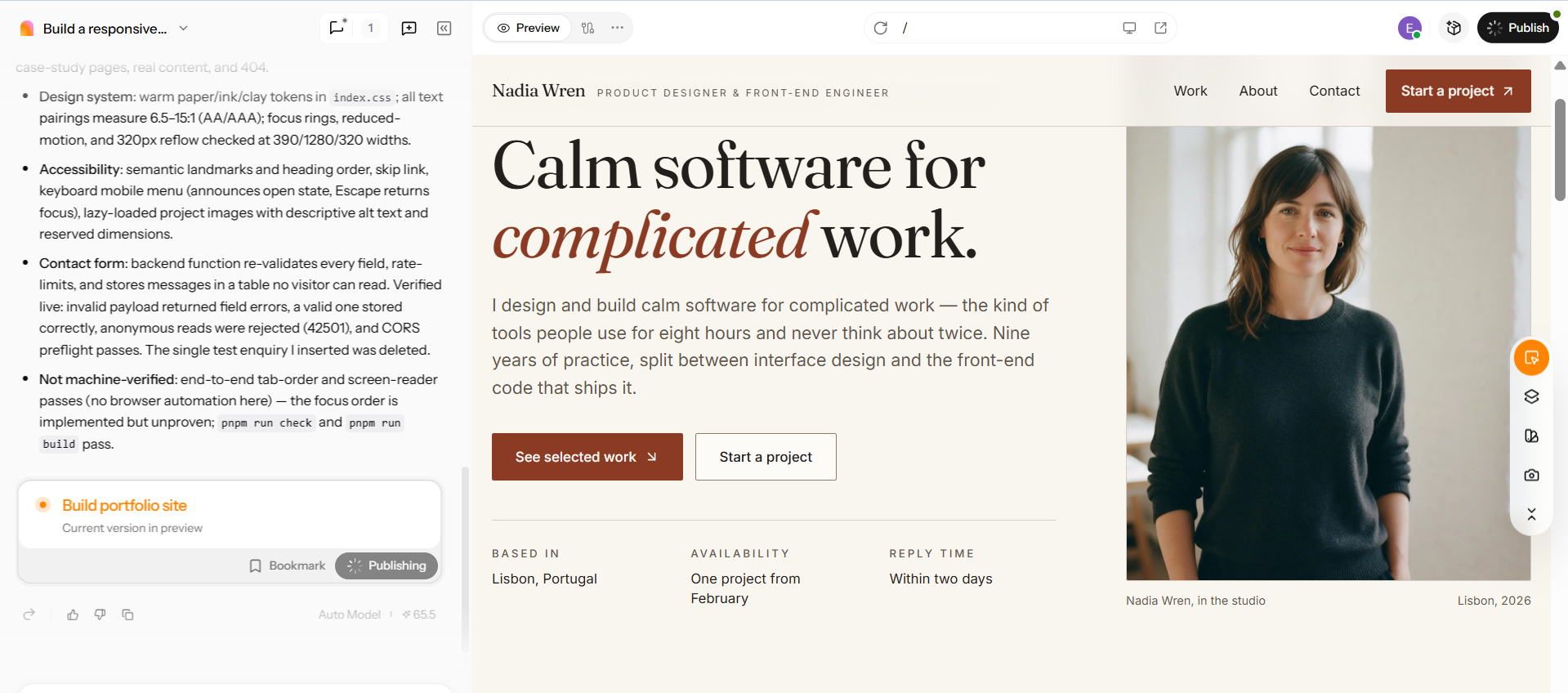
Try this prompt: "Build a responsive portfolio site with semantic HTML, keyboard-friendly navigation, WCAG AA colour contrast, lazy-loaded images, and a contact form with server-side validation."
Look at what each phrase adds:
- Semantic HTML and keyboard-friendly navigation: structure and accessibility.
- WCAG AA colour contrast: readable text for everyone.
- Lazy-loaded images: performance.
- Server-side validation: security.
That beats "make me a portfolio." A vague prompt leaves every quality decision to chance. A specific one builds the standards in.
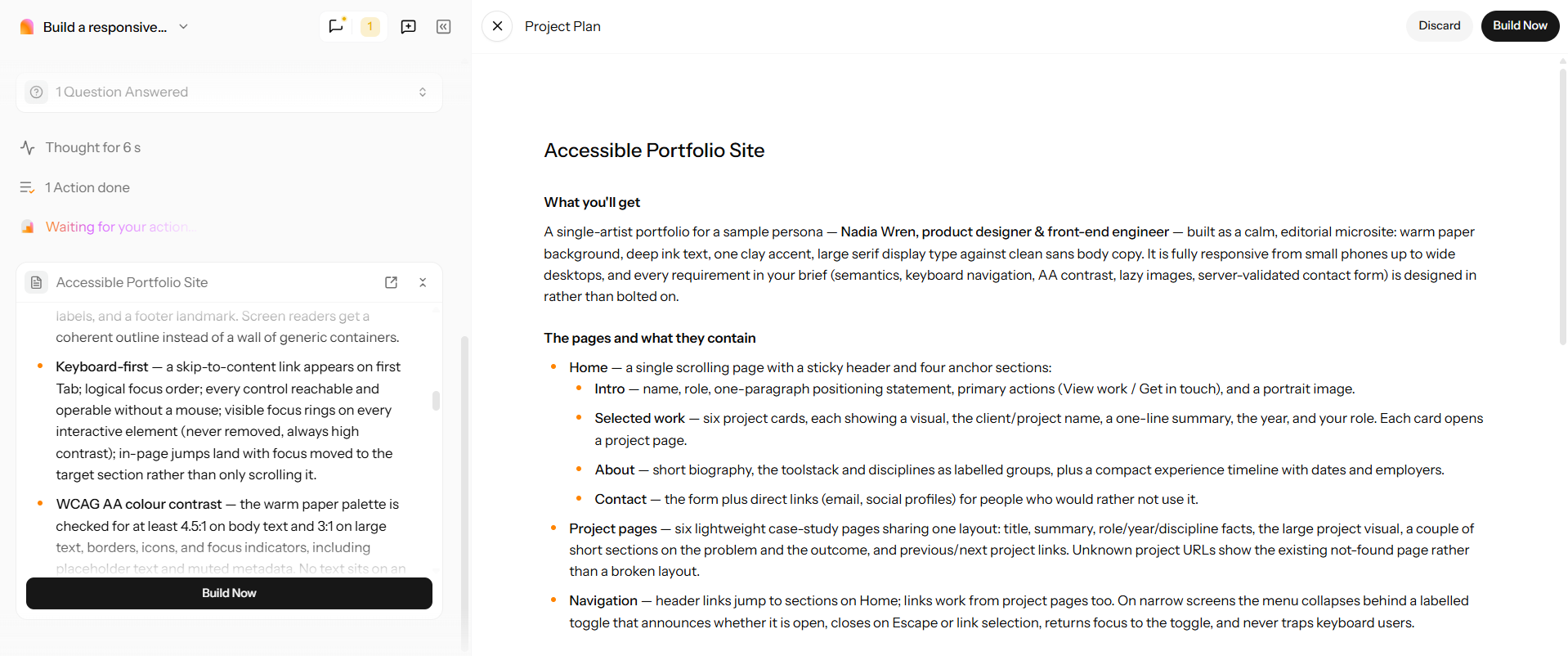
Step 3: Review the Plan and Build
Check the plan against your prompt before you build. Are all the pages there? Is the navigation right? Is the contact form included? Then click Build Now. Fixing a plan takes seconds. Fixing a finished build takes much longer.
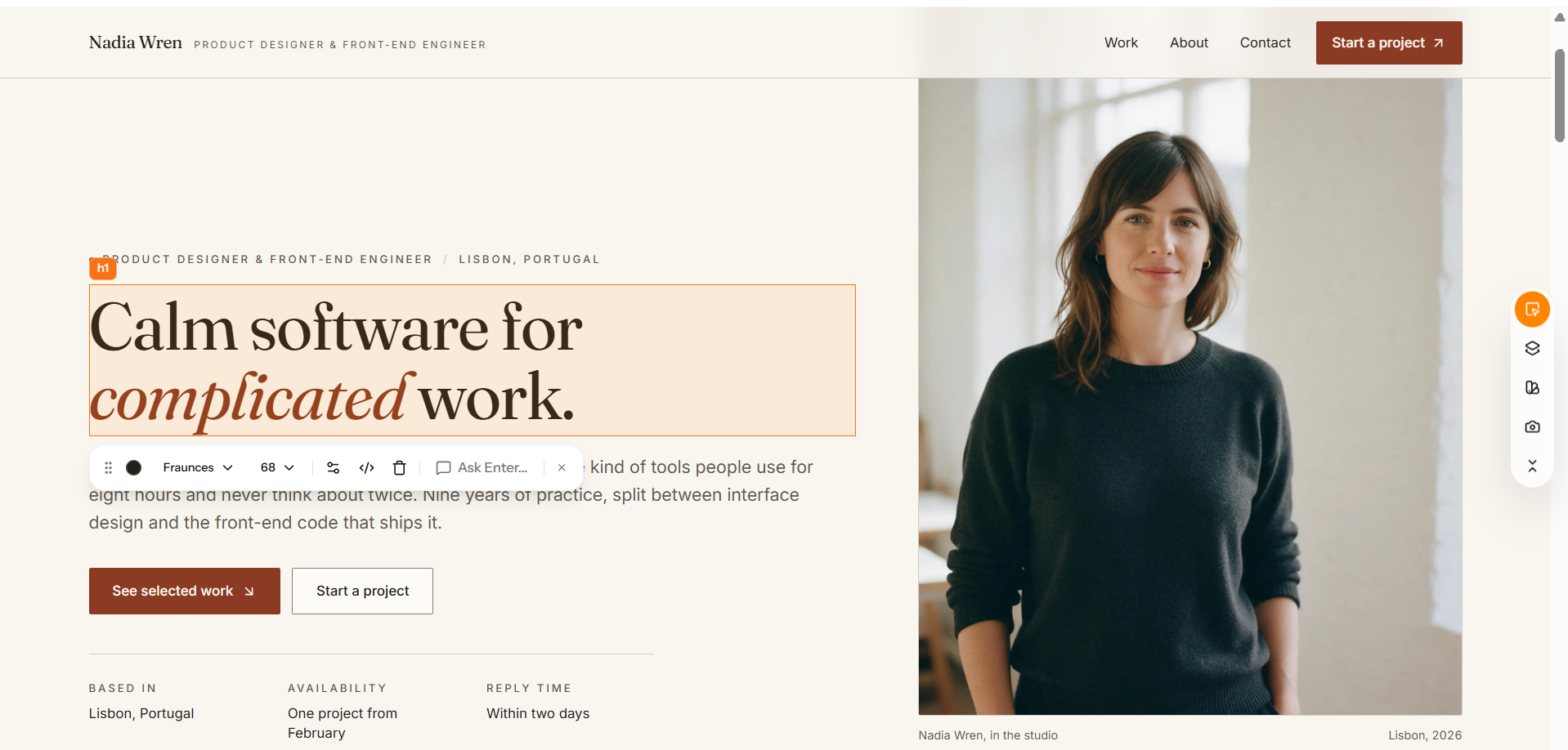
Step 4: Preview, Refine, and Audit the Result
Open the live preview. Select an element and edit it without touching code. Then do a quick code check:
- Real
<button>and<nav>elements. - Alt text on images.
- Labelled inputs.
- No secrets in the front end.
Finish with a Lighthouse and axe audit. Treat the result as a starting point, not a compliance guarantee.
Step 5: Publish Your Site
Publish once the audit is clean. Then open the live URL and rerun a quick Lighthouse check and a keyboard walkthrough on the real site. Live behavior can differ from the preview, so check it. Curious what happens behind the prompt? See how an AI website generator works.
Conclusion
The web development best practices 2026 demands come down to seven habits. Build fast pages that hit the Core Web Vitals targets. Design for every screen and every user. Secure the server, not just the interface. Write clean code that the next person can read. Test early, before bugs reach users. Automate shipping and watch the site after launch. And build SEO into the structure from day one. Where should you start? Pick one practice project. Apply the performance and accessibility checks. Then automate your tests before adding more features. Small, steady habits beat big rewrites. Build your site in Enter Pro → now.
FAQs About Web Development Best Practices
What are the best practices for web development?
Focus on seven areas: performance (Core Web Vitals), responsive and accessible design, server-side security, clean and tested code, automated deployment, monitoring, and search-friendly structure. Each has checks you can run today.
How can I practice web development as a beginner?
To practice web development as a beginner, start by building small projects in increasing order of difficulty. Begin with a simple portfolio page, then create a recipe or blog page, followed by a to-do app that integrates an API. After completing each project, evaluate it using tools like Lighthouse and axe to ensure quality.
What are good web development practice projects?
Good starter projects are a portfolio site, a recipe or blog page, a to-do app, a weather dashboard, and a sign-in dashboard. Each one exercises different habits, from layout to security. Enter Pro can quickly generate a starting version for you to review, audit, and improve.
What are web application development best practices for security?
Validate input on the server, use parameterized queries, enforce access control on every request, use HTTPS and secure cookies, keep secrets out of frontend code, and update dependencies regularly. The OWASP Top 10 is your reference for the full list of risks.
What are some web development examples to learn from?
Compare before and after code. A blocking script versus defer. A div versus a button. A localStorage token versus an HttpOnly cookie. Each pair shows the habit, the proof, and the limit. Real diffs teach faster than rules. See the examples section for all four.
What are Core Web Vitals, and what scores should I aim for?
Core Web Vitals measure loading (LCP), responsiveness (INP), and visual stability (CLS). Aim for LCP of 2.5 seconds or less, INP of 200 milliseconds or less, and CLS of 0.1 or less, measured at the 75th percentile of real users. These are the good thresholds as of 2026.
Is mobile-first design still the best practice?
Yes. Design the smallest layout first, then add complexity for larger screens. Test on real devices, not just emulators. It matters to search, too. Google uses the mobile version of your pages for indexing and ranking, and mobile-first indexing is now the default.
Can an AI website builder follow web development best practices?
It can, if your prompt names the requirements. You still have to review the code and run audits. Enter Pro generates a project from your prompt, lets you edit elements visually, and publishes it in one step. It gives you a solid base, not guaranteed compliance.