

Everyday Edits Without Code
Change copy and styling without opening a source file. Founders, marketers, and creators can keep their own sites up to date without waiting on a developer.

Describe what you want, and Enter builds the first version. Then click any part of the preview to change the text, colors, or spacing. When a change needs more, use AI chat or open the code.
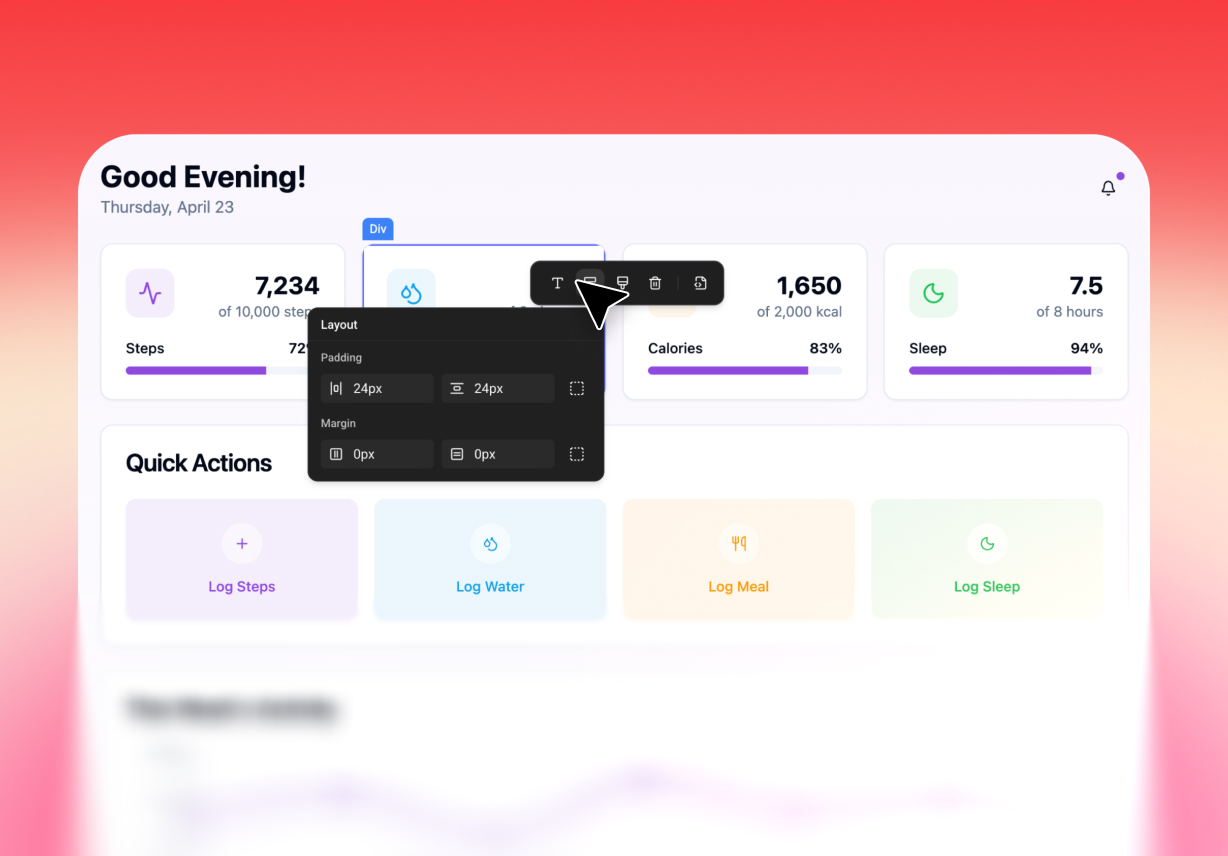
Visual editing in Enter happens on the page itself. Click a heading, button, or card, and a panel opens beside it with settings for text, font, color, alignment, padding, and margins. Every change shows up in place, so you can tell right away if it fits the rest of the layout.
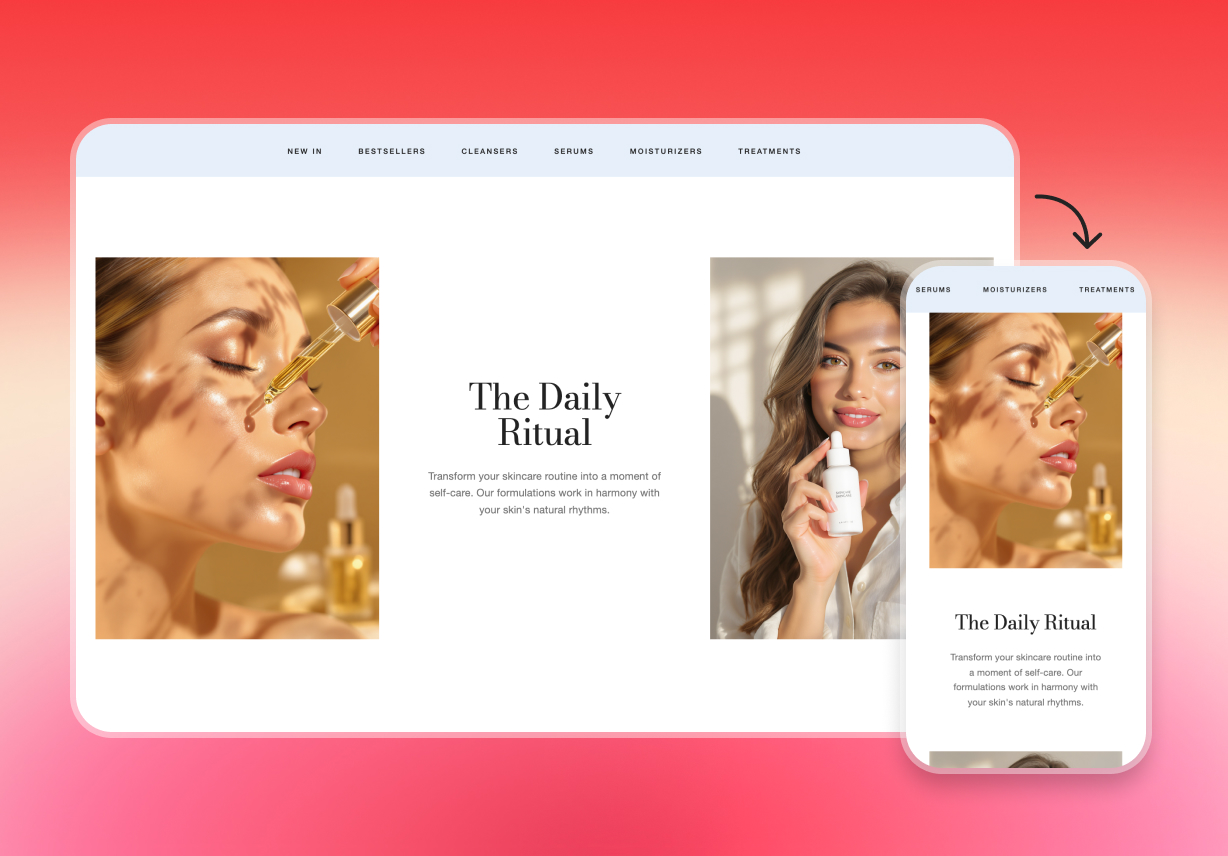
Pages built with Enter are responsive by default, so they fit desktop, tablet, and phone screens. Preview the page at different widths, see how headings, images, buttons, and sections line up, and fix anything that looks off before you publish.
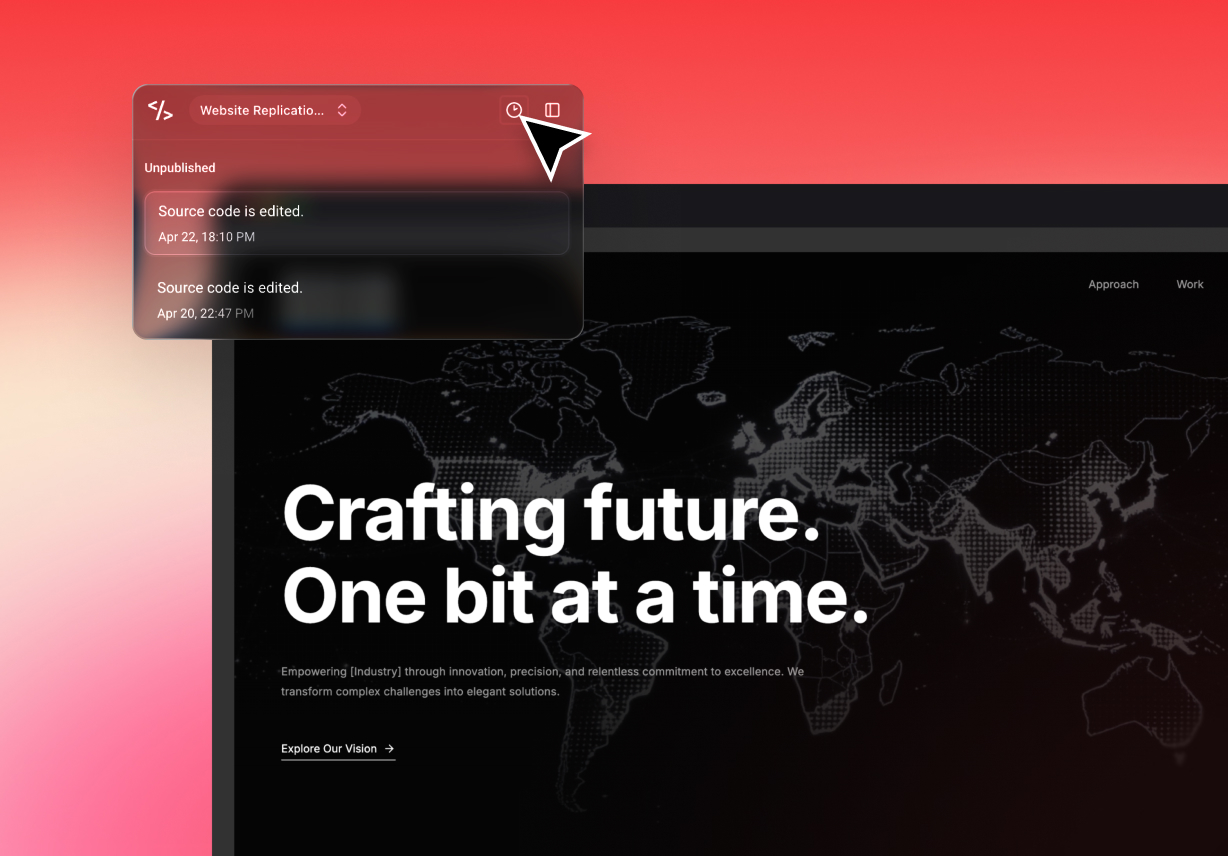
The live preview always shows the page as it is right now. Each project also keeps a version history. If a round of edits goes in the wrong direction, open an earlier version and continue from there.
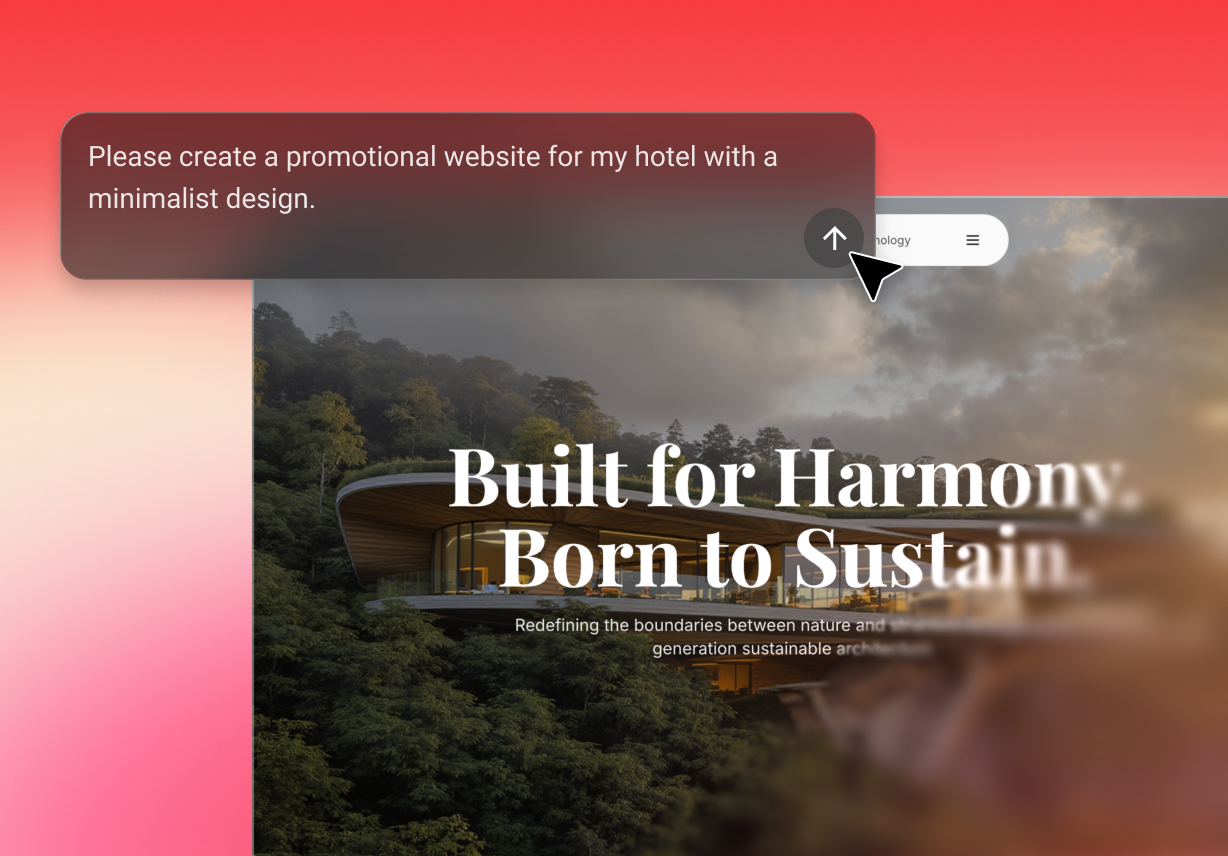
Write a short brief, and Enter’s AI website builder drafts the layout, sections, and first-pass copy for you. Everything it creates stays editable. Fine-tune the details with the visual controls, or ask in chat for bigger changes to the design or how the page works.
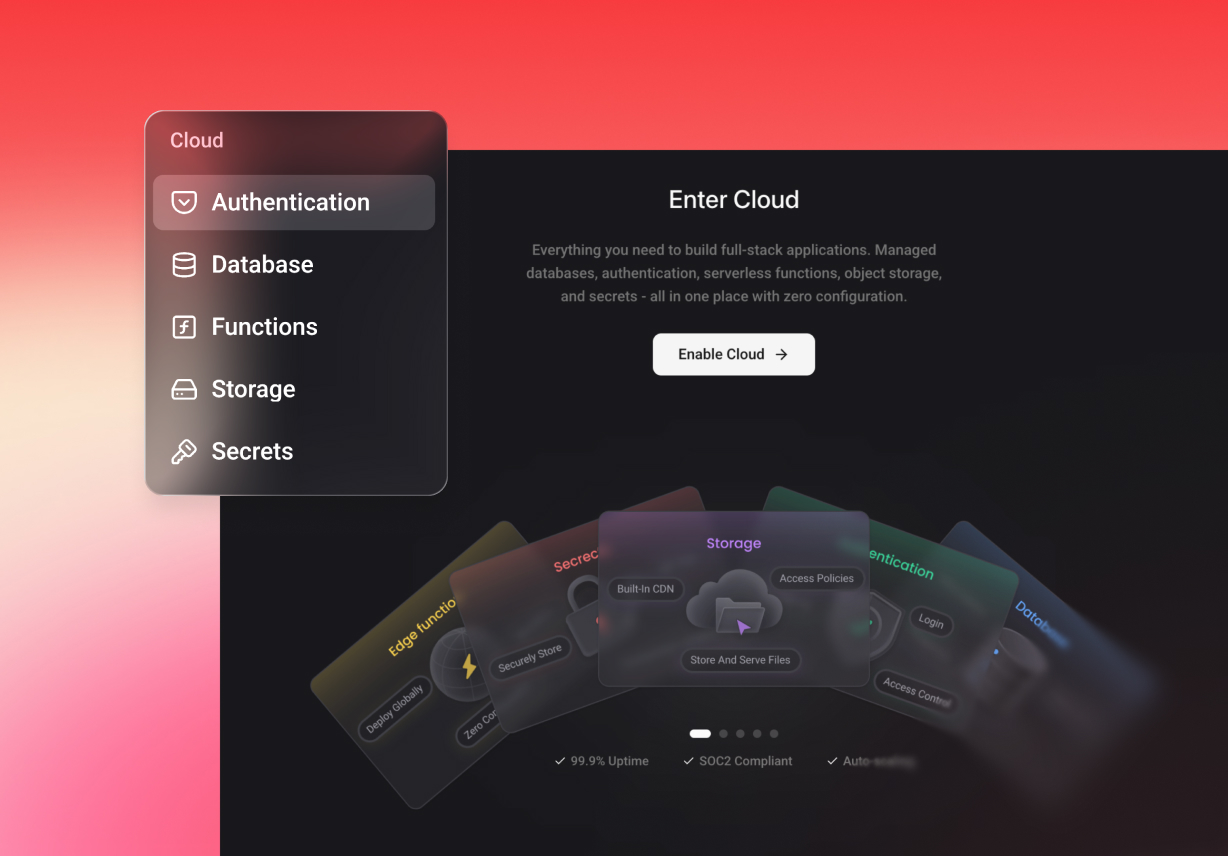
Enter Cloud adds the backend that most sites need sooner or later: sign-in, a relational database, file storage, server functions, and secrets. With it, you can build pages with user accounts, saved data, or file uploads. To set something up or change it, ask in chat.
Change copy and styling without opening a source file. Founders, marketers, and creators can keep their own sites up to date without waiting on a developer.

A shorter headline or a new accent color shouldn’t need a full design brief. Click the element, make the change, and show your team the result.

What you edit is the real web project, so there is no mockup to hand off and rebuild. Preview, code, cloud tools, and publishing all live in one workspace.
Type what the page is for, who it’s for, which pages you need, and the style you like. Already have an Enter project? Open it and keep working from the current design.
Click any element in the preview to change its content and style. For a new section or a change in how the page works, ask in chat.
Check the layout on desktop and mobile, test your links and forms, then publish. Open the live URL once to make sure everything looks right.
Have an idea for a page? Go to enter.pro, describe it, adjust the details, and publish a page that feels like yours.
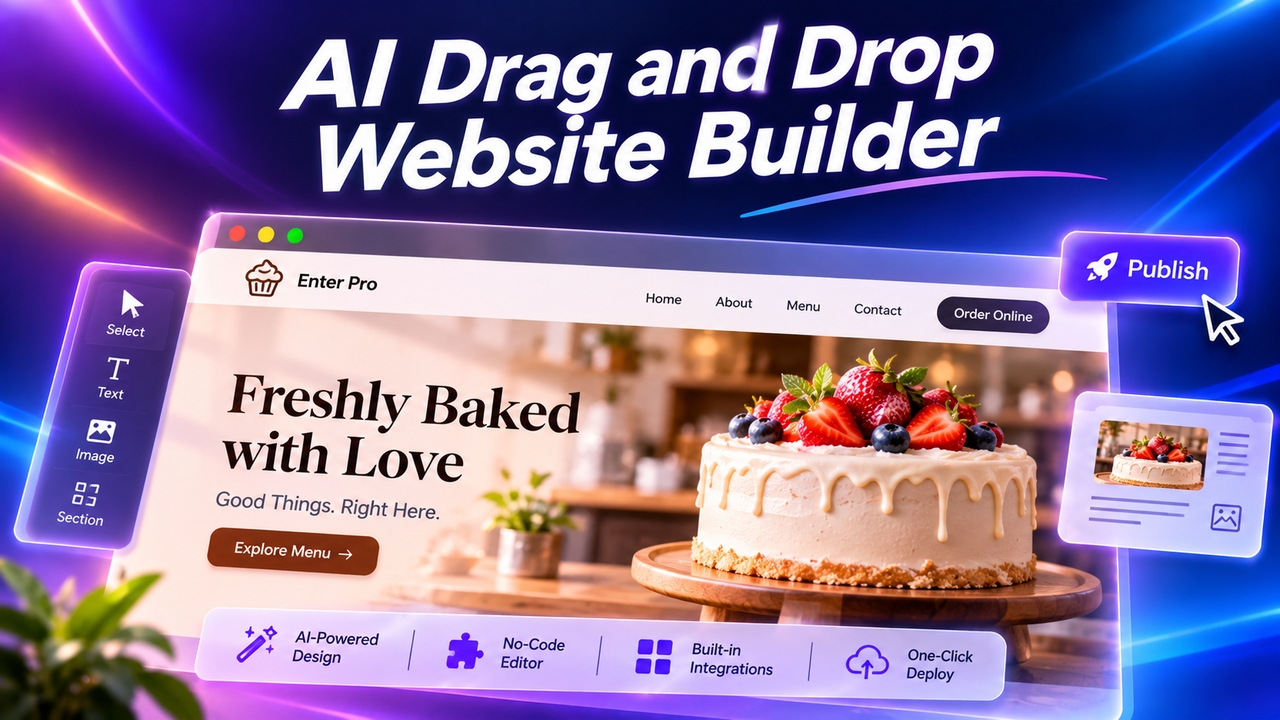
Want an easy drag-and-drop website builder? Enter Pro lets you skip dragging: describe your site, let AI build it, click any element to edit, and publish.
November 11, 2026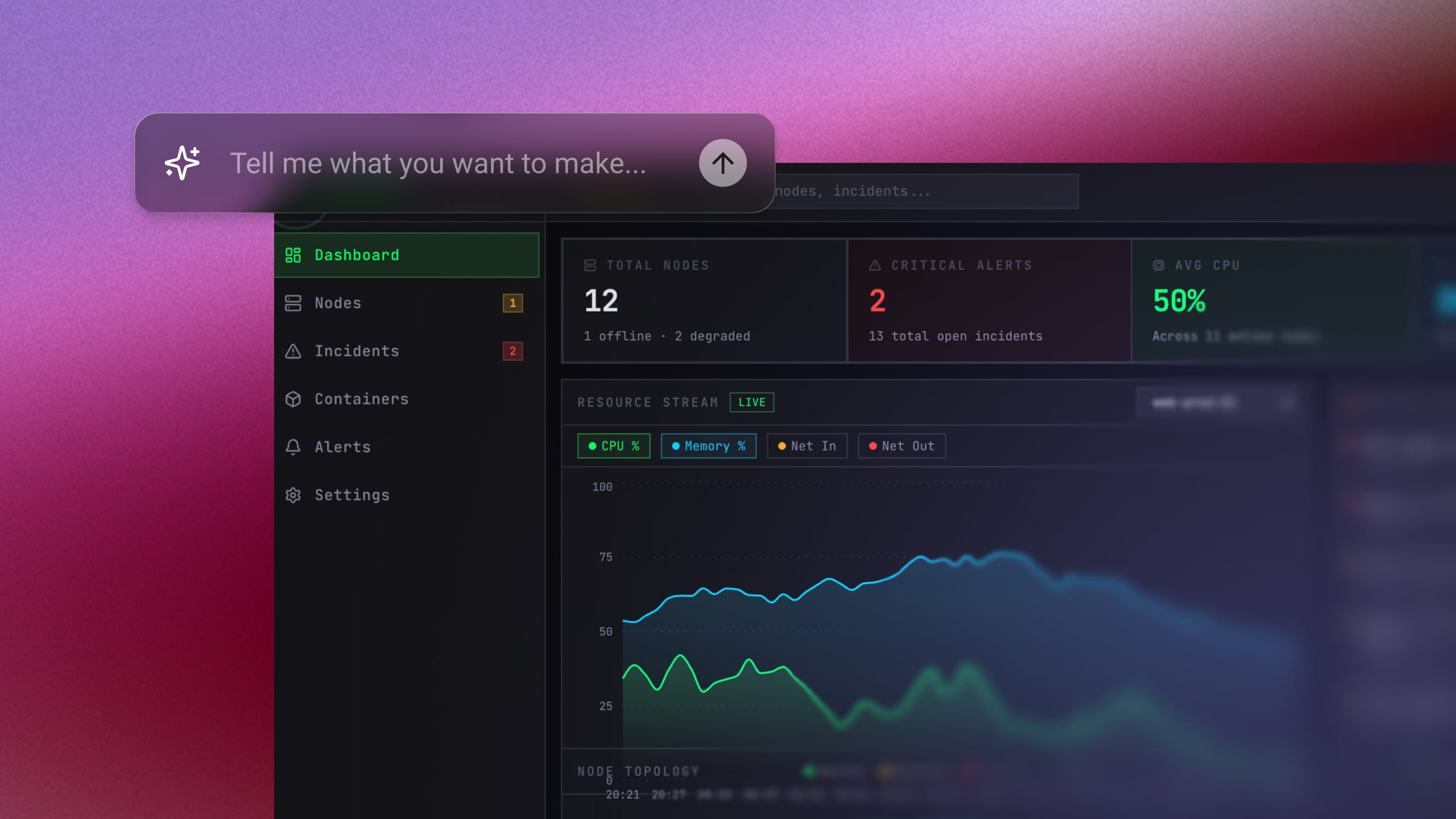
Use an AI MVP builder to turn a simple prompt into a working product. Generate, refine, connect tools, and launch your MVP without a big dev team.
November 6, 2026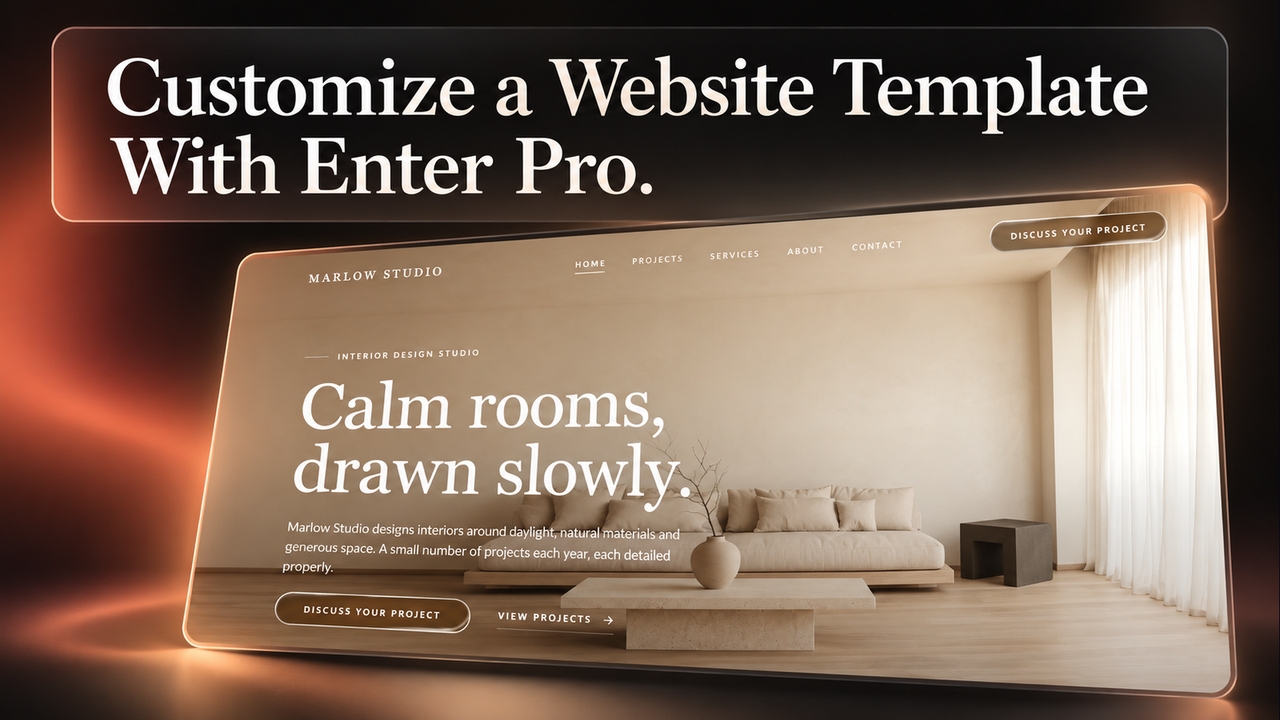
Use Enter Pro website templates to create responsive pages, customize layouts, connect enquiry forms, and publish an editable site that fits your brand.
November 5, 2026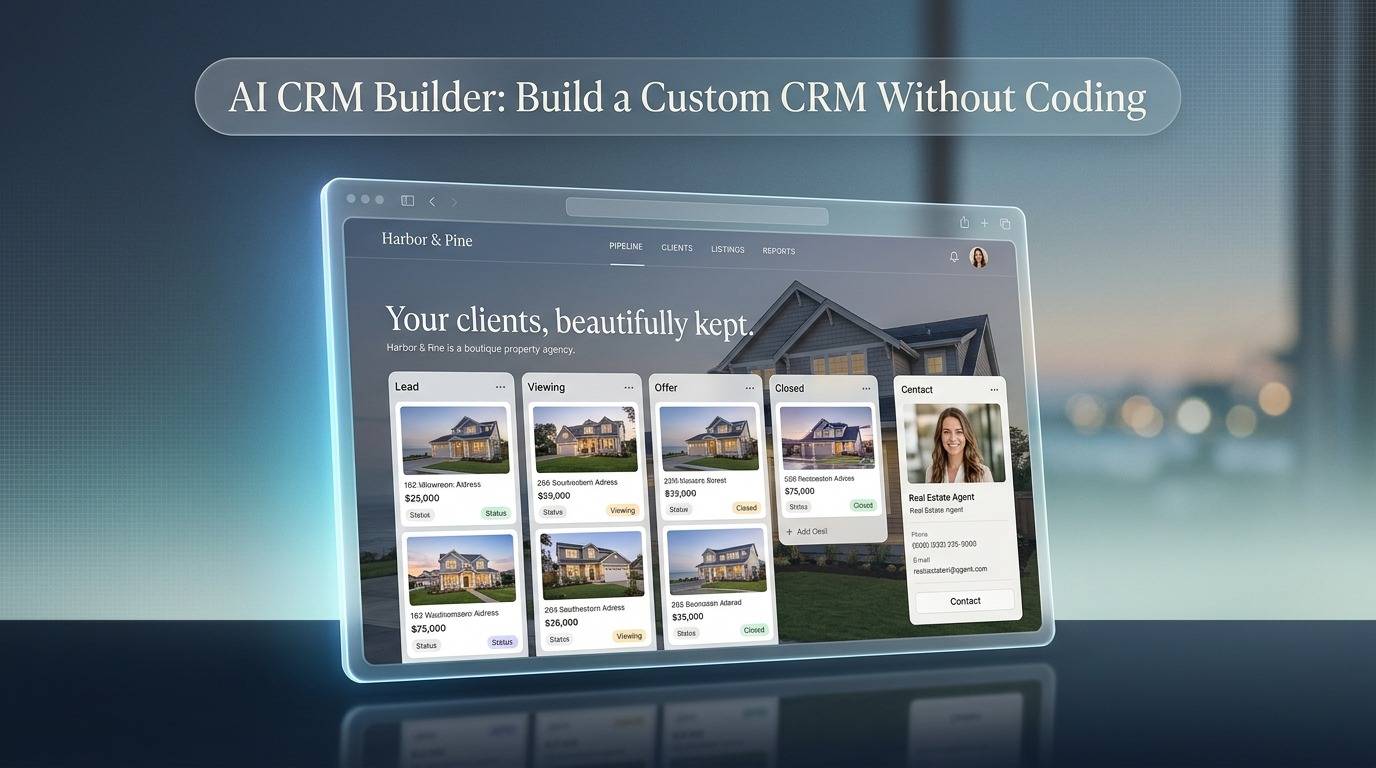
Use Enter Pro’s AI CRM builder to create a custom CRM without code. Build pipelines, dashboards, and automations from one prompt, then deploy in one click.
November 5, 2026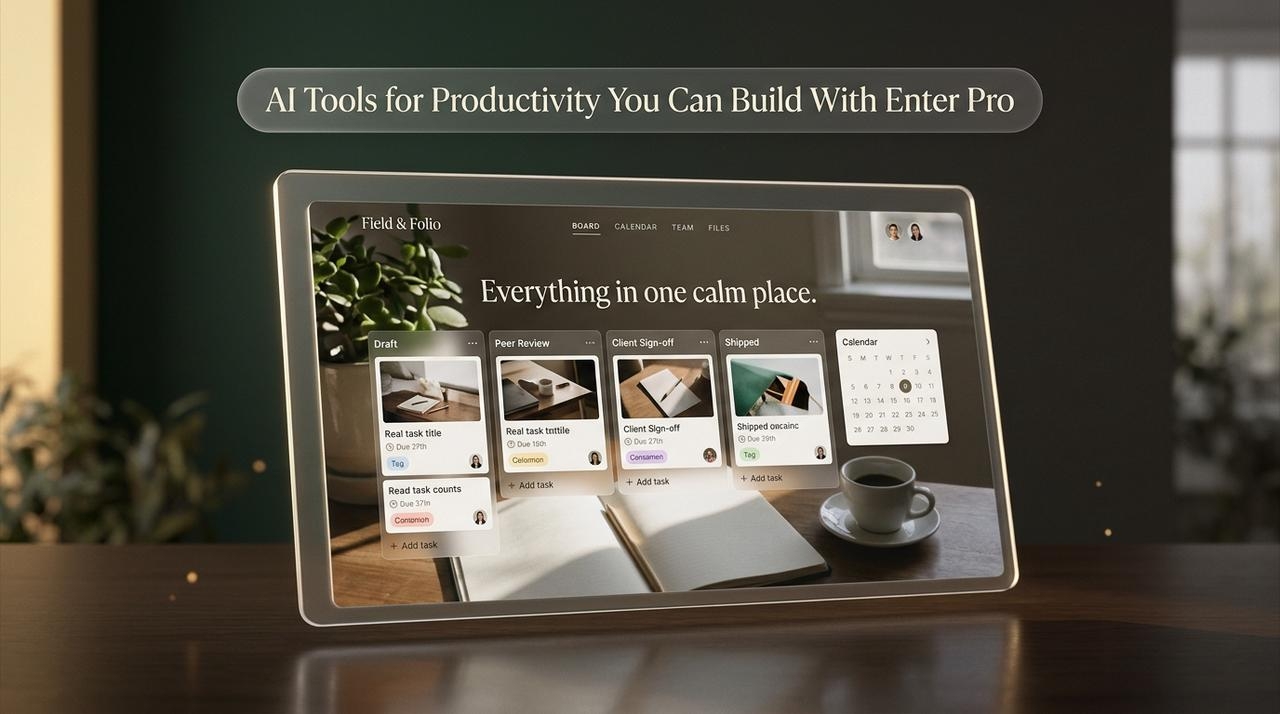
Compare the best AI tools for productivity, then see how Enter Pro lets you build custom work apps with AI for productivity, no coding or extra subscriptions.
November 5, 2026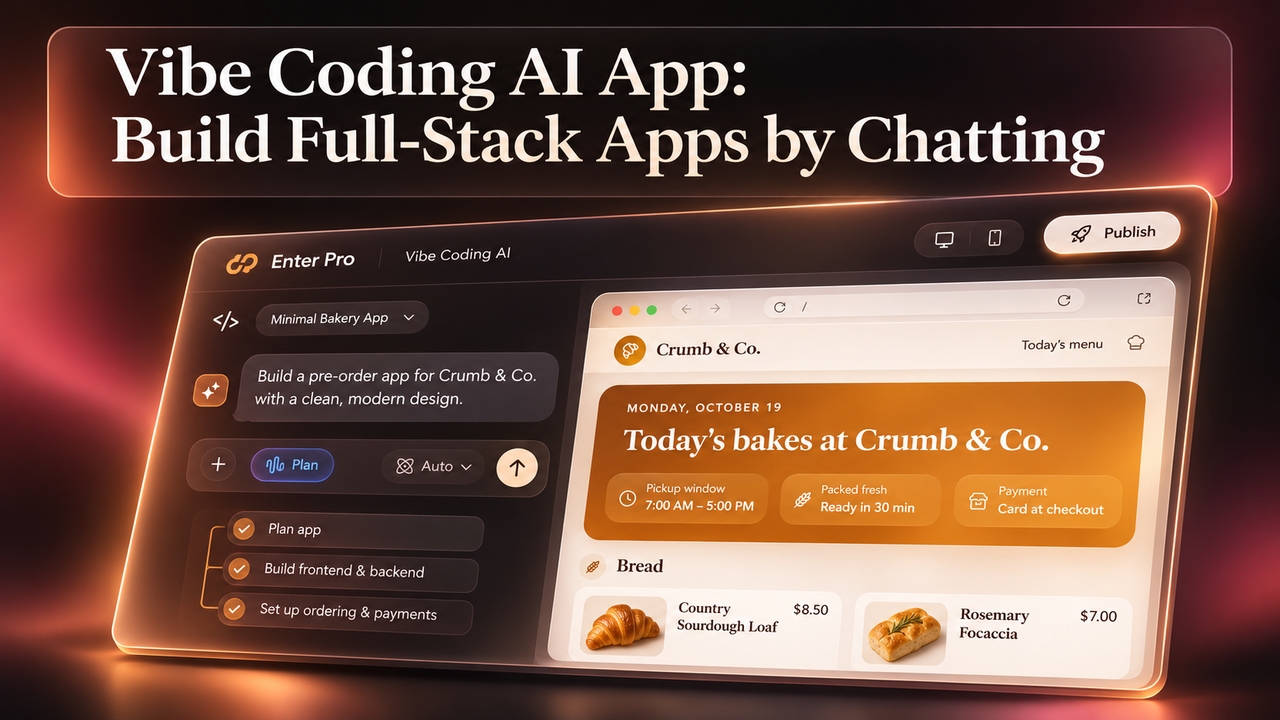
Vibe coding AI that plans before it builds. Describe your app in plain words and Enter Pro creates the frontend, backend, and database. Start for free.
November 5, 2026