A painting that makes you lean closer. A lone figure above a vast landscape. A city emerging through orange dust. The strongest AI creations give you something to feel before anything moves. With GPT Image 2.5 in Framia, start by making that image worth looking at—then decide how far to take it.
What Is GPT Image 2.5?
GPT Image 2.5 is OpenAI’s image-generation and editing model family. Flare focuses on fast, high-quality everyday creation; Sunburst emphasizes editing precision. In Framia, that gives you a starting point for expressive artwork, character concepts, and cinematic scenes—and a way to carry those images into a connected video workflow.
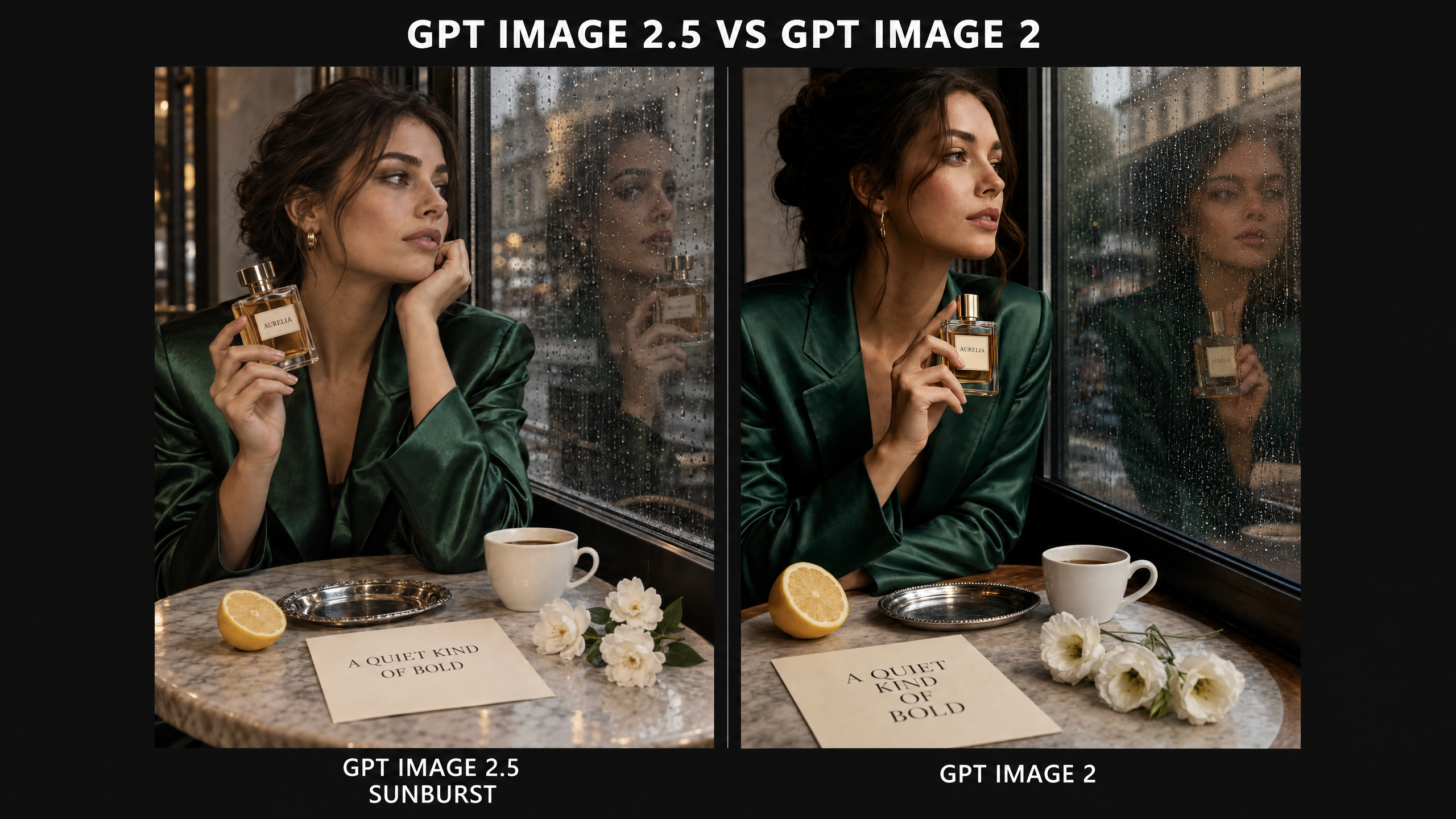
GPT Image 2.5 vs GPT Image 2: Choose for the Creative Job
Image 2 already combines generation and editing. GPT Image 2.5 gives creators two distinct options: explore visual directions with Flare, or choose Sunburst when a carefully controlled edit is the priority. That is a useful distinction when you are moving from an interesting first result toward an image you want to build on.
| Creative consideration | GPT Image 2 | GPT Image 2.5 |
|---|---|---|
| Model choice | GPT Image 2 | Flare and Sunburst |
| OpenAI’s positioning | Fast, high-quality image generation and editing | Flare for fast everyday generation; Sunburst for workflows where editing precision matters most |
| Working with images | Text and image inputs, generation, and local editing | Text and image inputs, generation, and local editing in both variants |
| Standard API token pricing | Same rates as both 2.5 variants | No increase in the published Standard token rates over Image 2 |
Sources: OpenAI’s Image 2, Flare, and Sunburst model guides.
The Image Is Already a Finished Creative Asset
Before thinking about animation, ask a simpler question: would this image make someone stop scrolling?
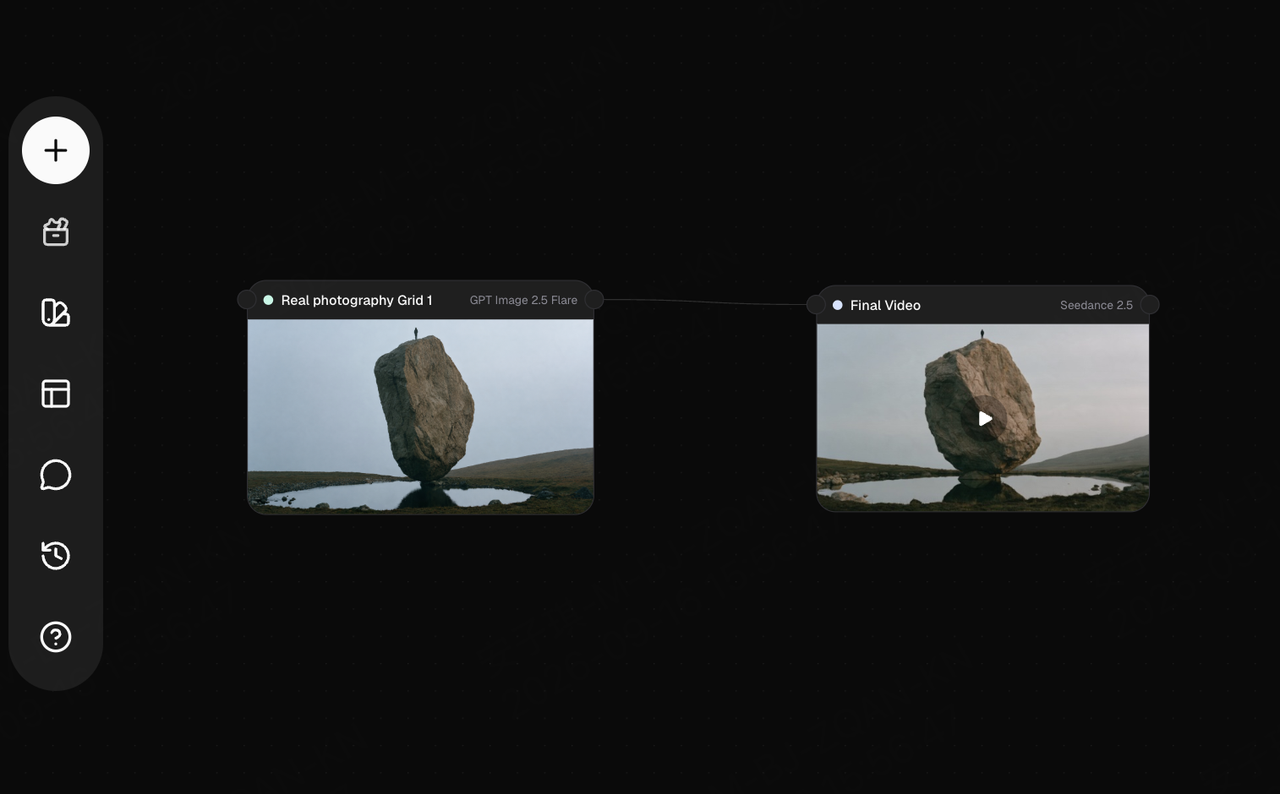
In the four examples below, the visual appeal begins with the picture itself: soft brushwork and an intimate gesture; a tiny figure against an enormous rock; warm dust wrapping a futuristic skyline; a dark silhouette framed by an orbital station. Each offers something different to look at.
That is where GPT Image 2.5 deserves attention beyond video. Use it to shape the composition, develop a character, explore a visual style, or refine a scene. A selected image can become a poster, concept-art presentation, cover visual, or the foundation of a larger project.
Framia gives that picture a next step. Keep the visual direction you have chosen, use the image as a reference for video generation, and build movement around it. You are not starting the creative brief again—you are developing it.
How to Use GPT Image 2.5 in Framia
Think of the workflow as design the image → refine the details → add movement → finish the piece. Decide what your creation should look like before deciding how it should move.
1. Give the image a clear creative brief
Choose the subject, mood, visual style, and intended use. A poster needs a readable focal point; a character concept needs a distinctive appearance; an image destined for animation needs a composition that leaves room for the action.
2. Generate the image and choose the version to use
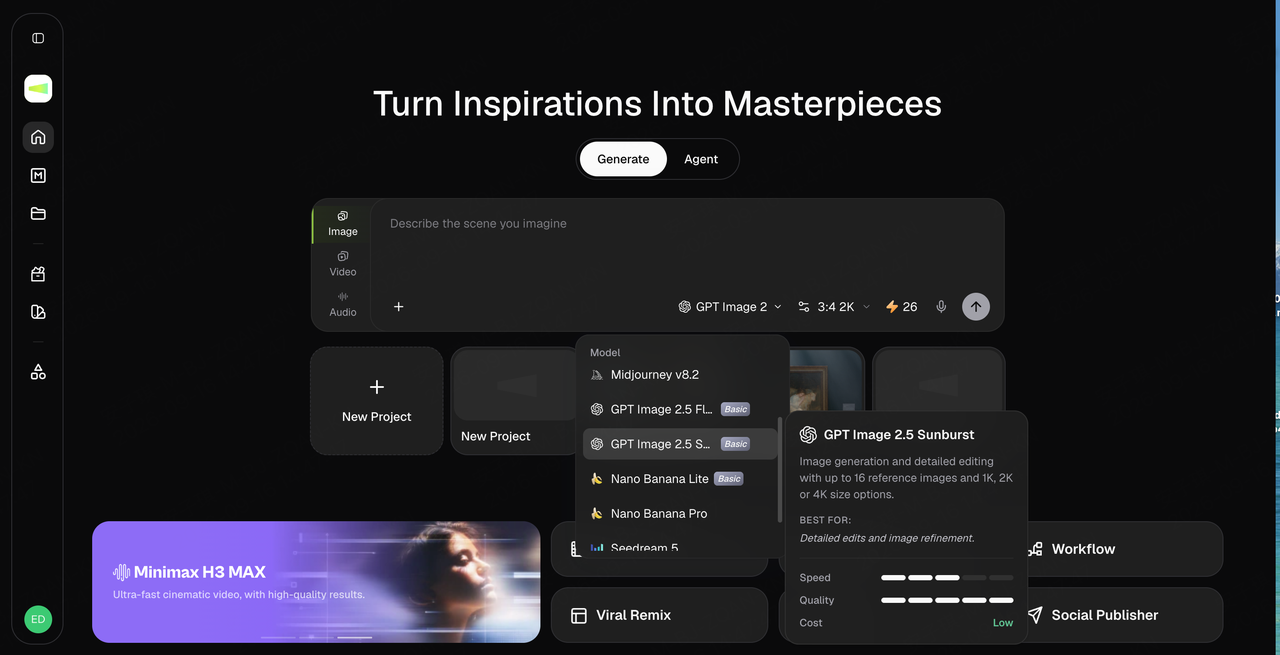
Use GPT Image 2.5 to create the subject and setting. Specify the composition, lighting, colors, and important details. Compare the results, adjust what needs changing, and select the image you want to use. Keep it as a standalone visual or use it as the input for your video.
3. Generate the video and review the result
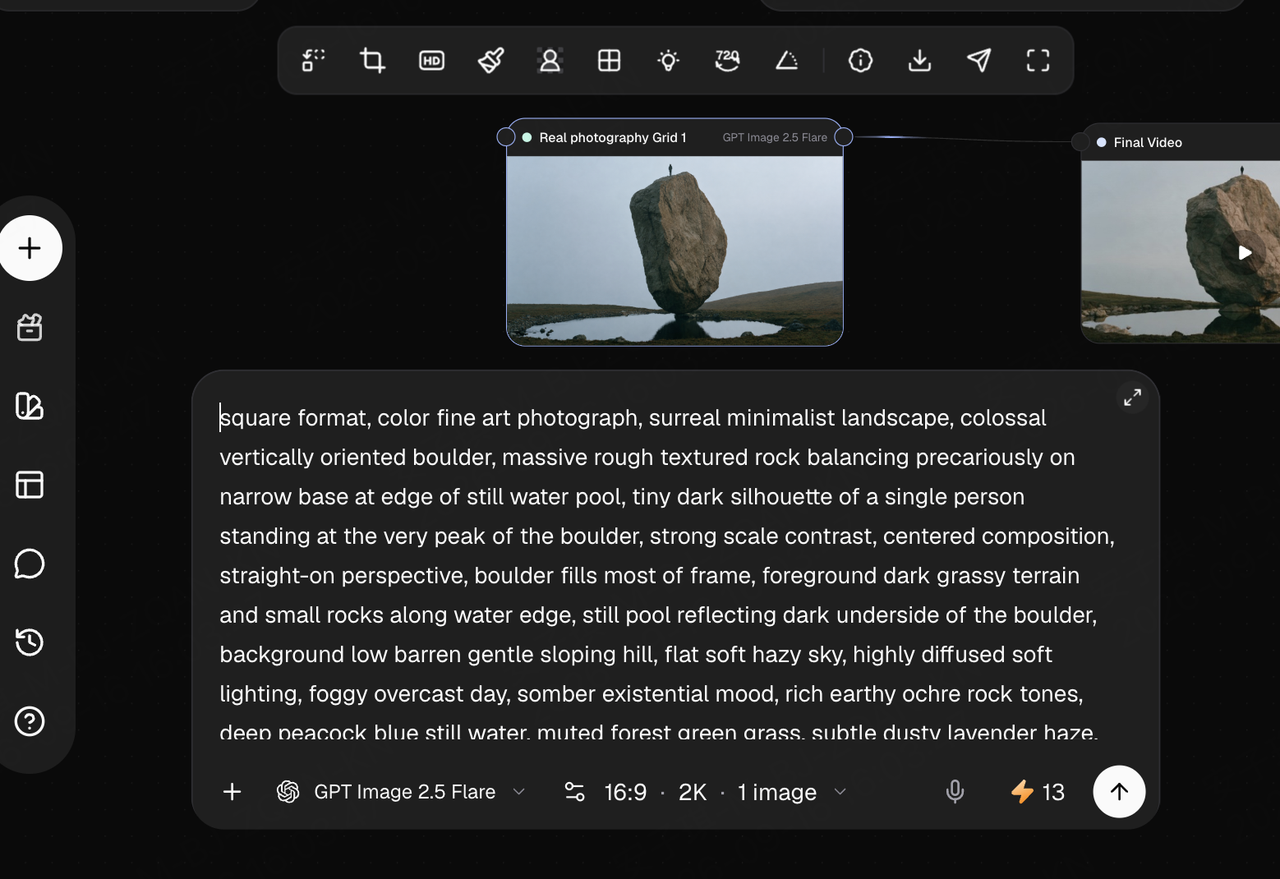
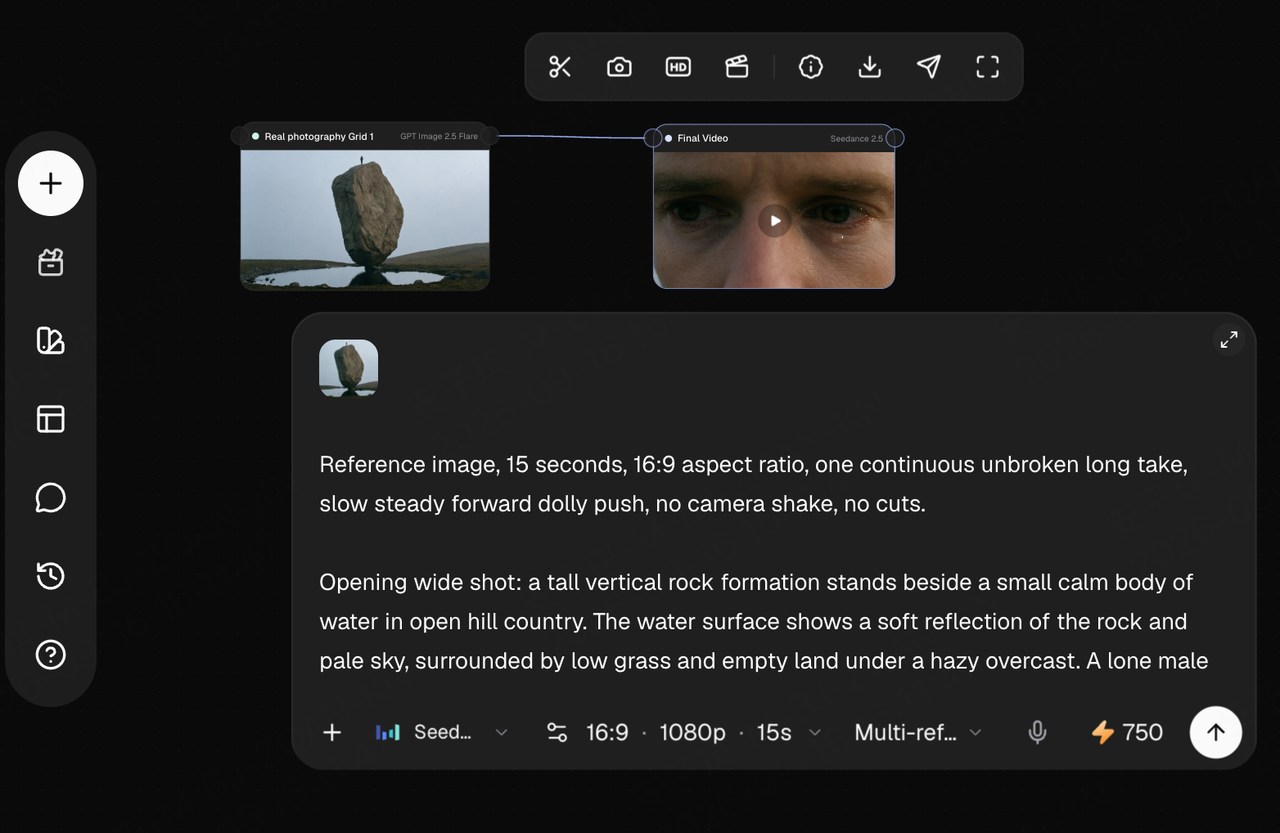
Use the selected image as the reference for the video stage in Framia. Describe what should move and how the camera should move. For example, specify a small head turn for the painting scene or a camera approach for the landscape. Keep appearance instructions in the image prompt and movement instructions in the video prompt.
Generate the clip, preview the result, and choose the version to keep. If the piece contains multiple shots, arrange the selected clips in order. Prepare the final output for its intended format, and keep the original image for a cover, poster, or separate post.
Creative Ways to Turn GPT Image 2.5 Images into Videos
Workflow 1: Turn a Painting into an Animated Art Clip
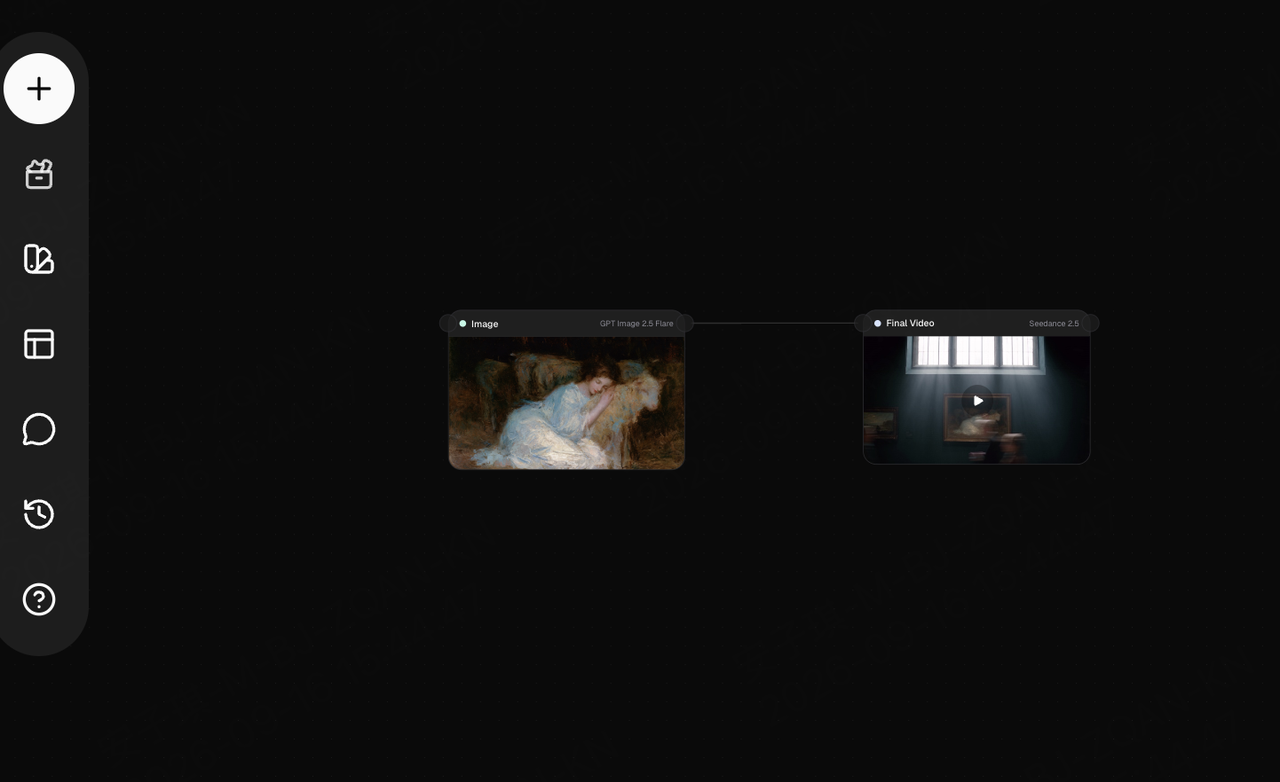
A painting created with GPT Image 2.5 does not have to remain a still image. Bring it into Framia’s image-to-video workflow to add small actions—a head turn, a raised hand, a change in gaze—alongside camera movement. Use the result as an animated cover, an art showcase, or a social media clip.
Create the picture with GPT Image 2.5 first
Start by defining the art style, subject poses, lighting, and composition. To emphasize an interaction, make the subjects’ positions and gestures clear. To highlight a painted look, specify the brushwork, palette, and materials in the image prompt.
The resulting image can already serve as a cover or art-led illustration. When you continue into video in Framia, build on its subjects and style rather than redesigning the entire scene.
Make one action happen within the picture
Connect the image to a video node, then describe the subject action and camera movement separately. For example, have a person turn their head while the camera slowly approaches, or let an animal lift its head as the person responds.
This approach does not need a complicated story. A complete picture and one clear action can become an animated piece ready to showcase.
Workflow 2: Turn a Character Scene into a Cinematic Opening
An image containing a character and an environment can become a camera push-in, a character turn, or a scene reveal. Use it for a character introduction, a story opening, a music-video intro, or a moving teaser developed from a static poster.
Define the character and setting in the image
In GPT Image 2.5, describe the character’s appearance and surroundings together: what they wear, where they stand, which way they face, and the space and lighting around them.
For a wide-to-close camera move, include enough environment in the starting composition to establish the character’s scale. For a turn or profile reveal, focus on the pose and facial features.
In Framia, use the selected image as the visual reference before developing the camera work. The static poster and moving sequence can then share the same character design.
Use camera movement to shift the focus
After connecting the image to video generation, focus the prompt on how the camera moves and what the character does, rather than describing the entire image again.
For example:
- The camera slowly approaches the character, moving from a wide environmental view to a closer shot.
- The camera moves around the character to show their profile and surroundings.
- The character turns toward the camera for a short introduction.
The image defines what the character looks like; the video introduces that character to the audience. One visual idea can support both a cover and an opening sequence.
Workflow 3: Turn a Concept Scene into a Worldbuilding Teaser
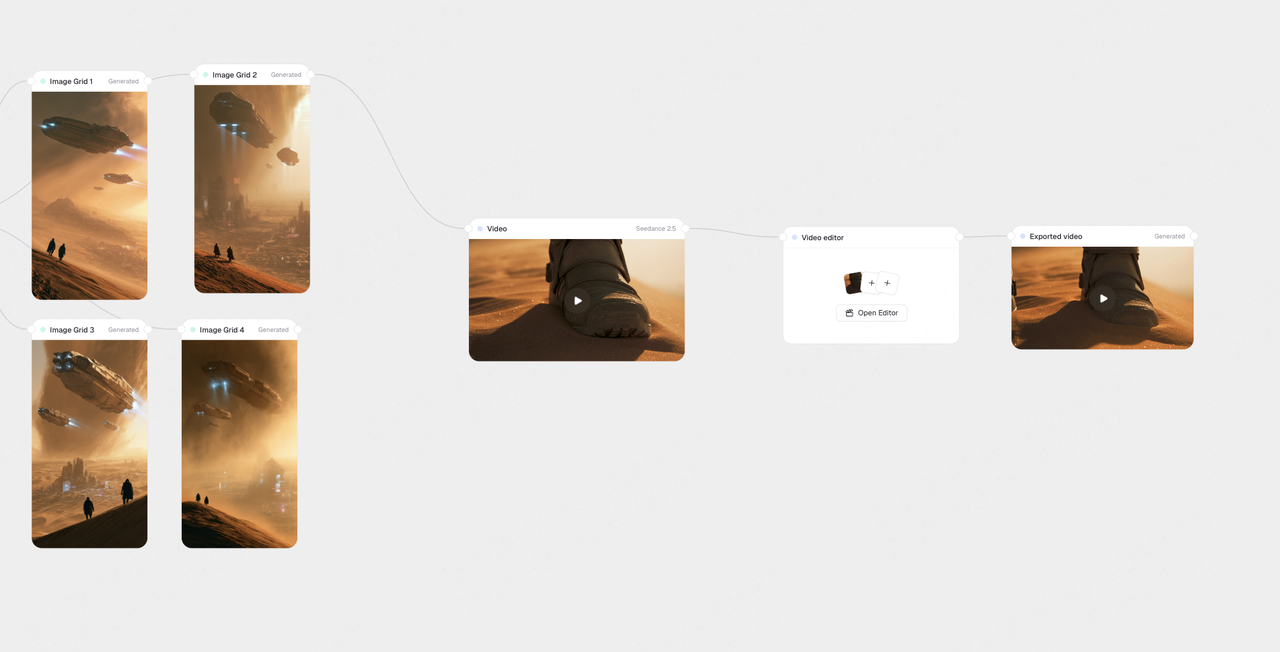
Sci-fi cities, fantasy architecture, and futuristic bases can do more than illustrate a concept. Develop them into scene-exploration videos in Framia. A camera push-in, a sideways move, or a pass behind foreground elements lets viewers experience the depth of the setting instead of only seeing a still design.
This approach suits game concept showcases, story pitches, worldbuilding teasers, and atmospheric environment clips.
Design a scene the camera can explore
When generating with GPT Image 2.5, go beyond listing elements such as a city, spacecraft, and desert. Describe their positions and proportions: what occupies the foreground, where the buildings stand, and how much space the sky needs.
Keep the lighting, palette, and architectural style coherent. First create a concept image that works on its own, then use it to develop moving shots in Framia.
Give the camera a route through the setting
With the image as the video reference, specify where the camera looks first and where it moves next. It might travel from the foreground toward the city, move along a street, or hold the view as a flying object enters the frame.
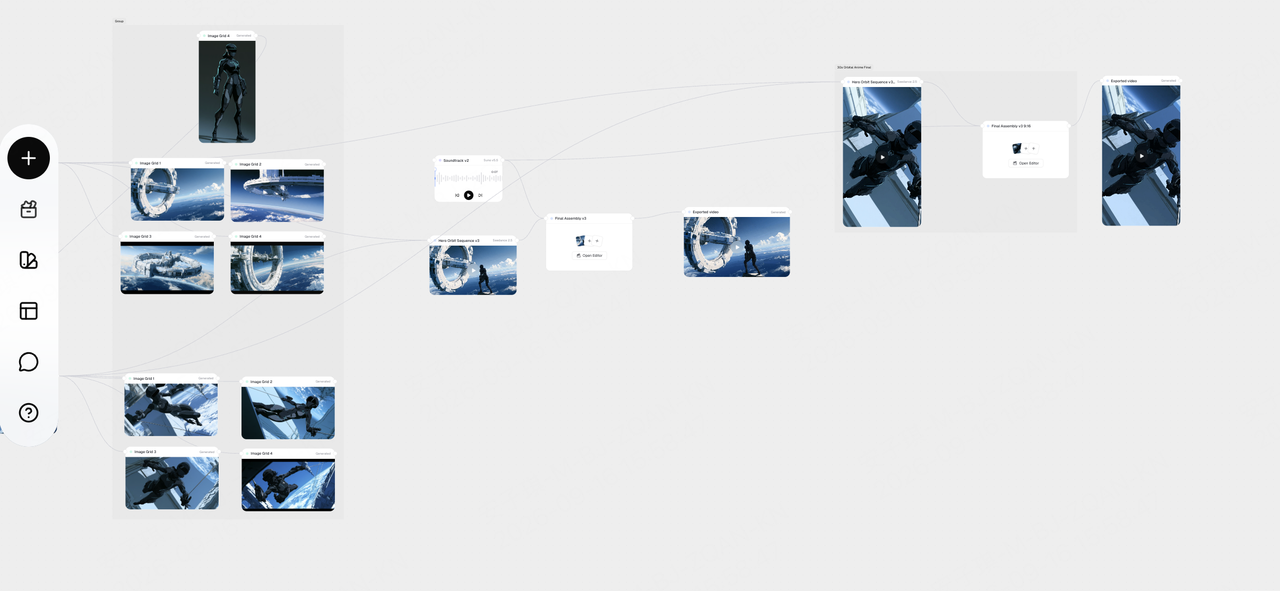
Start with one image to create a complete scene shot. To expand it into a teaser, prepare additional viewpoints in the same visual style, then continue generating and assembling the shots in Framia.
The concept image can show not only what the world looks like, but what it feels like to enter it.
Workflow 4: Turn a Character Image into an Action Showcase
Once you have designed a character, take it further with running, jumping, landing, or turning. Connect a GPT Image 2.5 character scene to Framia’s video workflow to develop a static design into an action teaser, a game-character reveal, or a short-film shot.
Prepare an image that gives the action room
Compared with a conventional portrait, an action scene needs clearer body positioning and spatial relationships. In GPT Image 2.5, specify the character’s clothing, equipment, starting pose, and position within the surroundings.
For a jump, leave a clear relationship between the character and the landing point. For a run, leave space in the direction of travel. The source image can work as standalone character key art while giving the action a clear starting point.
Describe the action, then add the camera direction
Describe the movement itself in the video prompt, rather than relying only on words such as “cool” or “cinematic.”
Start with a short action:
- The character runs forward while the camera tracks from the side.
- The character jumps toward a platform as the camera follows.
- The character lands and stands up while the camera moves closer.
Develop these shots around the selected character image in Framia, then choose the results to assemble into a sequence. The same character design can work in a static showcase and become more memorable through motion.
GPT Image 2.5 Prompts: Design the Look, Then Direct the Motion
A useful prompt does more than name a subject. It tells the model what makes the image worth creating. Across these four workflows, the most important decisions are the same: a focal point, a relationship between elements, a lighting direction, and a recognizable style.
| For the GPT Image prompt | For the video stage |
|---|---|
| Describe appearance, pose, and composition. | Describe the action and its direction. |
| Set the lighting, palette, and materials. | Choose camera movement and pacing. |
| Make important visual relationships clear. | Decide which relationship the movement should reveal. |
For a painting-inspired scene, a prompt starter might look like this:
A painterly scene of a seated figure beside a sheep, one hand resting on its shoulder. Soft side lighting, visible brushwork, a muted blue-and-cream palette, and an intimate composition. Make the gesture between the two subjects the focal point.
Then give the moving version its own direction:
The figure gently turns toward the sheep as it lifts its head. The camera moves closer at a quiet, deliberate pace, keeping the interaction at the center of the shot.
The first prompt designs the image. The second develops a moment within it. Keep those decisions connected in Framia, and you have a more purposeful starting point than asking one prompt to explain everything. For more ways to shape the still, explore our image prompting guide.
GPT Image 2.5 Pricing vs GPT Image 2
There is no increase in OpenAI’s published Standard API token rates when moving from GPT Image 2 to either GPT Image 2.5 variant. Here is the comparison:
| Billing item | GPT Image 2 | 2.5 Flare | 2.5 Sunburst |
|---|---|---|---|
| Text input | $5.00 | $5.00 | $5.00 |
| Cached text input | $1.25 | $1.25 | $1.25 |
| Image input | $8.00 | $8.00 | $8.00 |
| Cached image input | $2.00 | $2.00 | $2.00 |
| Image output | $30.00 | $30.00 | $30.00 |
OpenAI Standard API pricing in USD per 1 million tokens, checked September 16, 2026. Actual image costs depend on usage; video generation and Framia pricing are separate. Official pricing source.
Choose the model around the creative task: Flare for exploring everyday image ideas, or Sunburst when precise editing is central to the work. For projects made in Framia, use the pricing and task details shown in the product to plan your workflow.
One Visual Idea, Multiple Formats in Framia
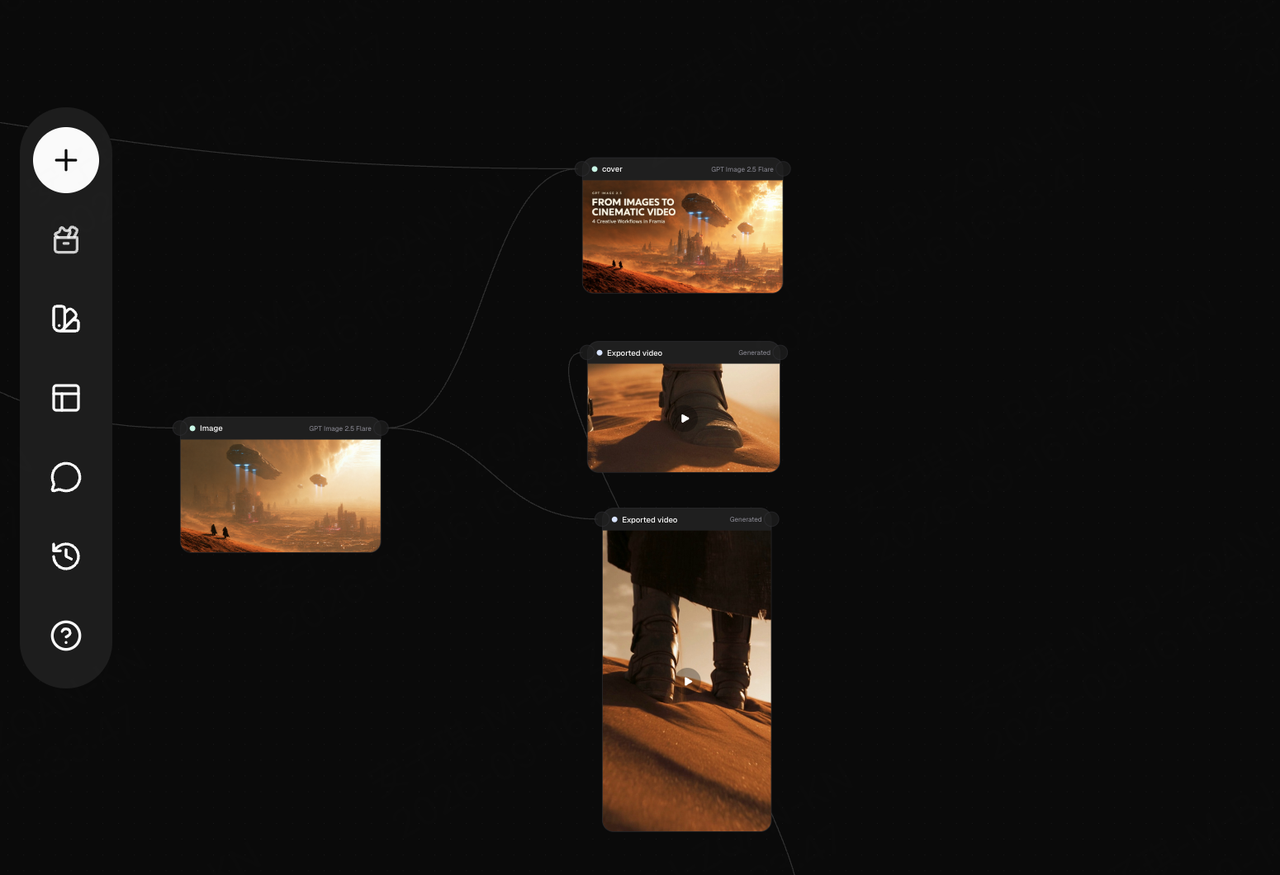
A strong image does not have to lead to just one output. In Framia, the same visual direction can become a standalone artwork, a landscape video, vertical social content, and a cover image for publishing.
Start with the GPT Image 2.5 result you want to keep. Use it as the visual reference for other content formats instead of redesigning the character, style, and setting every time.
For example:
- Turn a painterly image into animated art content.
- Use a cinematic landscape as both a poster and a video opening.
- Expand a sci-fi concept image into a worldbuilding short.
- Adapt a character scene into horizontal and vertical action content.
This gives each generated image a longer creative life. Framia helps you develop a visually consistent set of assets for different publishing needs around the same idea, instead of producing one isolated piece of content.
Start creating in Framia. Choose one of the four directions, make an image you want to keep, and turn it into a piece you want to share.
FAQ
What can I create with GPT Image 2.5 besides video source images?
Use it for standalone artwork, character concepts, scene design, poster concepts, and cover visuals. The same selected image can also establish the style of a larger project in Framia.
How do I turn a GPT Image 2.5 image into a video in Framia?
Start with the image you want to develop, connect it to the video-generation stage, and describe the action and camera movement. The workflow screenshots above show where the picture fits into each featured project.
Should I choose Flare or Sunburst?
OpenAI positions Flare for fast, high-quality everyday image generation and Sunburst for workflows where editing precision matters most. Choose around whether you are exploring a visual direction or refining a specific image.
Can I keep the image as a standalone piece?
Yes. Treat the still and the video as two outputs of the same creative direction. You might use the still as a cover or pitch visual, and the moving version as a teaser or social post.
Make the Image Worth Keeping. Then See Where It Takes You.
The most interesting part of GPT Image 2.5 in Framia is not simply that a picture can move. It is that a visual idea can keep growing. Start with the brushwork, the expression, the scale, or the silhouette that makes the image compelling. Then use the workflow to turn that first strong impression into a finished creative piece.