
Best AI Terminal Tools for Coding in 2026: 6 Compared
Looking for the best AI terminal for coding in 2026? We compare Claude Code, OpenCode, Gemini CLI, Cursor CLI, Warp, and aider to find your best real pick.
This guide compares six terminal coding tools against the same small project: a to-do app with a React front end, a Node.js API, and a test suite. An AI terminal is a command-line tool where an AI agent reads your codebase, writes and edits code, and runs commands from plain-English instructions. Some of these tools replace your terminal app entirely, while others run inside the terminal you already use. Below, you'll find the Truth Terminal mix-up, how the tools were compared, a side-by-side comparison, a review of each tool, how to choose, and a no-terminal option for people who would rather not touch a command line at all.
Is AI terminal the same as Truth Terminal AI?
No. Truth Terminal AI is an autonomous AI chatbot persona created by Andy Ayrey, best known for its role in the 2024 GOAT memecoin. It posts on social media and became famous in crypto circles, but it is not a coding or developer tool, and you can't install it to work on a codebase.
When developers search for "terminal AI" tools, they almost always mean one of two things: an agentic coding CLI that edits your project from the command line, or an AI-powered terminal app that helps you write and fix shell commands. Both are covered in this guide.
How we compared these terminal coding tools
Each tool is compared against the same everyday coding scenario, using its official documentation, pricing pages, and published feature lists, rather than a synthetic benchmark score.
Evaluation objective: to show which AI terminal tool fits which kind of work, by looking at how each one takes a real project from a plain-English instruction to working, tested code, and how much control it gives you over its changes along the way.
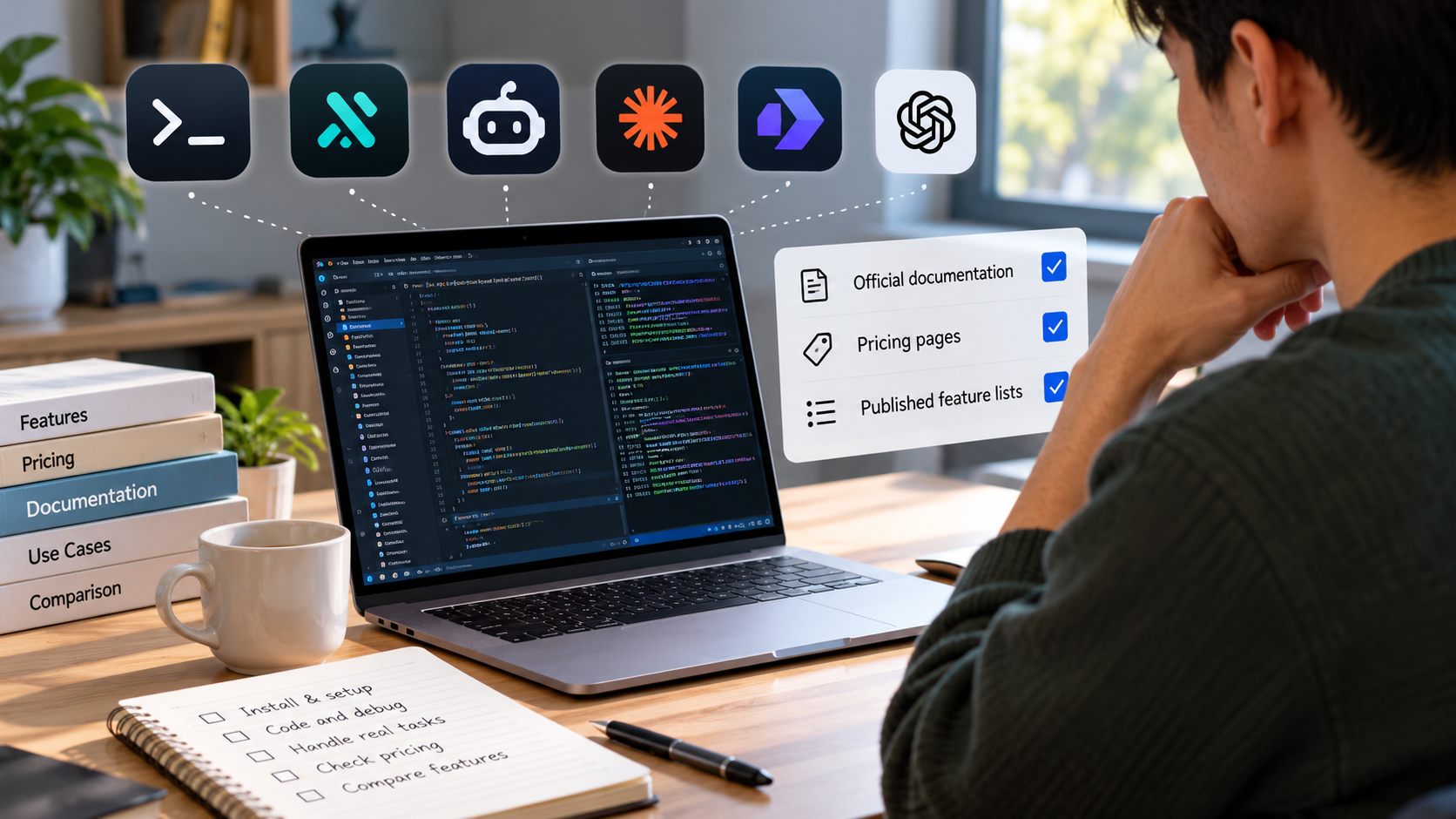
- Reference scenario: a typical to-do app repo with a React front end, a Node.js/Express API, and a Jest test suite with a few failing tests.
- The three jobs each tool is judged on:
- Fix the failing tests. Objective: whether the tool can find the cause from the test output and fix it without breaking the other tests.
- Add a new API endpoint (filter to-dos by due date) with tests. Objective: whether the tool can build a small feature end to end, including tests that pass.
- Refactor one module that touches several files (moving validation logic out of the routes into a shared helper). Objective: whether the tool keeps several files consistent in one change.
- Evaluation criteria: agent capability, multi-file editing, control over changes before they're applied, model choice, setup effort, and pricing.
There is no single winner here. Each tool fits a different way of working, so the reviews below focus on where each one is genuinely strong and where it falls short.
Quick comparison: best terminal coding tools at a glance
Here's how the six tools compare across the same criteria, based on their official documentation and published features.
Note: Figures and data are current as of October 2026.
| Tool | Agent capability | Multi-file editing | Control over changes | Model choice | Setup effort | Pricing |
|---|---|---|---|---|---|---|
| Claude Code | Strong | Strong | Strong (plan mode) | Anthropic models only | Low | Included with Claude Pro ($20/mo) and Max (from $100/mo) |
| OpenCode | Good (depends on model) | Good | Good (plan and build modes) | Any provider, including local | Medium | Free and open source; pay for your model |
| Gemini CLI | Good | Good | Good | Gemini models | Low | Paid Gemini API key or Code Assist license (free users moved to Antigravity CLI) |
| Cursor CLI | Good | Good | Good | Models available in Cursor | Low | Uses your Cursor plan (Free to $200/mo) |
| Warp | Good for commands; limited for large tasks | Limited | Strong (review per step) | Frontier and open-source models | Low | Free; Build $20/mo |
| aider | Good (depends on model) | Good | Strong (git commits) | Many providers, including local | Medium | Free and open source; pay for your model |
The 6 best AI coding CLIs and terminal apps in 2026
These six tools are not exact substitutes for one another. For each, you'll find what it is, how it fits the to-do app scenario, pricing, and who it suits best.
1. Claude Code - Best for complex, multi-step tasks
Claude Code is Anthropic's agentic coding tool. It runs in your terminal and works across the whole repository, which makes it the tool most people mean when they search for a Claude Code terminal AI coding agent. Instead of suggesting a few lines at a time, it can read the project, propose a plan, edit several files, and run your tests to check its own work.
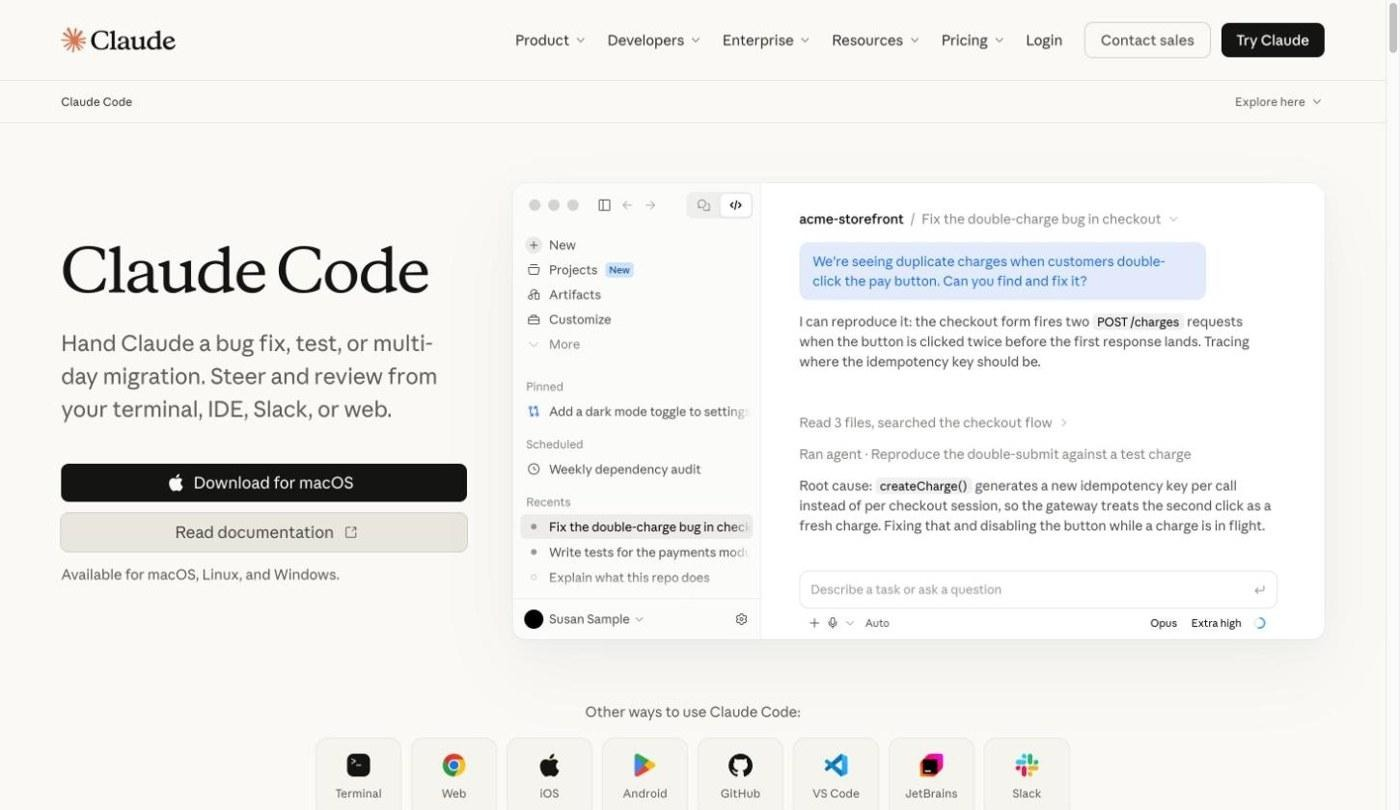
- Key features: plan mode, which proposes a plan you review before it edits anything; reading and editing across the whole repo; running commands and tests; CLAUDE.md project memory; subagents for parallel work; and MCP server integration for connecting external tools.
- Best for: developers working on multi-file features and refactors who want to approve a plan before changes are made.
| Plan | Price | Key features included |
|---|---|---|
| Free | $0 | Claude chat on web, desktop, and mobile; Claude Code is not included |
| Pro | $20/month billed monthly, or $17/month billed annually | More usage, Claude Code, Opus access, unlimited Projects |
| Max | From $100/month | Everything in Pro, 5x or 20x Pro's usage, higher output limits, priority access |
Pros
- Plan-then-act workflow: In plan mode, Claude Code lays out the changes it intends to make before it edits anything, and you can adjust the plan first. That review step matters most on refactors that touch several files at once.
- Strong multi-file editing: Claude Code reads and edits across the whole repository, so moving validation logic into a shared helper can update the routes, the new helper, and the tests as one change.
- Mature MCP support: Claude Code connects to external tools through MCP servers, with setup covered in its official documentation.
Cons
- Limited to Anthropic's models: You can't swap in another provider if you prefer a different model for a task.
- Usage limits add up: Long sessions on bigger tasks eat into your plan's usage window, so heavy users may need a Max plan.
- Terminal-only learning curve: Developers who rarely use the CLI may need some time to get comfortable reviewing changes from the terminal.
Best for: Developers who want a terminal coding agent that plans before it acts on complex, multi-file work.
2. OpenCode - Best for choosing your own model
OpenCode is an open-source coding agent with a full terminal UI that works with almost any model provider. If you're looking for an OpenCode AI coding agent terminal setup that avoids vendor lock-in, this is the strongest option on the list: you can connect Anthropic, OpenAI, Google, or a local model, and switch between them per session.
- Key features: connections to 75+ model providers, including local models; separate plan and build modes; a terminal UI with session history; multiple agents running in parallel on the same project; and shareable session links. It also runs as a desktop app, web app, or IDE extension.
- Best for: developers who want to avoid vendor lock-in or run local models.
| Plan | Price | Key features included |
|---|---|---|
| OpenCode (open source) | Free | Full agent, terminal UI, plan/build modes, free models that work without an account |
| Model usage | Depends on provider | Bring your own API key, or sign in with an existing Claude, ChatGPT, or Copilot subscription |
Pros
- Any model, including local ones: You can switch providers between sessions, so you can compare models on the same task without changing your workflow.
- Free and open source: The tool itself costs nothing, so your only spend is model usage.
- Familiar workflow: If you've used Claude Code, the plan-then-build flow feels immediately familiar.
Cons
- Weaker MCP integration: Connecting external tools takes more setup than in Claude Code, as the DEV Community hands-on comparison reported.
- Results depend on the model: Output quality depends heavily on the model you connect.
- More setup: You'll spend time on API keys and provider configuration before your first task.
Best for: Developers who want a model-agnostic terminal AI agent they control.
3. Gemini CLI - Best for large codebases on a paid Gemini plan
Gemini CLI is Google's open-source agent that brings Gemini models into the terminal. Its biggest advantage is a very large context window, which helps when a task requires the model to keep a big, sprawling codebase in view at once.
One important change in 2026: on June 18, 2026, Google stopped serving Gemini CLI requests for free individual users and for Google AI Pro and Ultra subscribers, and moved those users to its successor, Antigravity CLI. Gemini CLI still works with paid Gemini API keys and with Gemini Code Assist Standard or Enterprise licenses, so it remains a real option for teams already paying for Gemini.
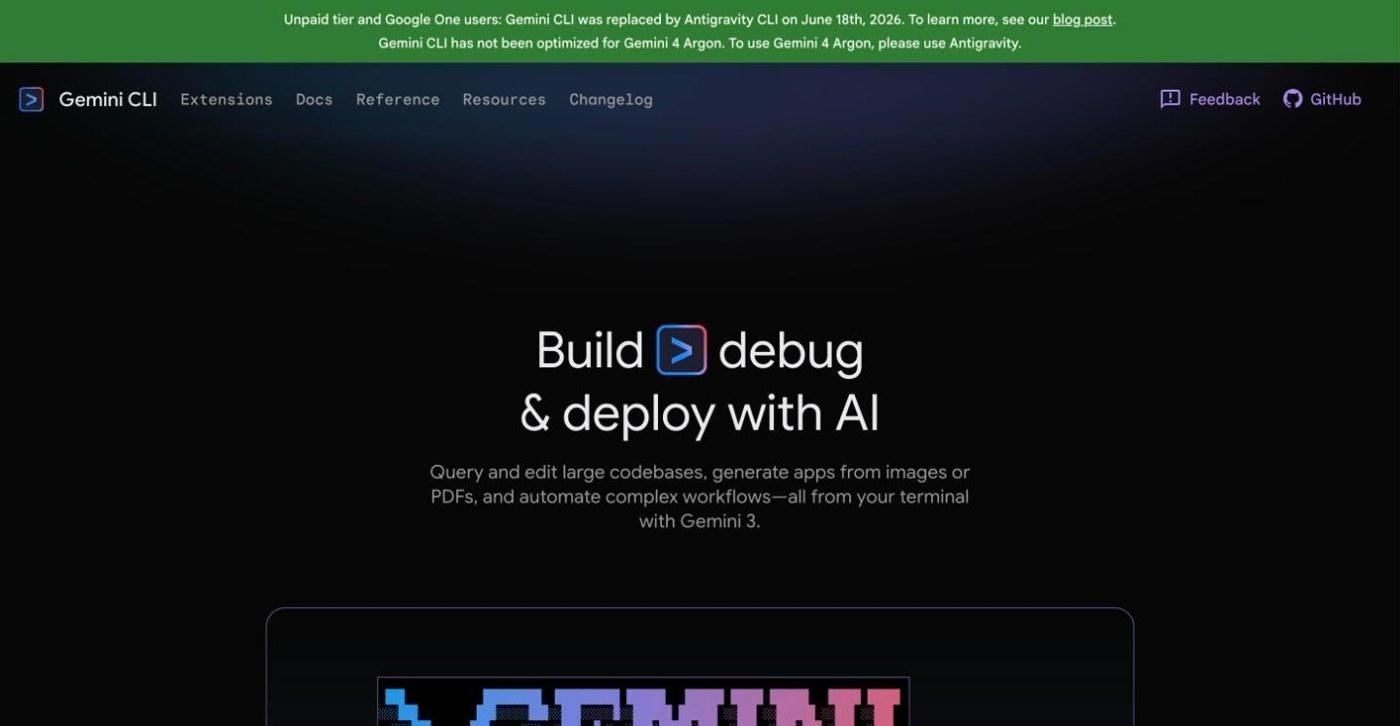
- Key features: a 1M token context window, built-in Google Search grounding, MCP support, and GEMINI.md project context files.
- Best for: developers and teams already paying for Gemini API access or Code Assist who work in large codebases.
| Plan | Price | Key features included |
|---|---|---|
| Paid Gemini API key | Usage-based | Pay per token; rate limits depend on your billing tier |
| Gemini Code Assist Standard or Enterprise | Per-user license | Continued Gemini CLI access with the latest Gemini models |
| Free, Google AI Pro and Ultra | Moved to Antigravity CLI | Gemini CLI stopped serving these users on June 18, 2026 |
Pros
- Large context: The 1M token context window can hold a whole small repo, and that headroom matters most on a large production codebase.
- Still supported for paid and enterprise users: Teams on Gemini API keys or Code Assist licenses keep access to the latest Gemini models.
- Open source: Released under the Apache 2.0 license.
Cons
- No longer free for individuals: Free and consumer-plan users now have to switch to Antigravity CLI instead.
- Less smooth MCP integration: As with OpenCode, connecting external tools takes more effort than in Claude Code.
- Tied to Gemini models: You can't switch to another provider.
Best for: Teams already on paid Gemini plans who need a coding agent that can hold a large codebase in context.
4. Cursor CLI - Best for teams already on Cursor
Cursor CLI is the terminal version of Cursor's coding agent. It lets you use the same agent outside the Cursor editor, from any terminal or IDE, and follows the project rules your team has already set up in Cursor.
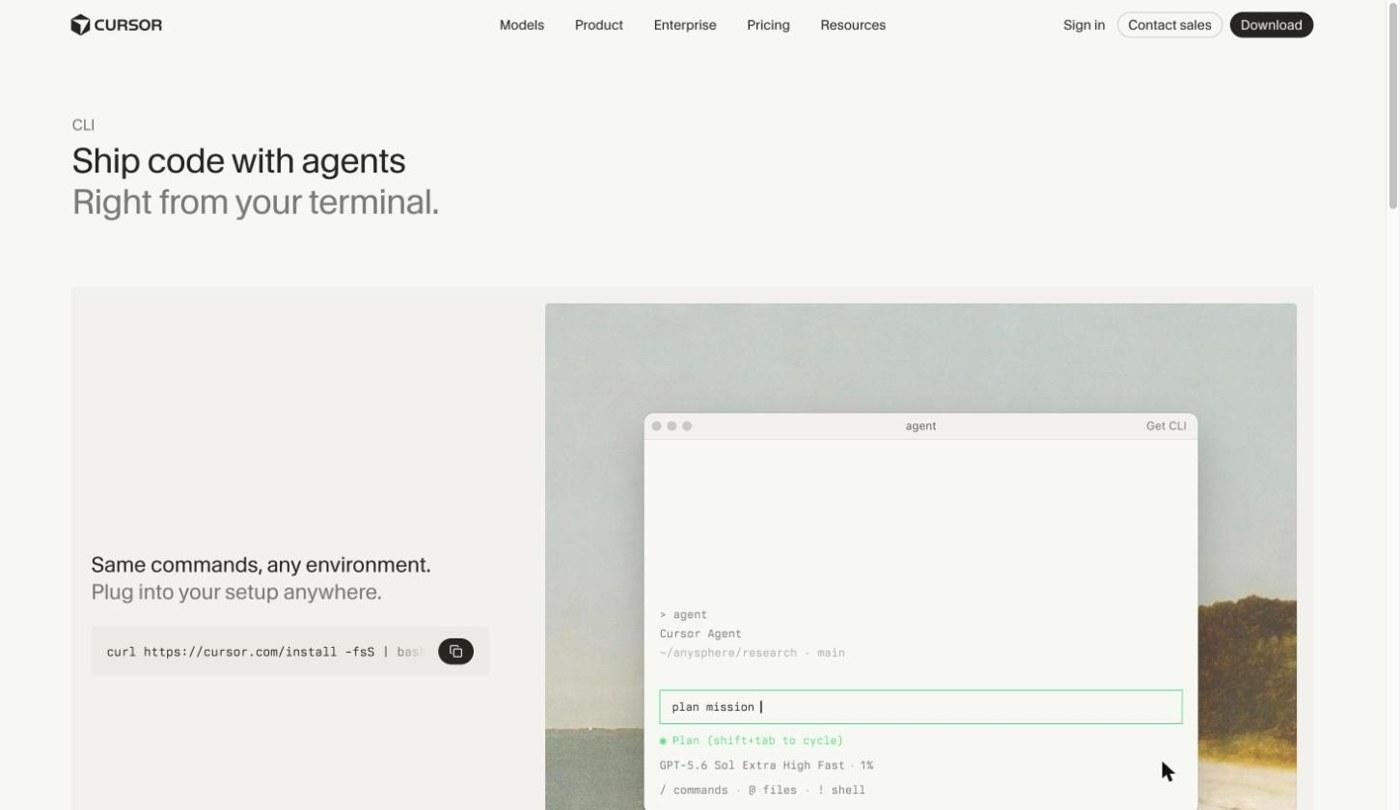
- Key features: the same agent and models as the Cursor editor (switch with /model between Anthropic, OpenAI, Gemini, Cursor, and other models); works in any terminal; follows your existing Cursor rules; a headless mode for scripts and GitHub Actions; and shell mode with safety checks.
- Best for: teams standardized on Cursor who also want agent help in the terminal.
| Plan | Price | Key features included |
|---|---|---|
| Free | $0/month | Limited agent and chat requests |
| Plus | $8/month | Basic usage in a shared pool, Cursor agent access |
| Premium | $30/month | 4x Plus usage, cloud agents, AI code reviews, third-party models billed by usage |
| Super | $100/month | 15x Plus usage, priority model access |
| Ultra | $200/month | 50x Plus usage, earliest access to new products and models |
Pros
- Consistent with your team's Cursor setup: The agent follows the same project rules you set up in the editor, so its code style matches your team's.
- Model choice: You can switch models mid-session with /model for different tasks.
- Works outside the editor: Handy for running quick fixes over SSH or in CI scripts.
Cons
- Newest tool on the list: It's still maturing, and some features feel less polished than the editor version.
- Little independent testing so far: Fewer third-party reviews exist compared with Claude Code or aider.
Best for: Teams already on Cursor who want the same agent available in the terminal.
5. Warp - Best for AI help in everyday terminal work
Warp is an AI-powered terminal app that replaces your default terminal, rather than a standalone coding agent. It's the tool recommended to developers who want AI help with everyday shell work: remembering commands, explaining errors, and running short multi-step tasks. Warp's official site now also describes the terminal as open-source.
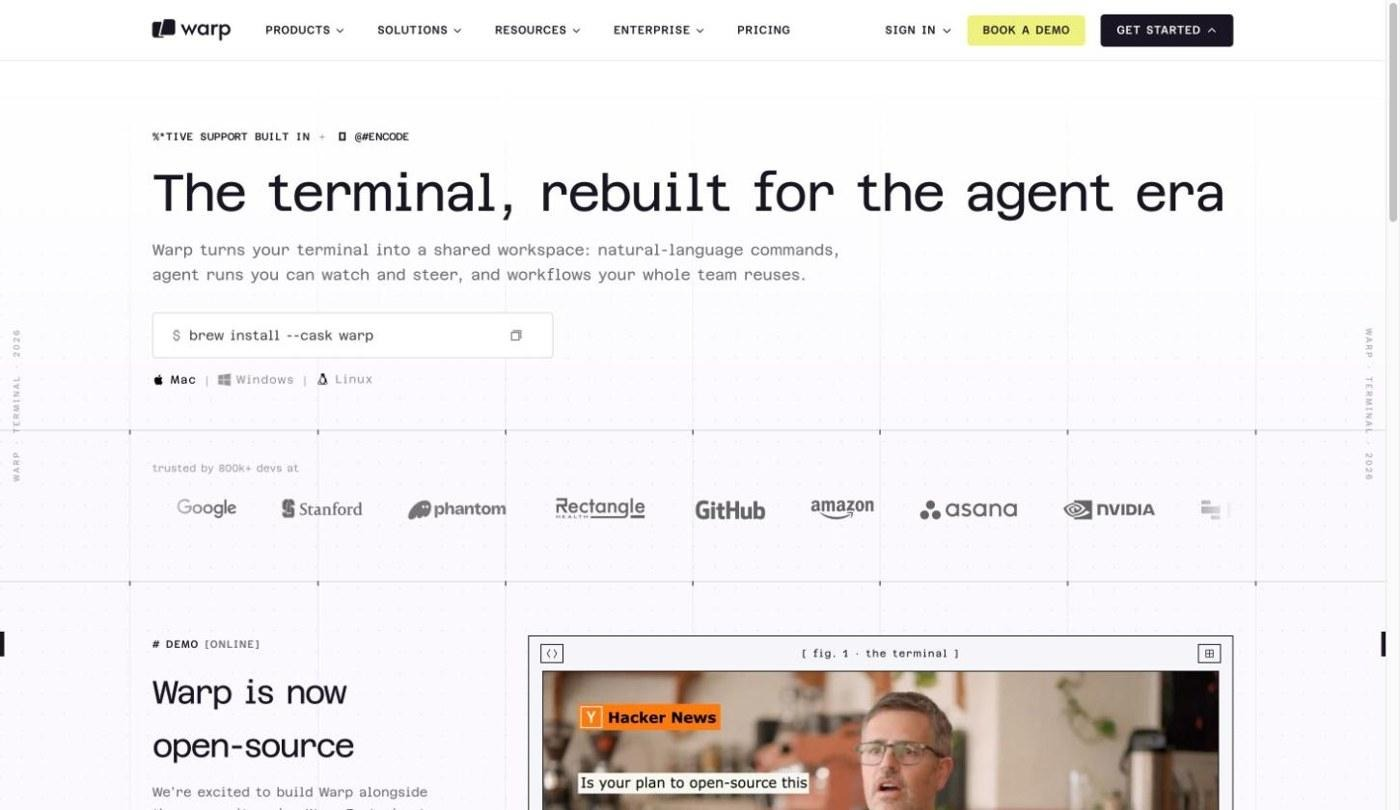
- Key features: natural language to shell commands, command suggestions and autocomplete, inline error explanations, an agent mode for multi-step tasks, and output grouped into blocks you can copy or share.
- Best for: developers who want AI help in their daily shell, not a fully autonomous agent.
| Plan | Price | Key features included |
|---|---|---|
| Free | $0/month | Warp Agent CLI access, bring your own AI inference, limited cloud agents |
| Build | $20/month, or $18/month billed annually | $20 of agent usage per month, frontier and open-source models, extended cloud agents |
| Max | $200/month, or $180/month billed annually | $200 of agent usage per month, everything in Build |
| Business | $50/user/month, or $45/user/month billed annually | Per-seat agent usage, bring your own API keys, SAML SSO |
Pros
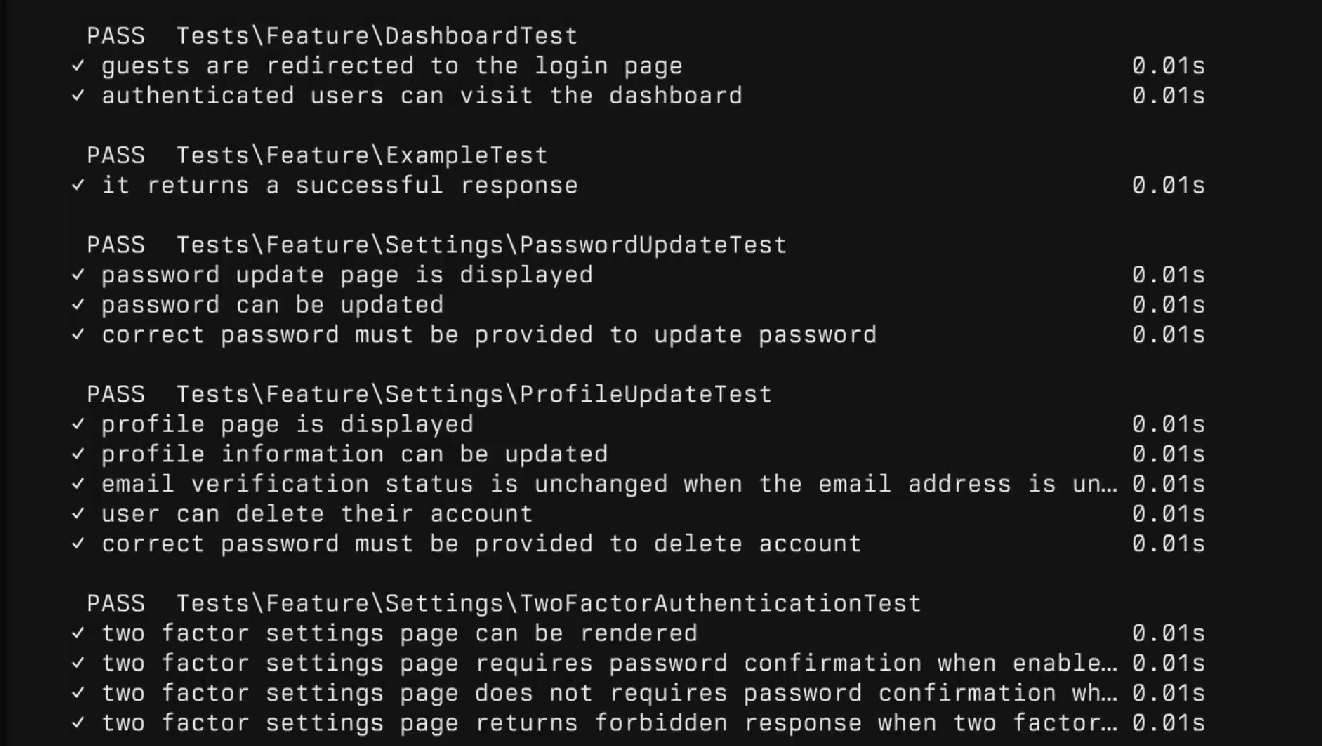
- Polished, modern interface: Command output is grouped into blocks, which makes test results easy to scan.
- Helpful for remembering and fixing commands: You can describe what you want in plain English, such as "run only the date filter tests in watch mode", and Warp suggests the command.
- Easy to start: No project setup is needed before you get value from it.
Cons
- Switching terminal apps: You have to move from your current terminal to Warp.
- Requires an account: You need to sign in to use the AI features.
- Less suited to large autonomous tasks: For a multi-file refactor, a dedicated coding agent is a better fit.
Best for: Developers who want AI built into their everyday terminal rather than a fully autonomous agent.
6. aider - Best for git-native pair programming
aider is an open-source AI pair programmer that works in your terminal alongside your existing editor. Its standout feature is git integration: every change it makes becomes its own commit with a descriptive message.
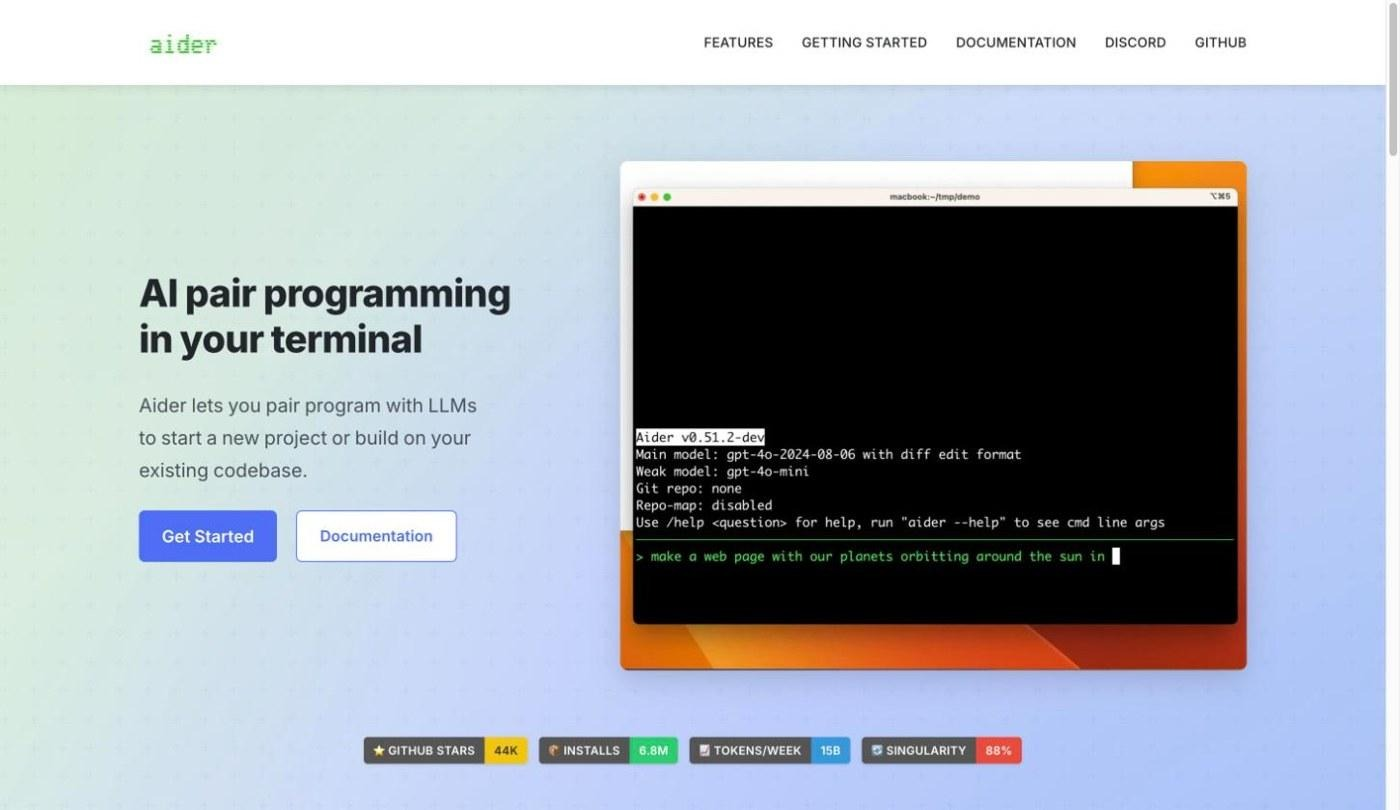
- Key features: automatic commits for every change, a repo map that gives the model context on your whole codebase, support for many model providers, including local models, automatic linting and testing, and support for 100+ programming languages.
- Best for: developers who want a clean, reviewable git history of AI changes.
| Plan | Price | Key features included |
|---|---|---|
| aider (open source) | Free | Full tool, git integration, repo map, linting, and testing |
| Model usage | Depends on provider | Bring your own API key for Anthropic, OpenAI, DeepSeek, local models, and more |
Pros
- Clean git history: Each AI change becomes its own commit, so you can review or revert a single step with normal git tools.
- Works with many models: You can use the same provider you already pay for.
- Lightweight: It installs quickly and stays out of the way of your editor.
Cons
- CLI-only, with a steeper learning curve: It takes time to learn its commands and chat modes.
- Quality depends on the model: As with OpenCode, results vary with the model you connect.
- Less autonomous: It works more like a pair programmer than the newer agentic CLIs, so you guide it more closely.
Best for: Developers who want every AI change committed cleanly to git.
How to choose the right terminal coding tool for you
The best choice depends on how much you want the AI to do on its own, which models you want to use, and how your team already works:
- Want a plan-then-execute agent for complex work: Claude Code.
- Want to use any model, including local ones: OpenCode or aider.
- Working in a very large codebase and already pay for Gemini: Gemini CLI.
- Want a free, open-source tool: OpenCode or aider (you pay only for the model you connect with).
- Already use the Cursor editor: Cursor CLI.
- Want AI help in your daily shell rather than an autonomous agent: Warp.
- Want every AI change committed cleanly to git: aider.
All six tools still assume you can read code, review diffs, and run a development environment. If that's not you, and what you really want is a working app, a terminal tool may not be the right starting point.
Don't want to code in a terminal? Build with Enter Pro
Enter Pro is for founders and non-developers who want to describe an app in plain language and get a working, editable full-stack app, without installing a CLI or setting up a development environment. It's a different category from the coding tools above: those help developers work faster inside a codebase, while Enter Pro builds the app for you from a description.
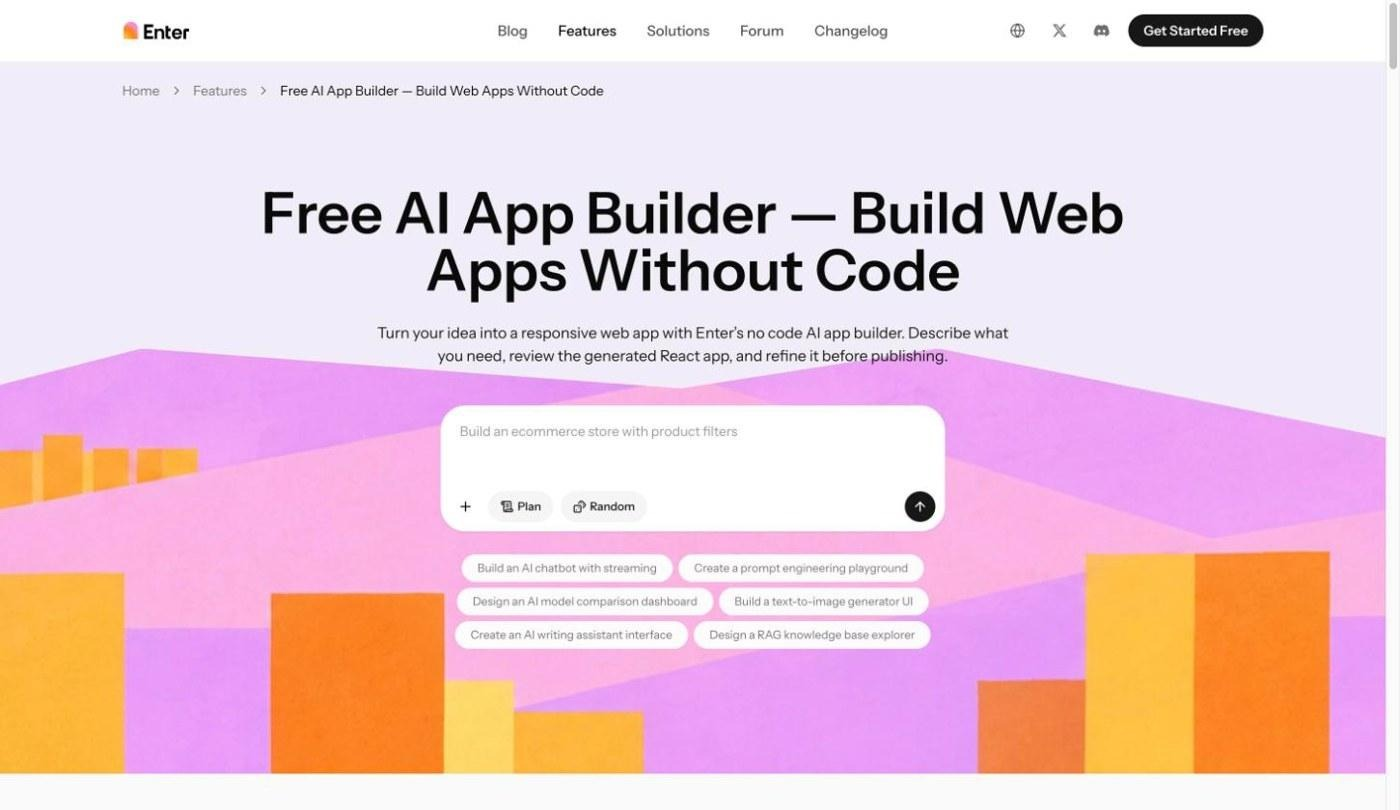
Key features of Enter Pro
- Prompt to app development: Describe what you want to build, who it's for, and the main features, and Enter Pro turns that description into a working app you can keep refining with follow-up prompts.
- True full-stack mastery: It generates the front end, back end, and database from one prompt with the AI app builder.
- Team collaboration: Teammates can work in the same project through collaborative coding, without each person setting up a local environment.
- AI models: Enter Pro runs on leading AI models; see how it works with Claude Sonnet 4.6 in Enter Pro.
How to build an app with Enter Pro instead of a terminal
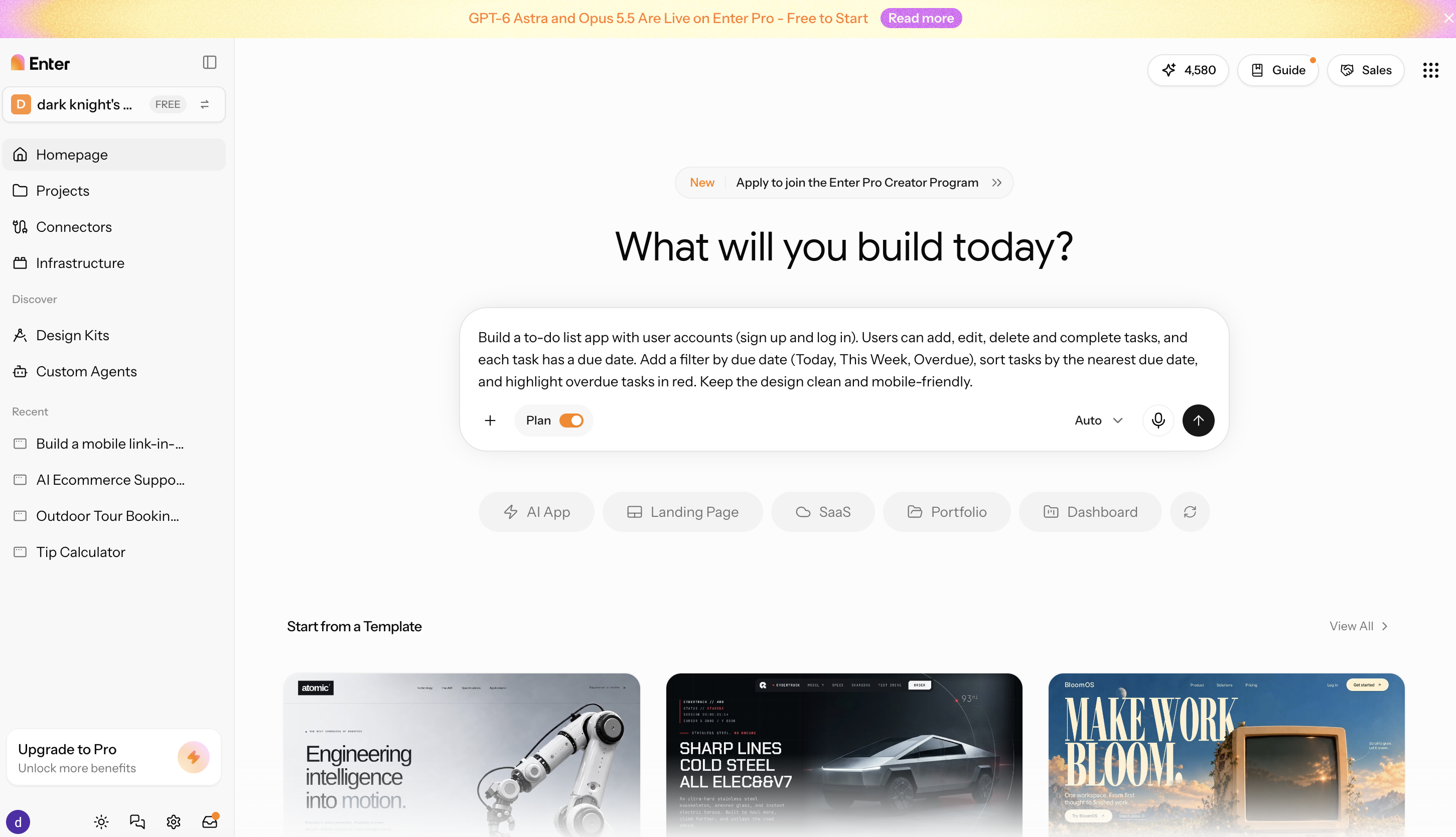
Step 1: Describe your app
Enter the same to-do app brief into Enter Pro. For example: Build a to-do list app with user accounts (sign up and log in). You can add, edit, delete, and complete tasks, and each task has a due date. Add a filter by due date (Today, This Week, Overdue), sort tasks by the nearest due date, and highlight overdue tasks in red. Keep the design clean and mobile-friendly.
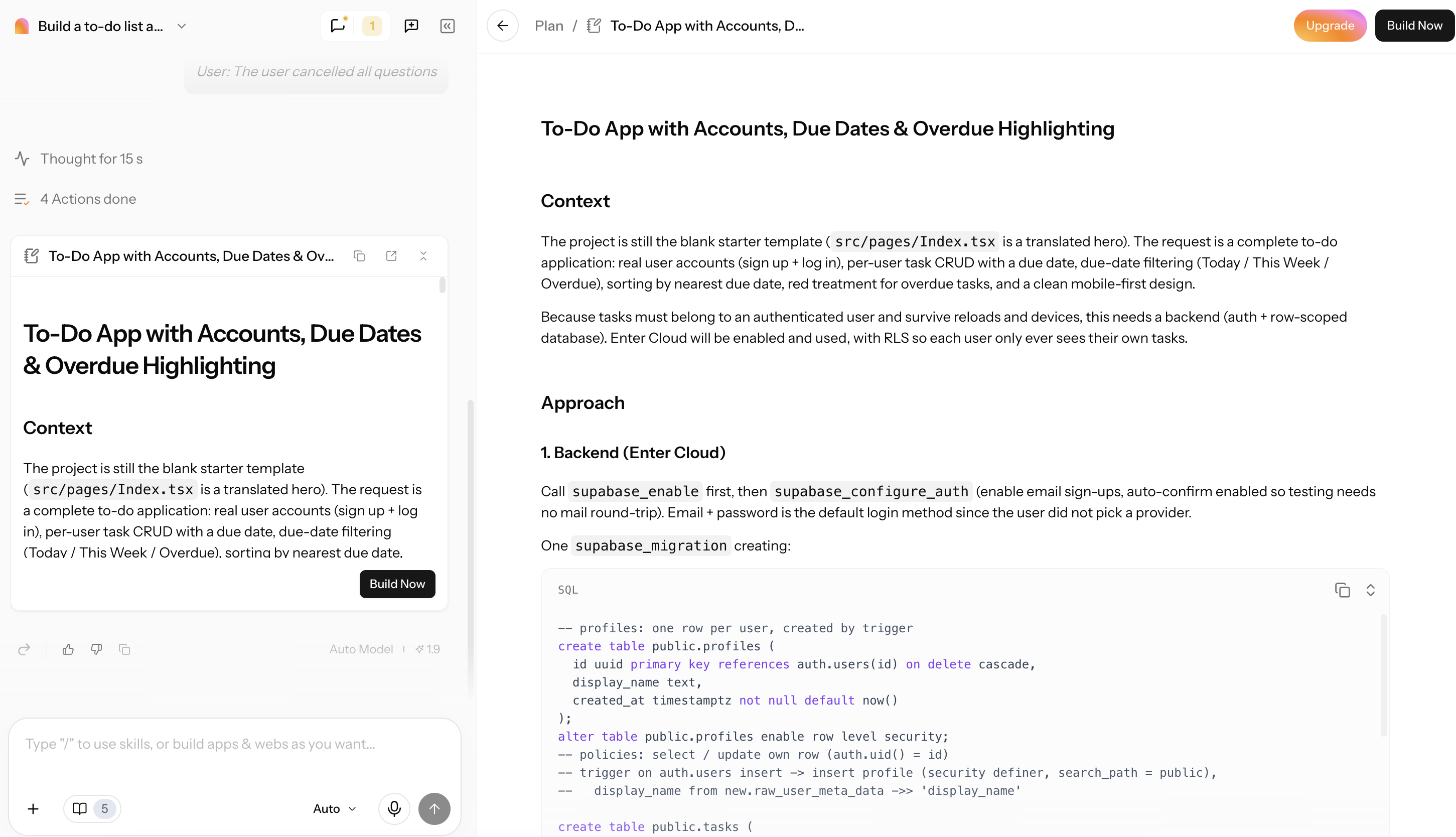
Step 2: Review the plan and generate the app
Check the proposed features, pages, and data structure, then generate the app.
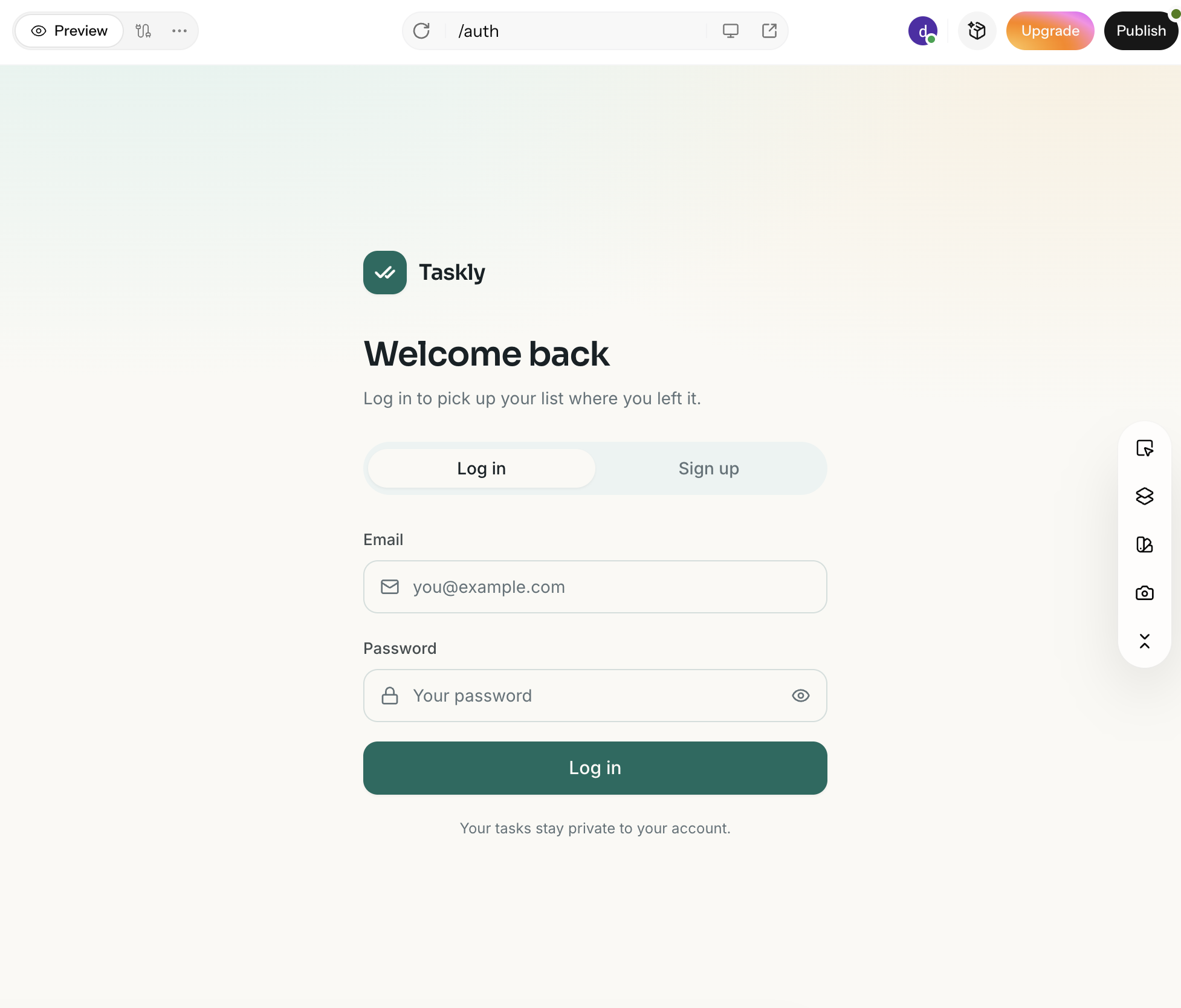
Step 3: Refine and publish your app
Adjust the result with follow-up prompts, test the main flows such as adding and filtering to-dos, and publish.
Conclusion
There's no single best AI terminal. The right one depends on how you work. Claude Code is the strongest pick for complex, multi-step tasks; OpenCode and aider suit developers who want to choose their own model; Gemini CLI handles large codebases for teams on paid Gemini plans; Cursor CLI fits teams already on Cursor; and Warp is the easiest way to add AI to everyday terminal work. If you'd rather not touch a terminal at all and just want a working app, Enter Pro lets you build one from a plain-language description. Pick the tool that fits how you work and try it on a small task from your own project this week. If you'd rather skip the terminal altogether, open Enter Pro, describe your app in plain language, and get a working first version, you can test and refine.
FAQs about terminal coding tools
Is Truth Terminal AI a coding tool?
No. Truth Terminal is an AI chatbot persona created by Andy Ayrey and known for its role in the 2024 GOAT memecoin. It doesn't write or edit code, so if you need help with a codebase, look at an agentic coding CLI such as Claude Code or OpenCode instead.
2. What is the best AI terminal for coding?
It depends on your workflow. Claude Code is a strong choice for complex, multi-file tasks, Gemini CLI offers a large context window for teams on paid Gemini plans, and aider is great if you want every change committed to git. Try one or two on a small project before committing to a paid plan.
3. Which terminal coding agent works with any model?
OpenCode and aider both work with a wide range of model providers, including local models. Claude Code is limited to Anthropic's models, and Gemini CLI to Gemini models, while Cursor CLI offers the models available in your Cursor plan.
4. Do I need to know how to code to use these tools?
Mostly, yes. These tools write and edit code for you, but you still need to understand the changes, review diffs, and run a development environment. If you don't code, an app builder like Enter Pro is a better fit: with Enter Pro, you describe the app in plain language, and it builds the front end, back end, and database for you.
5. What's the difference between an AI-powered terminal app and an AI coding agent?
An AI-powered terminal app such as Warp replaces your terminal and helps you write commands, explain errors, and run short tasks. An AI coding agent such as Claude Code, OpenCode, or Gemini CLI runs inside your terminal and works on your codebase, planning and editing changes across multiple files.
6. Can I build an app without using a terminal?
Yes. Enter Pro lets you describe an app in plain language and generates a working full-stack app you can refine and publish from your browser, with no CLI or local setup required. It's best for founders and teams who care more about the finished app than about writing the code themselves.