Free AI Image Generator Online

Turn a text prompt or reference photo into product shots, portraits, and illustrations. Framia Pro's AI picture generator lets you refine AI generated images with chat. Sign in to start with free credits.

Upload imagesClick to browse or drag & drop file here
Free AI Image Generator Online

Core features of Framia Pro's free AI image generator

Generate a first draft, then adjust its layers, details, and layout in the same workspace.

Transform designs into editable layers

Separate your AI generated images into editable layers. Move, resize, or remove individual elements without rebuilding the whole layout.

Transform designs into editable layers
Generate images in every style fast

Generate photos and illustrations

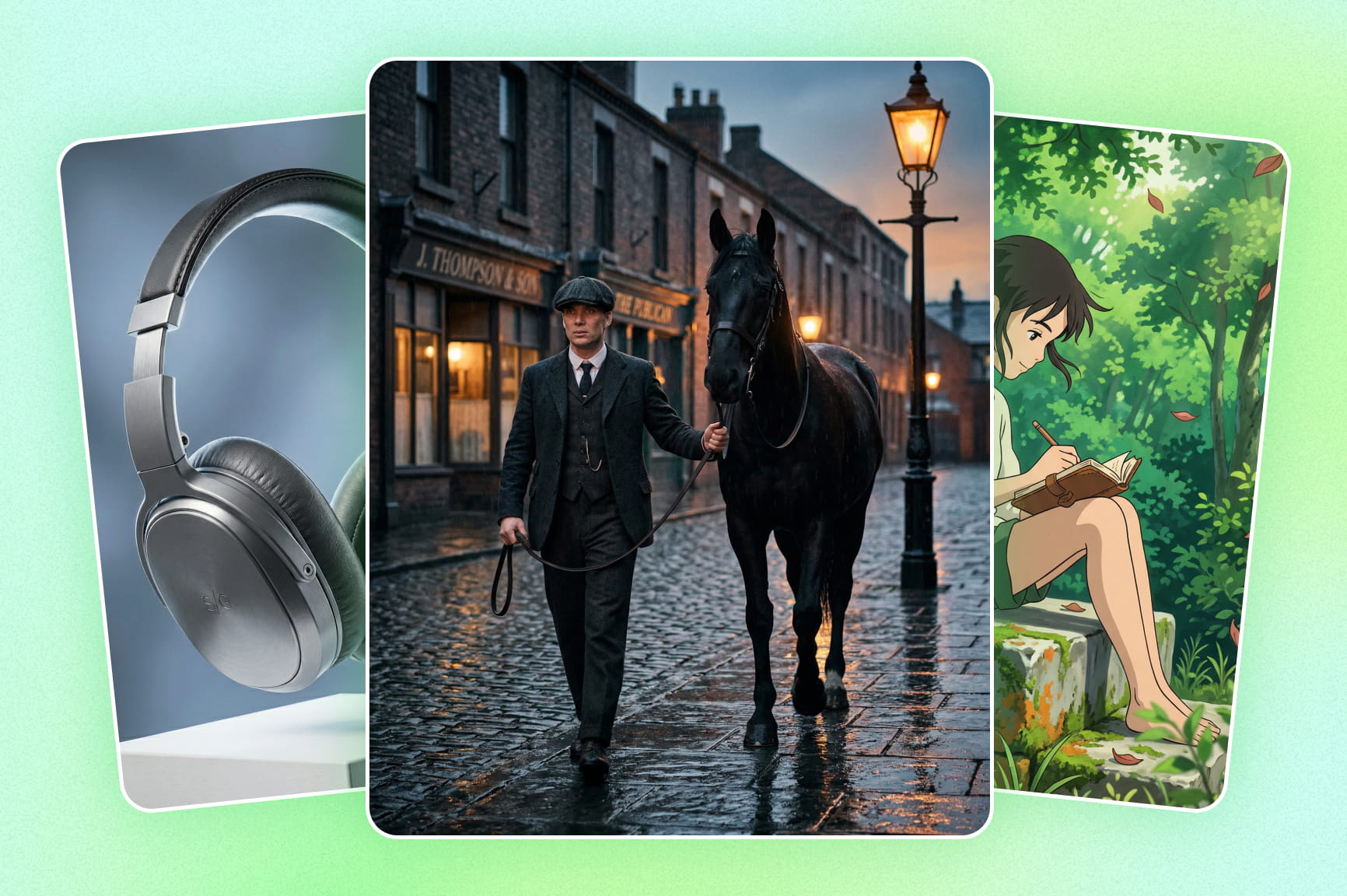
Use Framia's AI art generator to create anime scenes, illustrations, or realistic photos. Choose a model and describe the style, subject, and lighting you want.

Edit images with chat

Describe the change you want: add a red banner, resize a logo, or change the background. Keep working on the current design rather than starting a new prompt each time.

Edit instantly through conversational chat
Integrate your brand seamlessly everywhere

Add your product and brand assets

Use image to image AI to build a scene around your product photo. Add your logo and adjust colors and text to suit the campaign.

Export designs across multiple platforms

Prepare versions for Instagram Stories, YouTube thumbnails, and Facebook ads. Adjust the size and layout for each format, then export the images.

Export designs across multiple platforms

Why use Framia Pro's AI image generator?

New here? Sign in for starter credits to try the free AI image generator. Your first result stays in the project, ready for edits.

Pick a model for the image you have in mind
A portrait and an illustration may call for different models. Framia's AI photo generator gives you a choice in the same project, so you can try another model when the first look isn't right.
Keep generation and editing together
The first render is rarely the last version. With this AI image maker, you can leave the result on the canvas and carry on editing, rather than download it just to open it somewhere else.
Touch up the part that needs work
Like the composition but not the object in the corner? Brush over that area. For a layout change, work on the relevant layer and leave the rest in place.
Bring your own brand assets
Keep your product photos and logo in the project. When you make another campaign image, those assets are there to use again, along with the colors you've chosen.
Refine images using simple chat
Type what you would tell a designer: ‘Make the background warmer’ or ‘The logo is too big.’ Check the new version, then ask for another adjustment if it needs one.
One design, a few different sizes
A square post won't fit a wide banner unchanged. Make another version in the project, then adjust the crop and text for the space you actually have.

How to use Framia Pro's AI image generator online?

Step 1: Select your preferred image model
After signing in, select an image model. For text to image AI, enter a prompt such as ‘a ceramic cup on a wooden table, morning light.’ If you already have a photo to work from, upload it for image to image AI. Click Generate.
Step 2: Ask for an edit
Look at the first result and pick one thing to change. You might type ‘Move the logo to the top right.’ To work on a small patch of the image, select that area with the brush tool.
Step 3: Download the finished image
Check the image at the size you plan to use. When the crop, text, and details look right, click Download to save a copy to your device.

Made with Framia Pro's AI image generator

A skincare bottle at sunset, a neon festival poster, a rainy-day café post. These examples show a few directions you can take, with room to change the details afterward.

Skincare product on a marble podium

Use image to image AI with your skincare product photo to create a marble-podium scene in soft sunset light. Refine the background and placement with chat.

Minimalist modern product showcase page
Engaging social media promotional flyer

Engaging social media promotional flyer

Create a neon music festival poster with Framia's AI art generator. Separate the design into layers to update the event dates, move text, or adjust the background colors.

Professional corporate LinkedIn event banner

Create a bright office scene with a team around a meeting table. Use the brush tools to replace distracting background objects before preparing the image for your LinkedIn event banner.

Professional corporate LinkedIn event banner
Captivating e-commerce fashion ad campaign

Captivating e-commerce fashion ad campaign

Use the AI photo generator to create a summer fashion scene on a sunlit cobblestone street. Add your product reference and adjust the styling and colors for the collection.

Dynamic YouTube thumbnail for gamers

A red title strip sits above the sci-fi battle, keeping the words separate from the action. Ask chat to add the strip, then check the thumbnail at a small size before settling on the lettering.

Dynamic YouTube thumbnail for gamers
Atmospheric local coffee shop graphic

Rainy-day coffee shop post

Rain at the window and warm light inside give this café image its autumn feel. The vertical version leaves room for a headline above the cup; the square crop needs a different text position. Make those adjustments before exporting each version.

Who uses Framia Pro's AI image generator?

Some projects start with a product photo. Others start with an ad brief or an article that needs a cover. Here's how Framia fits into that work.

Marketing teams and agencies
An ad brief often needs several versions before a team picks one. Use the AI image maker to try a different background or headline layout while keeping the brand assets. Getting those options into tests sooner can help lower customer acquisition costs.
Online store owners
You have a product photo, but need something beyond the plain backdrop. With image to image AI, try the item on a bathroom shelf, a kitchen counter, or an outdoor table. Check the product details before using the result in a listing.
Creators and bloggers
A stock photo may be close to your topic without quite saying what you mean. Give the AI picture generator the scene from your article, then work on the result until it fits the post. That could be a cover image, a diagram-style illustration, or a thumbnail.

What creators say about Framia Pro's AI image generator?

Layers, chat edits, and different export sizes come up in these accounts of working with an AI image maker. The focus is on what happens to AI generated images after the first render.

“I usually have about 12 images to work on each week. If a heading is in the wrong place, I'd rather move that layer than generate another image. A small layout change that used to take me about 20 minutes is closer to 15 now.”
Camille Dubois
Camille Dubois
Lead Graphic Designer
“On a recent set of 4 designs, I used chat to change background colors and resize logos. The adjustments took about 25 minutes in total, including checking each result. I could keep working on the designs I already had.”
Laurent Peeters
Laurent Peeters
Creative Director
“I usually prepare 3 versions of a campaign image: an Instagram Story, a Facebook ad, and a YouTube thumbnail. Preparing the set takes about 30 minutes in Framia, compared with around 40 minutes before. That includes adjusting the crop and text for each format.”
Sophie Lefèvre
Sophie Lefèvre
Social Media Manager
The pixel-level precision provided by the integrated brush tool is outstanding. If an AI generates a minor visual artifact, I no longer have to scrap the entire picture completely. I just paint over the error effortlessly and fix it perfectly.
Mathieu De Smet
Mathieu De Smet
Digital Artist
Maintaining strict brand consistency was always my biggest headache with other AI tools. Framia Pro allows seamless logo placement and exact color palette integration across multiple generations simultaneously. Our corporate visual identity remains impeccably pristine across every single marketing campaign easily.
 Élodie Martin
Élodie Martin
Brand Manager
Having direct access to premium generation models like Seadream 4.5 and Nano Banana 2 within one unified platform is brilliant. The flexibility to seamlessly switch rendering engines depending on the specific artistic style required makes this software absolutely incredibly valuable.
Antoine Maes
Antoine Maes
Senior Art Director
We've compiled the most important information to help you get the most out of your experience. Can't find what you're looking for?Contact us

FAQs About AI Image Generator

Is Framia a free AI image generator?
Yes. New accounts receive free credits to try image generation. Sign in to use your credits; further generation depends on your balance and plan. Check the pricing page for current options.
Can I use Framia as an AI image generator from image?
Yes. Upload the photo you want to work from and tell Framia what should change. For a product shot, that might mean keeping the bottle and replacing a plain backdrop with a bathroom shelf.
Does Framia support anime-style images?
Yes. Write the style into your prompt, along with the character and scene. A reference image is useful if you have a particular color palette or drawing style in mind; results will vary with the model you choose.
What should I put in a prompt for a realistic photo?
Give it something you could actually photograph: ‘a linen shirt beside a window on an overcast day,’ for example. That specifies the material and light. Check small details in the result, especially hands, lettering, and reflections, and edit anything that looks off.
How do I reuse a character in another scene?
Use the same reference photo and repeat the details that identify the character, such as a short haircut, round glasses, or a green coat. Change the scene in the prompt. Compare the new result with the reference, since a face or outfit can still drift between generations.
What if I only want to change one part of the image?
For an object or small patch, select the area with the brush tool and describe the replacement. For a heading or another separate element, try its layer. You can also ask for a change in chat; there is no need to download the first result before continuing.

Still have questions?

Have questions or need assistance? Our team is here to help!

Create surreal AI-generated images with Framia Pro!

With Framia Pro's AI image generator, you can now create images that look unique, captivating, and social media-worthy.
AI Image Generator for Photos & Art | Framia