Best AI Image Editor for Free

Quickly remove backgrounds, change eye color, fix blemishes, update hairstyles, and export high-resolution images directly from your browser.

Upload imagesClick to browse or drag & drop file here
Best AI Image Editor for Free

What does Framia Pro's AI image editor offer?

Edit, refine, and upscale photos using text prompts on Framia's best AI image editor, powered multi-model AI system.

Use AI to edit and refine photos with prompts

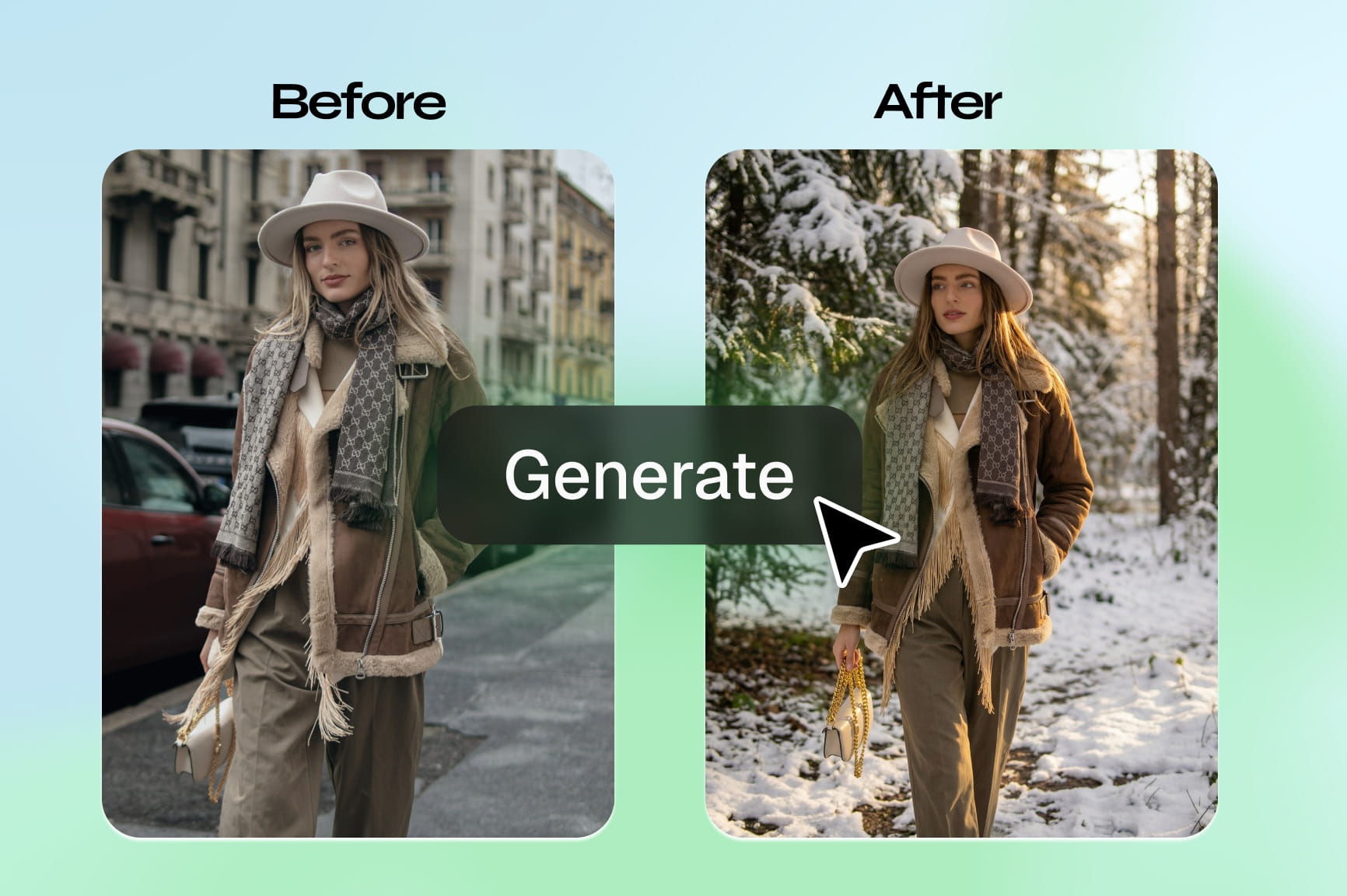
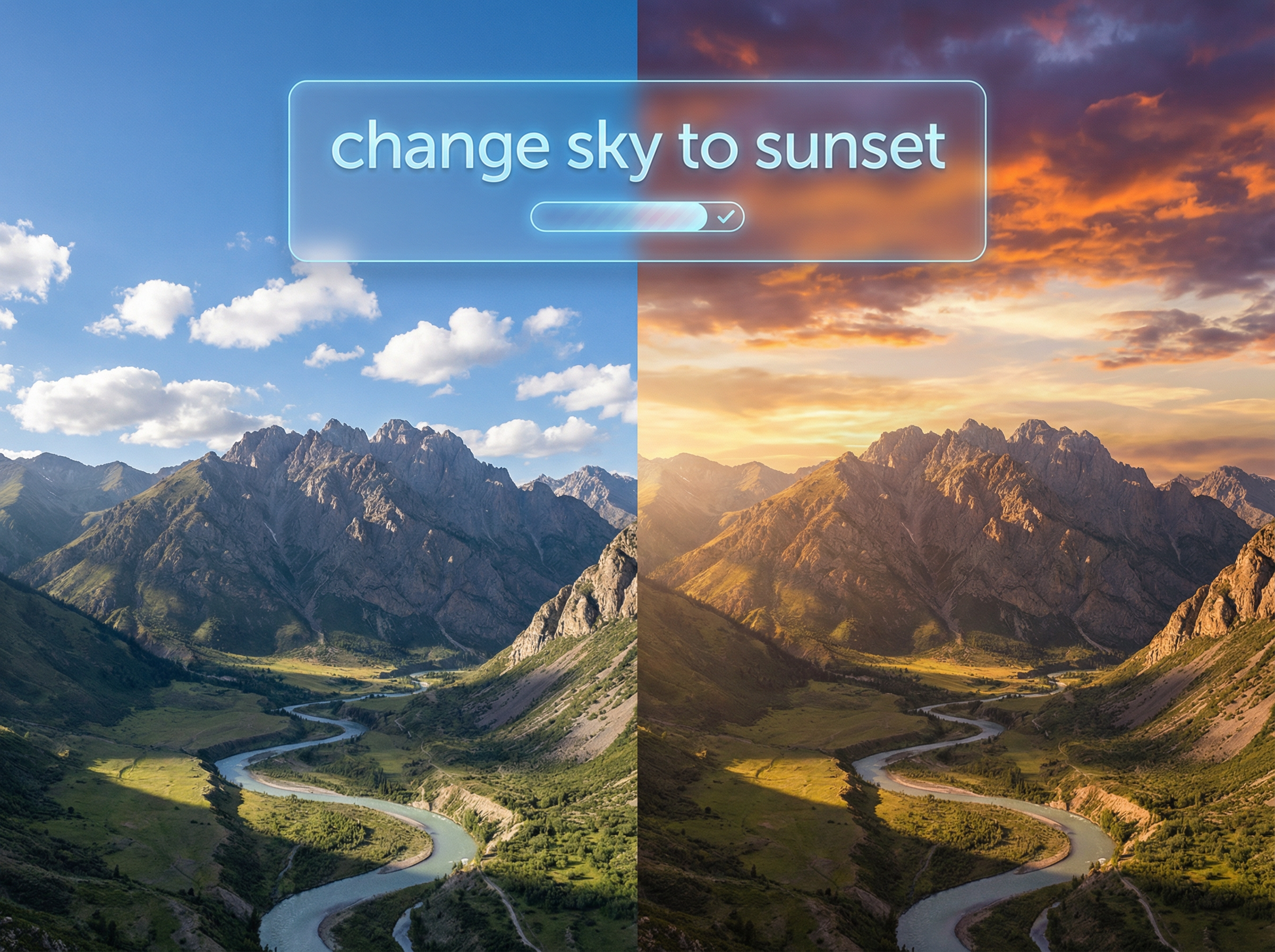
Type a prompt to describe the edits you need, and the AI applies the change instantly. The platform uses different AI models to interpret complex natural language instructions with high prompt adherence and preserve detail in areas outside the edited region.

Use AI to edit and refine photos with prompts
Remove or replace backgrounds automatically

Remove or replace backgrounds automatically

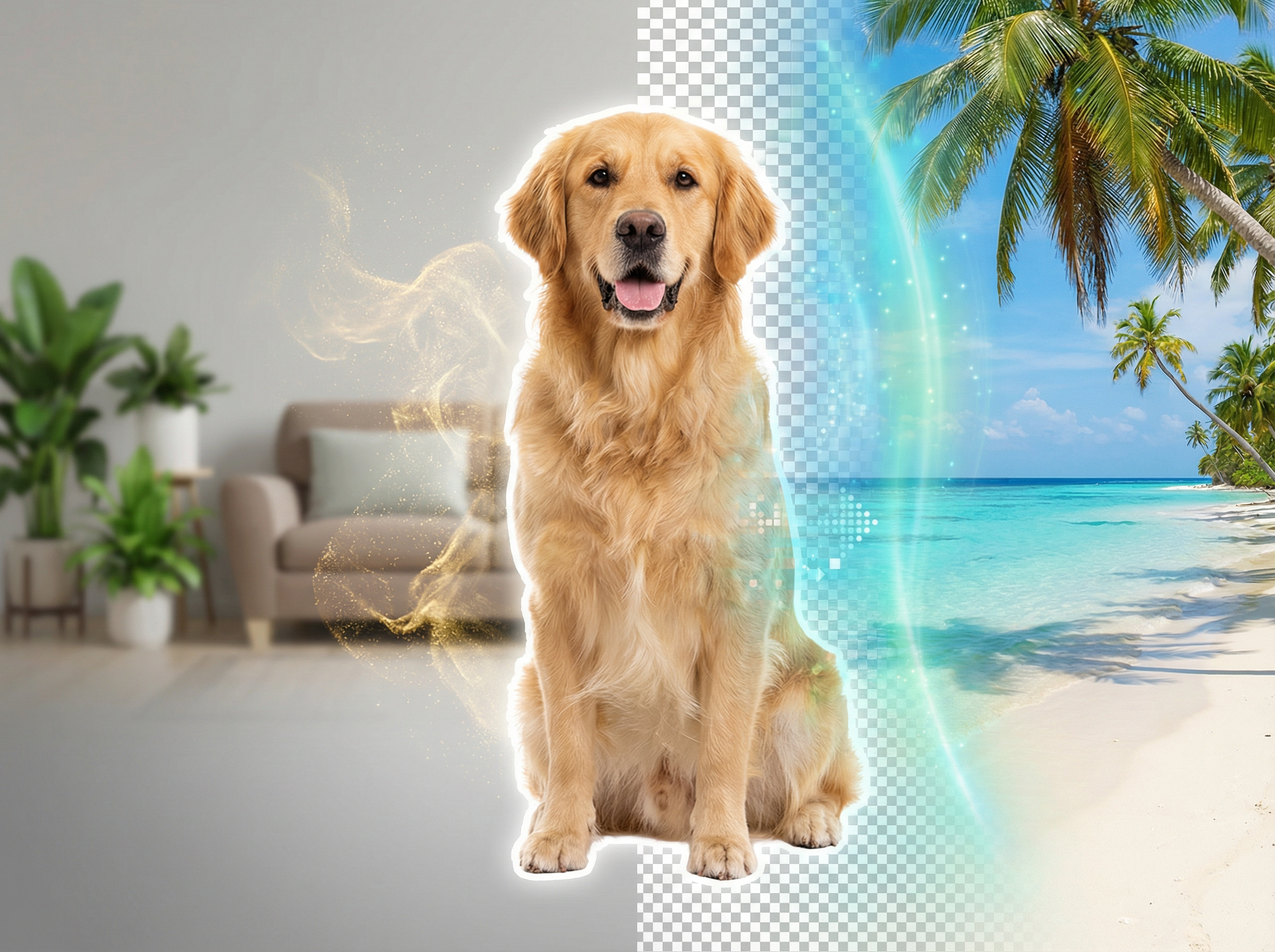
Select any photo, and our AI image fixer isolates the primary subject to remove the background with precision along fine edges that include hair and fur. Replace it with a solid color, an AI-generated scene, or a custom uploaded image for a clean result.

Access different visual models for varied aesthetics

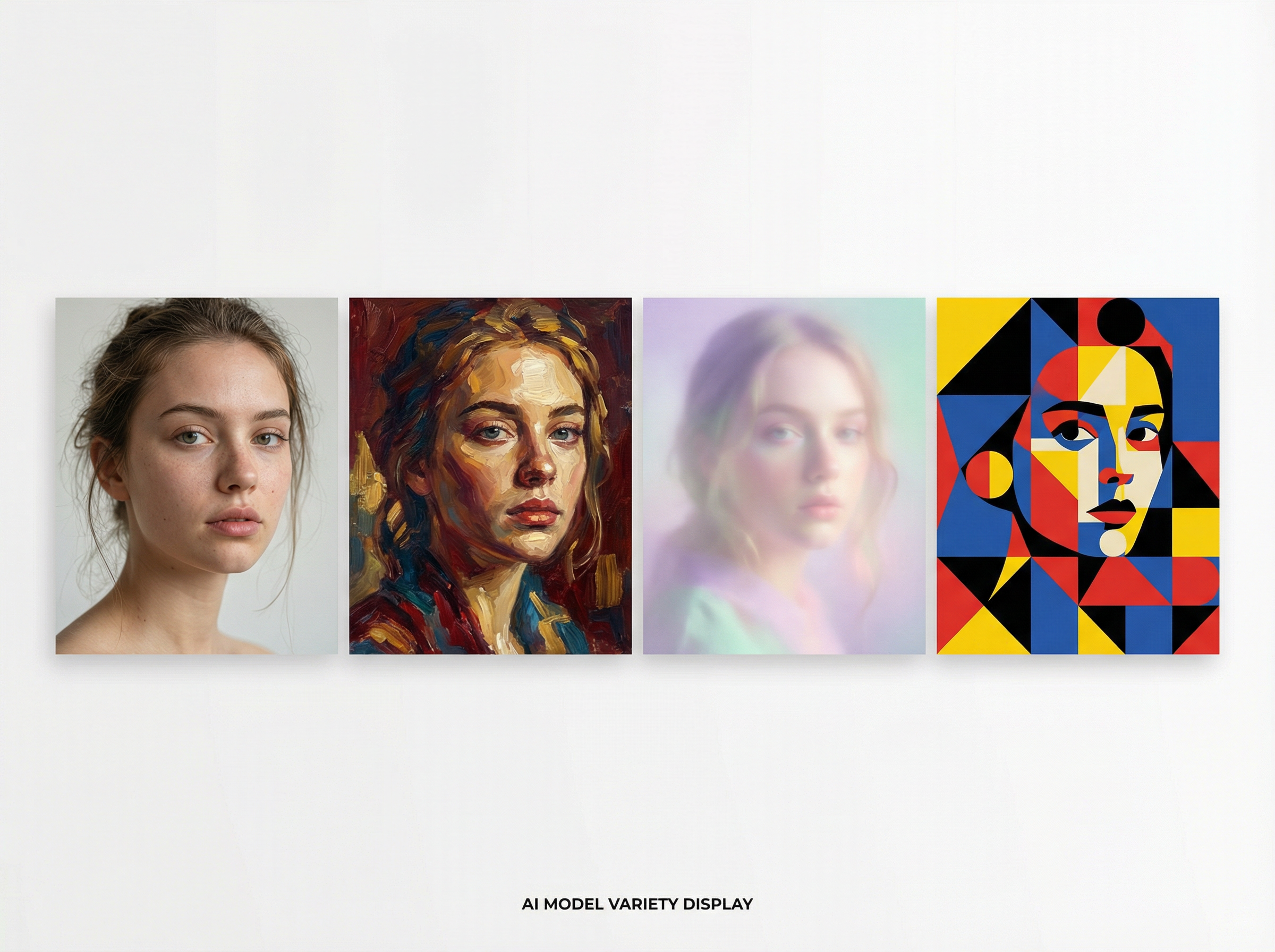
Pick from Nano Banana Pro, Seedream 4.5, Flux Max, Midjourney v7, or Qwen Image to edit your images. Each model produces a different output. So, pick the one that fits your project and switch at any point during editing.

Access different visual models for varied aesthetics
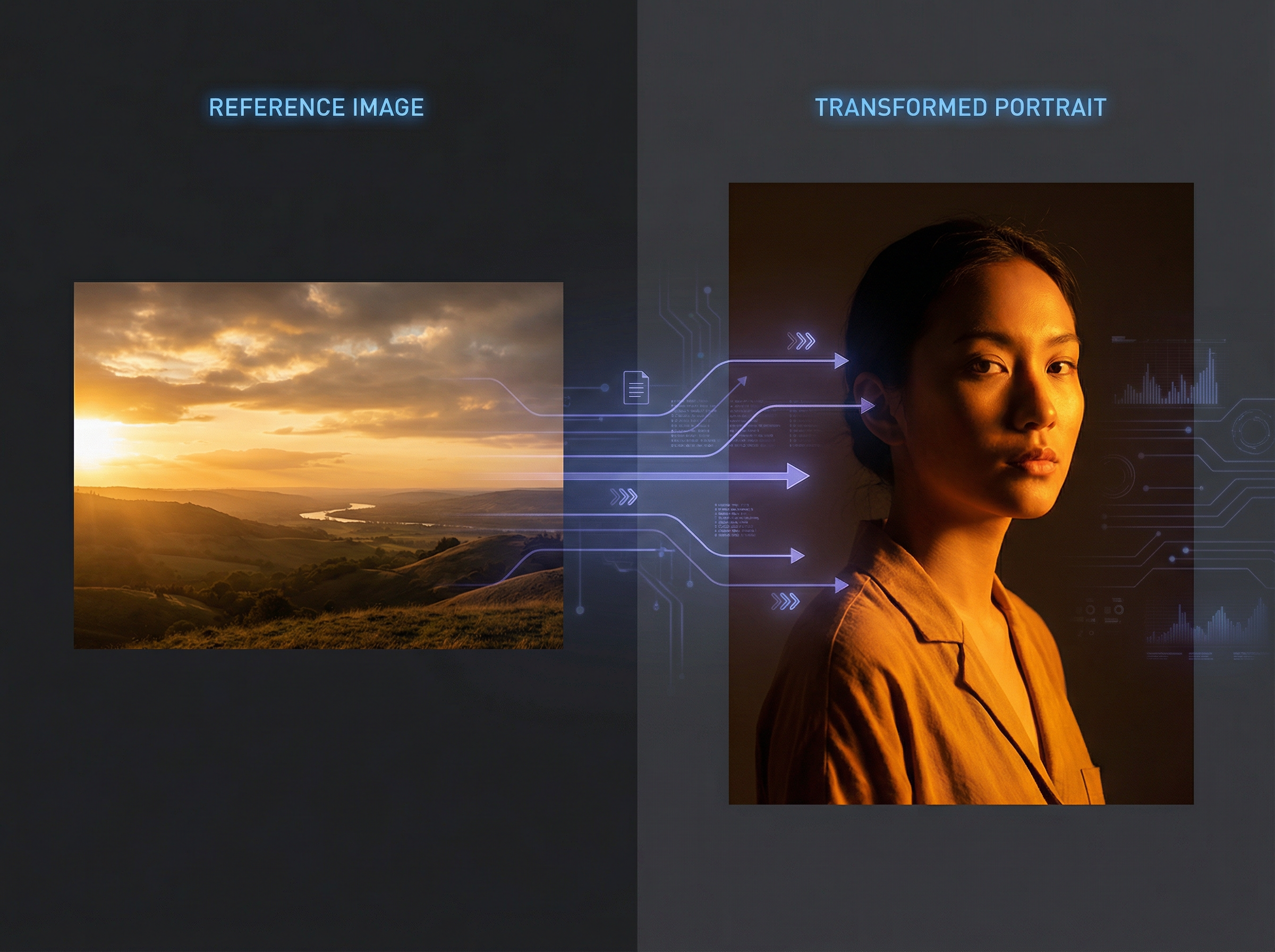
Upload reference image to guide AI editing

Upload reference image to guide AI editing

Use reference photos, and Framia's AI photo editor online for free extracts facial features, color palette, and structural details, then applies them to the edited result. The models preserve reference characters or objects consistently at different angles, scenes, and environments.

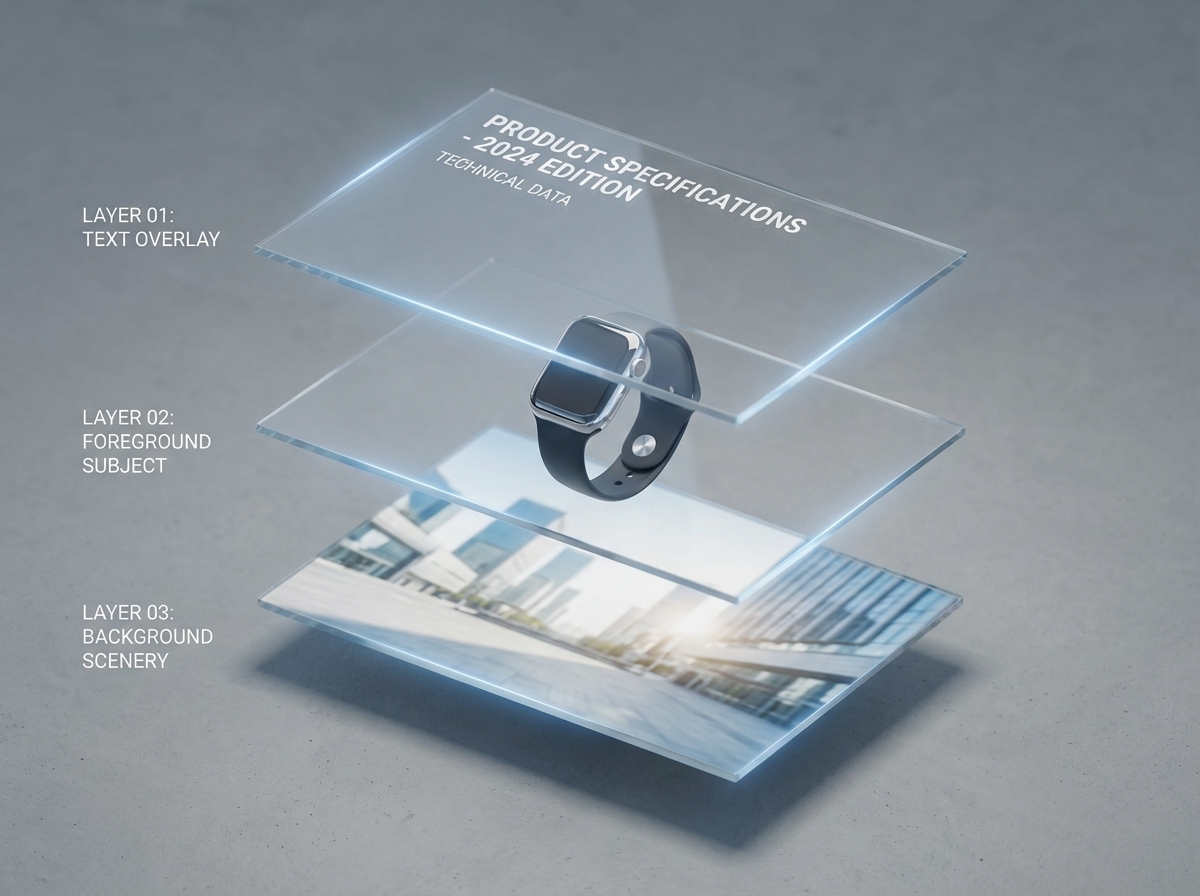
Separate image and text into layers for editing

Split a photo into separate layers for text overlays, background elements, and foreground subjects. Reposition or adjust one layer, and the remaining elements stay locked, which cuts revision time when editing specific sections of a multi-element design.

Separate image and text into layers for editing
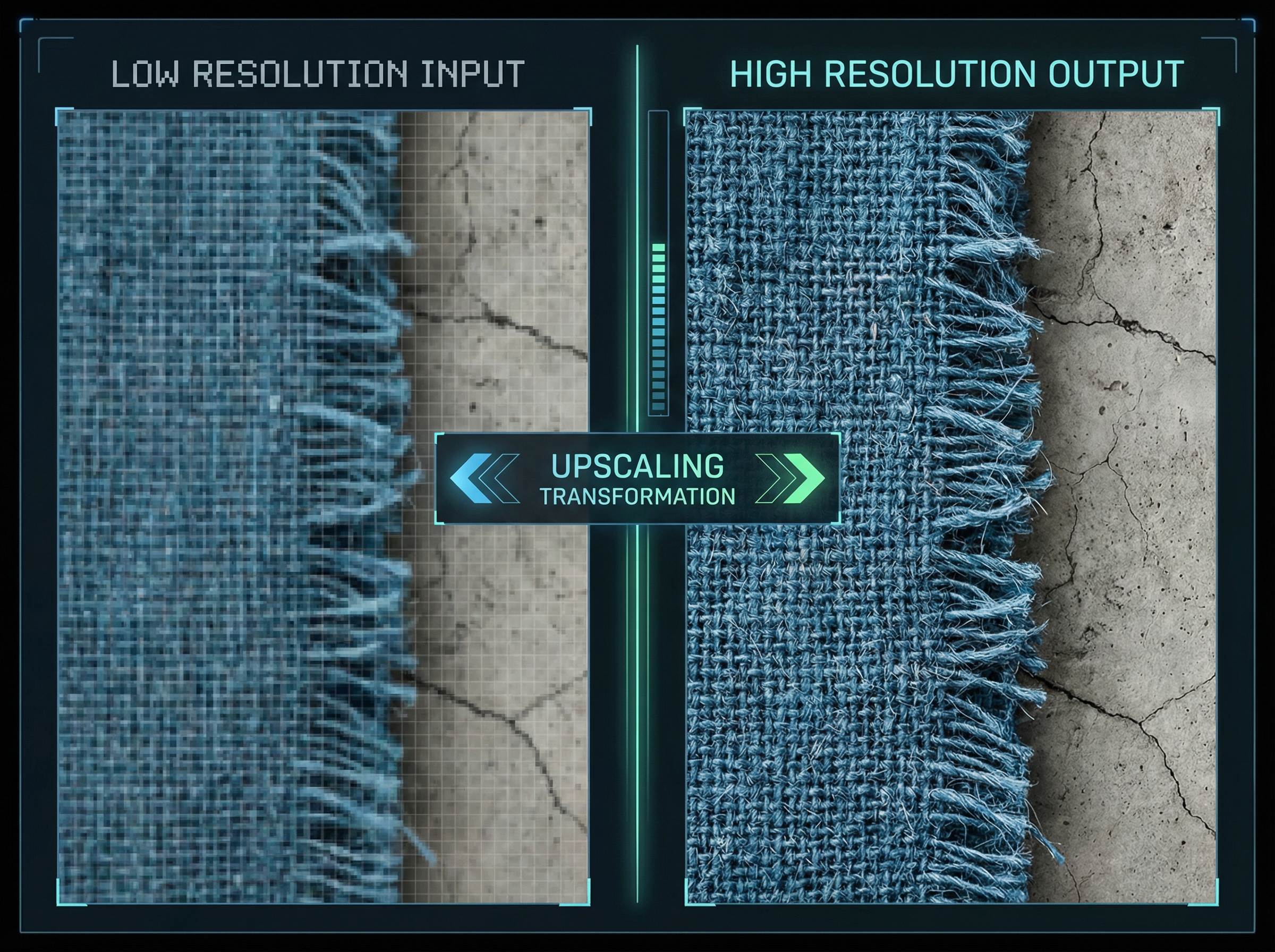
Increase resolution of photos without losing quality

Increase resolution of photos without losing quality

Upload a low-resolution photo, and Framia Pro reconstructs fine textures, sharpens edges, and scales the image to 4x its original size. Our image AI editor supports up to 4K resolution output to produce files suited for large-format print and commercial display.

Why use Framia Pro's AI-powered image editor?

Edit any photo with a text prompt, choose from AI models, and export a clean, high-resolution file using Framia Pro's AI image editor with prompt.

Consistent image quality
Get sharp, detailed output on every edit by using AI models. The AI applies changes at a pixel level, so color, texture, and sharpness stay consistent on every version you generate.
Professional output fast
Type what you want changed and receive a finished image in no time. Each output is clean, high-resolution, and ready for social media, commercial projects, or print.
Try different AI styles
Run the same photo through Midjourney v7, Flux Max, or Qwen Image to see how each model interprets it differently. Compare color grades, textures, and visual styles side by side before you decide on a final look.
Edit online anywhere
Open the free AI photo editor in any browser on any device and start editing immediately. No downloads, no sign-up, and no software installation. Just open the tool and start working on your photo right away.
Boost visual engagement
Fix blemishes, change eye color, remove unwanted background elements, adjust clothing details, and correct colors in a photo using a single text prompt on our AI blemish remover. Each edit targets only the specific area you describe, so the rest of the image stays untouched.

How to edit images with AI using Framia Pro?

Follow the steps below to get started with Framia Pro and edit your images using a simple text prompt:

Step 1: Prompt
Sign up and open the Framia Pro image agent. Upload your photo and describe the edits you want in the prompt box.
Step 2: Edit images with AI
Choose an AI model (or keep it on Auto), set the aspect ratio, and click "Generate." Framia scans the image and applies the edits automatically.
Step 3: Review & export
Preview the result and use Quick Edit or one-click tools (background removal, object erase) if needed. When finished, click "Download."

Example edits with Framia Pro's AI image editor

Type a prompt into the editor and watch the AI apply precise changes to your photo. Here are five edits you can run right now.

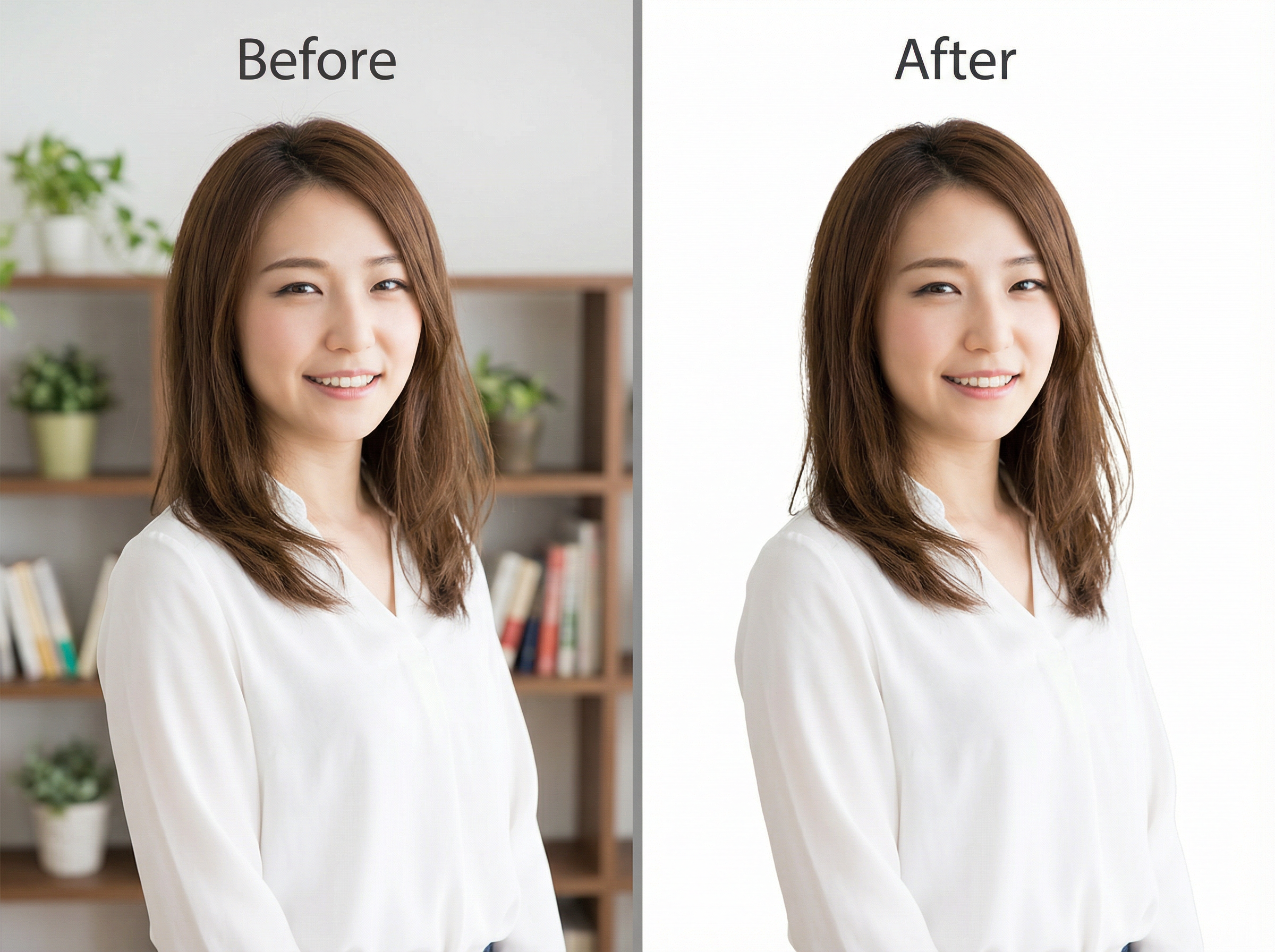
Remove background

Remove the background completely from this portrait photo. Replace it with a clean, plain white studio backdrop. Keep all edges sharp, even the individual hair strands and the outline of the clothing. Do not blur image or crop any part of the subject.
Remove background
Change style or color

Change style or color

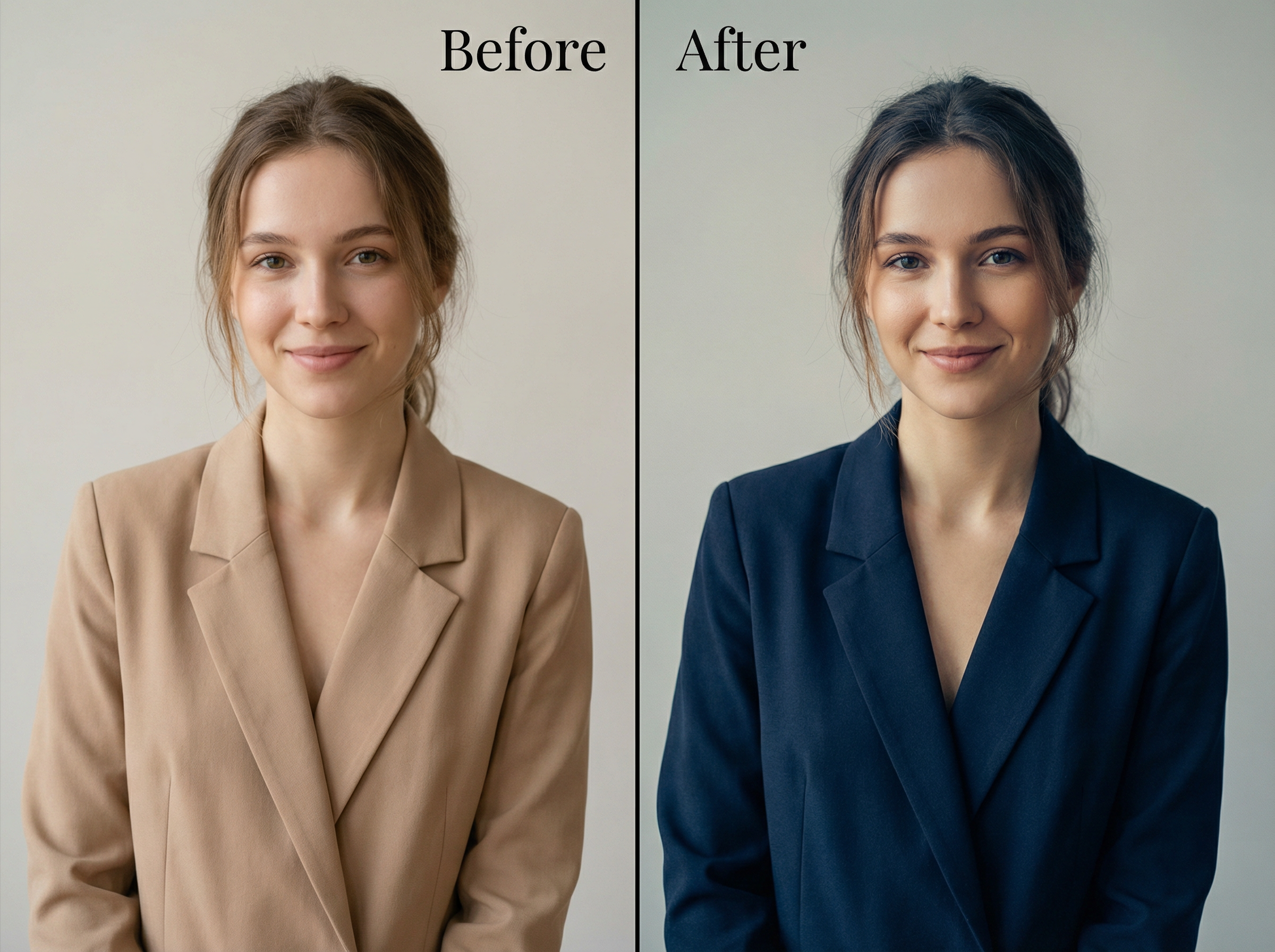
Change the jacket color to deep navy blue. Apply a soft cinematic color grade across the entire photo with cooler shadows and warm midtones. Make sure the skin tone, background, and all other clothing colors are exactly as they are in the original.

Erase objects or blemishes

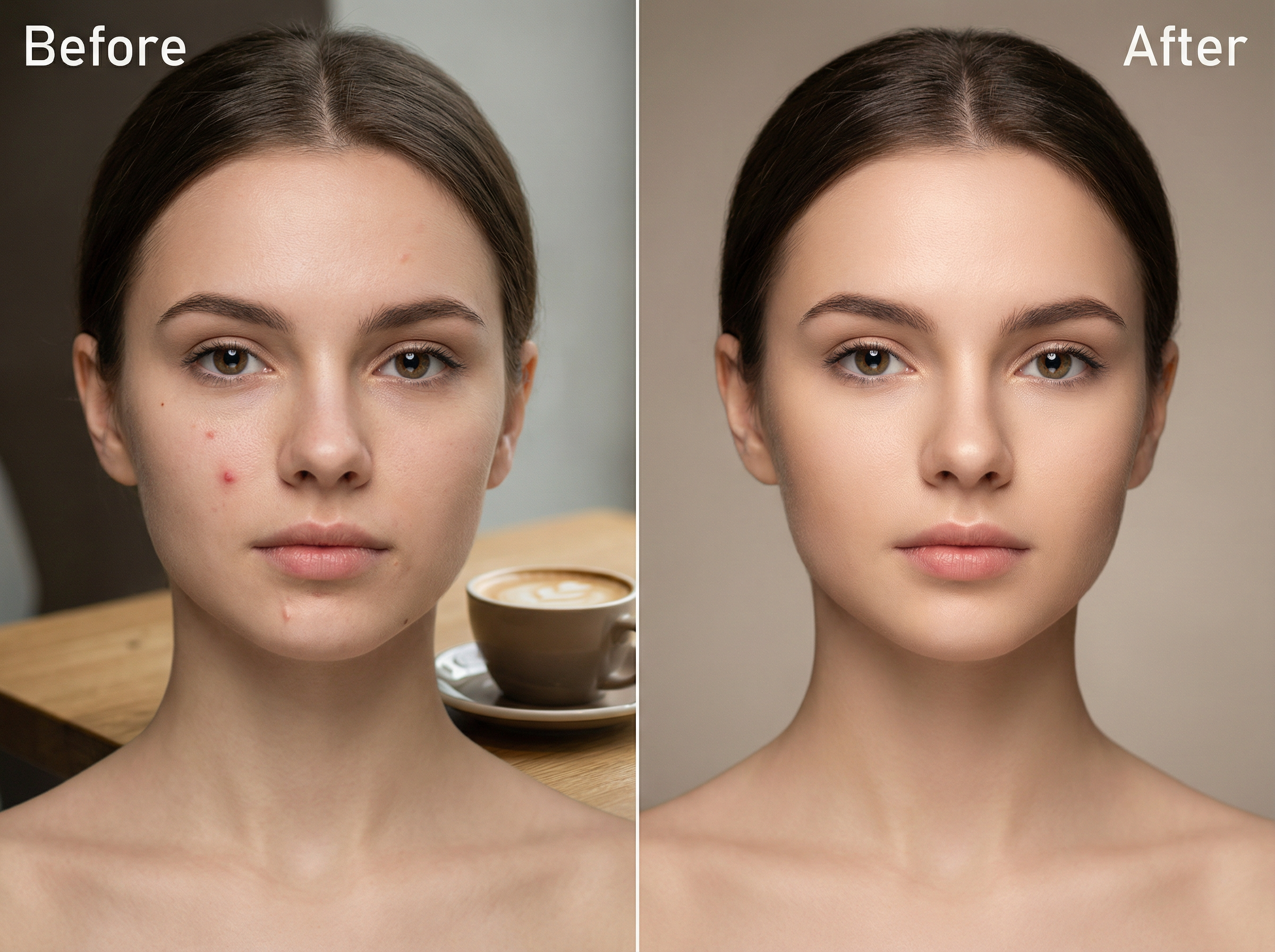
Remove the blemish on the left cheek and the small scar near the chin. Also, erase the coffee cup placed on the table in the background. Fill every removed area with a texture that matches the surrounding skin and surface naturally.
Erase objects or blemishes
Fix clothes

Fix clothes

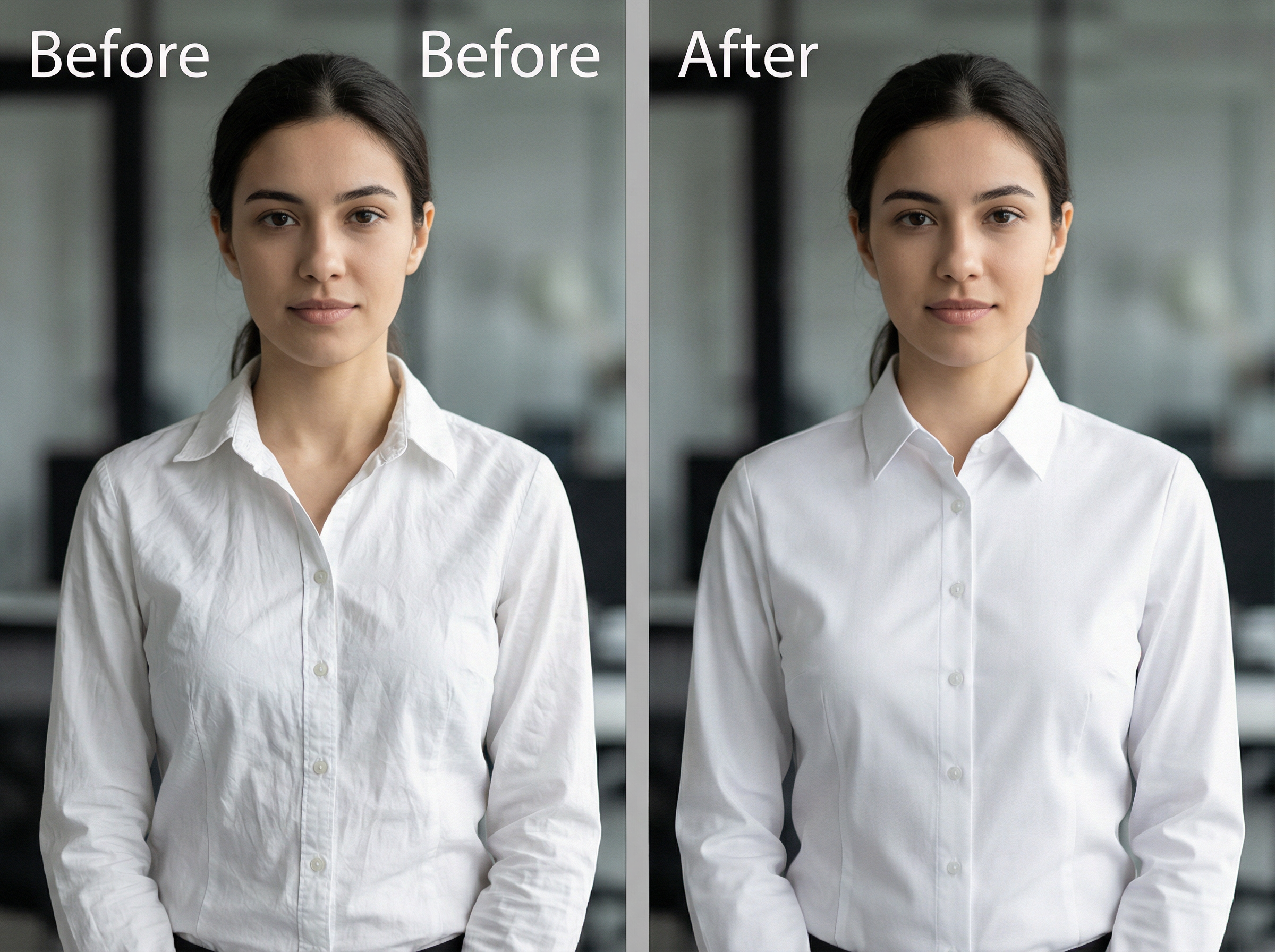
Smooth all visible wrinkles and creases on the white dress shirt. Straighten the collar and flatten the front button placket. Keep the original fabric color, pattern, and stitching details fully intact. Do not alter the fit or silhouette of the shirt.

Update hairstyle

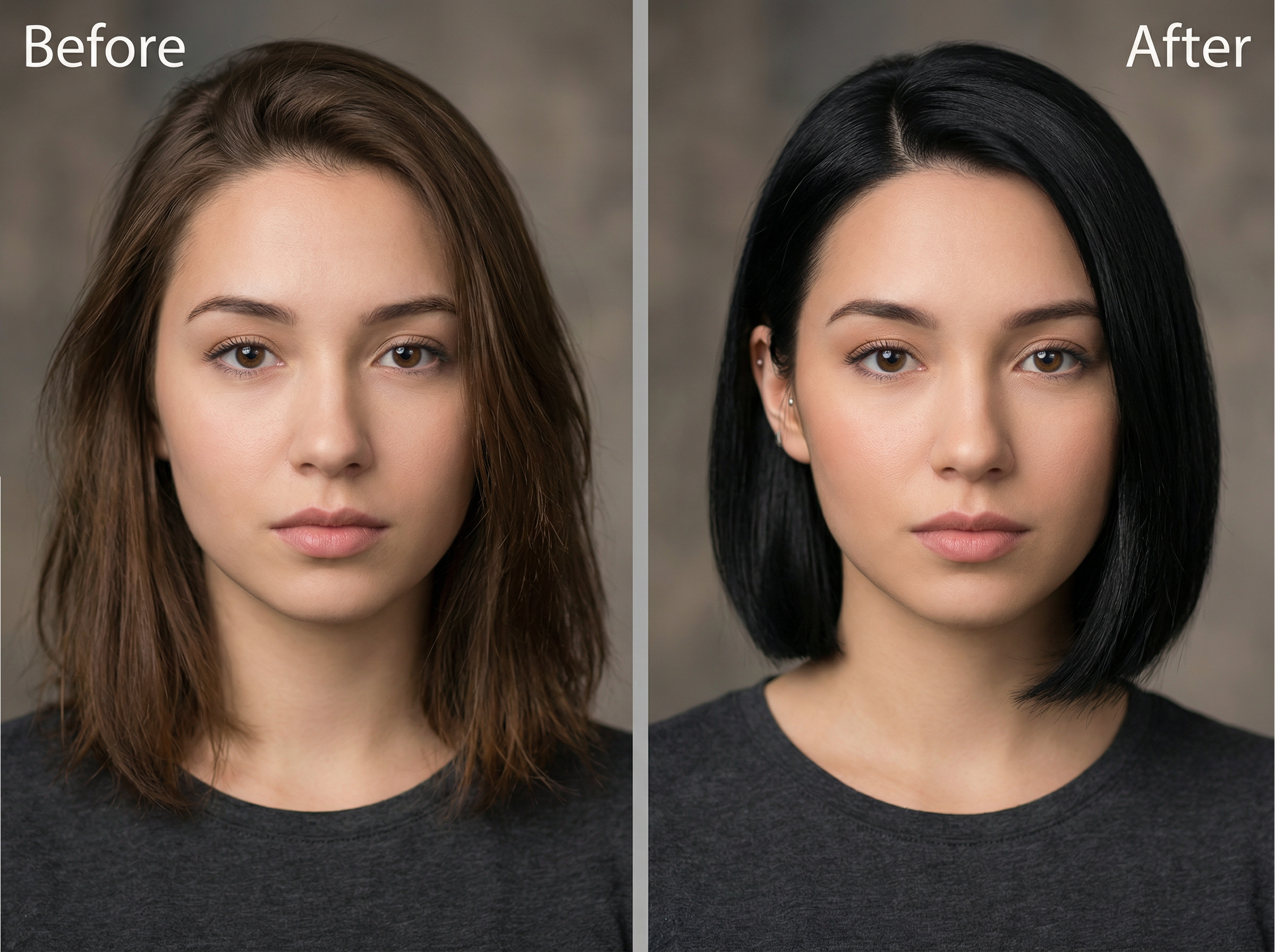
Change the current hairstyle to a short bob cut with a clean side part on the left. Darken the hair color to natural black. Blend the new hairstyle naturally along the hairline and around the ears without altering the face or background.
Update hairstyle

Explore the real-world use cases for Framia Pro's AI image editor

Get cleaner photos, sharper details, and high-quality visuals by letting Framia Pro's AI image editor for free handle the edits that used to take hours.

Create visuals for blogs and posts
Upload a raw photo, type a style prompt, and get a finished image sized and refined for any blog layout. The AI edits pictures to adjust lighting, remove distractions, and sharpen the subject to match your content's visual tone.
Make clean product photos
Remove cluttered backgrounds, fix lighting inconsistencies, and retouch surface details on any product image using a single text prompt. Export a clean, studio-quality photo for an e-commerce listing or brand catalog.
Enhance photos for presentations
Take a blurry or low-resolution photo and upscale it to 4x its original size without losing sharpness. Every slide gets a crisp, professional-grade image that holds up on large screens and high-resolution displays.
Design social media graphics
Add text layers, adjust colors, swap backgrounds, and apply AI-generated styles to any photo directly on the canvas. Export platform-specific dimensions for Instagram, LinkedIn, or X in a single session.
Create thumbnails for videos
Isolate a subject, sharpen facial details, and overlay bold text on a high-contrast background to produce a click-worthy thumbnail. The AI handles edge precision, so the final image looks polished at every display size.

Why creators love using Framia Pro's AI image editor?

Creators use Framia Pro's AI image editor to cut editing time, produce cleaner visuals, and run complex edits using a single text prompt. Here is what five creators said after using it on real projects.

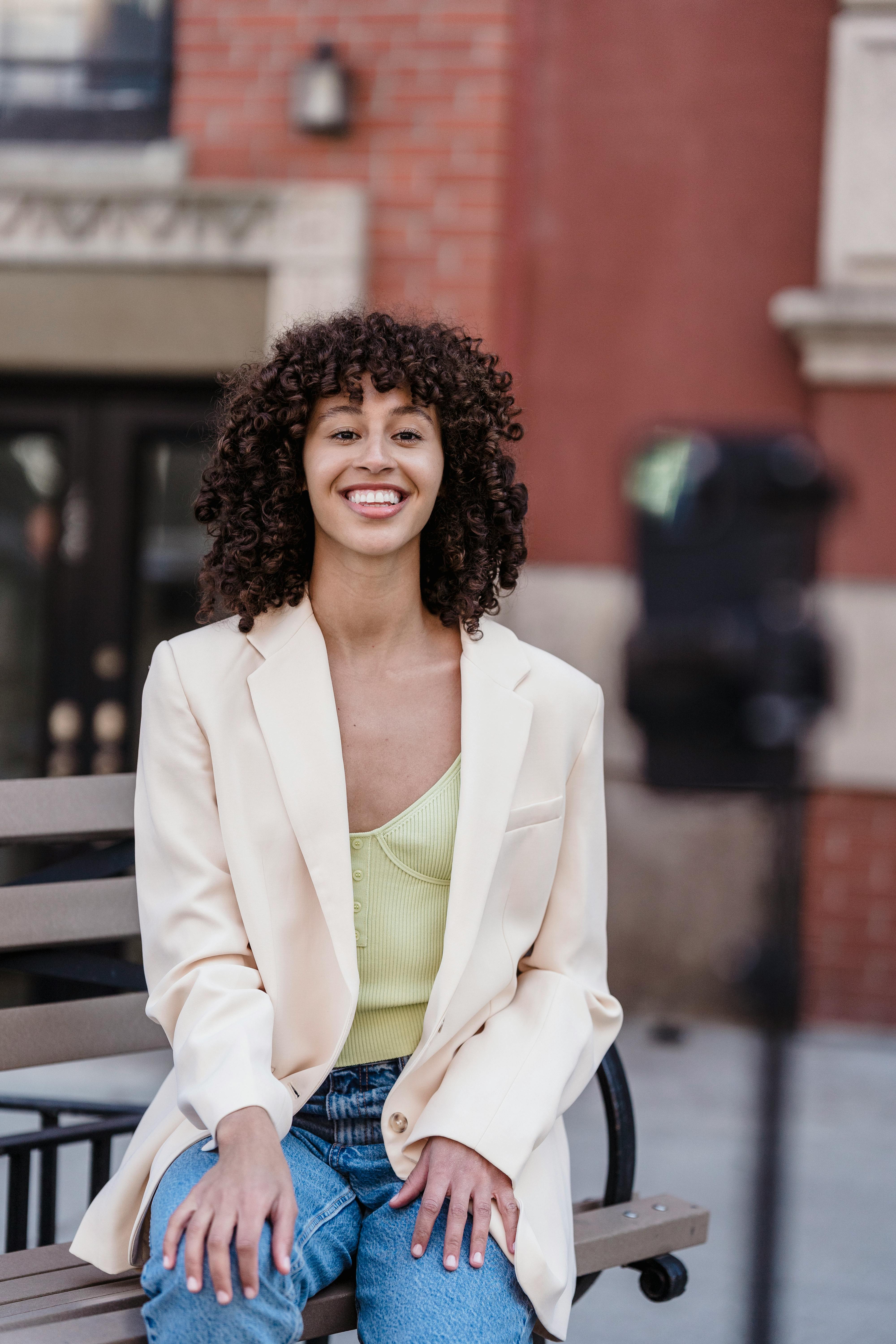
I edited a full batch of blog photos in under 20 minutes with Framia Pro. I typed one prompt to remove each background and another to fix the lighting. Every image came out sharp and consistent. I used to spend two hours doing the same work manually in Photoshop.
Susan M.
Susan M.
Content Creator
I shoot my own product photos on a kitchen table, and then used Framia Pro to remove the background and replace it with white. Every photo looked like a professional studio shot. My product listing conversions went up after I swapped in the new images.
Daniel R.
Daniel R.
E-commerce Seller
I run graphics for four brand accounts. I used Framia to resize, recolor, and retouch photos for each brand in one session. I switched AI models for each one, matched every brand's aesthetic, and finished a full week of graphics in one afternoon. I genuinely could not do this volume of work any other way.
Katherine W.
Katherine W.
Social Media Manager
My thumbnails were getting ignored. I used Framia Pro to isolate my face, crank up the contrast, and add a sharp background. The AI kept every edge clean. My click-through rate went up and stayed up. Every thumbnail I post now goes through this tool.
James T.
James T.
YouTuber
A client handed me 40 portraits needing blemish removal and hair retouching. I ran the whole batch through Framia Pro using text prompts. Every result was clean, accurate, and ready to deliver. My client noticed zero difference from manual retouching. I finished in a fraction of the time.
Lena V.
Lena V.
Freelance Photographer
We've compiled the most important information to help you get the moost out of your experience. Can't find what you're looking for?Contact us

Frequently Asked Questions

Can I change eye color in a photo online for free with Framia Pro?
Upload your photo, type a prompt like "change eye color to green," and Framia Pro uses AI to apply the change directly to the iris while keeping the rest of the face untouched.
Can I use an AI image editor with a prompt online?
Open Framia Pro in your browser, upload any image, and type exactly what you want changed. The AI reads your prompt and applies the edit to the specified area in seconds.
How to AI edit a picture with Framia Pro?
The process is quite simple. Just upload a photo to Framia Pro, select an AI model, and type a description of the edit. The AI processes your instruction and returns a refined image ready to download.
Is there an AI image editor with no sign-up?
Although there are many tools that allow you to edit your images without signing up. But the core features are usually locked behind a registered account or paid subscription.
Can an AI image changer modify features?
Yes. Type a prompt describing the specific feature you want changed, such as jaw shape, skin tone, or facial hair, and Framia Pro modifies only that area precisely.
How do I use the hair removal photo editor on Framia Pro?
Upload your photo and type a prompt like "remove hair from the background around the subject." The AI detects stray strands and erases them while keeping the subject's full hairstyle intact.

Still have questions?

Have questions or need assistance? Our team is here to help!

Try Framia Pro's AI image editor for free!

Create, refine, and transform any photo in seconds with Framia Pro's AI image editor. Just type your prompt and let the AI handle the rest.

AI Image Editor Online: Edit, Retouch, Transform Photos