Edit Text in Image Online

Fix typos, update offers, or replace text in image files with Framia's AI image text editor. Describe your changes and match the original font style without rebuilding your design

Upload imagesClick to browse or drag & drop file here
Edit Text in Image Online

How to edit text in image with Framia Pro for free?

Use Framia to change text in image files in three steps: upload, describe, and download

Step 1: Upload image
Sign in to Framia and upload a JPEG, PNG, or WebP image with clear, readable text.
Step 2: Describe your changes
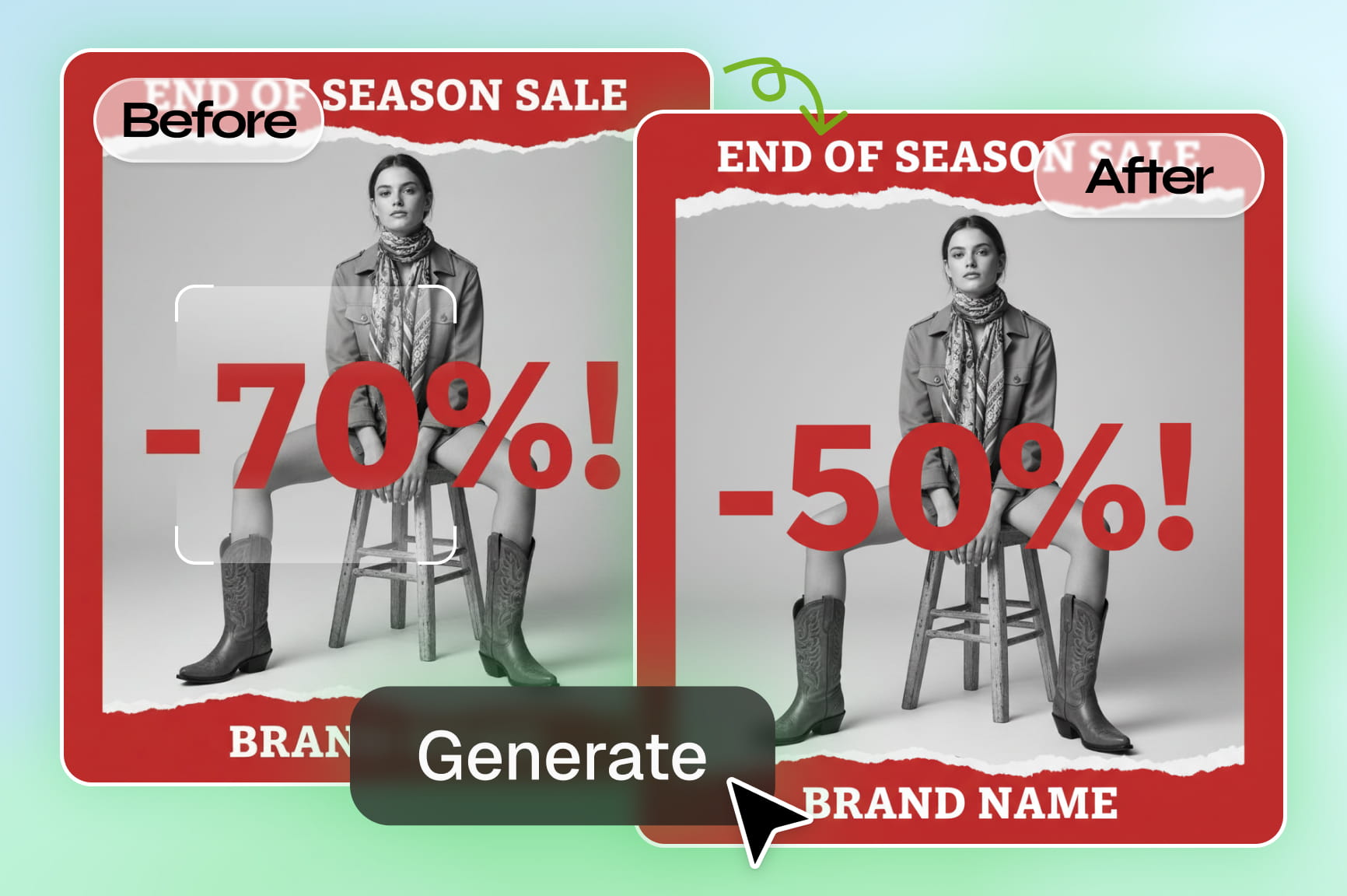
Specify the original text and its replacement, describe the style you want to keep, then click "Generate". 「Replace "-70%!" with "-50%!". Match the original font style and color, and keep the rest of the poster unchanged.」
Step 3: Download
Review the new text, font style, and layout, then click the download icon to save your image.

Powerful features of Framia Pro's image text editor

Update image text with AI—from promotional offers and seasonal headlines to event dates and menu names.

Update Offers and Promotional Text

Update discounts, campaign names, and text colors in an existing banner with Framia's AI image text editor. Refresh a summer offer for a new promotion while keeping the original layout as your starting point.

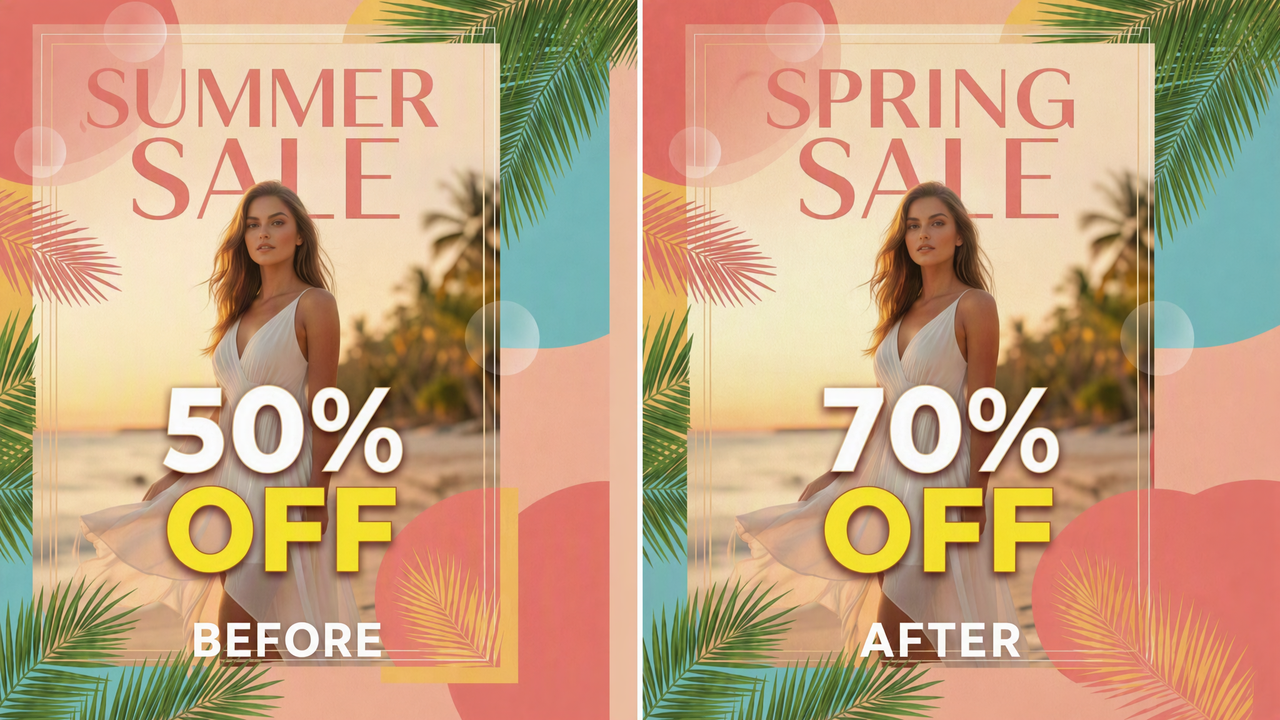
AI text recognition and smart replacement
Transform image text effortlessly with AI

Transform image text effortlessly with AI

Use Framia's AI image generator to change text in image files with a written instruction. For example, replace "SUMMER SALE" with "SPRING SALE" and "50%" with "70%", while asking the AI to keep the existing colors, layout, and beach scene.

Edit Text in Image with Same Font Online

Update a date or short phrase while keeping the look of the original design. Use the source image to guide the letter shapes, color, spacing, and alignment, so the replacement fits naturally with the surrounding text.
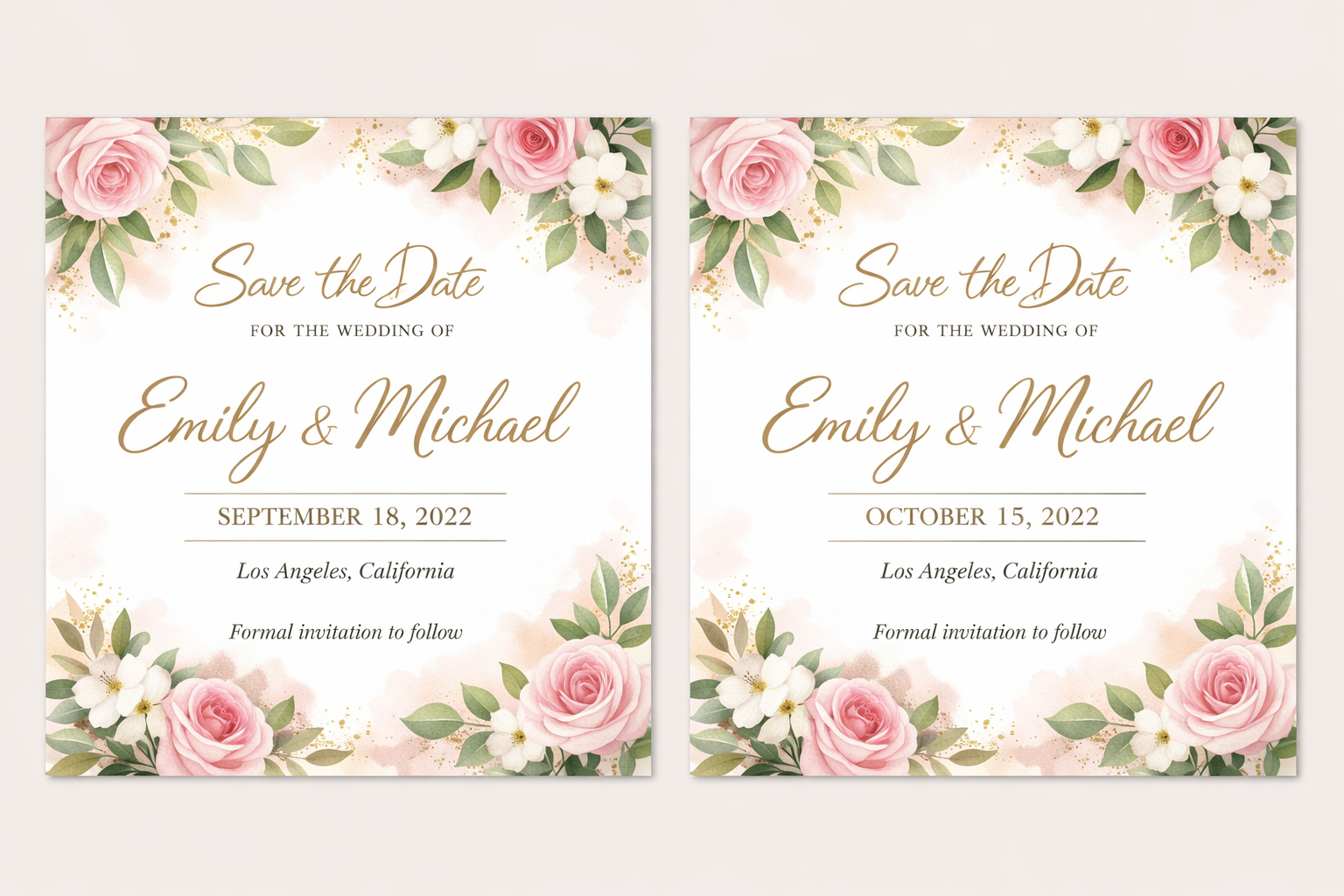
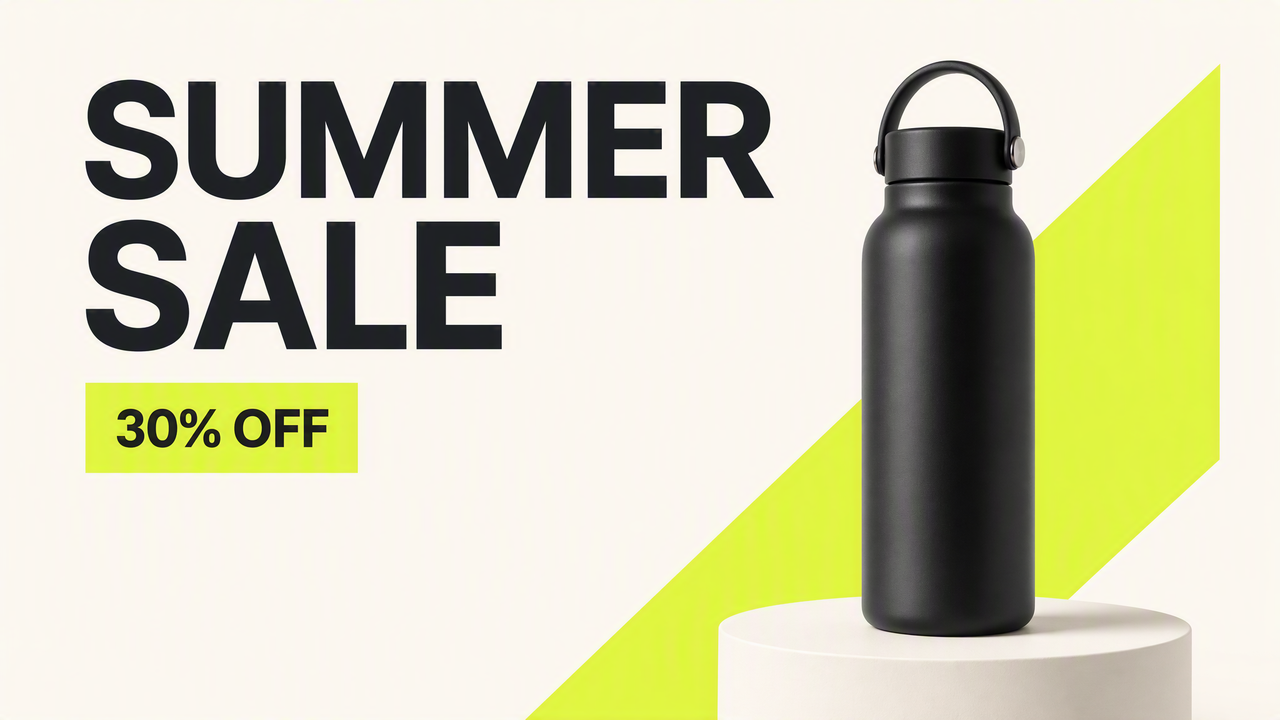
Seamless font identification and matching
Brand kit-driven text consistency

Keep Updated Text On Brand

Use your Brand Kit colors and typography as a reference when updating campaign text. Describe the headline or offer to change and the brand styling to retain, so refreshed ads and social graphics follow a consistent visual direction.

Background Restoration for Clean Text Edits

Framia helps you replace text in image files while blending the edited area with the surrounding background. Refresh a menu heading or product label without covering the old words with a solid color box.
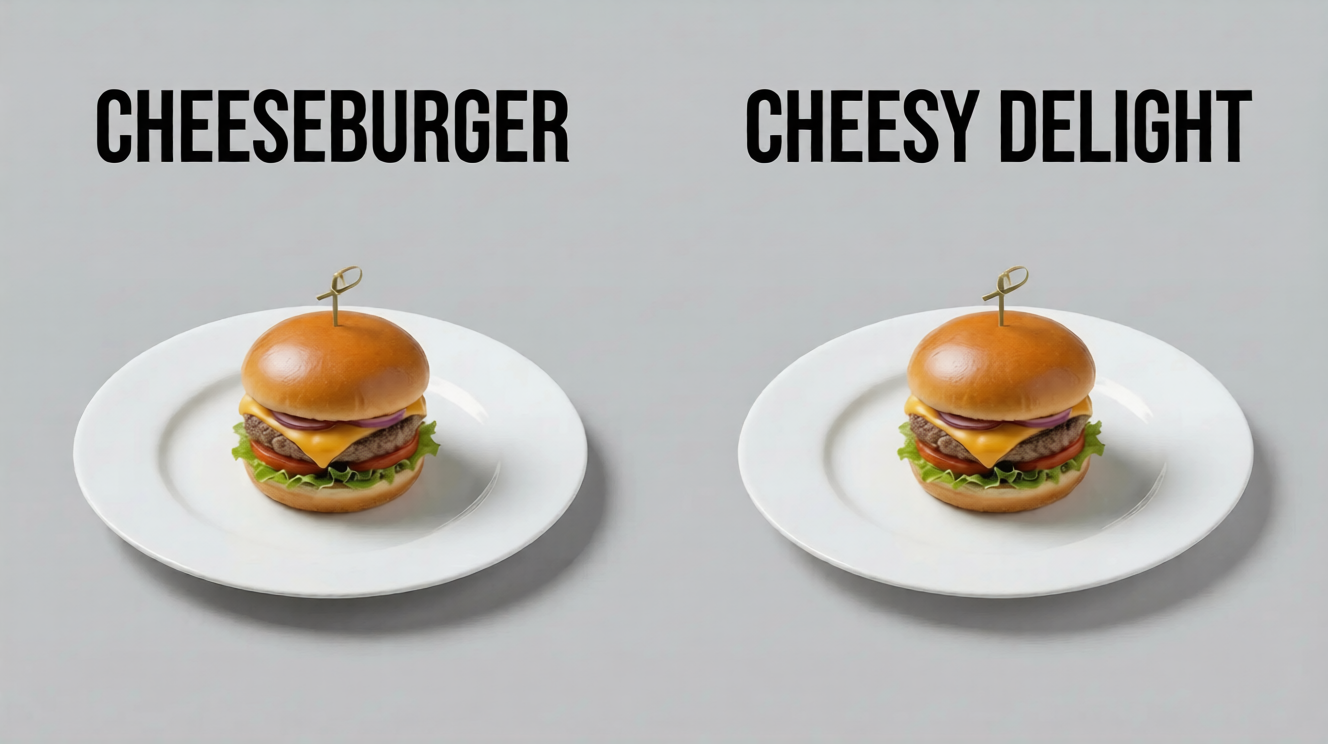
Seamless background restoration for clean edits

Why use Framia Pro to edit text in image online?

Start with your existing image, describe the change, and keep related edits in Framia

Keep Related Image Edits in One Place
Explore image models such as Nano Banana Pro and tools such as inpainting alongside Framia's AI image text editor. Handle text changes and other visual revisions within one creative platform.
Work from the Image You Already Have
Start with an exported JPEG, PNG, or WebP rather than tracking down the original layered design file. Update the wording on an existing visual without rebuilding the design from scratch.
Describe the Change in Plain Language
Tell Framia which words to replace and what styling to keep. You do not need to identify a font by name or manually redraw each letter before trying an edit.

Use Cases for Framia's Image Text Editor

Update product details, refresh campaign messages, and adapt short copy for a new market

Update pricing and details for e-commerce
E-commerce sellers sellers can replace text in image files to update prices, product names, or size labels. Refresh listing details while using the original product photo and layout as a reference. 「Example edit: "$29" → "$24"」
Refresh promotional creatives without redesigning
Refresh headlines, campaign dates, and CTA wording on existing marketing visuals. Use an approved design as the starting point for your next launch or seasonal campaign. 「Example edit: "ENDS FRIDAY" → "ENDS SUNDAY"」
Localize marketing content for global reach
Replace a short headline or CTA with text in your target language. Specify the wording you want, then refine spacing and line breaks to suit the new text. 「Example edit: "SHOP NOW" → "COMPRA AHORA"」

What users say about Framia Pro's image text editor?

Hear from real users who love Framia Pro’s fast, accurate AI for editing text in images effortlessly!

Updating seasonal pricing on my Shopify banners used to take hours of manual redesign. Now, I can change the data in a few minutes with Framia Pro, keeping my storefront current without any extra design costs or delays.
Sarah Jensen
Sarah Jensen
E-commerce Specialist
Nothing is worse than a typo in a viral post. This tool lets me fix errors instantly while perfectly matching the original style and aesthetic every time, saving my engagement rates from embarrassing mistakes.
Marcus Chen
Marcus Chen
Social Media Manager
Framia Pro helps me edit text in image for ads in minutes. I update offers without redesigning creatives. The AI keeps fonts and layout intact, making every campaign look professional and consistent.
Aarav Mehta
Aarav Mehta
Digital Marketer
Framia Pro makes editing text in image fun and simple. I create memes and visuals quickly. The AI blending is impressive, and edits look completely natural without any visible traces.
Neha Verma
Neha Verma
Content Creator
It helps me correct notes and project visuals quickly. I edit text in image without learning design tools. It’s fast, easy to use, and perfect for everyday academic and freelance work.
Ananya Iyer
Ananya Iyer
Student & Freelancer
I fix errors in screenshots and presentations easily. Editing text in image free saves me time and effort. The tool keeps everything aligned, making my reports look clean and professional.
Karan Patel
Karan Patel
Business Analyst
Find answers about editing image text, matching font styles, and using FramiaContact us

Frequently asked questions

Can I use AI to edit text in an image?
Yes. Framia's AI image text editor lets you replace text in image files with a written instruction. Upload your image, specify the original text and its replacement, then generate and review the result.
How can I edit text in an image with the same font?
Upload a clear image and ask Framia to match the existing font style, color, spacing, and alignment. The original image guides the edit; exact font matching is not guaranteed, especially for decorative lettering or low-resolution text.
Which image formats can I upload?
You can upload JPEG, PNG, and WebP images. Use a clear source image with readable text, whether you are updating a product visual, poster, invitation, or screenshot.
Can I change text colors as well as the words?
Yes. Describe the replacement wording and any text color or style changes you want. Specify which parts of the image should stay the same, then review the generated version.
Can I keep my brand fonts and colors consistent?
Use your Brand Kit as a visual reference and describe the colors, typography, and layout you want to retain. Refine each edited image to fit that direction.
Do I need an account, and can I use Framia for free?
An account is required to use Framia. For current free-access offers, usage limits, and paid options, check pricing and the options shown in your account before generating.
How does Framia handle uploaded images?
Framia's Privacy Policy explains how uploaded files, prompts, and related data may be collected and processed, including through service providers. Retention depends on the purposes described in the policy and applicable requirements; files should not be assumed to be deleted immediately after an edit.

Still have questions?

Have questions or need assistance? Our team is here to help!

Start editing text in your image now!

Edit text in image online with Framia. Upload your image and describe the words you want to change, from a quick typo fix to a new offer

Edit Text in Image Online: Replace and Change Text