 Share


GPT Image 2.6 Overview: GIFs, Flare vs Sunburst, and How to Use It in Framia
GPT Image 2.6 is now available on Framia. The "Flare" version is faster. The "Sunburst" version can provide more accurate results. Both versions support generating short GIF animations based on text prompts. According to OpenAI, these new versions are more accurate in editing tasks compared to GPT Image 2.5. This guide will introduce these two versions and explain the steps for creating GIFs.
What Is GPT Image 2.6?
OpenAI released GPT Image 2.6 on November 4, 2026. This model can generate static images and short GIF loops, and also edit the images you upload. The API has added SVG export functionality and image markup features. With image markup, you can specify the areas that need to be modified.
OpenAI stated that all ChatGPT and Codex plans can utilize GPT Image 2.6. Developers can use the Flare and Sunburst models of GPT-Image-2.6 through the API. The usage restrictions for different plans may vary. In Framia, both versions will be displayed in the image model menu and will have a "New" label. Your Framia plan determines your access to GPT Image 2.6 and the way you use your credits.
Flare or Sunburst?
You can choose the version in the model menu. The table below compares them.
| Version | Strength | Best for | Framia estimate |
|---|---|---|---|
| Flare | Fast results and quick tries | Drafts, prompt tests, social posts, repeat tests | About 10 to 40 seconds |
| Sunburst | More detail and steadier edits | Client changes, product images, detailed layouts | About 20 to 60 seconds |
GPT Image 2.6 Flare is suitable for quickly testing ideas and prompts. GPT Image 2.6 Sunburst is suitable for editing facial features, products, or small details that need to remain unchanged. If Flare alters the content you wish to retain, you can try using the same prompt in Sunburst for comparison. The two results will help you make a comparison. The time in the table is estimated by Framia, and peak hours may require a longer wait.
What Changed From GPT Image 2.5?
GPT Image 2 and GPT Image 2.5 can generate static images. GPT Image 2.6 adds the GIF function and retains the Flare and Sunburst versions. At the same time, it offers faster processing speed and more precise editing effects.
| Area | What GPT Image 2.6 adds |
|---|---|
| Output | Looping GIFs from a prompt or a simple sketch |
| Speed | OpenAI says images come 50% faster than before. With Flare at low quality, one image can take as little as six seconds. |
| Editing | Characters, products and brand details stay the same as you edit |
| API controls | Image markup, SVG export and a complexity setting |
OpenAI reports these speed figures for its API. In Framia, your prompt and quality setting can change how long generation takes.
What Controls Does GPT Image 2.6 Offer?
OpenAI lists four controls. The tool you use decides which ones you can access.
| Control | What it does | How to use it |
|---|---|---|
| Quality | Quality sets the amount of image detail. | Low quality suits quick drafts with Flare. Medium or high quality suits detail work with Sunburst. Higher settings often take more time and cost more. |
| Complexity | Complexity sets how much the model plans the scene. | Low complexity suits quick edits. Medium or high complexity suits scenes with many parts. |
| Image markup | Image markup shows where you want a change. | You point to the area and describe the change. |
| SVG export | SVG export saves the design as a vector file. | A vector file can be used for web, app, and print graphics. |
Quality and complexity do different jobs. Quality affects how clear the details look. Complexity sets how much the model plans the layout.
How Does GPT Image 2.6 GIF Generation Work?
A GIF repeatedly plays a series of frames. GPT Image 2.6 can generate these frames based on your prompts. The generated results can be used in email headers, chat responses, social media posts, or advertisements. OpenAI has showcased brand mascots, social media reactions, and animated storyboards used before video production.
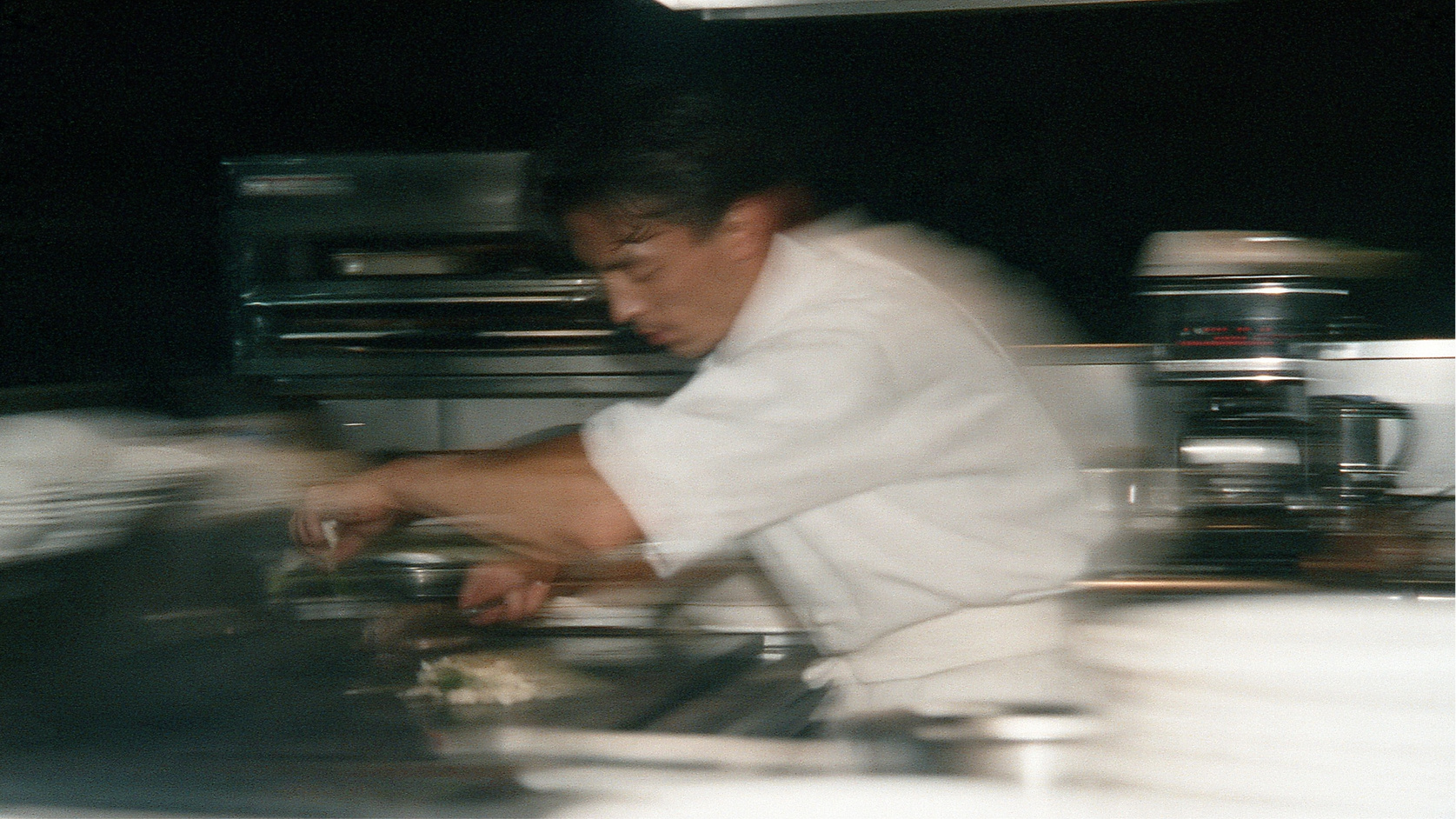
Only the steam moves in the GIF above, while the camera, cup, tray and linen stay still. The AI GIF generator can also follow the same rule: a single action makes the loop simpler. The prompt below sets the scene and explains which parts are moving:
A handcrafted matte cream-colored ceramic mug, filled with rich coffee, is placed on a wrinkled piece of natural linen cloth. Next to it is a small tray. The morning light gently filters through the window. Fixed camera. The only movement: the rising and drifting steam. Looping playback.
A drawing can also guide animation. OpenAI presented a sketch of a pen-drawn owl transforming into an animated character. This example uses images to guide the AI to generate a GIF. The GIFs generated by ChatGPT also follow the same concept. OpenAI also provides GIF functionality in ChatGPT and Codex.
How to Make Your First GIF in Framia?
You can use Framia as an AI GIF generator by following these steps.
Step 1: Open Framia and select "Image". The prompt box is located on the homepage, with the "Image" tab on the left side. Click on this tab to start.
Step 2: Select the "Flare" or "Sunburst" model from GPT Image 2.6. Both options are available in the model menu, each with a "New" label and a "GIF" tag. "Flare" is faster, while "Sunburst" can provide more accurate results.
Step 3: Your prompt needs to clearly specify a scene and an action. Please describe the contents in the picture and which elements are moving. You can also directly ask Framia Agent in simple and clear language, for example: "Please use GPT Image 2.6 to generate a looping GIF, but keep the camera stationary." The Agent will ask you which version you want. When the loop is completed, you can check the effect and then download or continue creating on the canvas.
按钮:Try GPT Image 2.6
What Are 5 Tips for Better GPT Image 2.6 GIFs?
- Each GIF needs one main motion, such as steam, a wave, or a flash of light and keep the camera still. If the looping animation feels rough, you can use simpler motion.
- Choose the model version based on the purpose. Flare is suitable for drafts and prompt tests Sunburst is suitable for situations where facial details, product details and small text need to be clearly displayed.
- The prompt should name one clear style for all frames. For example, expressions like "soft window light" and "flat colors" help maintain the uniform style of all frames.
- The animation quality settings should be adjusted according to the project stage. Low or medium quality is suitable for drafts, but high quality is suitable for the final version.
- Looping animations must be checked before release. The last frame must seamlessly connect with the first frame. The result may contain errors in logos, labels, or faces, so these details need a close check.
FAQs about GPT Image 2.6
Is the gpt-image 2 model free?
The model page of OpenAI shows that the GPT Image 2 API is not supported in the free plan, and this model has been marked as deprecated. The terms for accessing ChatGPT and using Framia credits are separate from the API fee billing. The services you are using will display their current usage limits.
Has gpt-image 2.5 been released?
Yes. OpenAI's image guide lists GPT Image 2.5 Flare and Sunburst. GPT Image 2.6 is the newer version in this guide. The model menu of your account will display the available versions.
Why is gpt-image 2 so expensive?
The cost of an API image request depends on the model, input and output settings. High-quality or large images may require more tokens. GPT Image 2 has been marked as deprecated and it is recommended to confirm the current model and price before comparing costs. Framia has its own credit plan. The price of the OpenAI API is not the credit price of Framia.
Is GPT Image 2 supported on ChatGPT?
GPT Image 2 is an earlier model name. OpenAI stated that all subscription levels of ChatGPT and Codex offer Images 2.6. However, this does not mean that every account can choose GPT Image 2. The image tools and limitations displayed on your account depend on the permissions you have. GPT Image 2.6 Flare and Sunburst are the names of the API models.
Should I Choose GPT Image 2.6 Flare or Sunburst?
GPT Image 2.6 Flare is the faster choice for drafts and prompt tests. Sunburst suits work that needs more detail or steadier edits. You can try the same prompt in both and compare the results. OpenAI recommends Sunburst at medium or high quality for more detailed work in its Images 2.6 announcement. Your wait time and credit use in Framia depend on the settings and your plan.
Can GPT Image 2.6 Make a GIF from a Drawing?
Yes. OpenAI shows a pen sketch of an owl becoming an animated character in its GPT Image 2.6 examples. Your reference shows the subject, and your prompt explains the motion. A simple loop can use one moving part and a fixed camera. The OpenAI example does not confirm that every image-input option is available in Framia. You should check the options shown in your Framia project.