Add Snow Effect to Video

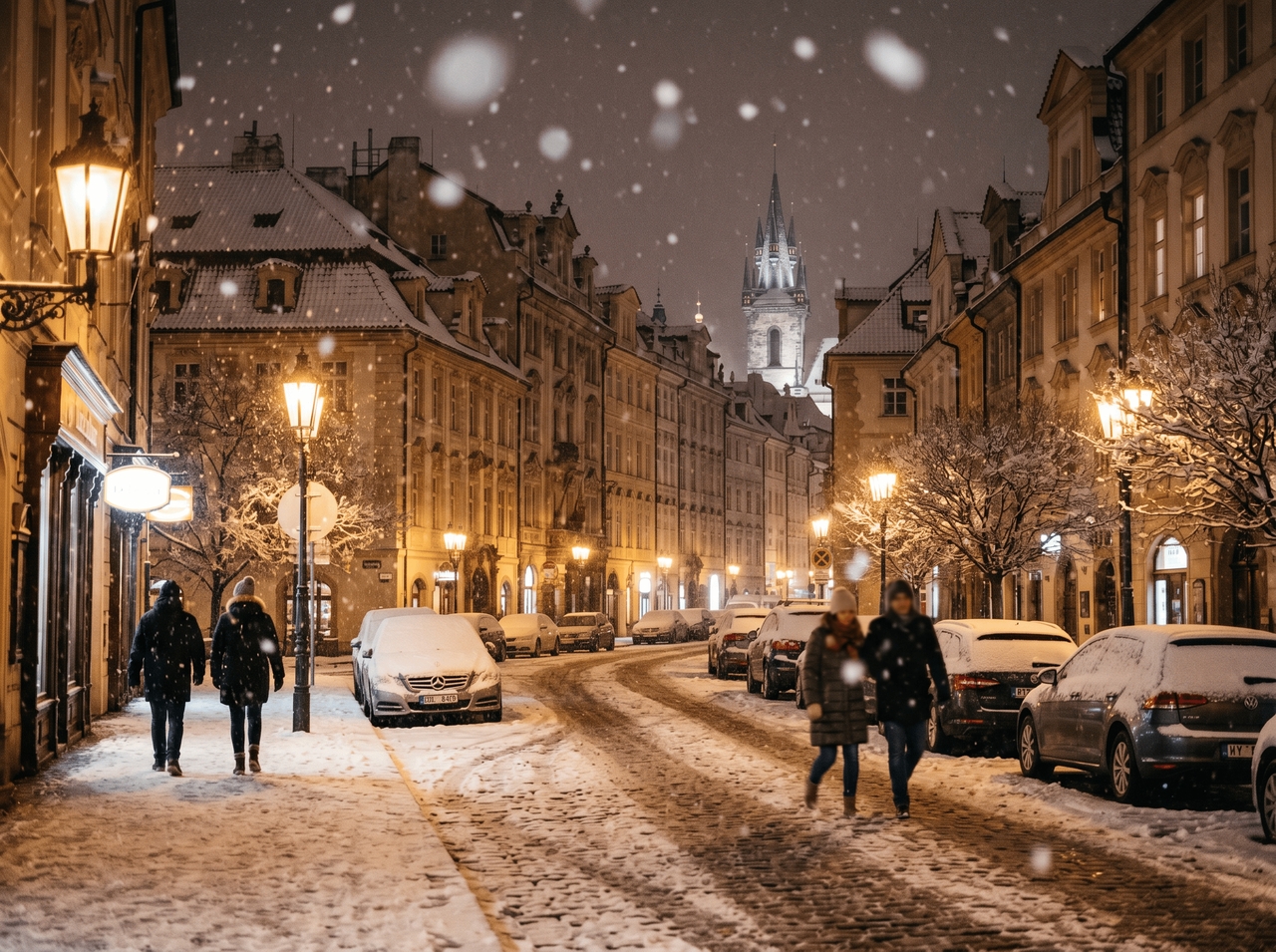
Turn clips into snowy winter scenes with AI snowfall, drifting flakes, snowstorm motion, and cinematic cold-weather effects.

Upload imagesClick to browse or drag & drop file here
Add Snow Effect to Video

Create snowy scenes in three quick steps

Adding a snow effect to a video with AI is faster than it sounds. Here's how it works on Framia Pro in three steps.

Upload your video
Open Framia Pro, choose video agent, upload your existing footage, and type a prompt describing the snow atmosphere, intensity, or winter mood.
Pick your model and generate
Click "Select Model," choose a video model, set your resolution, duration, and aspect ratio, then hit "Generate" to apply the AI snow effect.
Edit and download
Preview the snowfall result, refine specific scenes through chat or the Storyboard editor, and export the final video to your device.

Winter magic: Features wrapped in snowfall and cinematic chill

Start creating snow effect videos with AI tools that turn text, clips, and images into winter scenes with motion, light, and snowfall effects.
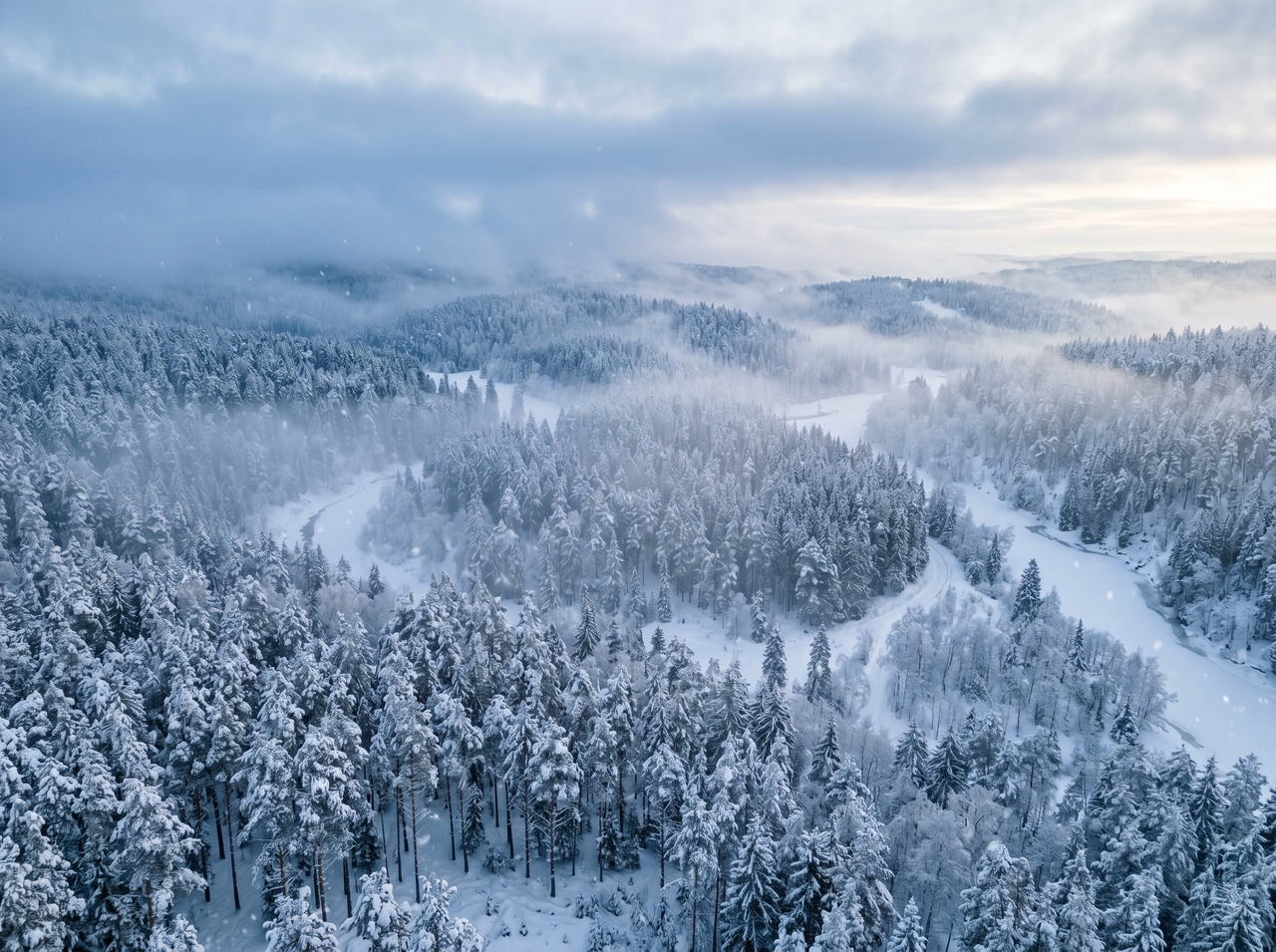
Drop realistic snow overlays onto any video

Upload your clip and explain the snow effect video edits. Framia Pro uses Kling 3.0, Veo 3.1, Sora 2, or Seedance 2.0, which reads depth and lighting and creates the effect where it actually makes sense in the scene.

Drop realistic snow overlays onto any video
Generate snowfall videos from text prompts

Generate snowfall videos from text prompts

Type your prompt and pick your model, aspect ratio (9:16, 16:9, or 1:1), resolution, and duration before you hit generate. You can also upload a reference image and turn on web search so the AI pulls in the current context.

Regenerate clips through simple chat edits

Spotted a shot where the AI snow effect looks off? Type the change you want directly in the chat. The editor updates that specific clip and leaves the rest of your video with the snowy effect untouched.
Regenerate clips through simple chat edits
Layer AI audio over your snow effect video

Layer AI audio over your snow effect video

Add soundtracks using AI music generation models such as Suno v5 or Mureka for background music or ambient winter tones. Audio layers align with scene timing, so your free video of snow falling matches sound changes in cold or windy sections.

Edit video scenes through AI editing tools

Open the Storyboard video editor and drag scenes into the order you want. Use SmartSplit to let AI cut scenes automatically, or split manually at any frame. Regenerate a weak shot, swap it out, and add synced captions in the same step.
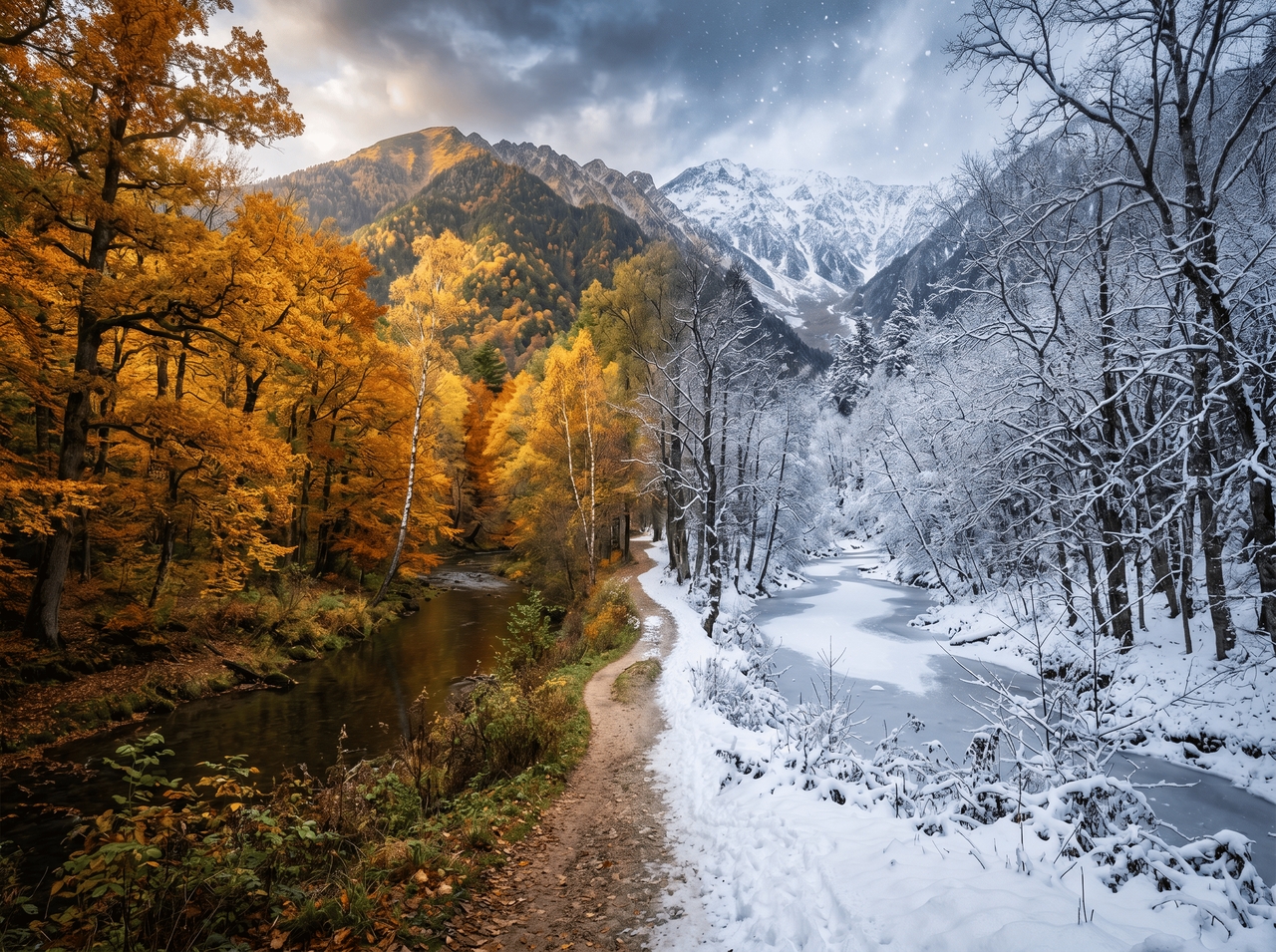
Edit video scenes through AI editing tools
Easily use AI to restyle any winter clip

Easily use AI to restyle any winter clip

Feed in existing footage and describe the winter atmosphere you are going for. The AI restyles the scene, adjusts the visual tone, and outputs a snowy video background that matches your direction, without you touching a single layer or mask.

Export winter edits in HD and 4K quality

Once your snow effect video is ready, export it clean. Framia Pro outputs in your chosen resolution up to 4K. Audio, captions, and visuals stay in sync on download, so you can quickly post on any platform.
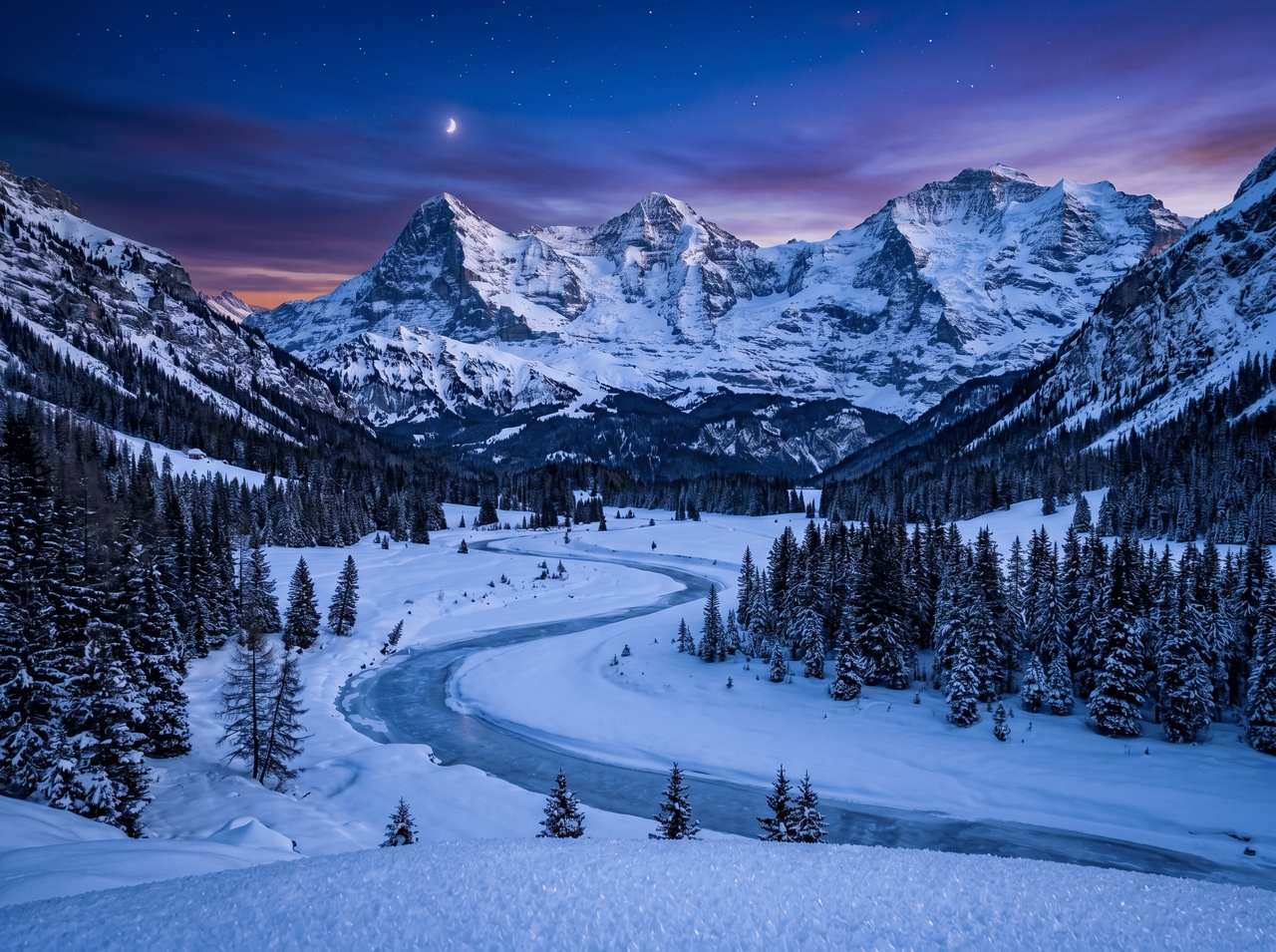
Export winter edits in HD and 4K quality

Snowfall dreams: Framia Pro's AI winter video gallery

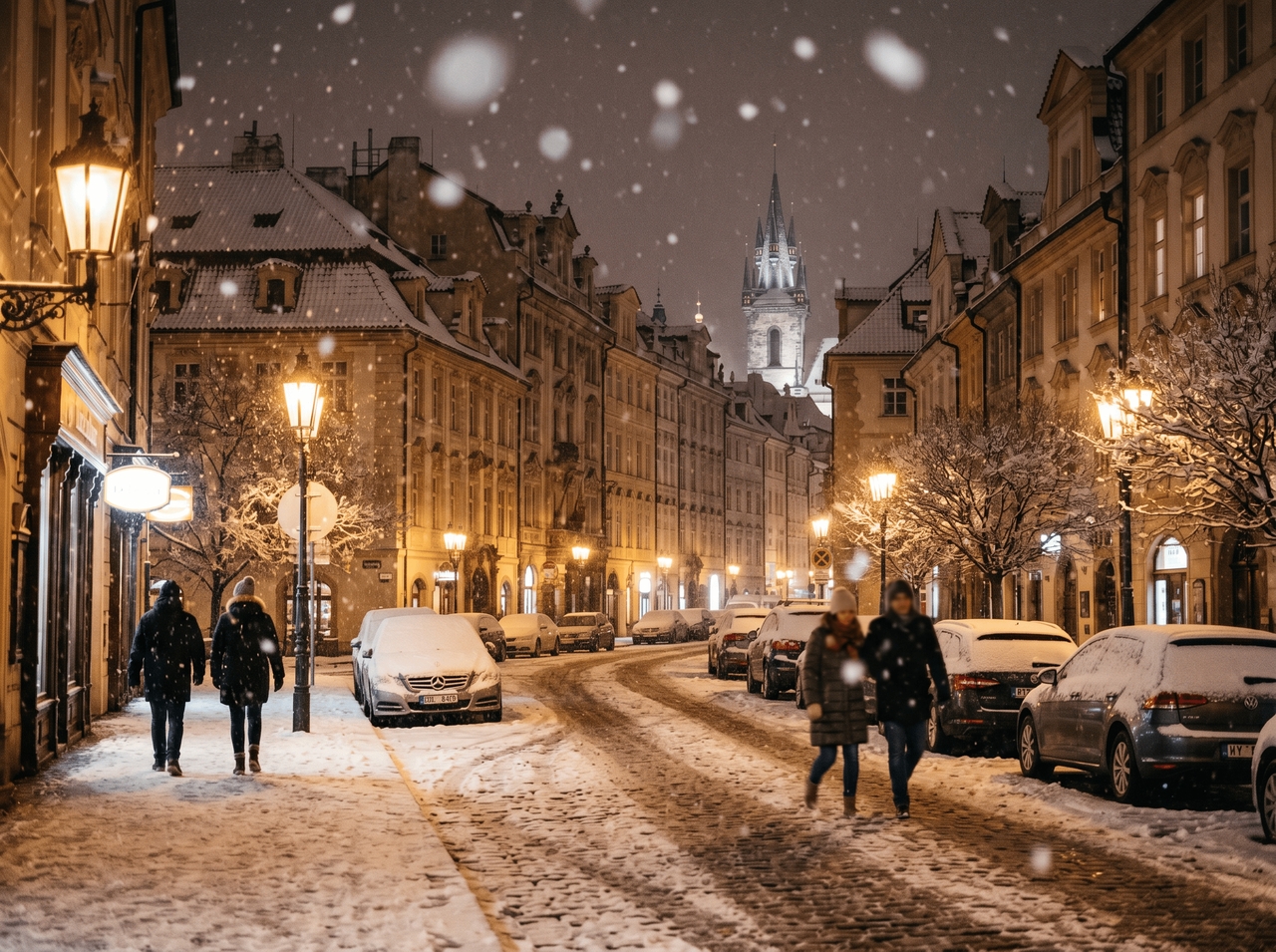
"Heavy snowfall covering a quiet New York street at night with glowing shop lights and cinematic camera motion."

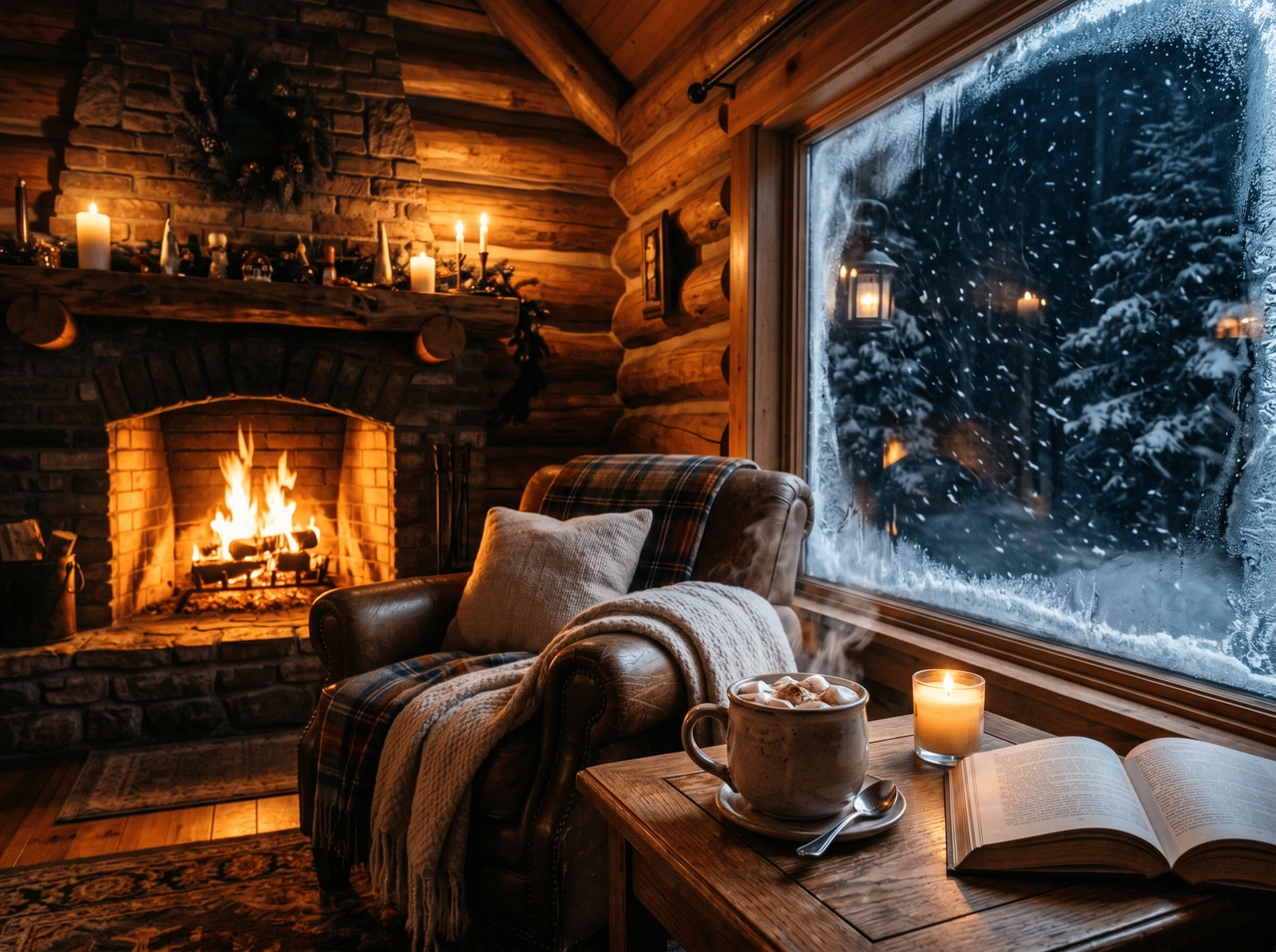
"Soft snowflakes drifting around a wooden cabin in the mountains with warm indoor lighting and cozy winter atmosphere."

"Anime-style snowy forest scene with glowing snow particles, dreamy lighting, and slow cinematic movement."

"Powerful snowstorm moving through a futuristic city street with icy fog, wind motion, and dramatic lighting."

"Romantic winter park scene with gentle snowfall, blurred lights, and cinematic depth of field."

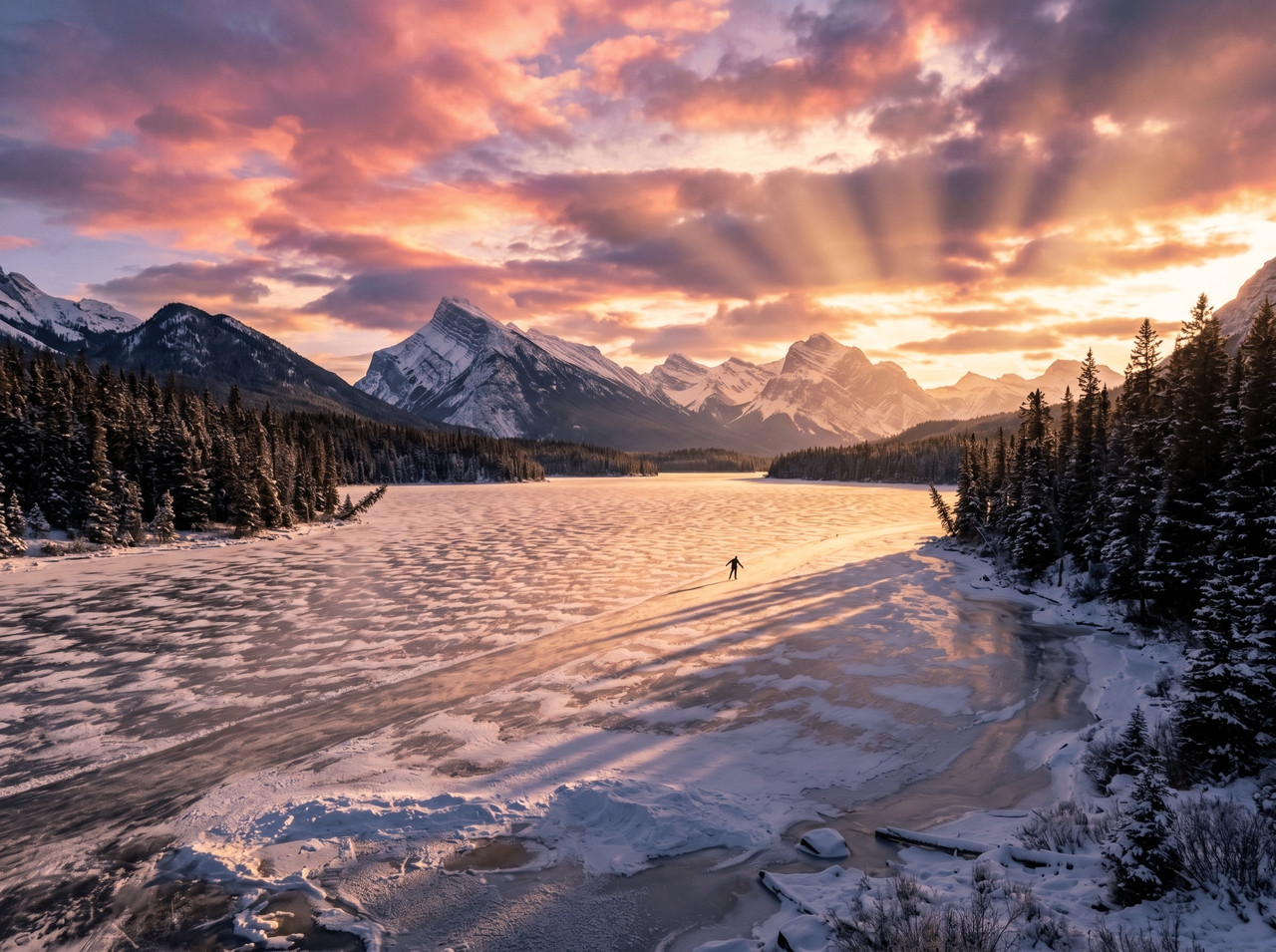
"Snow falling over a frozen lake during sunset with realistic reflections and calm cinematic motion."

"Christmas snowfall outside a decorated house with warm lights, snowy trees, and a peaceful winter mood."

"Traveler walking through heavy snowfall in a mountain village with realistic snow movement and cinematic shadows."

What you can create with a snow effect on video?

Snow turns ordinary footage into something people actually stop to watch. Here's what creators use it for.

Holiday promos and ads
Add snow effect video layers to seasonal ads and holiday brand marketing clips where winter visuals fit product stories. Viewers connect quickly with winter-themed ads, and that emotional pull tends to show up in click-through rates too.
Cinematic winter intros
Use the snow effect on video to open cinematic sequences with soft or heavy snowfall visuals. Snow moves through frames while light sources change in the scene. This works well for film intros, travel openings, and story-based video projects with winter themes.
Festive social media reels
Short video content with the effect of snow storm gets more saves during the holiday season. You can use Framia Pro to layer snowflakes over a trending audio clip to create a festive mood without needing a full production setup.
Seasonal product showcases
Apply a falling snow background to your videos inside Framia Pro to place products in a winter setting. This works for clothing drops, gift items, and seasonal collections shown across online stores and social feeds.
Snowy travel vlogs
Not every trip happens in winter. You can use Framia Pro to add a snow effect to video to give warm-weather footage a cold and moody atmosphere that fits winter publishing schedules and seasonal audience interest
Christmas greeting videos
Add a falling snow video background to your personal or branded greetings during festive seasons with Framia Pro. This fits video messages, social posts, and short seasonal greetings shared with audiences.

What users say about Framia Pro's AI snow effects?

Real people, real use cases. Here's what they said after adding a snow effect to the video with Framia Pro.


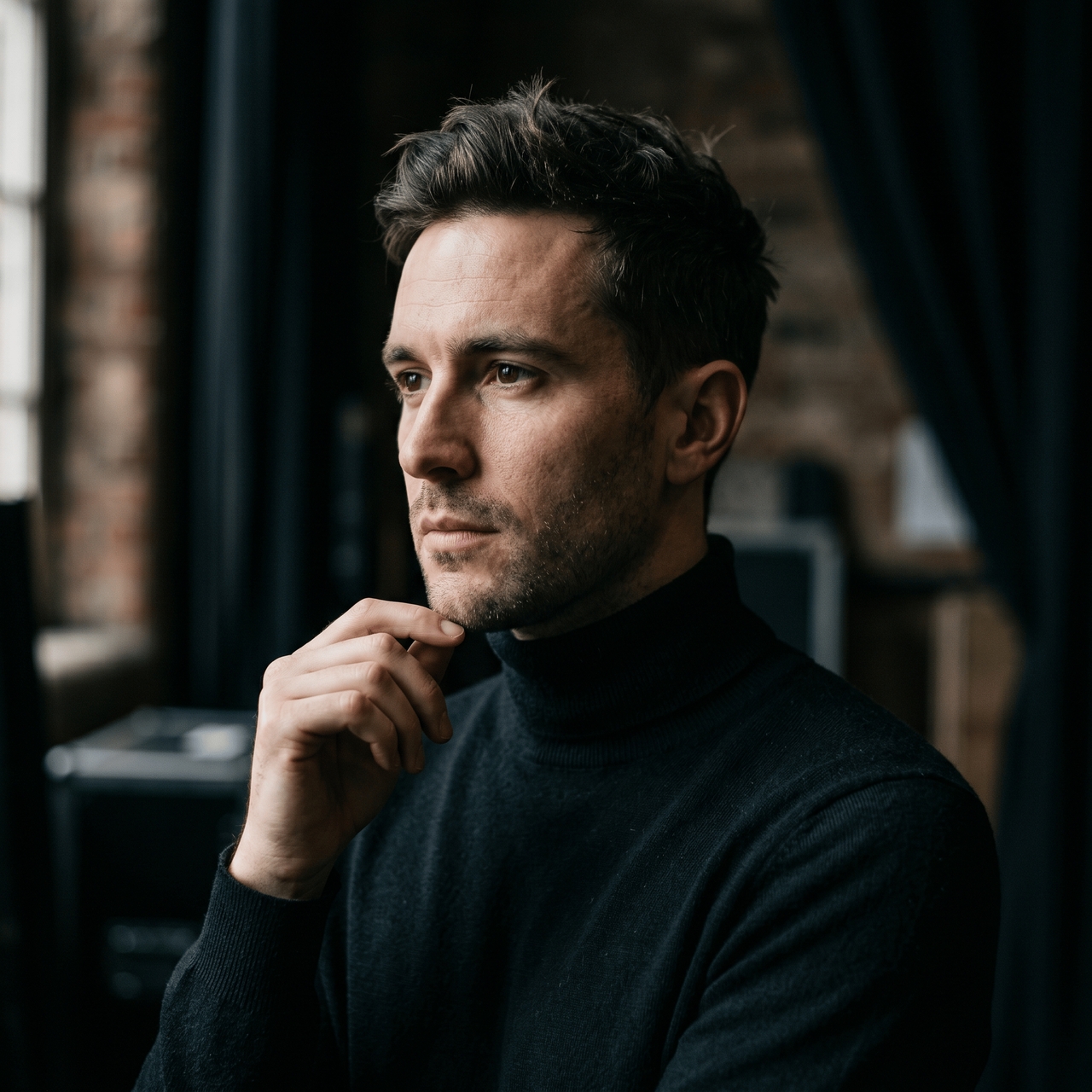
Honestly, I was not expecting much. Typed a quick prompt, picked Kling 3.0, and got a falling snow video background that actually looked cinematic. Added captions in the same session. Never opened another tab
Zoe Hartwell
Zoe Hartwell
Content Creator
My client needed a Christmas ad by Friday. I added the snowfall effect to the content using Framia Pro, scored it with Suno v5, and exported it in 9:16 for Reels. The client thought we hired a production crew. We did not.
Marcus Delgado
Marcus Delgado
Social Media Manager
I had existing travel footage that needed a winter repost angle. Ran it through Framia Pro, added a snowy video background, and it read completely different. Saved the whole content calendar for December.
Freya Andersen
Freya Andersen
Freelance Videographer
The Storyboard editor is what got me. I spliced three scenes, regenerated the one that looked off, and layered a snow effect on the video clips separately. That level of control in a browser tool still surprises me.
Caleb Ostrowski
Caleb Ostrowski
YouTube Creator
Used the snowfall video effect with Framia Pro for a seasonal skincare campaign. Uploaded a reference image for the overlay direction, picked Veo 3.1, and the output matched the brand aesthetic on the first try. That rarely happens.
Nina Ferreira
Nina Ferreira
Digital Marketer
I needed a snowing effect for a winter intro scene, but had no budget for a location. Generated it with Framia Pro from a text prompt, layered the right audio, and the whole opening felt like something you'd pay to watch.
Tyler Beaumont
Tyler Beaumont
Short Film Director
We've compiled the most important information to help you get the most out of your experience. Can't find what you're looking for?Contact us

Frequently asked questions

What is meant by the snowfall effect?
A snowfall effect layers animated snow particles over video footage to create a winter atmosphere. Framia Pro generates this using AI, so the snow reads depth and lighting in your actual scene.
Can I add a snow effect to a video online for free?
Yes. Framia Pro has a free plan that lets you upload a clip, apply a snow effect on video, and export without downloading any software or paying upfront.
Can I replace scenes after adding snowfall with Framia Pro?
Absolutely. Open the Storyboard editor, split the clip you want to swap, and replace just that section. The rest of your snowfall video stays exactly as it was.
How do I add a snow effect to a video online?
Upload your video on Framia Pro, enter your prompt, select a video model, resolution, duration, and format, then click Generate. Edit your image or video through chat or the Storyboard video editor, and export to your device.
Can I generate a falling snow video background from scratch?
Yes. Type a description into Framia Pro, pick Seedance 2.0 or Hailuo, set your aspect ratio and duration, and it generates a full falling snow video background from the prompt alone.
What video formats work for adding a snowfall effect?
Framia Pro accepts MP4, MOV, AVI, MKV, and WebM. After adding your snowfall video effect and editing through the Storyboard or chat, you export back to MP4 in your chosen resolution.

Still have questions?

Have questions or need assistance? Our team is here to help!

Create snow effect videos with AI

Layer realistic snowfall onto any video online. No downloads, no timeline stress. Just winter, instantly!
Add Realistic Snow Effect to Video Online