
Veo 3.1: The Secret to Viral Videos

Generate 1080p AI videos with native audio, multi-scene control, and consistent characters using Google Veo 3.1 on Framia Pro. Get cinematic content for any project.

Start for Free
Preparing editor…

What is Veo 3.1?

Veo 3.1 is Google's AI video generation model for creating high-quality video from text prompts and images. It can generate 8-second clips with native audio, including dialogue, sound effects, and ambient sounds. The model supports both text-to-video and image-to-video generation, with tools for guiding scenes through reference images, controlling the first and last frames, and extending existing videos. It also supports landscape and portrait formats, including native 9:16 video for short-form content.

What features does Google Veo 3.1 offer on Framia Pro?

Google's most advanced AI video model just leveled up. Here's everything it can do and why creators are calling it a game-changer.

Create a video with just a sentence

Type one sentence and Google Veo 3.1 generates an 8-second video with 1080p resolution and 24 FPS frame rate. The model handles camera movement, lighting, and motion, so you don't have to edit the content afterward.

Create a video with just a sentence
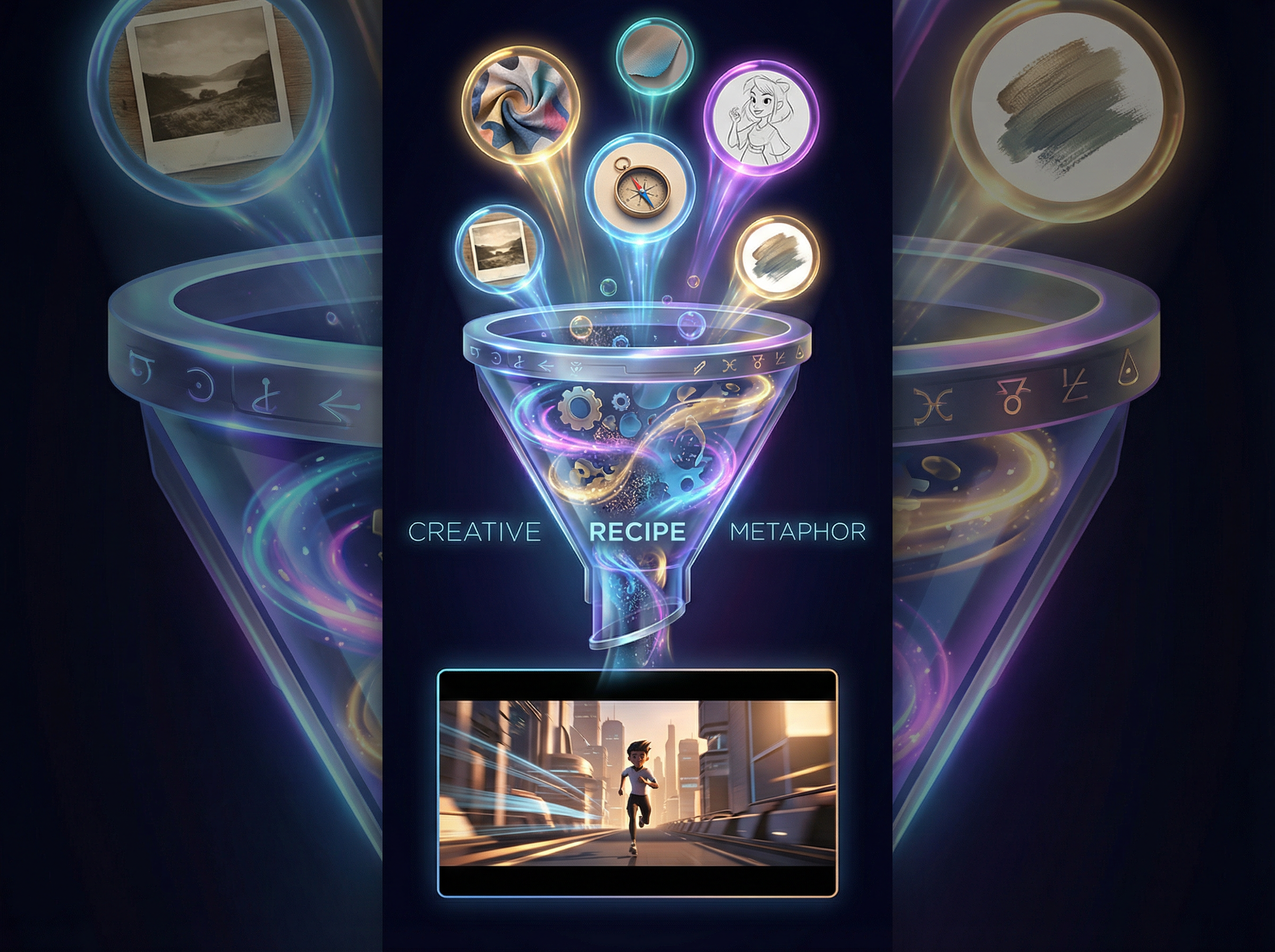
Use multiple reference images in one scene

Use multiple reference images in one scene

Upload up to 3 reference images to direct characters, objects, and style. Veo 3.1 AI image video generator quickly combines these elements into one clear video scene, even when they come from completely different sources, shoots, or visual styles.

Improved smart ingredients to video tool

Veo 3.1 adds an "Ingredients to Video" option through its Flow tool. This update turns reference images into short videos with clearer motion and story flow. Even a short prompt now gives you better control over the scene and style.

Improved smart ingredients to video tool
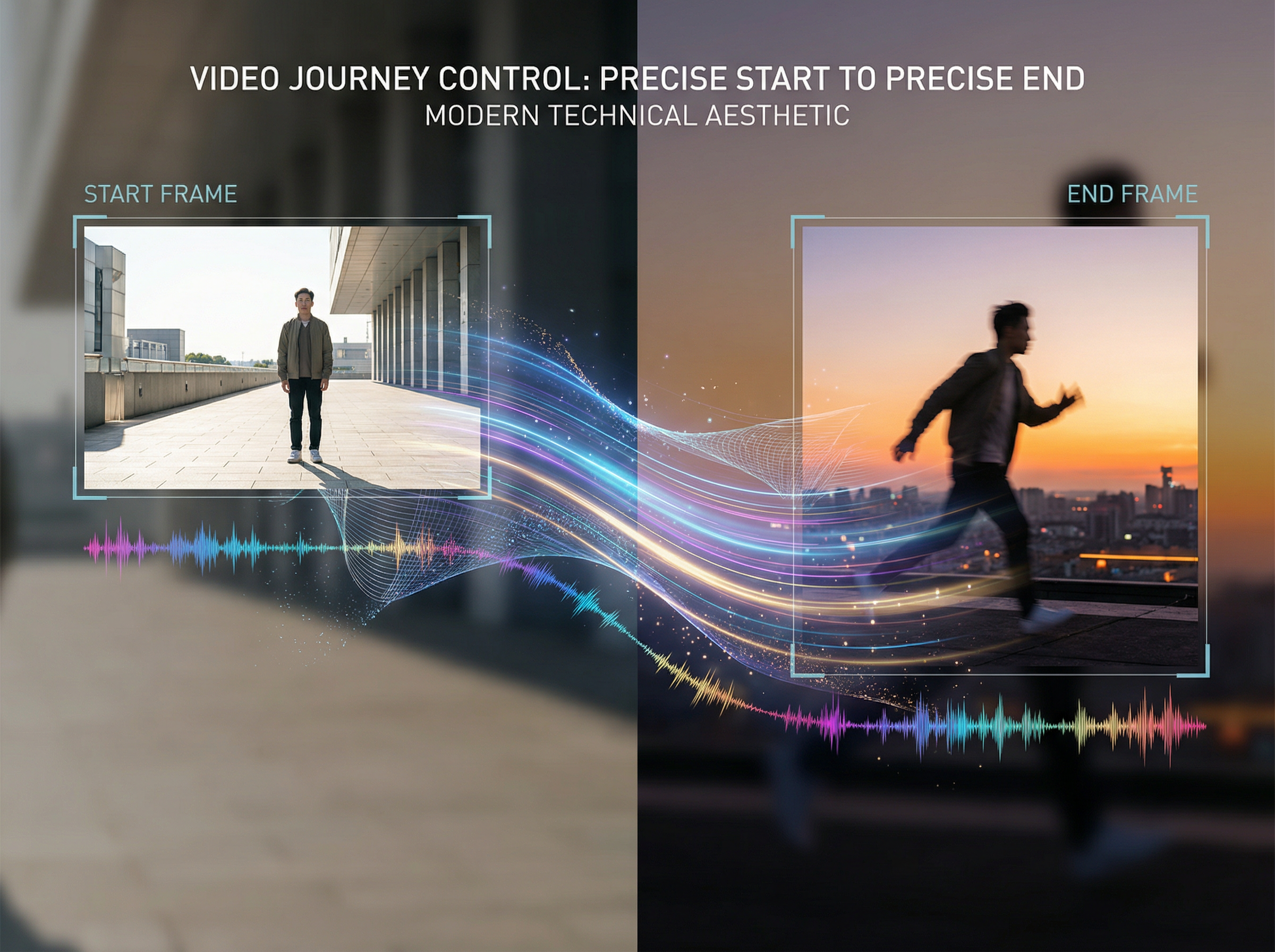
Easily control first frame and end frame

Easily control first frame and end frame

Provide two images, one for where the video starts, one for where it ends, and Google Veo 3.1 on Framia generates the full transition between them, complete with motion and synchronized audio. Create 4 to 8-second clips from simple frames.

Keep character the same in different shots

Keep the subject's identity and appearance the same in all frames with Veo 3.1, even as the setting, lighting, or camera angle changes. This way, the characters are recognizable in multiple scenes without manual adjustments or re-uploading reference images each time.
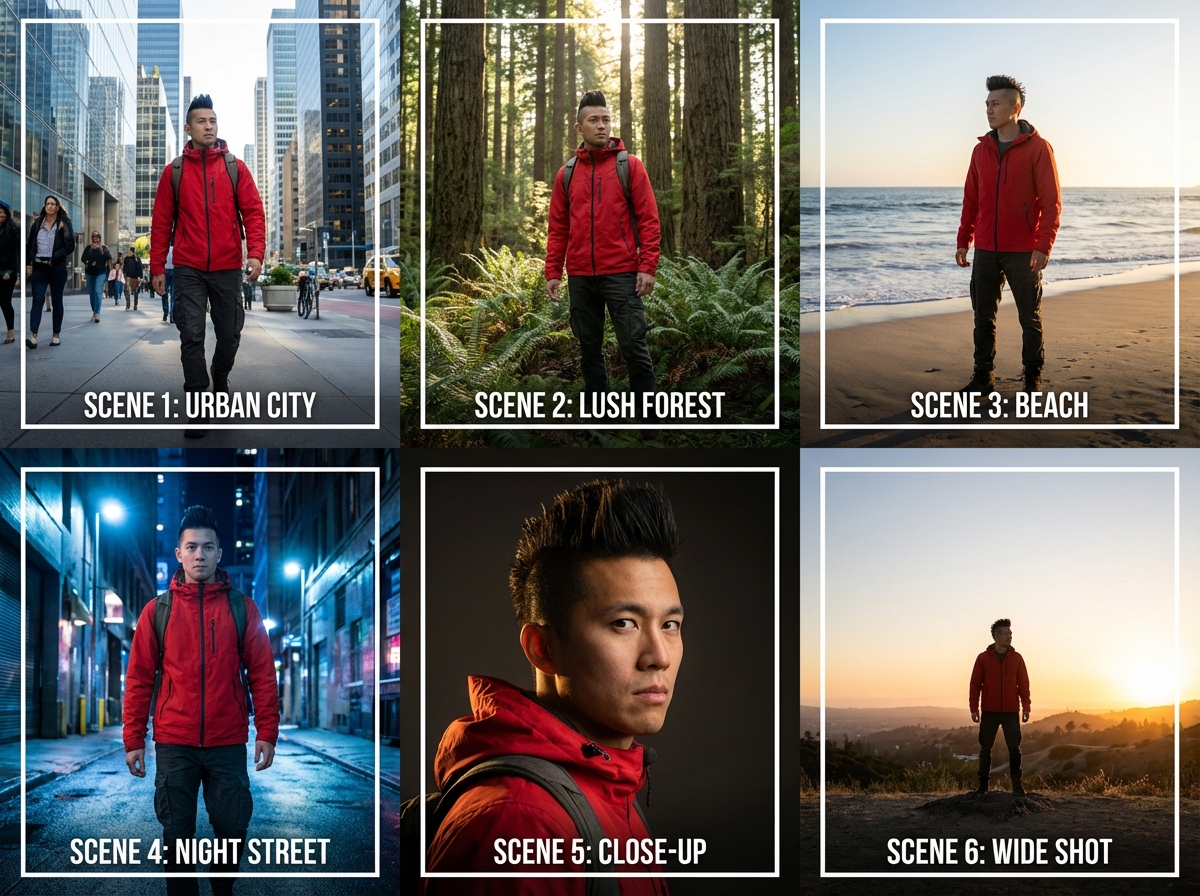
Keep character the same in different shots
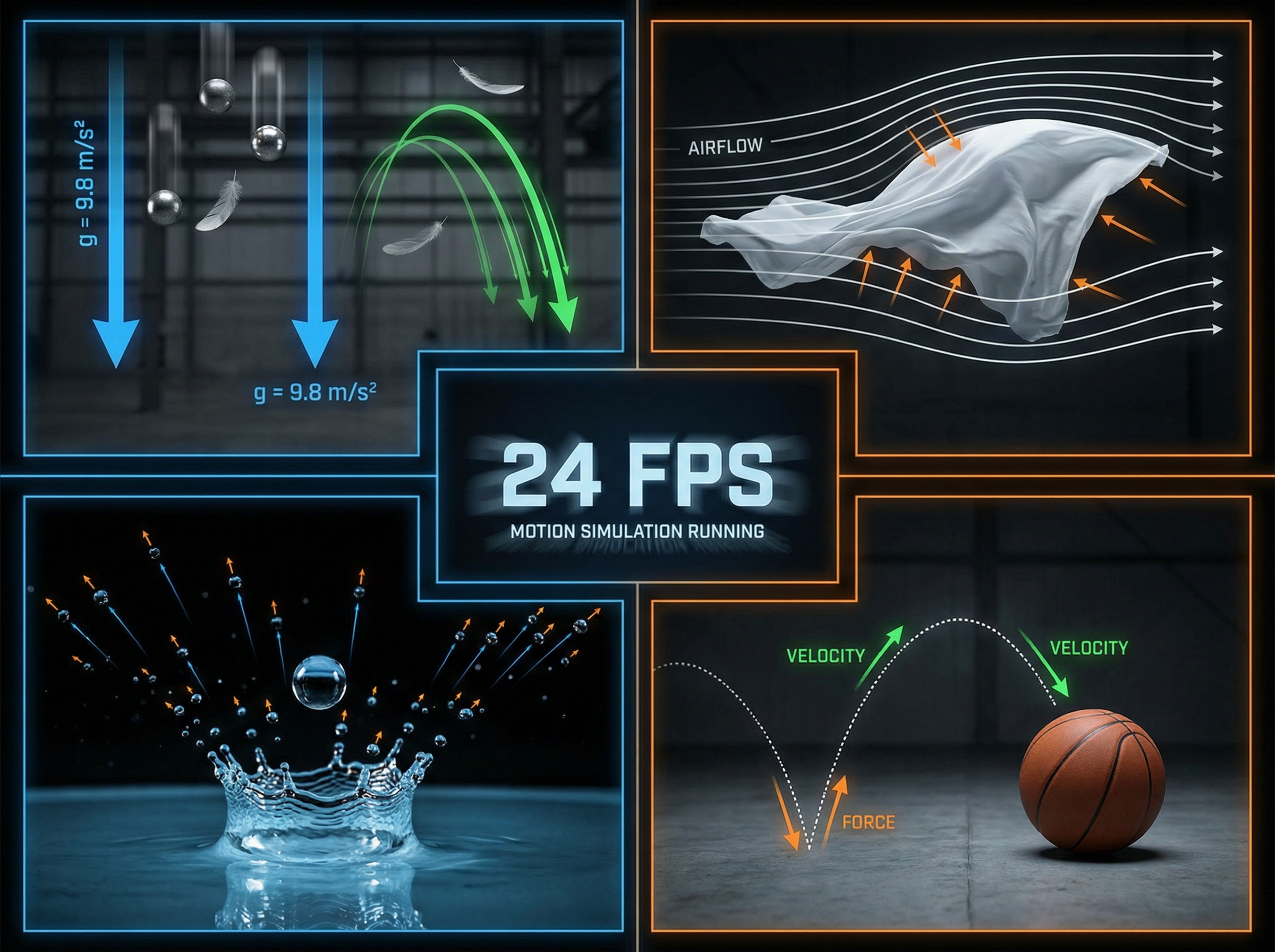
Handle real-world physics with natural motion

Handle real-world physics with natural motion

Veo 3.1 captures true-to-life textures and motion during different frames at 24 FPS. Objects fall, cloth moves, and fluids behave accurately in your video. The model processes motion physics directly, and you don't have to create any manual animations or set keyframes.

Get video with built-in sound and dialogue

Veo 3.1 generates richer native audio, such as natural conversations or synchronized sound effects, embedded directly in every video. In Google's MovieGenBench evaluation across 1,003 prompts, Veo 3.1 ranked first for overall preference
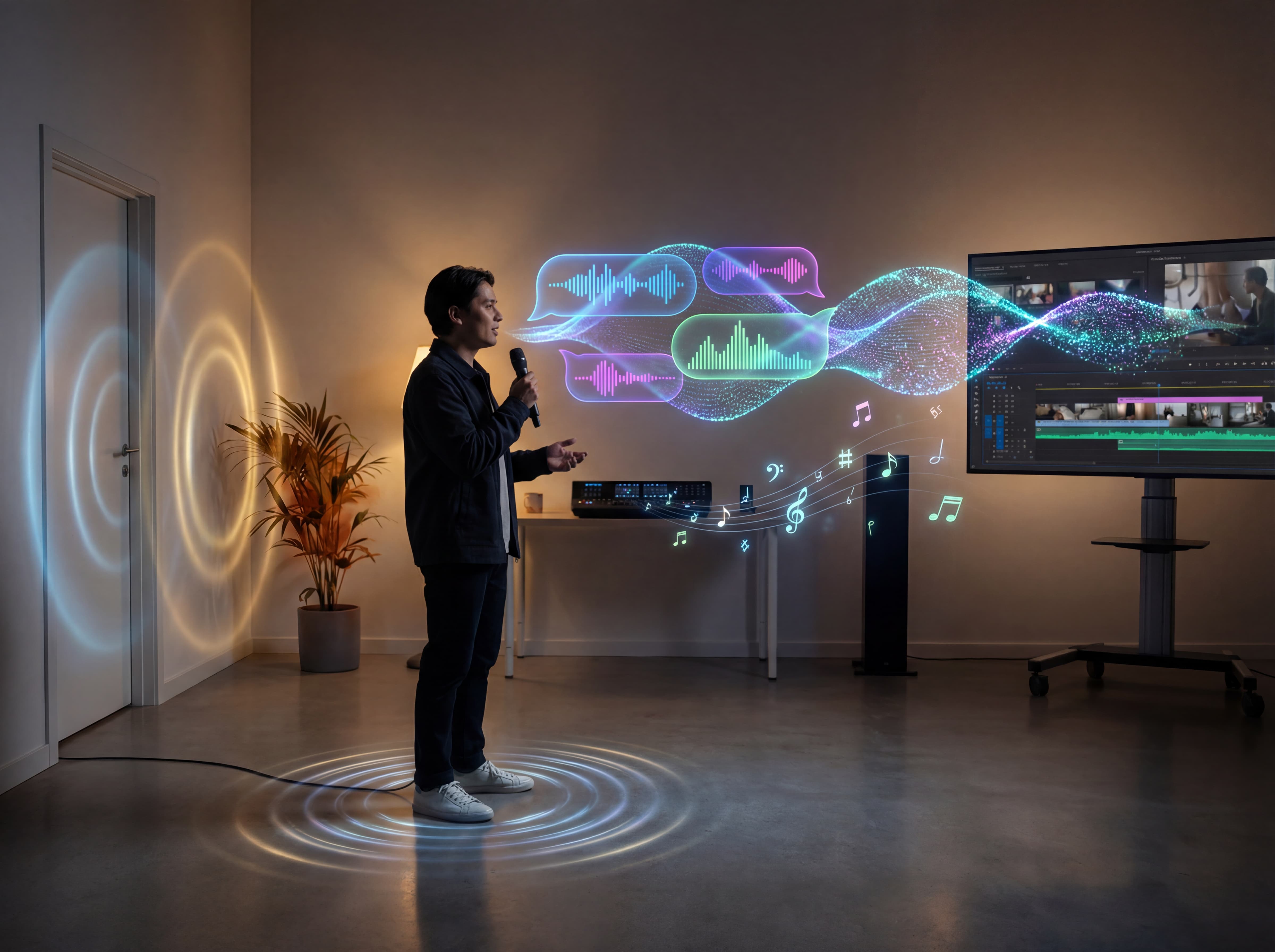
Get video with built-in sound and dialogue

How to use Veo 3.1 AI video generator on Framia Pro?

Create engaging videos with Veo 3.1 AI video generator on Framia Pro! Follow three quick steps:

Step 1: Create a video workflow
Let's say a sneaker brand needs a 15-second teaser for a launch. In Framia Pro, you open Agent Canvas, type your idea in one line, for example, "close-up shot of a serum bottle catching morning light, water droplets rolling down the glass." Add a product photo if you have one. Tap the skill icon next to Autopilot and pick Short Video Director from the Skills menu.
Step 2: Select Veo 3.1
The dropdown next to Autopilot controls output quality, such as Fast, Balanced, or High, with Extra High reserved for paid plans running GPT-5 Astra. For a launch clip going straight to socials, Balanced usually holds enough detail without a long wait. The model list from the Auto dropdown lets you pick Veo 3.1 from the Video tab. Framia Pro then breaks your idea into connected nodes for script, image reference, video, and audio.
Step 3: Generate, edit, and export
From there, you review each node before you generate the final output. You can swap the audio node, change the aspect ratio for Reels, or add different reference photos. Once the nodes match what you had in mind, you can run the whole workflow or just the section you changed. No need to redo everything from scratch for one fix. You can open the finished clip in its built-in Video Editor, where you trim it, add captions, and send it straight to Instagram or YouTube through Publisher.

Who is Framia Pro's Veo 3.1 for?

Generate high-quality video from text or images with built-in audio using Google Veo 3.1. Here are five use cases where it saves the most time.

Content creators and influencers
TikTok, Instagram Reels, and YouTube Shorts each require a steady stream of new video content week after week. Veo 3.1 cuts production time from hours to seconds, so you can keep up with platform demand without burning out or hiring a team
Marketers and small businesses
Marketers running paid ads on Meta, Google, and TikTok need fresh video content every single week. Veo 3.1 produces product clips with reference images, motion control, and native audio from one prompt, to cut agency costs and long production delays entirely.
Storyteller and filmmakers
Storytelling requires shot-to-shot character consistency, clean scene transitions, and synchronized dialogue, which can eat up a lot of your time. That's where Veo 3.1 holds character identity across scenes, generates controlled frame transitions, and outputs native 48kHz stereo audio per clip.
Educators and course creators
Online courses that include video lessons see higher completion rates than text-only content. With Veo 3.1 on Framia Pro, educators can turn written material into engaging video lessons quickly, without hiring videographers, voiceover artists, or spending weeks inside a recording studio.
E-commerce brands and online sellers
Product pages and ads need fresh close-ups, unboxings, and demo clips on a constant schedule. Veo 3.1 turns a single product photo into a finished shot with realistic lighting and motion, so a listing or a launch post doesn't wait on a photo shoot.
App and game developers
A trailer or store preview usually sits at the bottom of a small team's priority list, since hiring a video crew for one deliverable rarely makes sense. Veo 3.1 on Framia Pro takes gameplay screenshots or concept art and turns them into a moving preview, so a store page isn't stuck with static images.

Explore bold, creative ideas with Veo 3.1 on Framia Pro

Why you should try Veo 3.1 on Framia Pro?

Veo 3.1 sits at the top of AI video models right now. Here is exactly what it does and why that matters to your work.

Produce cinematic, high-quality clips

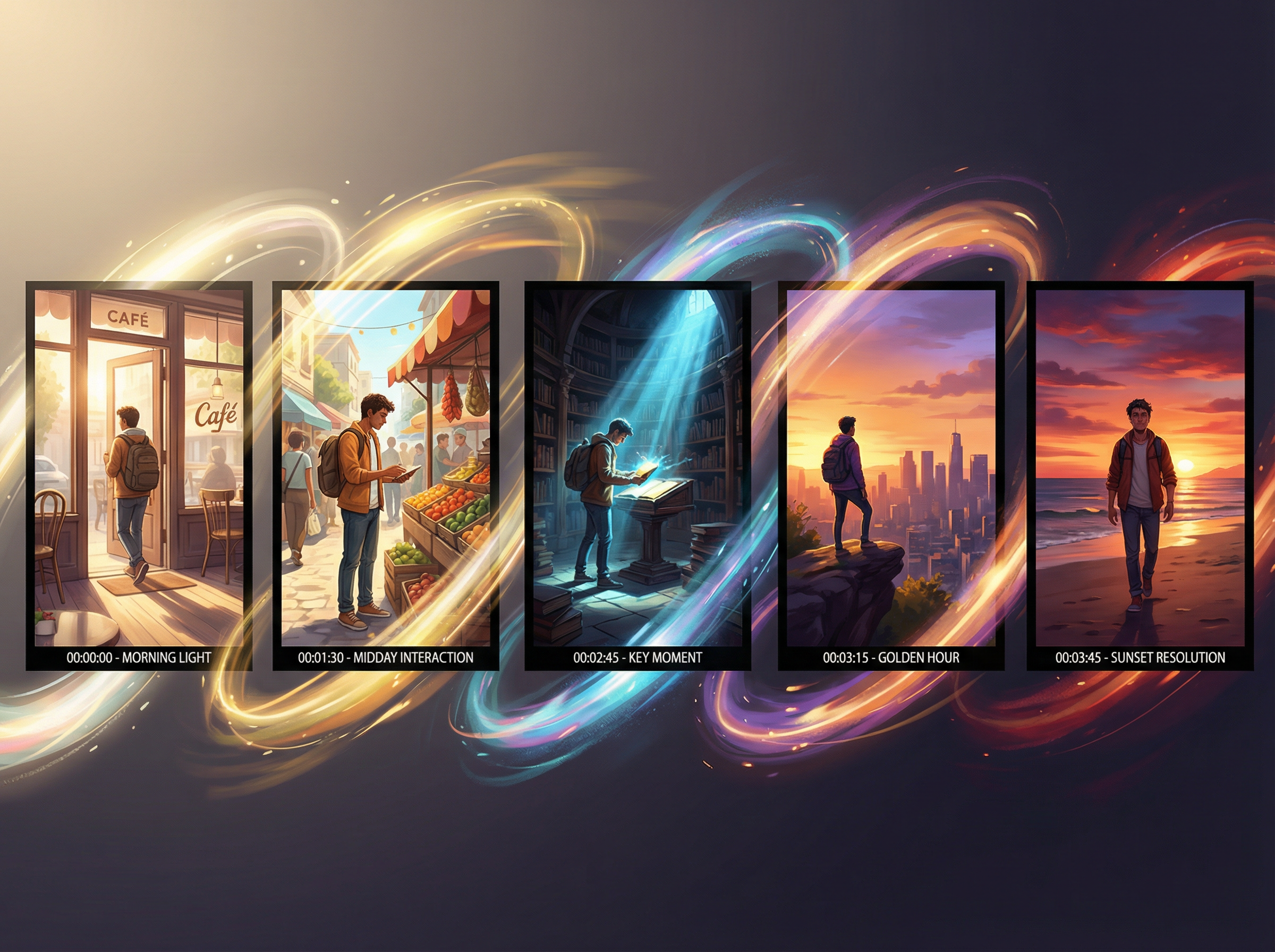
Viewers decide within 3 seconds whether a video is worth watching. Veo 3.1 generates video that has sharp detail, consistent color grading, and smooth motion that holds up on large screens. Your audience stops scrolling and watches your content till the end.
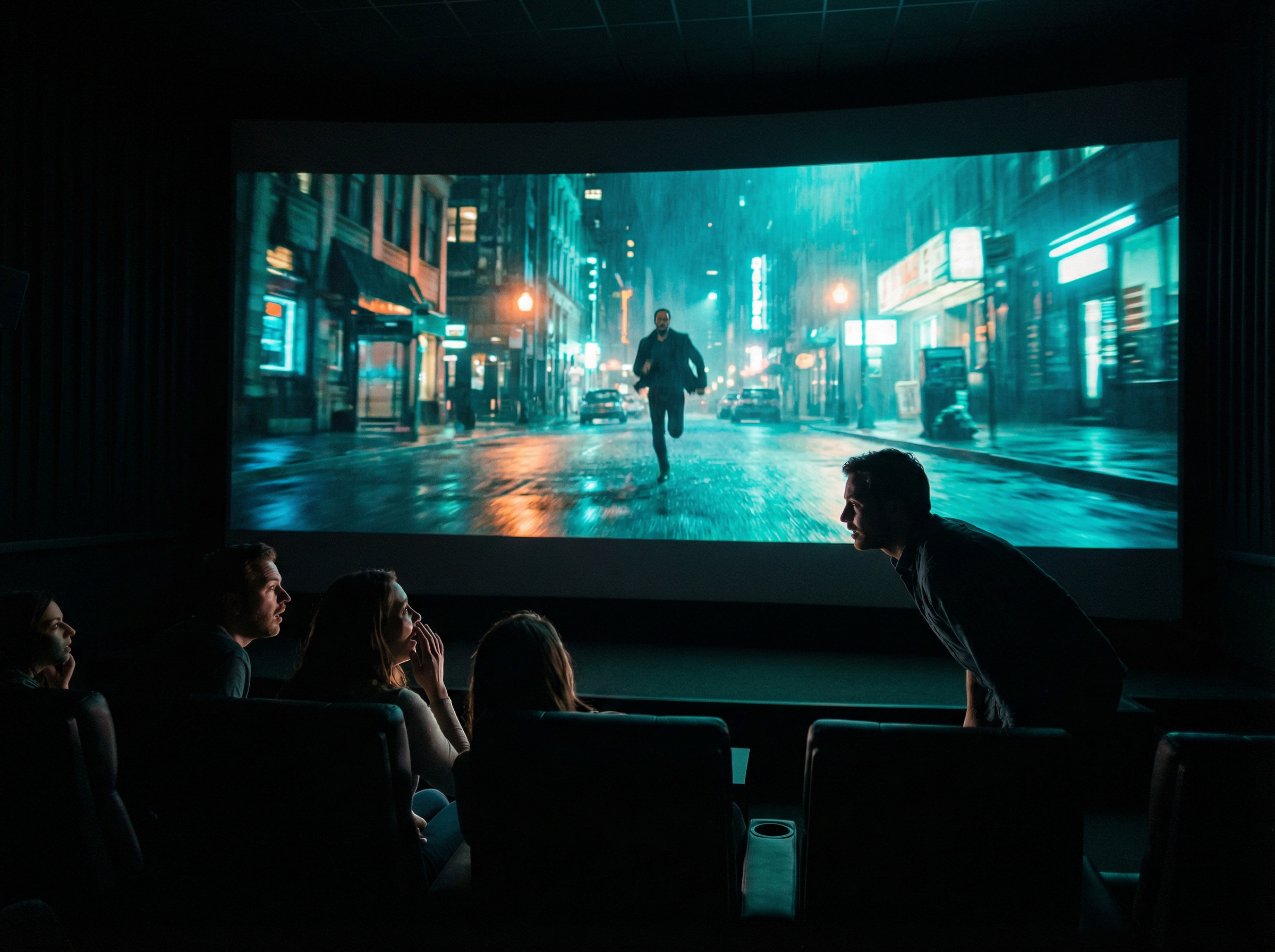
Produce cinematic, high-quality clips
Generate multi-scene sequences

Generate multi-scene sequences

Most brand campaigns, short films, and course videos span several scenes, not just one. Veo 3.1 handles extended narratives with visual coherence in every cut, so the story stays intact from the opening shot to the final frame.

Add realistic sound and dialogue

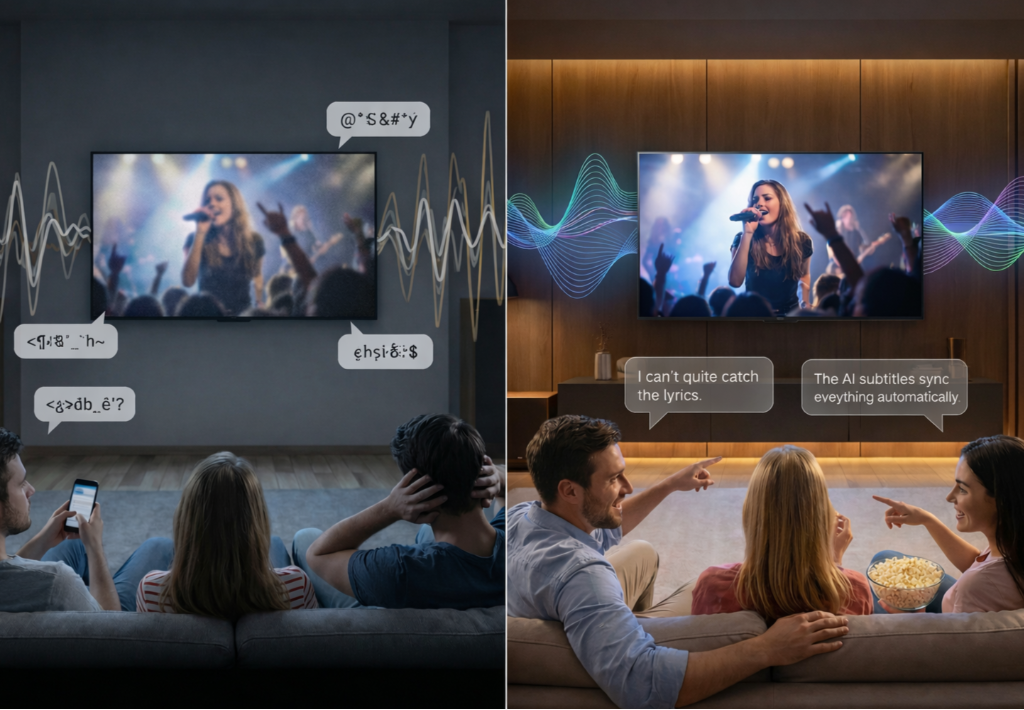
Videos with poor audio lose viewers twice as fast as those with poor visuals. With Veo 3.1 on Framia, you can create videos with audio quality that matches the visual standard, so both elements land with equal weight on screen.
Add realistic sound and dialogue
Make vertical or horizontal videos

Make vertical or horizontal videos

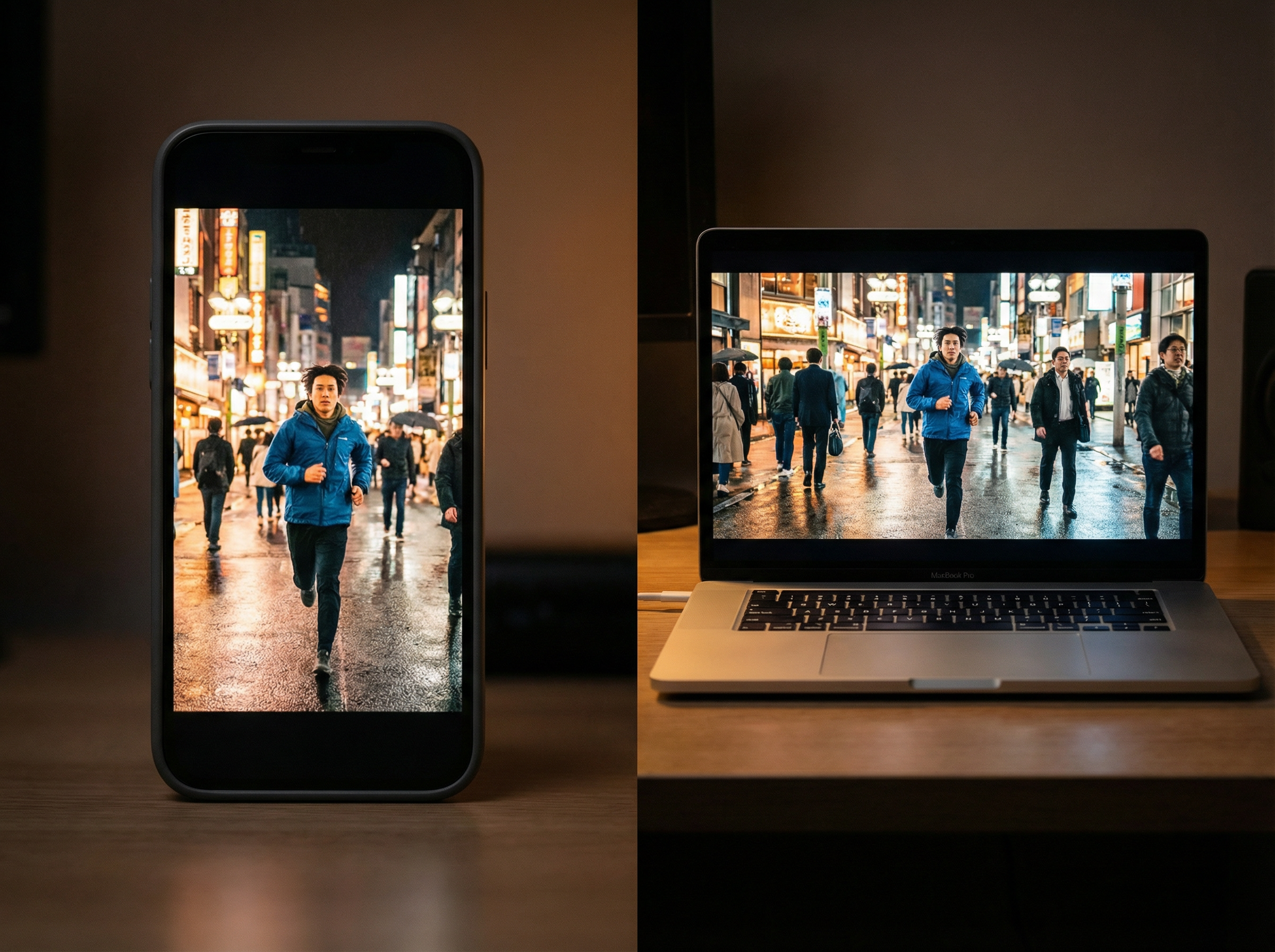
TikTok and Instagram run on 9:16 vertical video, while YouTube and web demand 16:9 widescreen. Veo 3.1 supports both aspect ratios natively, so the same concept works across every platform without losing composition or cropping out key elements.

Experiment with lighting, motion, and effects

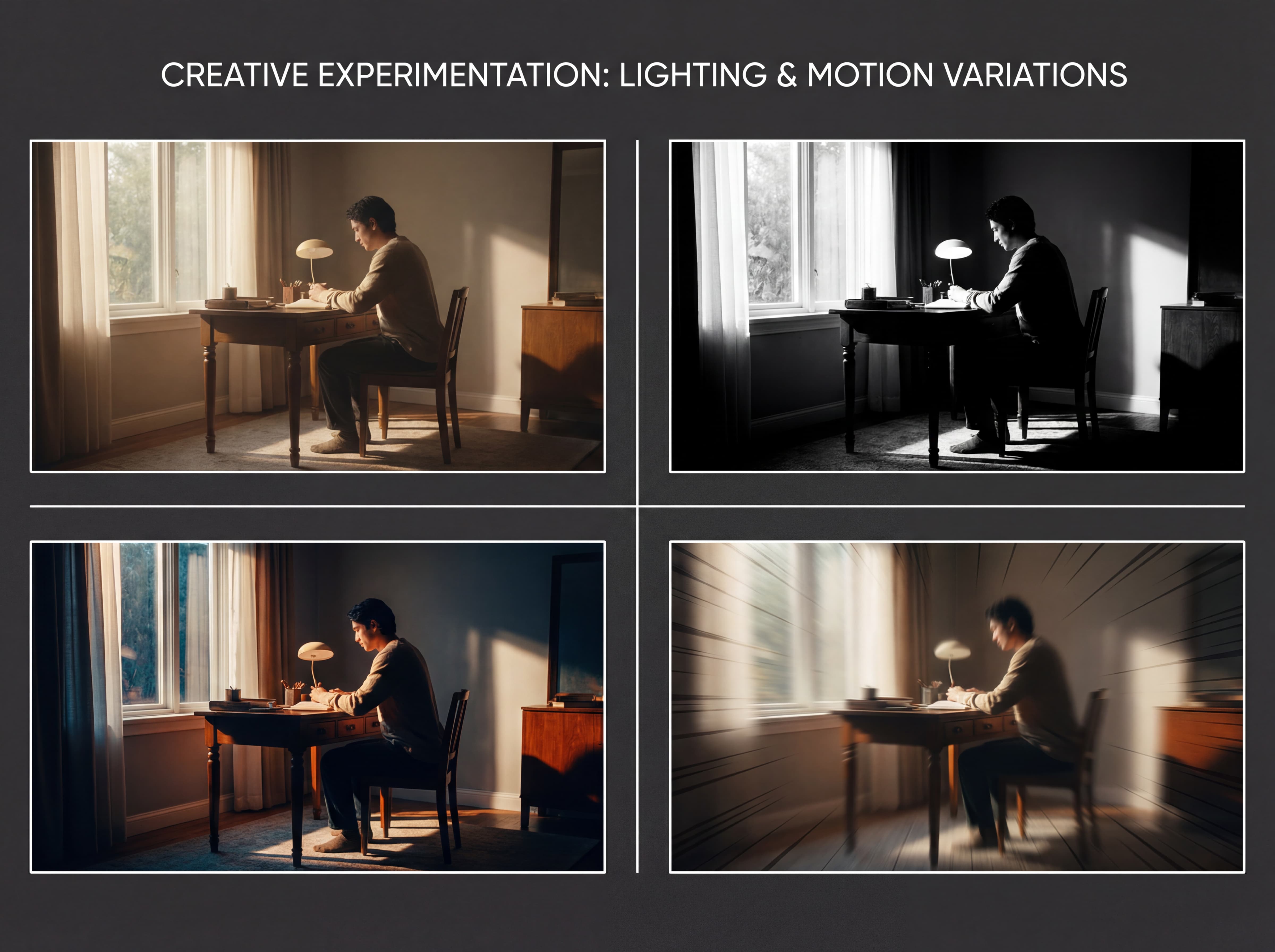
Lighting and motion define how a scene is perceived. Veo 3.1 lets you test different visual styles, from soft natural light to high-contrast cinematic setups, so you can pick the best version before anything is finalized.
Experiment with lighting, motion, and effects

What can you create with Veo 3.1 on Framia Pro?

Google Veo 3.1 works across creative genres that most tools can't handle. From immersive world-building to tight product shots, here is what it produces best.

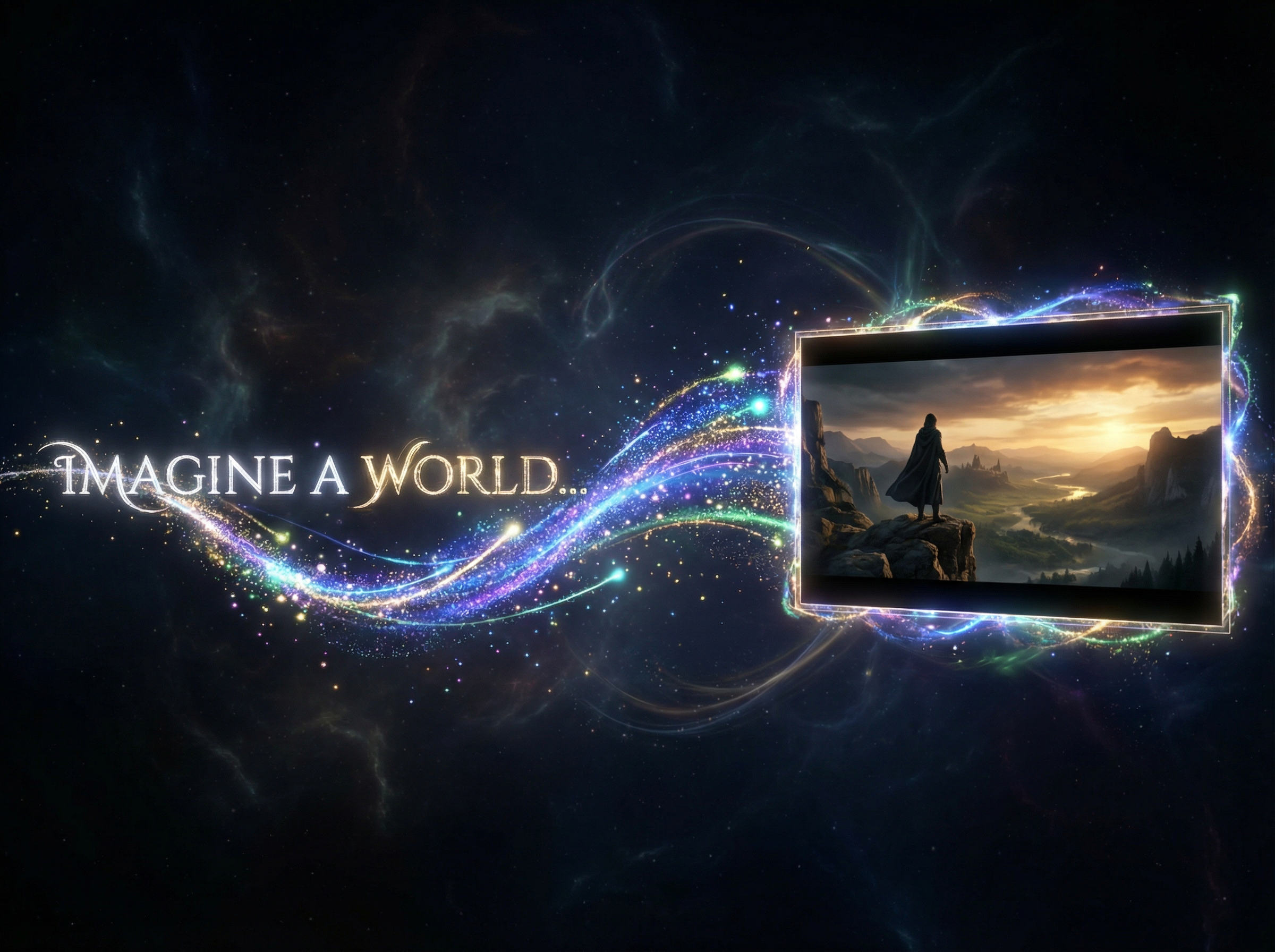
Build fantasy or sci-fi worlds
Sci-fi and fantasy demand environments that have never physically existed. Veo 3.1 generates these worlds from a text description, with consistent atmosphere and depth in every frame. The result is a fully realized setting that holds its visual logic from the first second to the last.
Create dramatic action scenes
Action lives and dies on timing. Veo 3.1 captures physical intensity with accurate motion pacing and keeps every strike, chase, and collision anchored in natural cause and effect. That precision is what separates a gripping action clip from one that simply looks busy.
Design stylized brand visuals
Google Veo 3.1 on Framia Pro's video agent generates stylized content that stays the same in different scenes, color tones, and creative directions. That consistency is what turns a brand from something people see into something people actually remember.
How does Veo 3.1 compare to other AI video models?

Veo 3.1 isn't the only model built for cinematic output, and each one leans into a different strength. Here's how it stacks up against the other models available on Framia Pro.

Max length per generation
Native audio
Best for
Veo 3.1
4-8 seconds, extendable through Scene Extension
Yes (dialogue, effects, ambience)
Character consistency and realistic physics
Veo 3.1 Fast
4-8 seconds
Quick drafts with a small quality trade-off
Kling 3.0
Up to 15 seconds
Limited, lip-sync focused
High-resolution action and character shots
Seedance 2.5
up to 30 seconds
Yes, layered
Quick iteration with built-in audio

What people say about Framia's Veo 3.1 model

Words from actual users carry more weight than any feature list. Here is what people say after using Framia's Veo 3.1 model on real projects.


I've canceled six AI video tool subscriptions before the first month ended. Veo 3.1 was different from day one. The output actually matched what I had in mind. I haven't looked at another tool since.
Marcus Reid
Marcus Reid
YouTube Creator
Managing three client campaigns at once meant long nights and rushed decisions. Veo 3.1 on Framia cut the back-and-forth in half. Clients approve faster, revisions are dropped, and we've highly reduced what we used to spend on agencies.
Lena Kowalski
Lena Kowalski
Brand Strategist
My short film sat in pre-production for four months because testing visual ideas cost too much. With Google Veo 3.1 on Framia Pro, I tested five scene concepts in one afternoon, picked the strongest, and finally moved forward.
James Okafor
James Okafor
Indie Filmmaker
My course enrollment went up 28% after I started adding video to each lesson. This AI video generator was the only reason that was possible on a solo creator budget. I had no prior video experience and no team behind me.
Claire Fontaine
Claire Fontaine
Course Creator
Game trailers are a full project on their own, and I could never justify the cost of hiring a dedicated video team for a one-person studio. Veo 3.1 on Framia changed that completely. My app store page went from static screenshots to a full preview video in a single day.
Tyler Mercer
Tyler Mercer
Mobile Game Developer
I was producing slide decks and calling them content. Veo 3.1 on Framia changed my entire delivery format. My clients now get polished video summaries after every session. Engagement doubled, and my renewal rate has never been higher.
Nadia Osei
Nadia Osei
E-learning Consultant
We've compiled the most important information to help you get the most out of your experience. Can't find what you're looking for?Contact us

Frequently asked questions

How to increase the Veo 3.1 video limit on Framia Pro?
Framia Pro plans come with different generation limits. The higher the plan, the more videos you can generate each month. Upgrading your current plan is the direct way to get more.
What is the difference between Veo 3.1 Fast and Quality?
Veo 3.1 Fast runs twice as fast as the Standard version, with only a 1 to 8% quality trade-off. This makes Fast the smarter pick for drafts, and Quality reserved for final output.
Can I use both Veo 3.1 vs Sora 2 on Framia for testing ideas?
Yes. Veo 3.1 offers cinematic control and multi-shot chaining, while Sora 2 delivers ultra-realistic short clips. Framia Pro lets you compare outputs before committing to one direction.
Does Veo 3.1 AI video generator include sound?
Veo 3.1 versions generate audio natively (dialogue, sound effects, and ambient noise) synchronized during video generation, not added as a separate step afterward. This means every clip generated on Framia Pro comes with audio included.
Can I export Veo 3.1 videos in different resolutions on Framia?
Veo 3.1 supports 720p, 1080p, and 4K output, along with 16:9 landscape and 9:16 vertical formats. Framia Pro gives you access to these export options depending on your active plan.
Is Veo 3.1 fast good?
Tests show that the quality gap between Fast and Standard is minimal. In fact, most viewers cannot spot a difference in the final output. This means Fast holds up well in most use cases.

Still have questions?

Have questions or need assistance? Our team is here to help!

Create cinematic videos with Veo 3.1 on Framia Pro

Bring your ideas to life with Veo 3.1 on Framia Pro. Generate high-quality videos with realistic motion, built-in audio, and full creative control.

Google Veo 3.1: Framia Pro by Converge AI