
 Share


Key takeaways
- I tested five Canva alternatives using the same ceramic mug brief, reference photo, brand kit, image prompt, and 2 to 10-second video prompt. I compared output quality, project continuity, learning curve, real monthly price, and cost per AI credit.
- Canva handled the static posts fine. The moment my brief needed images and video from the same source photo, I was exporting, re-uploading, and losing the look I had already approved.
- Framia Pro solved that part of the brief because every asset sat inside one project on a connected canvas, so a change early in the chain updated the pieces after it.
- On money: Canva Pro runs $18 a month with 500 AI credits, roughly 3 cents a credit. Framia Pro's basic plan sits at $16 a month with 1500 credits on the current promo.
- Skip to the comparison table if you only want prices and credit costs.
I have spent nine years running visual content for small ecommerce brands, mostly homeware and skincare, and I have been a paying Canva user since 2019. Over the last two years, my briefs have changed. Clients stopped asking for a single Instagram post and started asking for the post, the story cut, the product close-up, and a short horizontal video, all from one shoot and all matching.
That is where my Canva subscription started to strain, so I spent three weeks testing an alternative to Canva with my own money and my own client brief.
What is Canva?
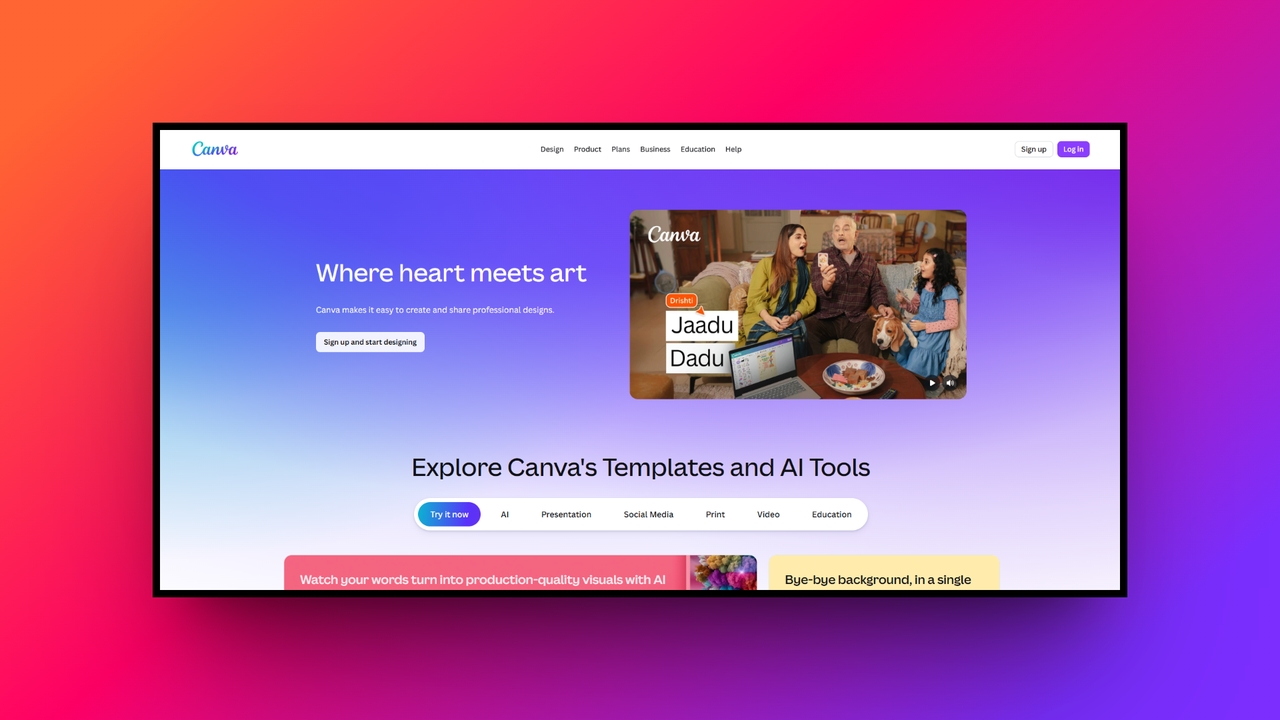
Canva is a widely popular, web-based graphic design platform that has completely democratized visual content creation.
Launched with the mission to empower everyone to design, it offers a highly intuitive, drag-and-drop interface that requires zero prior design experience. Whether you need to craft engaging social media graphics, professional presentations, marketing flyers, or even quick video edits, Canva provides an extensive library of customizable templates, stock photos, and design elements.
Catering to individuals, small businesses, and large enterprises alike, it serves as a centralized hub for visual communication, enabling seamless real-time collaboration and helping brands maintain visual consistency with ease.
Key features of Canva
Canva packs a powerful punch with a diverse toolkit designed to streamline the creative process for users of all skill levels. Here are four standout features that make it a top choice for digital creators:
- AI image generation
Canva’s Text-to-Image AI generation, powered by tools like Magic Media and Dream Lab, allows you to transform simple text prompts into stunning visual art. You can instantly generate unique, high-quality images in various styles, such as watercolor, 3D, or cinematic, saving endless hours of searching for the perfect stock photo.
- AI video generation
Creating dynamic video content is effortless with Canva's Text-to-Video generation and intuitive timeline editor. Users can seamlessly convert text prompts or static images into short, engaging video clips. Coupled with tools like Beat Sync and automated animations, it simplifies producing professional-grade social media reels and marketing videos quickly.
- Magic studio photo editing
The Magic Studio suite brings powerful AI photo editing directly to your workspace. Features like Magic Edit, Magic Eraser, and Background Remover allow you to seamlessly swap elements, erase unwanted objects, or isolate subjects with a single click, eliminating the need for complex, heavy-duty software like Adobe Photoshop.
- Brand kits & collaboration
Canva excels at team productivity through its real-time collaboration tools and centralized Brand Kits. Teams can work simultaneously on a single canvas, leave comments, and ensure visual consistency by storing official logos, color palettes, and fonts, making it incredibly easy to keep all company marketing materials perfectly on-brand.
Canva pricing plans & structure
Canva offers a flexible, tiered pricing model to accommodate different user needs.
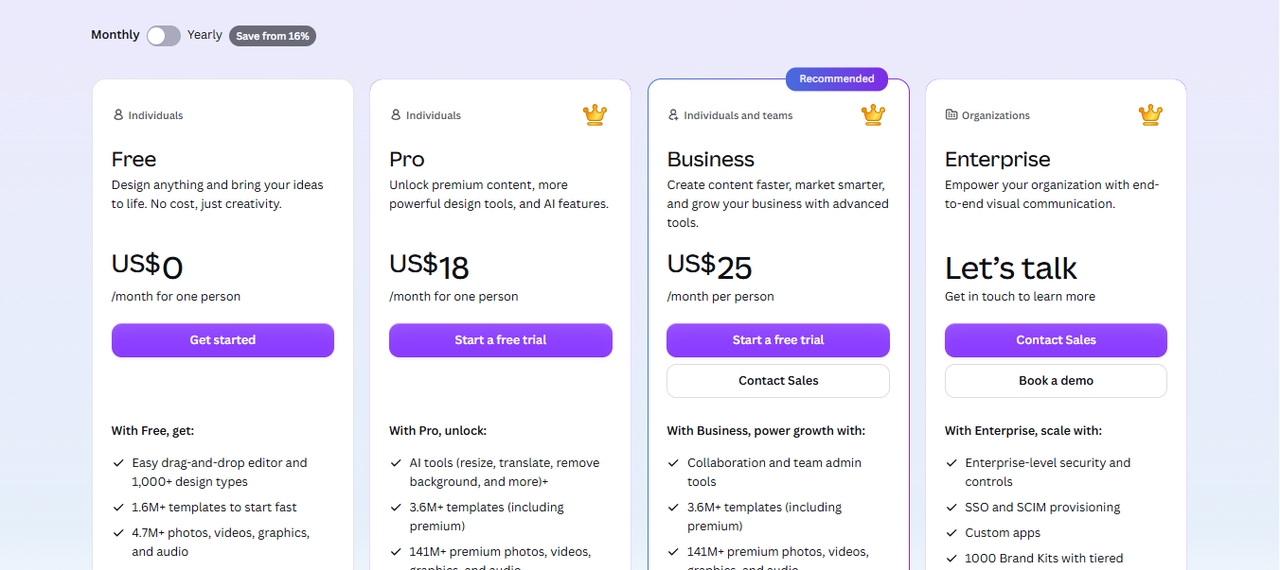
The "Canva Free" plan provides generous access to basic design tools, thousands of templates, and 5GB of cloud storage at no cost. For more advanced needs, "Canva Pro" costs $18 per month for individuals, unlocking premium assets, 100GB of storage, and advanced AI features.
Additionally, for groups, "Canva for Busienss" starts at $25 per user/month, offering 100GB of storage per person, enhanced team collaboration, and strict brand controls. Custom enterprise pricing is also available for massive organizations requiring advanced security.
Canva reviews: what users are saying about the platform
To give you a balanced perspective, we’ve scoured user reviews across the web. Here is a quick look at the most common praises and frustrations experienced by everyday Canva users.
The good
- Drag-and-drop interface makes professional design incredibly easy for beginners.
- A massive library of beautiful templates saves hours of creation time.
- Real-time team collaboration streamlines workflow and boosts overall project productivity.
- Built-in AI generation tools help bring creative ideas to life.
The bad
- Advanced graphic customization is strictly limited compared to Adobe Illustrator.
- The free version heavily restricts access to the best elements.
- AI-generated images and videos sometimes lack high-resolution professional output quality.
- A web-based platform that completely relies on having a stable internet connection.
Why people search for Canva alternatives in 2026
While researching Canva alternatives, I reviewed user feedback from platforms such as Capterra, G2, and Trustpilot. I also looked at discussions from design communities to understand why users consider other options.
A few concerns appeared repeatedly:
- Limited advanced editing control: Some professional designers mention that Canva does not offer the same level of flexibility as dedicated tools for detailed layouts, vector editing, and complex design work.
- Premium feature restrictions: Reviewers often point out that many templates, assets, and AI features require a paid plan.
- Template-based designs can look similar: Some users feel that relying heavily on popular templates can make it harder to create unique-looking designs.
- Basic video capabilities: Users creating more advanced videos often look for alternatives with stronger editing tools, AI video generation, or more detailed timeline controls.
- Challenges with larger projects: Some reviews mention slower performance when working with complex files or bigger designs.
Canva remains useful for quick graphics, presentations, and social media content. However, I found that users often search for alternatives when they need more specialized tools for professional design, AI creation, video production, or advanced editing workflows.
How I tested these Canva alternatives
I used the same machine, core brief, and testing period for every tool. I also separated the shared tests from platform-specific tasks so the results were easier to compare.
Shared test setup
Common brief: One ceramic mug, one phone reference photo, and one brand kit with two hex codes, one logo, and one serif font.
Image prompt: "Matte cream ceramic mug on a linen surface, soft window light from the left, warm shadow, square crop, product catalog style."
Video prompt: "Slow push-in on the same mug, steam rising, 2 to 10 seconds, horizontal."
I used the same brief to check five areas:
- Output quality: Did the mug retain its shape, glaze, handle, and other important details?
- Project continuity: Could I change an earlier asset or source and carry that change into later outputs?
- Learning curve: How much work did I need to produce a usable result?
- Real monthly price: What did the plan cost under the billing option I tested?
- AI credit cost: Where the platform uses a defined monthly credit allowance, I divided the tested monthly price by the included credits.
Platform-specific tests
I also tested features that could not be compared fairly across every platform. These included advanced AI generation, photo retouching, templates, brand tools, document creation, connected workflows, and other features available only on certain platforms.
I did not use these tasks to give one platform an advantage in the shared comparison. Instead, I used them to show what each tool can do beyond the common mug brief.
This separates the common tasks that every tool could be judged on from the specialized tasks that show what each platform offers beyond the shared test.
| Tool | Best for | Project continuity in my test | Output quality on the mug brief | Entry price (monthly) | Monthly AI credits and cost per credit |
| Canva | Template-led social posts | Assets live as separate designs, no chain | Clean stills, mug drifted over video shots | $18 Pro, $25 per seat Business | Shared monthly allowance; usage varies by AI tool and generation complexity. |
| Framia Pro | One brief producing images, video, and audio together | Full chain, source swap updated later assets | Mug retained its glaze and shape across all 7 assets, including the 2–10-second horizontal video. | $16 Basic on promo ($20 list), $32.50 Pro | 1500 Basic, 3,000 Pro |
| Adobe Express | Single high-quality images inside Adobe | Image and video flows stay separate | Sharpest single render of the five | $9.99 Premium | 250 credits, about $0.04 each |
| Pixlr | Retouching real photos, with generation in the same editor | Per-file editing; generated images open in the same editor, no cross-asset chain | Best manual repair of my real photo; generation runs on third-party models | $9.99 Premium | About 1,000 credits; per-clip cost not published |
| Snappa | Fast social graphics from your own photos | None, each graphic is standalone | No generation, layout only | $15 Pro ($10 annual) | No AI credit system |
| Visme | Charts, infographics, and buyer-facing documents | Per-document, no cross-asset chain | Strongest data pages, weakest social | $29 ($12.25 annual) | No published credit allowance |
The 5 best Canva alternatives I tested
- Framia Pro
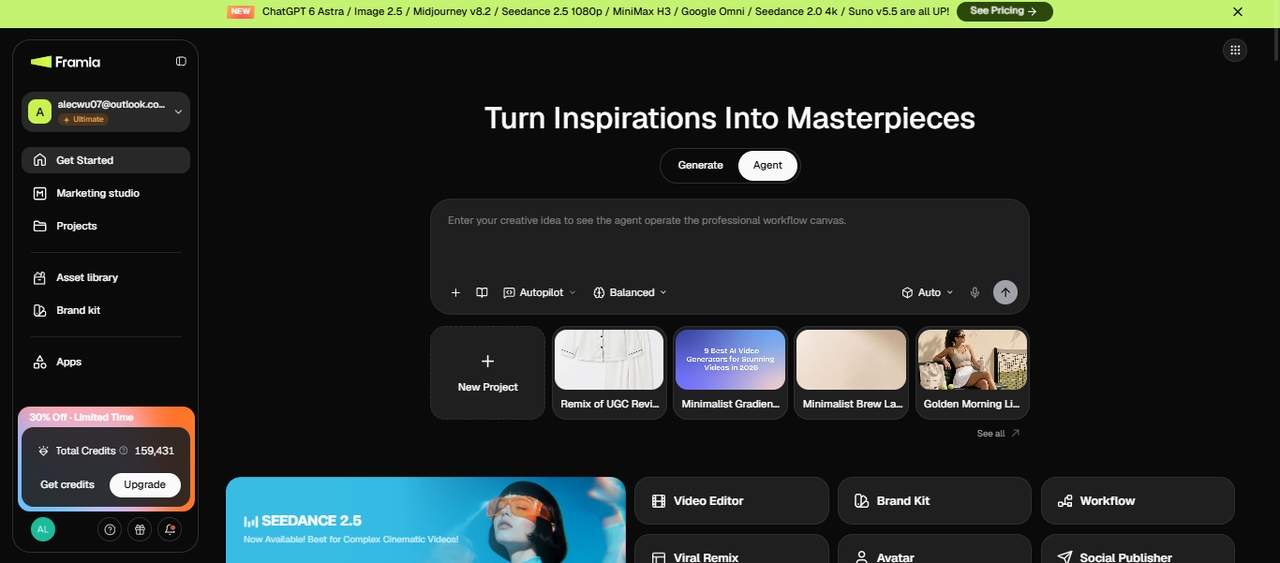
Framia Pro is Converge AI's creative platform, and its centre of gravity is a workflow canvas where one project holds your script, images, video, and audio as connected nodes.
Price: Basic is $20 a month list, currently $16 on promo, with 1500 credits plus 10 refresh credits daily. Pro is $44.50 list, currently $32.50, with 3,000 monthly credits plus 1,000 one-time.
Key features:
- Workflow canvas: Connects source photo, image generation, video generation, and export as nodes you can rewire at any point.
- Brandkit: Stores logo, brand colors, and fonts, then applies them to every node in the project.
- Node flow for product shots: Chains a product photo through background selection, lighting, and enhancement in one visual pipeline.
- Social Publisher: Schedules and posts finished assets from the same workspace.
Overall experience: Framia Pro handled the shared ceramic mug test well. I used the same mug brief, photo, brand kit, image prompt, and 2 to 10-second horizontal video prompt as the other tools. The generated mug retained its main shape and glaze across the assets I tested, and the connected canvas gave me a way to carry the project from the source image into later outputs. When I changed the source earlier in the workflow, the later assets updated instead of requiring me to start each one again.
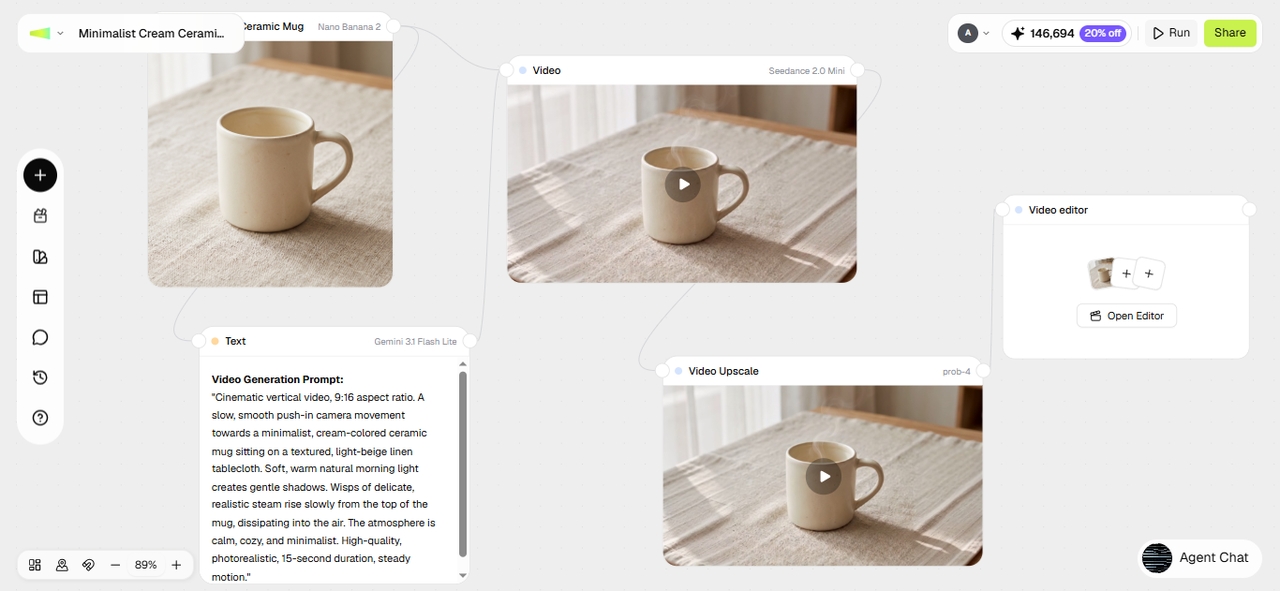
Made with Framia Pro
Pros:
- Top models save time on complete video production workflows.
- Conversational editing features make targeted corrections incredibly fast and simple.
- Split layer technology offers true design flexibility for generated art.
- Ensures perfect character consistency across multiple complex generated video shots.
Con:
- Heavy reliance on generation requires learning completely new prompting workflows.
- Adobe Express
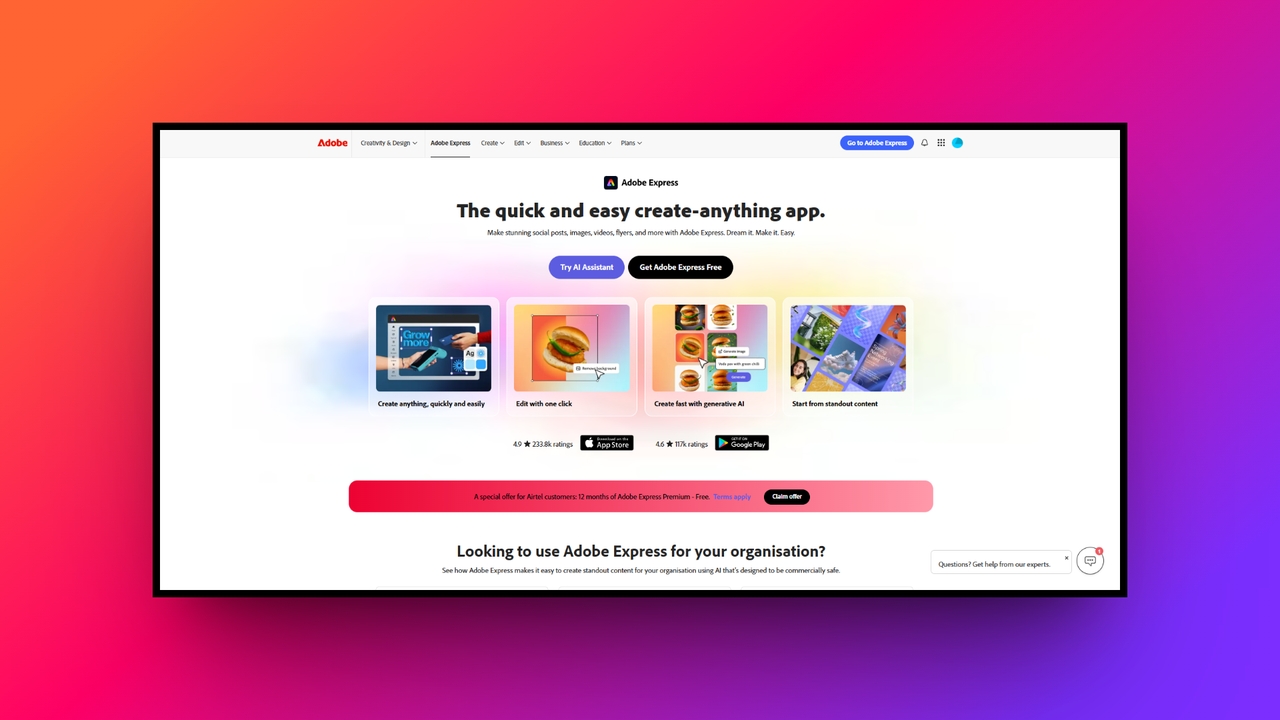
Adobe Express uses Adobe’s creative legacy in a user-friendly, web-based format. It seamlessly integrates with the broader Adobe Creative Cloud ecosystem, making it an exceptional choice for users wanting professional-quality outputs, AI-driven features, and robust brand management in one accessible platform.
Price: Free tier at $0. Premium is $9.99 a month or $99.99 a year with 250 credits and 100GB storage. Teams starts at $4.99 per seat for year one, renewing at $7.99, two-seat minimum.
Key features:
- Firefly generation: Creates images and text effects from written prompts inside the editor.
- Creative Cloud link: Opens assets from Photoshop and Illustrator without a re-export.
- Adobe Stock access: Includes 200M+ licensed photos, videos, and 30,000+ fonts on Premium.
- Quick actions: Removes backgrounds, resizes, and converts clips in one click.
My overall experience: My catalogue images came out the cleanest of any template tool here. Firefly read "matte cream ceramic" correctly on the first try, and the linen texture looked shot rather than generated. Then I asked for the video, and the workflow broke into pieces. I exported stills, brought them into a separate timeline, and rebuilt the brand styling by hand. My 250 monthly credits were gone by day four, mostly on video retries at roughly 10 credits a second.
Pros:
- Backed by Adobe's industry-leading technology for superior design output quality.
- Seamlessly integrates with Illustrator and Photoshop for advanced asset editing.
- Offers incredible AI features powered by the robust Adobe Firefly.
- Provides access to a massive library of premium Adobe Stock.
Con:
- The user interface can feel slightly cluttered and overwhelming initially.
- Pixlr
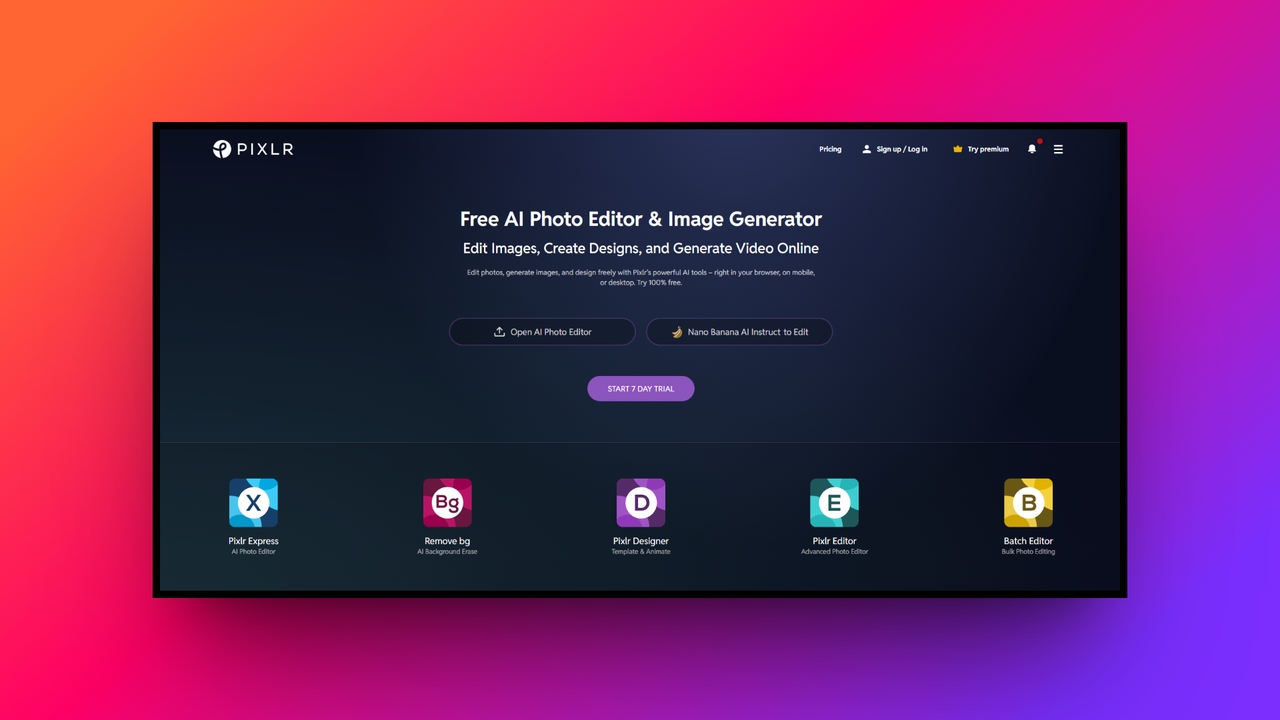
Pixlr is a browser-based photo editor with AI image and video generation built into the same workspace. It offers a simple editor and an advanced one with layers, and its generators run on third-party models such as Flux, Kling, and Google Veo. It suits people who want to retouch real photos and still generate new assets inside one editor.
Price: Free with ads. Plus runs about $2.49 a month on annual billing. Premium is $9.99 a month billed monthly, around $6.49 on annual, with roughly 1,000 AI credits. Team plans start near $16.99 a month.
Key features:
- Layer-based editing: Supports masks, blending modes, and PSD files in the browser.
- AI cutout and retouch: Removes backgrounds and cleans blemishes with one action.
- Custom brush engine: Gives painting and touch-up control for detail work.
- Filter library: Applies color overlays and lighting treatments to finished shots.
My overall experience: Pixlr fixed the one thing the generators kept getting wrong. My real mug photo had a harsh highlight on the rim, and I cleaned it in about four minutes with a mask and a soft brush, which is faster than the same edit in Canva. I used Pixlr mainly as a repair bench for that photo. It also generates images and video on third-party models, though video sits on the Premium plan, and I did not rate its generated output against the mug brief.
Pros:
- Photo manipulation and retouching capabilities directly in your browser.
- Offers both simple and advanced editing interfaces to suit everyone.
- Supports a wide range of complex file formats including PSD.
- A very lightweight web application that runs smoothly on older computers.
Con:
- Lacks the extensive pre-made marketing template library that Canva provides.
- Snappa
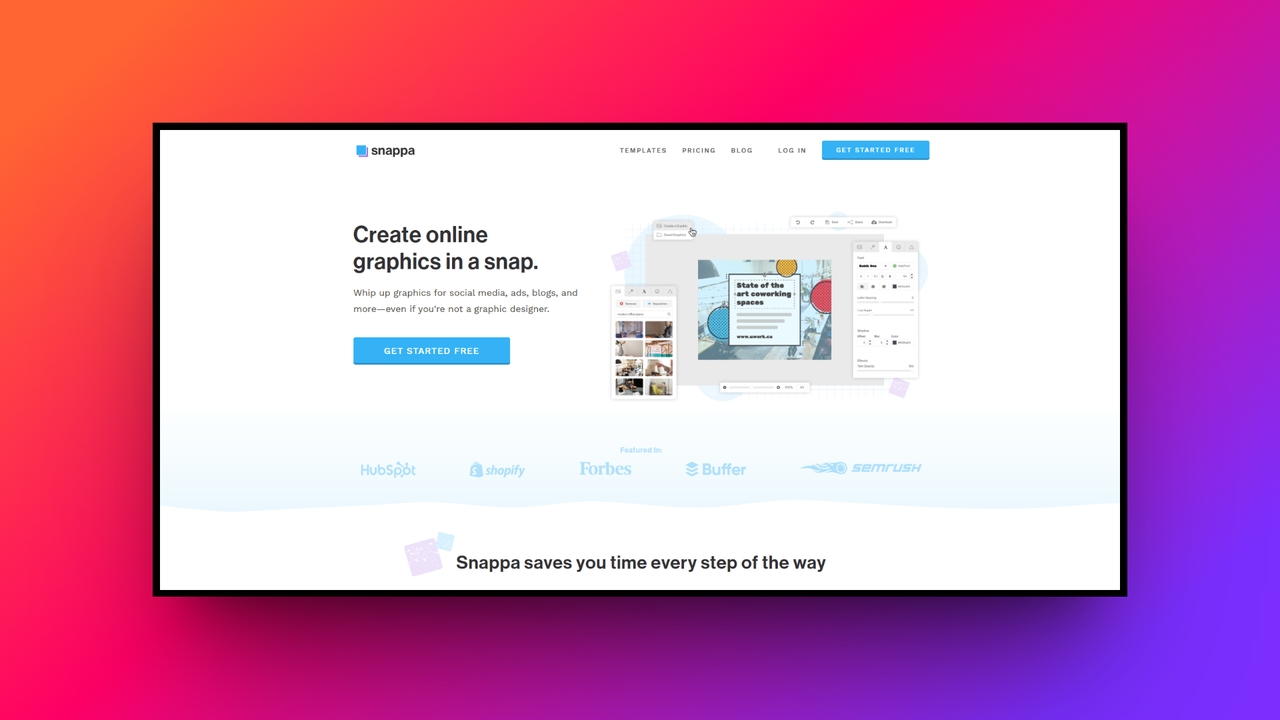
Snappa is laser-focused on speed and simplicity, making it the ultimate tool for marketers and entrepreneurs needing graphics fast. It completely strips away unnecessary complexities, offering a highly streamlined dashboard specifically optimized for creating perfectly sized social media posts, engaging blog graphics, and eye-catching digital display ads very quickly.
Price: Starter is free with three downloads a month. Pro is $15 a month, or $10 on annual billing, with unlimited downloads. Team is $30 a month, or $20 annual, for five users.
Key features:
- Preset dimensions: Opens every project at the correct size for each social platform.
- Stock library: Includes 5M+ royalty-free photos inside the editor.
- One-click resize: Converts a finished graphic into other platform sizes.
- Buffer integration: Sends finished graphics straight to a posting queue.
My overall experience: I produced four promo graphics in 19 minutes, which was the fastest run of the week. No prompt writing, no credit counter, no learning curve. It also could not touch the parts of the brief that needed generation. My mug had to be photographed and cut out elsewhere first. For a shop owner who shoots their own product photos and wants weekly posts out the door, that trade is fine.
Pros:
- Fastest path from blank canvas to posted graphic
- Free plan needs no card and gives 6,000+ templates
- Resizing for six platforms took under two minutes
Cons
- No AI image or video generation
- Free plan caps you at three downloads a month
- Custom illustration work is out of reach
- Visme
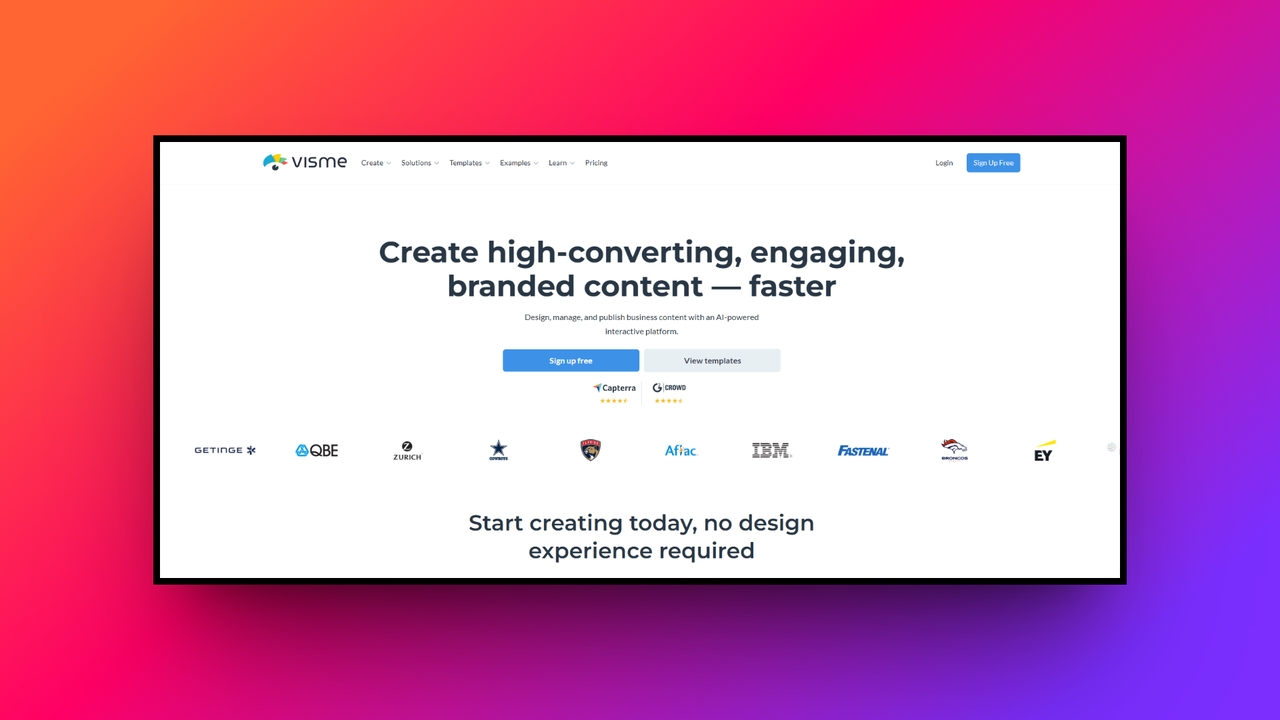
Visme is a Canva alternative for creating engaging presentations, detailed infographics, and interactive digital documents. It goes beyond basic static images, empowering educators and business professionals to transform boring data into captivating visual stories using dynamic charts, embedded videos, and highly interactive on-page design elements with absolute ease.
Price: Paid plans start at $29 a month, dropping to about $12.25 a month on annual billing. A free plan exists with export limits.
Key features:
- Data visualisation: Converts figures into charts, graphs, and map widgets.
- Interactive content: Adds clickable hotspots, pop-ups, and voiceovers to a page.
- Asset library: Holds stock photos, vector icons, animated 3D graphics, and clips.
- Brand wizard: Pulls brand colours and fonts from a live website URL.
My overall experience: The brand wizard read my client's site and had the palette and fonts loaded before I typed anything, which saved real setup time. I then used Visme for the part of the brief I had not planned for: a one-page product sheet for a wholesale buyer, with a sales chart and a spec table. It was the right tool for that page and the wrong tool for everything else. Social posts took longer here than in Snappa, and generation is not the focus.
Pros:
- Strongest charts and infographics of the five
- Brand wizard set up the kit from a URL in under a minute
- Interactive documents give you something the others cannot produce
Cons:
- Priciest entry point in this test on monthly billing
- Social and video work is slower than the alternatives above
- Editor lags on long document
Where Framia Pro pulls ahead of the rest
Two questions decided this for me: what happened to the project after I approved the first asset, and what a usable clip cost after retries.
Project continuity:
Canva, Adobe Express, and Pixlr can all generate images and video, so the gap was not about features. Each of them treats the image, the video, and the brand styling as separate files. In Framia Pro, the source photo, image, and video sit as connected nodes. When my client asked for a warmer glaze, I changed the source once and the later assets updated. In the other tools, I reworked each asset one at a time.
Retries and cost: One 5-second horizontal clip with three attempts used 30 to 90 credits in Framia Pro. That is about 2% to 6% of a 1,500-credit month, or roughly 32 to 96 cents on the $16 promo plan (40 cents to $1.20 at the $20 list price). The same three attempts took about 150 of Adobe Express's 250 credits, which is around $6.00 on the $9.99 plan. Canva's Create a Video Clip tool returns one 8-second clip per prompt and launched with a limit of five video generations a month, so three attempts use most of that allowance. Pixlr does not publish a per-clip price.
Tips & tricks for choosing the ideal Canva alternative
With so many powerful design platforms available today, finding the perfect fit requires assessing your specific workflow. Here are five essential tips to help you choose the ideal alternative.
- Assess your primary needs: Carefully evaluate whether your daily workflow heavily prioritizes complex video production, advanced digital photo retouching, or simple social media graphic creation before committing to any completely new graphic design platform.
- Consider AI capabilities: Look for platforms offering powerful artificial intelligence tools. Advanced features like conversational editing, intelligent layer splitting, and automated video generation can drastically reduce your overall content creation turnaround time immensely.
- Check team collaboration: If you work alongside other creative professionals, ensure your chosen software supports direct multiplayer editing, centralized brand kits, and seamless asset sharing to maintain perfect visual consistency across all projects.
- Evaluate the learning curve: Always test the user interface before purchasing premium subscriptions. While some professional tools offer incredible power, they might demand extensive technical training that heavily delays your immediate content marketing deliverables.
- Review pricing structures: Compare monthly subscription costs against the actual features provided. Ensure the platform comfortably fits your marketing budget while still delivering the essential assets, storage capacity, and export options you require.
Wrapping up
Canva works well for templates, social posts, and everyday design tasks, but the right choice depends on your workflow. These Canva alternatives cover different needs, from photo editing and social graphics to presentations and AI content creation.
Among the alternatives to Canva, Framia Pro stands out for workflows that combine image, video, and audio generation. Its connected canvas, AI models, split layers, and conversational editing keep these tasks within one project.
FAQs
How does the Canva AI image generator work?
The Canva AI image generator translates text prompts into unique visual content. For greater design flexibility, platforms like Framia Pro offer layer-editable generation using advanced models like Flux Max.
What features are included in the Canva Pro pricing tier?
The Canva Pro pricing tier provides unlimited access to premium templates, 100GB of cloud storage, advanced background removal tools, and full utilization of their proprietary AI graphic generation suite.
Are there capable Canva alternatives free of charge?
Yes, numerous Canva alternatives free plans exist for basic editing. However, professionals requiring automated workflows and intelligent split layers typically invest in advanced AI design platforms like Framia Pro.
How do the different Canva pricing plans compare?
The Canva pricing plans include a "Free" tier for basic use, a "Pro" tier for individual creators, and a Teams tier offering comprehensive collaborative workspace administration and strict brand controls.
Can I create professional clips using the Canva AI video generator?
Yes, the Canva AI video generator easily converts prompts into short clips. For complex workflows, alternatives like Framia Pro automate entire storyboarding and audio syncing using cinematic video agents.
Are there Canva alternatives free for commercial use?
Some. Pixlr's Premium tier covers commercial use, and Adobe Express Premium licenses its stock assets for commercial work. Most free tiers, including Framia Pro's, restrict commercial rights until you upgrade, so read the licence before a client job goes out.
Can I use Canva alternatives on my phone?
Canva, Adobe Express, and Pixlr all offer mobile apps, so you can edit on a phone or tablet. Features can differ from the web version, so test the app before you subscribe.
Do I lose my Canva templates if I switch?
Your designs stay in your Canva account, and you can export finished files as PNG, JPG, PDF, or MP4 before you cancel. Editable template files do not move between platforms, so you have to rebuild your most-used layouts in the new tool.