
 Share


Key takeaways
- Framia Pro: Best suited to creators, marketers, agencies, and e-commerce teams that need AI image and video creation in one workspace.
- DaVinci Resolve is aimed at editors who need detailed timeline, color, effects, and audio control. Its free version remains available, while DaVinci Resolve Studio is listed at $295.
- Filmora: Suits creators who want a simpler desktop editor with AI-assisted tools and templates.
- Final Cut Pro: Designed for Mac and iPad users who want a full-featured Apple video editor.
- Adobe Premiere Pro: Fits professional editors who need detailed timeline control and a large editing toolset.
- Canva: Useful for marketers and teams that combine short-form video with graphic design.
- VEED: Works well for browser-based social and marketing video creation.
- InShot: Focuses on quick mobile editing for short-form content.
- Movavi Video Editor: Offers desktop editing with basic AI tools and a simpler interface.
- Slate Teams: Focuses on branded social content and team workflows.
CapCut is still a practical choice for short-form editing, but it is not the only option. The right alternative depends on whether you need a traditional timeline, mobile editing, professional color work, text-based editing, or AI-generated video.
For this comparison, I looked at the current versions of 10 alternatives using the same evaluation criteria: platform support, editing control, AI features, content-generation options, export workflow, pricing, and the type of creator each product serves. I also included Framia Pro because it takes a different approach from traditional editors.
The rise of CapCut and why creators are exploring alternatives
CapCut, developed by ByteDance, the parent company of TikTok, is a video editing platform for social media creators, small businesses, marketers, and other users who want accessible editing tools. It supports content such as TikTok videos, Instagram Reels, YouTube videos, and tutorials through features such as templates, trending music, auto-captions, background removal, and drag-and-drop editing. However, some users look for CapCut alternatives when they need more specialized editing features, stronger desktop performance, different privacy options, or more advanced AI tools.
Essential features to look for in a CapCut alternative
The main question is not which editor has the longest feature list. It is whether the tool fits the type of content you actually produce.
For this comparison, I used six criteria:
- Platform: Desktop, mobile, web, or a combination.
- Editing control: Timeline editing, trimming, transitions, audio, effects, and more advanced controls.
- AI creation: Generative video, image generation, avatars, captions, audio tools, or AI editing.
- Workflow: Whether the product focuses on editing existing footage or can also generate new creative assets.
- Export: Resolution, watermark restrictions, format options, and social publishing support.
- Price: The actual advertised subscription or purchase price rather than a vague "free + paid" label.
This distinction matters because CapCut alternatives fall into very different categories. A professional editor such as DaVinci Resolve is not solving exactly the same problem as a browser-based AI content platform.
Top 10 alternatives to CapCut that you should try in 2026
Navigating the crowded market of video editors can be overwhelming. To help you upgrade your creative toolkit, I have compiled an ultimate list of the best CapCut alternatives available today.
How did I pick the best CapCut alternatives?
I compared each tool using the same core criteria: platform support, editing controls, AI features, workflow, pricing, export options, and the type of creator it suits. I tested each editor through a practical video project rather than judging features from the feature list alone.
For each tool, I created or edited a short e-commerce video. For traditional editors, I used supplied video footage and treated the brief as an editing task. For AI-focused tools, I used the brief as a generation task where the platform supported that workflow.
I tested the main editing steps available in each tool, including cutting clips, adding text, applying transitions, adjusting color, adding audio, using effects, and exporting the final video. I also checked platform availability, export restrictions, watermarks, and other limits that appeared during the test.
| Tool | Platform | Pricing | AI Video & Generation | Editing Control | Best For | Main Limitation |
| Framia Pro | Web | $16 first month, then $20/month | Multiple AI image and video models, AI avatars, UGC, product videos | AI-assisted editing and creative workflows | AI ads, product videos, UGC, and marketing content | Less suited to detailed frame-by-frame editing |
| Filmora | Desktop, Web, Mobile | $9.99 per month | AI editing and generation tools | Advanced | YouTubers and general creators | Some advanced features require a paid plan |
| DaVinci Resolve | Desktop | Free; Studio $295 one-time | AI-assisted editing features | Advanced | Professional editing, color, VFX, and audio | Steeper learning curve |
| Canva | Web, Mobile | Free; paid plans starts at $18 per month | AI video and design tools | Basic to intermediate | Marketers and small businesses | Limited advanced timeline control |
| Final Cut Pro | Mac, iPad | $299.99 one-time; Apple Creator Studio from $12.99/month | AI-assisted features | Advanced | Apple users and professional editors | Apple devices only |
| InShot | Mobile | Free; Pro available | AI-assisted features vary | Basic to intermediate | TikTok, Reels, and Shorts creators | Not suited to complex projects |
| VEED | Web | Free; paid plans start from $20/seat | AI video and editing tools | Intermediate | Social media and marketing teams | Less control than professional editors |
| Adobe Premiere Pro | Desktop | $22.99/month | AI-assisted editing | Advanced | Professional editors | Subscription required |
| Movavi | Desktop | $19.95/mo | AI-assisted editing | Intermediate | Beginners and casual creators | Fewer professional controls |
| Slate Teams | Web | Custom pricing | AI-powered social content creation | Intermediate | Brand and social media teams | More focused on team and brand workflows than traditional professional editing |
- Framia Pro
Platform: Web
Pricing: Basic is $16 for the first month, then $20/month. It includes 300 credits plus 10 bonus credits per day.
Best for: Marketers, agencies, e-commerce teams, creators, and businesses producing AI videos, product ads, UGC, avatars, and branded content.
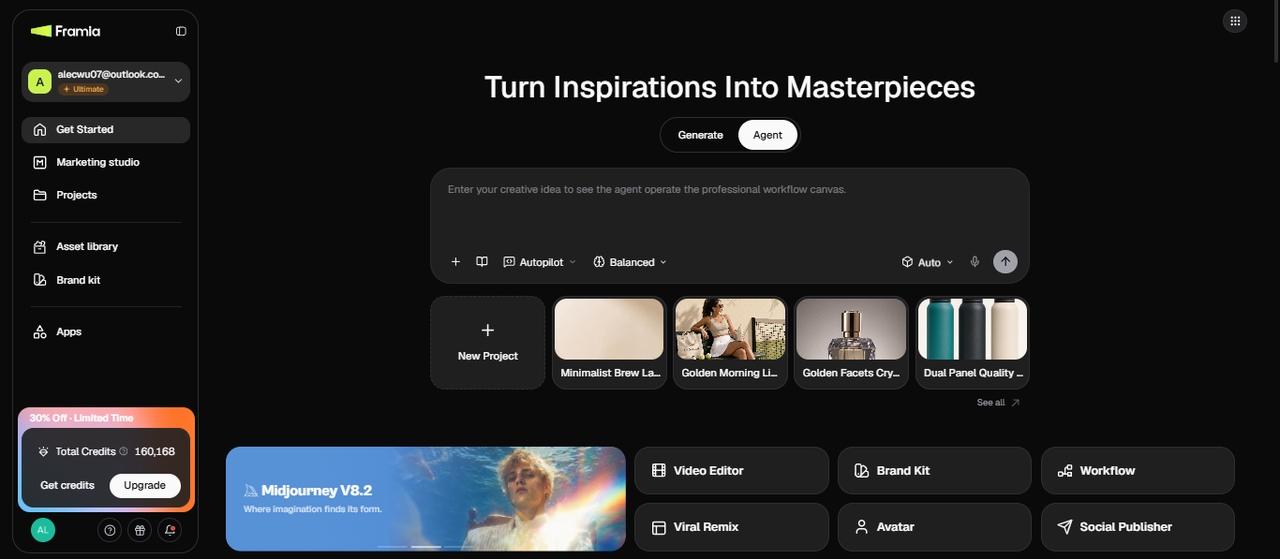
Framia Pro takes a different approach from CapCut. It can start with a product, idea, prompt, reference image, or campaign brief. Its current workflow brings multiple AI image and video models into one workspace, which makes it useful for creating product videos, UGC, ads, avatars, and other marketing content.
Test experience:
For a sneaker ad test, Framia Pro started with the product image and brief, then generated a product close-up, lifestyle running scene, and final product shot. You can test different video models against the same creative brief.
Unlike a traditional video editor, Framia Pro is useful when the footage still needs to be created. It is less suited to detailed frame-by-frame editing than Premiere Pro or DaVinci Resolve.
Key features:
- Specialized video skills: Utilize dedicated Shorts Video Director for quick explainers or Movie Director for stunning cinematic storytelling complete with deeply emotional, engaging dialogue.
- Full-SOP automation: Automatically generate refined scripts, detailed storyboards, perfect B-roll with context awareness, and perfectly synced background music without any manual effort.
- Visual storyboard timeline: Effortlessly edit with a visual timeline, utilizing agent-assisted tools to selectively regenerate individual bad shots without ever restarting the project.
- Design split layers: Transform AI-generated designs into fully editable elements, allowing you to separately move, precisely resize, and cleanly delete text or backgrounds.
Pros
- Time saver: Reduces traditional video regeneration workflows by an astonishing eighty percent.
- Consistency: Maintains identical characters in multiple generated cinematic video shots.
- Chat editing: Simply type commands to easily fix targeted segments without regenerating.
- Omnichannel: Automatically resizes generated visual content perfectly for every social platform.
Cons
- Slight curve: The sheer volume of advanced AI tools requires brief onboarding.
- Filmora
Platform: Desktop, Web, Mobile Pricing: Paid plans starts at 9.99/mo Best for: YouTubers and social creators
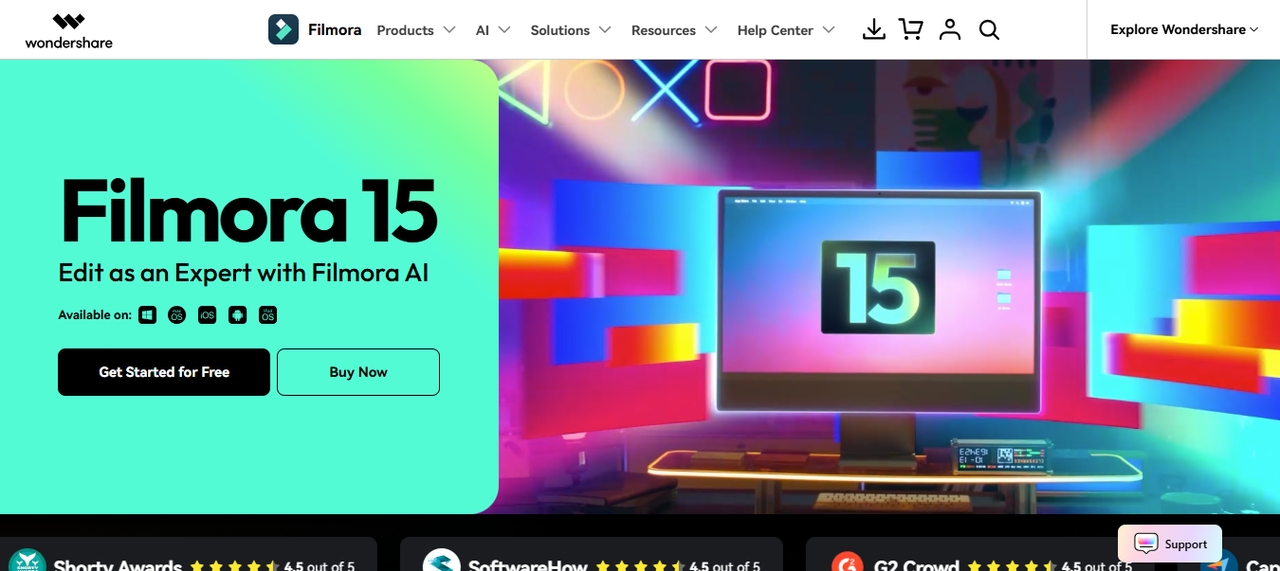
Filmora comes from Wondershare and sits between basic mobile editors and heavier desktop software like Premiere Pro or DaVinci Resolve. It runs on desktop, web, and mobile, and the free version exports with a watermark, so most creators end up on a paid plan once they want clean exports. The editor targets people who post regularly on YouTube or social platforms and want a shorter learning curve than industry-standard tools.
Test experience:
I imported the short e-commerce video, added cuts, text, transitions, and a few effects, then exported the project. The editing workflow was simple, and I was able to turn the raw clips into a finished short video with the requested text and transitions. The free export added a large watermark to the final video, although the exported footage otherwise retained the expected quality and resolution. I also checked the exported file to compare its quality with the source. The main limitation I found was the watermark on the free export, which makes the free version unsuitable for a clean final upload.
Key features:
- Cut out objects with AI: Erase unwanted objects or swap a background out entirely, no green screen or manual masking required.
- Turn raw clips into a rough cut instantly: Upload your footage and the software auto-assembles a video with background music picked for you.
- Copy color grading between clips with one click: Pull the exact color settings from one shot and apply them to another for a matching look.
- Track moving subjects automatically: Attach text, graphics, or effects to a subject and have them follow its motion through the frame.
Pros
- The interface groups tools in a way that new editors can find without a tutorial.
- The effects and transitions library gets updated often, so it doesn't feel dated after a year.
- Rendering speed holds up on mid-range laptops, not just high-end machines.
- Projects sync between desktop and mobile, so you can start editing on one device and finish on another.
Cons
- The free plan's watermark and export limits push most users toward a subscription within a few projects.
- DaVinci Resolve
Platform: Windows, Mac, Linux, iPad Pricing: Free; Studio $295 one-time Best for: Professional editing, color, VFX, and audio
Blackmagic Design builds DaVinci Resolve, and the free version already includes editing, color correction, visual effects, and audio tools in one app, which is unusual for free software. The free version supports editing and finishing up to Ultra HD 3840 × 2160 at up to 60 fps. Studio adds the DaVinci Neural Engine and additional AI features.
Test experience:
I imported the same short e-commerce video used throughout my CapCut alternatives test and checked basic cutting, color grading, transitions, and playback on the same system I used for the other editors. I was able to produce a finished 4K edit with cuts, transitions, and a graded look, with much more control over color than the simpler editors in the test. The final export maintained the 4K resolution and played back correctly after rendering. 4K playback was not smooth during my test without optimized media or proxies, especially when heavier effects were added. DaVinci Resolve supports proxy workflows for situations where the system cannot handle the media in real time, so I treated the playback issue as a test observation rather than a fixed limitation of the software.
Key features:
- Grade color with node-based tools: Build color corrections through connected nodes instead of a single slider stack, which gives you more control over specific parts of the image.
- Mix audio in Fairlight: Handle multi-track audio mixing, EQ, and noise reduction in a dedicated audio page without exporting to another app.
- Build VFX in Fusion: Composite visual effects and motion graphics on a node-based canvas built into the same timeline.
- Work on a shared timeline: Multiple editors, colorists, and audio engineers can open the same project and work on it at once.
Pros
- The Studio version's $295 one-time fee replaces what would be a monthly subscription elsewhere.
- Color grading tools match what's used on feature films, not a scaled-down version.
- Editing, color, VFX, motion graphics, and audio are available within the same application.
Cons
- The large number of professional tools can take time to learn if you are new to video editing.
- Some advanced AI features and other tools are available only in the paid Studio version.
- Canva
Platform: Web, Mobile Pricing: Free; paid plans start at $18/mo Best for: Marketers and small businesses
Canva started as a graphic design tool and added video editing later, so it works best for people who already use it for social graphics and want video in the same place. This CapCut alternative is available on the web, Windows, Mac, and mobile, so you can switch between devices while working on the same projects. Its video tools are more focused on social content and accessible editing than the deeper controls found in dedicated professional editors.
Test experience:
I started with a video template and replaced the stock clips with my own e-commerce clip. I added text, animations, music, and several timeline elements before exporting the project to produce a finished social-style promotional video. The exported video was ready for online use, with the template elements, text, and music appearing correctly in the final file. The basic workflow was easy to follow, but I found less detailed control for some editing tasks than in dedicated video editors. The specific limitation was the lack of deeper timeline controls for precise edits.
Key features:
- Start from a template: Pick from templates sized for Reels, TikTok, or YouTube instead of building a layout from scratch.
- Apply your brand kit automatically: Save your fonts, colors, and logo once, then apply them to new videos without resetting them each time.
- Edit with Magic Studio's AI tools: Remove backgrounds, generate captions, or sync clips to a beat using built-in AI features.
- Collaborate in real time: Team members can comment, edit, and approve a project from the same shared file.
Pros
- The stock library includes millions of video clips, photos, and audio tracks under one subscription.
- Projects save to the cloud automatically, so you can switch between a laptop and phone mid-edit.
- Brand kits cut down the time spent resetting fonts and colors on every new video.
- The learning curve is short enough that someone can publish a finished video the same day they open the app.
Cons
- The timeline doesn't support frame-by-frame keyframe animation, so precise motion work isn't possible here.
- Final Cut Pro
Platform: Mac, iPad Pricing: $299.99 one-time purchase or Apple Creator Studio from $12.99/month Best for: Apple users and professional editors
Apple builds Final Cut Pro exclusively for Mac and iPad, so it's not an option if you edit on Windows. The one-time purchase price sets it apart from most professional editors, which usually run on a subscription. This CapCut alternative is built for editors who already work inside the Apple ecosystem and want rendering speeds tied to Apple Silicon hardware.
Test experience:
I imported the same e-commerce video and tested cutting, transitions, audio layers, and playback before rendering the project. I was able to turn the footage into a finished 4K video with multiple clips, transitions, and layered audio, and the footage played smoothly during my test. The rendered export retained the source's 4K quality, while rendering was fast on the Mac I used. I also tested clip and audio placement on the timeline. The main limitation was platform support, since Final Cut Pro requires Apple hardware, Windows users cannot use the same workflow.
Key features:
- Arrange clips on a magnetic timeline: Clips snap into place around each other automatically, so trimming one clip doesn't leave a gap behind it.
- Sync multicam footage: Line up and switch between multiple camera angles from the same recording session.
- Track objects for text and effects: Drop text or a color effect onto a moving subject and have it follow the subject's movement automatically.
- Adjust depth of field after filming: Use Cinematic mode on iPhone footage to change focus points during editing instead of at the time of filming.
Pros
- Rendering speed on Apple Silicon outpaces many editors that support both Mac and Windows.
- The one-time fee avoids the monthly cost most professional editors charge.
- Keyword tagging makes it easier to search a large media library by shot type or subject.
- It integrates directly with Logic Pro and other Apple production software.
Cons
- It only runs on Mac and iPad, so switching to or working with Windows users isn't an option.
- InShot
Platform: iOS, Android Pricing: Free; Pro available through in-app purchases Best for: TikTok, Reels, and Shorts
InShot is mobile-only, built for editing directly on a phone rather than exporting footage to a computer first. This CapCut alternative targets people making short vertical videos for TikTok, Reels, or Shorts who want to shoot, edit, and post without leaving their phone.
Test experience:
I used the same e-commerce video brief on a phone and imported the supplied clips to the app. I then tested trimming, text, transitions, music, and basic effects. I was able to turn the footage into a finished vertical promotional video with the required text, music, transitions, and effects. The exported file was formatted for short-form social content and retained the edits and overlays. The main limitation was that multi-layer editing and masking were more restricted than in CapCut.
Key features:
- Resize for any platform in one tap: Switch between preset aspect ratios for TikTok, Reels, or YouTube Shorts instead of manually cropping.
- Animate text and stickers with keyframes: Add movement to text, stickers, and picture-in-picture overlays using keyframe controls built for touchscreens.
- Adjust speed with a curve tool: Create slow-motion or fast-forward sections by adjusting a speed curve rather than a flat multiplier.
- Use the built-in music and sound library: Pull royalty-free tracks and sound effects, or record a voiceover, without leaving the app.
Pros
- Editing entirely on a phone means no file transfers between devices.
- Export presets match what TikTok, Reels, and Shorts expect, so formatting issues are rare.
- The interface is simple enough that a first-time user can finish an edit in one sitting.
- The sticker and emoji library gets updated frequently.
Cons
- A phone screen makes multi-track editing cramped once a project has more than a couple of layers.
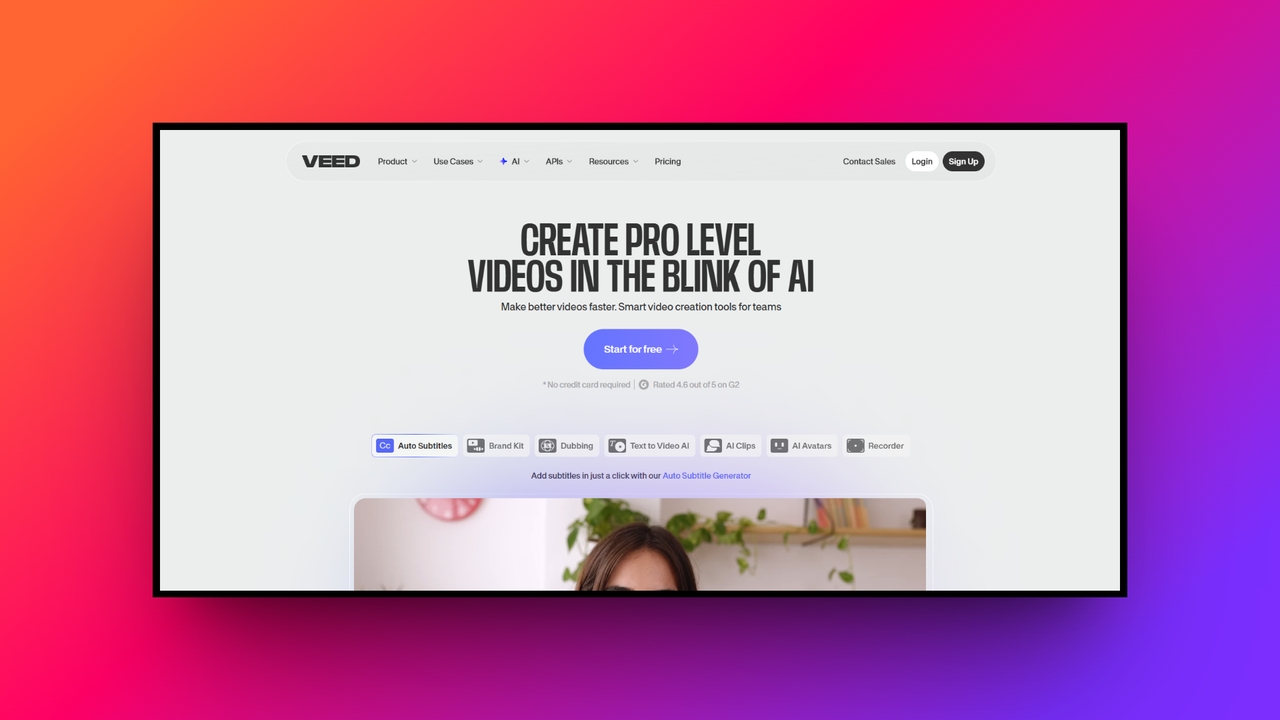
- Veed.io
Platform: Web Pricing: Free tier; paid plans starts at $20 per user per month Best for: Social and marketing teams
Veed.io runs entirely in the browser, so there's nothing to install, which matters for teams working across different computers or operating systems. It's known mainly for its subtitle accuracy and audio cleanup, and it's aimed at podcasters and marketing teams producing content on a regular schedule rather than one-off video projects.
Test experience:
I uploaded the same e-commerce video to Veed.io through its browser editor and tested trimming, subtitles, text, music, and basic effects. The same footage was turned into a finished social video with captions and other edits without installing desktop software. I then rendered the project to check the final output and subtitle placement. The browser workflow was convenient, but performance became slower as I added more footage and elements. That browser-based performance was the main limitation I noticed during the test.
Key features:
- Generate and translate subtitles automatically: Create captions in one click and translate them into other languages without retyping.
- Clean up audio with AI: Remove background noise, hums, or wind interference from a voice track.
- Record your screen and webcam together: Capture a screen recording with webcam and mic audio at the same time, useful for tutorials.
- Save brand assets for reuse: Store your logo, fonts, and color palette so every export follows the same look.
Pros
- Nothing to download or update means it works the same on any computer with a browser.
- Subtitle accuracy holds up across multiple languages, not just English.
- Sharing a project link lets teammates review without downloading the file.
- Podcast and social templates cut down setup time for recurring content formats.
Cons
- Rendering and playback depend on a stable internet connection, so it struggles offline or on weak wifi.
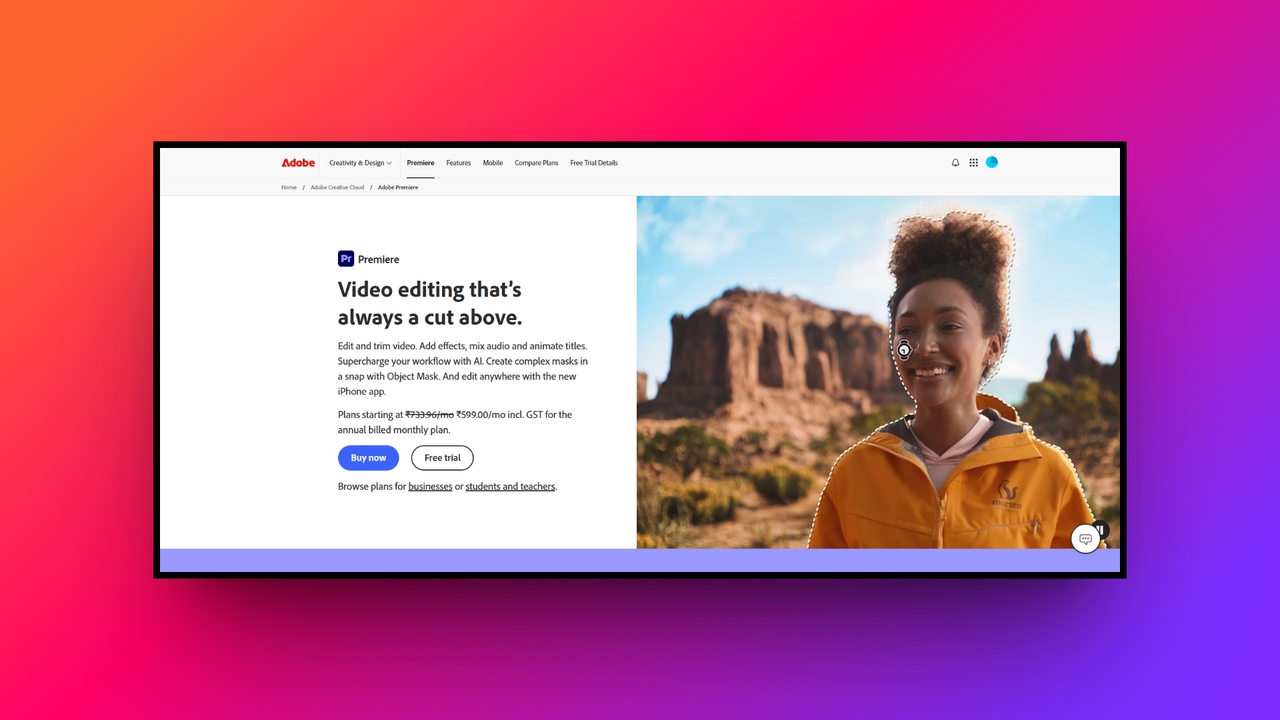
- Adobe Premiere Pro
Platform: Windows, Mac Pricing: $22.99/month for the single app Best for: Professional editors and production teams
Premiere Pro is the editor most film and TV productions use, and it's also the software most listed in job postings for editing roles. It only runs on desktop, and its subscription connects to the rest of Adobe's Creative Cloud apps, so it fits people who already use Photoshop or After Effects. The learning curve is steeper than consumer editors on this list.
Test experience:
I imported the same e-commerce video and then checked Premiere Pro's cutting, effects, transitions, audio, color, and playback controls. I was able to produce a finished 4K edit with detailed adjustments across the timeline and export the completed project at the intended resolution. The main issue appeared when I added heavier effects, which made playback less responsive on my system. Proxy files helped improve playback, but the performance requirements remain higher than those of simpler CapCut alternatives.
Key features:
- Edit by deleting text from a transcript: Cut a video by removing words from an auto-generated transcript instead of scrubbing the timeline.
- Reframe footage automatically: Detect the main subject in a shot and keep it centered when you change the aspect ratio.
- Grade with Lumetri color wheels: Adjust color using wheel and curve controls built for broadcast-level grading.
- Send clips to After Effects without rendering: Move a clip into After Effects for visual effects work and bring it back without exporting first.
Pros
- The toolset covers color, audio, and effects work that would need separate apps elsewhere.
- Dynamic Link with After Effects and Photoshop removes a render-and-reimport step.
- It supports nearly every video file format you'd bring in from a camera or phone.
Cons
- The $22.99/month cost adds up for someone editing as a hobby rather than a job.
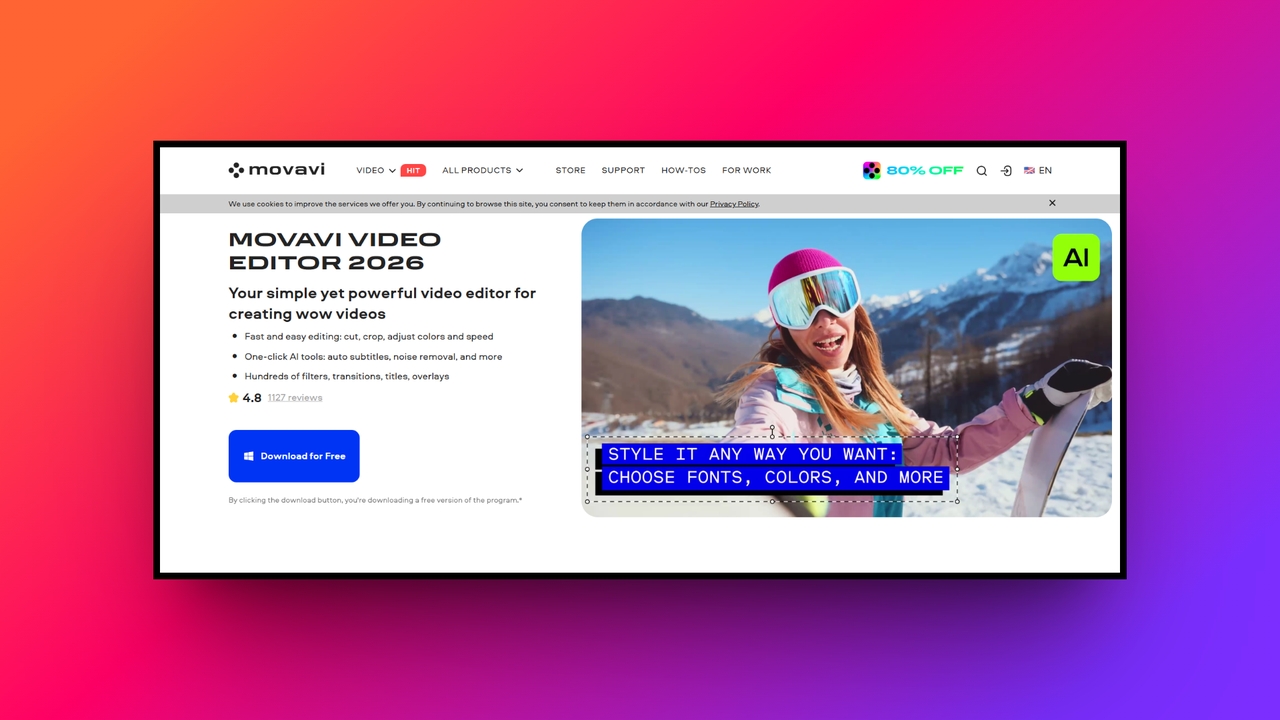
- Movavi Video Editor
Platform: Windows, Mac Pricing: $19.95/mo
Best for: Beginners, educators, and casual creators
Movavi sits below Premiere Pro and DaVinci Resolve in complexity, aimed at people who want a finished video without learning a professional interface. This CapCut alternative runs on both Mac and Windows, and it's often picked by teachers, family vloggers, and casual YouTubers who edit occasionally rather than daily.
Test experience:
I used the same short e-commerce video for Movavi and tested trimming, transitions, text, color adjustments, effects, and AI background removal. The supplied footage was turned into a finished short video with titles, transitions, color changes, and effects before I tested the export. The trial version added a watermark and placed restrictions on the exported video, which prevented me from producing a clean, unrestricted final file. The main limitation was therefore the trial's export restrictions rather than the basic editing workflow.
Key features:
- Remove backgrounds without a green screen: Replace a dull background with an image or transparent layer using AI detection.
- Clean up noisy audio automatically: Strip out traffic, wind, or static from a recording without manual EQ adjustments.
- Apply effects by dragging them onto the timeline: Add filters, transitions, and titles directly onto a clip without opening a separate menu.
- Build an intro from a template: Create a branded opening sequence for a channel using pre-made templates.
Pros
- The interface takes less time to learn than Premiere Pro or DaVinci Resolve.
- Export speeds stay fast even on older or mid-range computers.
- A lifetime license option means you're not locked into a recurring subscription.
- The sticker and transition library gives casual creators variety without extra downloads.
Cons
- Color grading tools are limited compared to what Premiere Pro or DaVinci Resolve offer.
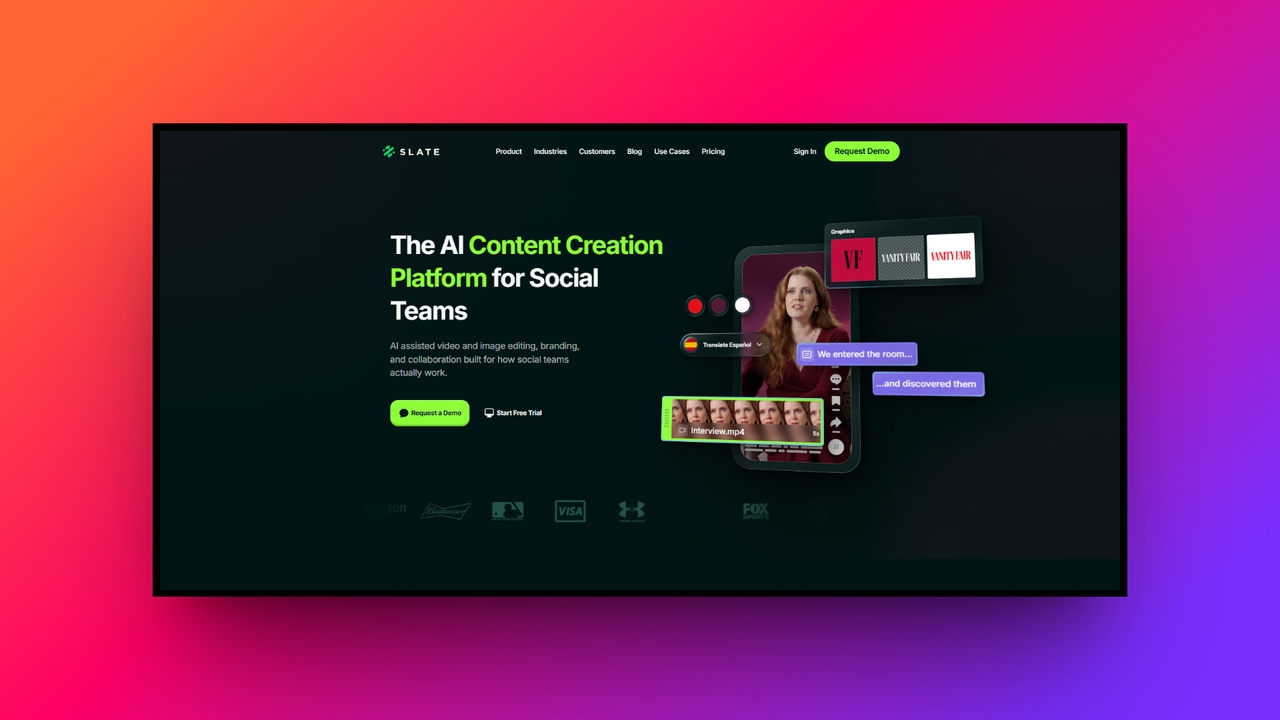
- Slate Teams
Platform: Web
Pricing: $99 per seat/mo
Best for: Brand, marketing, and social teams
Slate Teams is priced and built for companies, not individual creators, at $99 per seat per month. It focuses on keeping a brand's visual identity consistent across everyone on a marketing team, rather than offering the kind of general editing tools found in Premiere Pro or Filmora. It fits organizations with multiple people publishing social content who need shared control over fonts, colors, and logos.
Test experience:
I used the same e-commerce video brief for Slate Teams and uploaded the video alongside brand assets such as logos, fonts, and colors. The platform let me create a branded version of the video using the stored assets, which made it more focused on maintaining brand presentation than detailed video editing. I checked the finished content and its export for social use, then tested the workflow on mobile as well. The main limitation was that the mobile experience offered fewer editing options than the desktop workflow.
Key features:
- Store brand assets in one hub: Keep fonts, logos, and hex colors in a shared portal instead of scattered across individual computers.
- Apply branded overlays to video: Add watermarks, lower thirds, and borders that match a company's visual identity.
- Preview platform safe zones: See where a platform's UI elements will sit over your video so text and graphics don't get covered.
- Review and approve content as a team: Let multiple team members create, review, and approve videos in one shared workspace.
Pros
- AI-assisted video and image editing.
- Brand assets and brand controls for social teams.
- Collaboration and project review tools.
- AI captions and an AI editor are included in the Pro plan.
- Designed specifically around social media content workflows.
Cons
- The $99/seat/month Pro plan is aimed at teams rather than budget-focused individual creators.
- Enterprise features require a custom quote.
- Its focus on social content makes it less suited to detailed professional post-production.
Crucial tips & tricks to select the best alternative for CapCut
Choosing a CapCut alternative depends on your device, content type, editing skills, and required features.
- Check your hardware: Older laptops may work better with lightweight web or mobile editors than demanding desktop software.
- Consider your platform: Choose mobile apps for TikTok and similar short-form content, or desktop editors for long YouTube videos.
- Check the learning curve: Pick a tool that matches your editing skills and available time.
- Review the asset library: Built-in music, sound effects, and transitions can reduce the need for extra resources.
- Look for AI features: Auto subtitles, background removal, and audio cleanup can simplify common editing tasks.
Wrapping up
The right CapCut alternative depends on what you need from your editor. DaVinci Resolve and Premiere Pro suit detailed post-production. Final Cut Pro fits Apple users who want a professional editing workflow. InShot focuses on mobile content, while Canva and VEED suit social and marketing work.
For creators who need more than traditional video editing, Framia Pro offers a different workflow. Its value comes from bringing AI content creation into the same process rather than requiring separate tools for different creative tasks.
FAQs
Are there any mobile apps similar to CapCut that offer professional tools?
Apps similar to CapCut include InShot, Filmora, Canva, VEED, and other editors. The right option depends on whether you need mobile editing, browser access, professional post-production, or AI content creation.
What is the most reliable CapCut alternative for PC users?
DaVinci Resolve, Filmora, Movavi Video Editor, and Adobe Premiere Pro all support desktop workflows. Compare their editing controls, pricing, system requirements, and learning curve before choosing one.
Is there a web-based alternative of CapCut that doesn't require software download?
Absolutely. Framia Pro is a top-tier web-based alternative of CapCut, offering full automation. Veed.io is another excellent browser option renowned for its lightning-fast auto-captioning and screen recording features.
Which editing software like CapCut is best for absolute beginners?
Canva and Movavi video editor are fantastic options. This editing software like CapCut provides intuitive drag-and-drop interfaces and extensive template libraries, making them perfect for absolute beginners.
Which CapCut alternatives support AI video generation?
Several options include AI video features, but the available tools vary by platform. Framia Pro focuses heavily on AI-generated videos, images, UGC, avatars, and product content.
Can I switch from CapCut without changing my entire workflow?
Usually, yes. The transition is easier when the alternative supports your preferred platform, file formats, editing controls, and export settings. More specialized tools may require some workflow changes.
Which CapCut alternatives work offline?
Desktop editors such as DaVinci Resolve, Filmora, Final Cut Pro, Premiere Pro, and Movavi can support offline editing. Web-based tools need an internet connection for their main workflows.
Which CapCut alternative supports third-party plugins?
Plugin support varies, but Adobe Premiere Pro and DaVinci Resolve support third-party plugins for effects, transitions, audio, and other editing tools.