Free Vidu AI Video Generator

Explore the advanced AI model, Vidu AI, for creative videos with precise camera tracking, immersive motion, and a fast creation process.

Start for Free

Preparing editor…

What is Vidu AI?

Vidu AI is a video generation model developed by ShengShu AI that turns text prompts, still images, and reference assets into short video clips. One of its key capabilities is multi-reference consistency, which helps maintain the appearance of a character, object, or environment across generated scenes. Vidu Q4 is the latest version referenced here. It supports up to 15 reference images and offers 2K and 4K output options. Available features, output quality, and settings depend on the selected model version and generation configuration. Vidu AI is particularly useful for anime-style and 2D animation, cinematic sequences, and product or character videos where maintaining a recognizable appearance across scenes is important.

Explore core features of Framia Pro's Vidu AI video generator

Discover powerful features at Framia Pro's Vidu AI model for immersive, style-diverse, and natural videos

Instant video creation from text or images

With Framina Pro's Vidu AI video generator, enjoy a one-click solution to turn text or images into creative and natural videos. Share your ideas. Framia Pro's Vidu AI delivers instant, premium video outputs that meet all creative needs.

Different creative video generation modes

Explore various video generation modes at this special model. From text to video, image to video, or reference upload, generate different types of content. Ready for a new world of flexibility and power for your creative video creation journey.

Perfect AI-driven audio-visual sync

Keep audiences engaged and hooked with high-quality voiceovers and audio. Framia Pro's Vidu AI delivers crystal-clear audio and realistic sound across all scenes. Provide an immersive listening experience while keeping attractive video visuals.

Consistent character and element creation

Free yourself from worries about distorted or inconsistent characters and elements in AI-powered videos. Thanks to advanced AI tracking, the model produced consistent, smooth visuals from scene to scene. Create professional-looking videos for all video purposes.

Smart multi-shot camera control

Make video scenes feel realistic and natural with AI-powered multi-shot camera control. Enjoy dynamic and creative motions from scene to scene, moment to moment. Create a smooth and immersive visual experience for audiences across all video angles.

How to use Vidu Studio AI at Framia Pro for free?

Follow three simple steps to turn ideas or images into natural and captivating videos with dynamic motions and crystal-clear auto-sync:

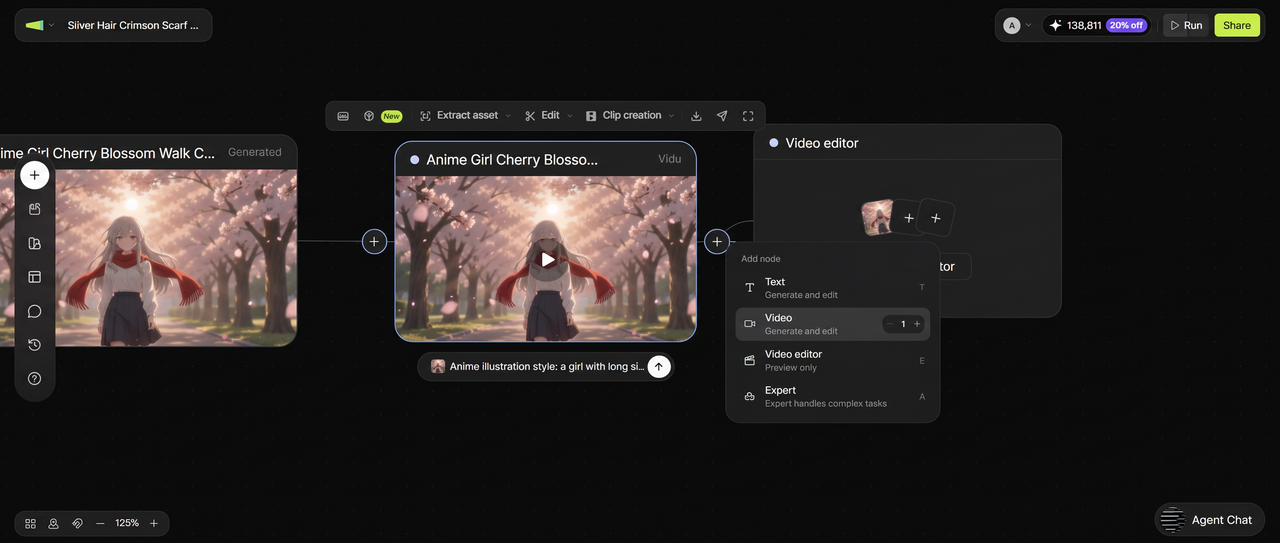
Step 1: Open the Agent canvas
From the Framia Pro dashboard, open the Agent canvas and start a new project. Click "+" and upload your reference images. In the prompt field, describe the scene, such as "Anime girl with silver hair and red scarf walking through a cherry blossom park, late afternoon light, slow push-in camera, expressive motion." Select the model from the Video Models menu, set the reasoning mode to Balance, Fast, or High, and hit Enter. Framia Pro plans the scene and connects the Video node.
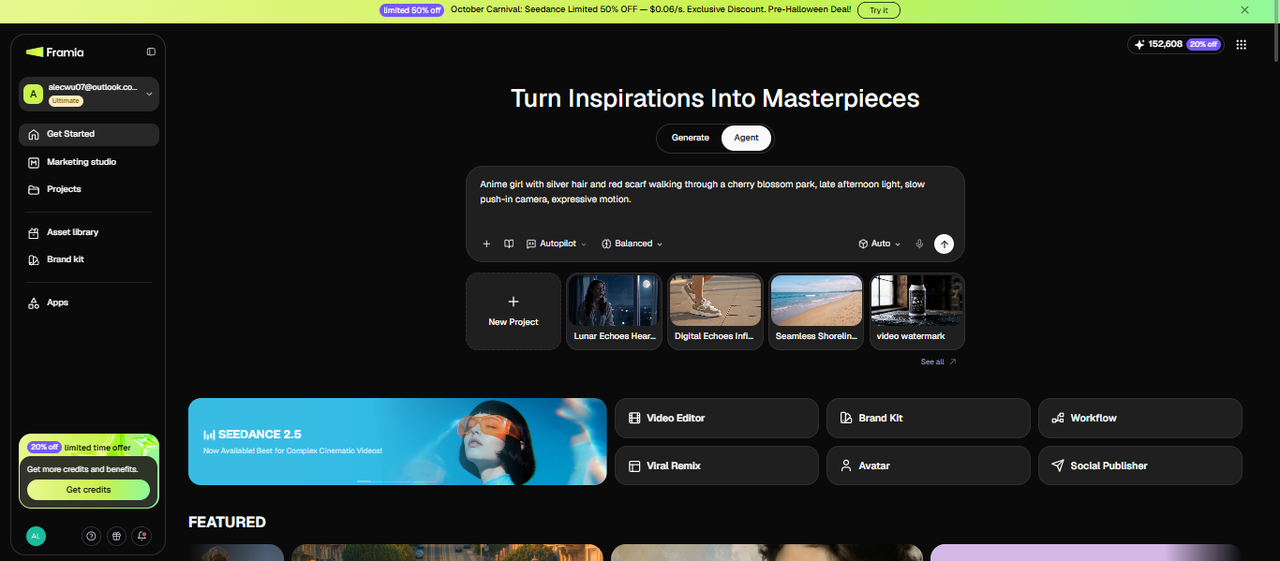
Step 1: Open the Agent canvas
Step 2: Configure the Video node and generate
The Agent will ask you for duration and aspect ratio. Set your clip duration and aspect ratio (9:16 for Shorts, 16:9 for YouTube, or 1:1 for social). Hit Generate. The model runs the scene and returns the clip on the canvas. For a multi-shot sequence, add a second Video node with a new scene prompt connected to the same character references.
Step 2: Configure the Video node and generate
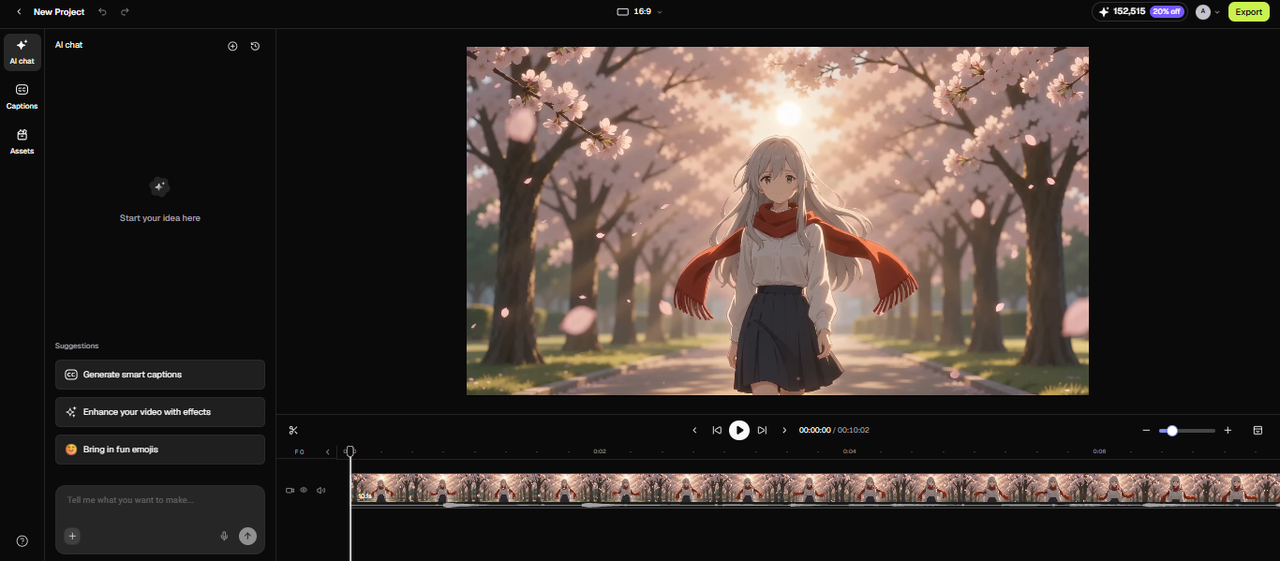
Step 3: Review, refine in chat, and export
The generated clip appears on the canvas. Play it back and check character consistency, camera movement, and motion quality across the full shot. If a scene needs adjusting, type a correction into the chat editor. A new node generates with the adjustment applied. Once the clip or full sequence is ready, download it at 4K resolution or publish directly from the canvas to your platform.
Step 3: Review, refine in chat, and export

Discover practical uses of Vidu AI at Framia Pro

Designed for production-ready and dynamic videos, Vidu AI at Framia Pro is here to turn assets into creative content for diverse uses.

Creative anime video

Tailor creative and eye-catching animation content with Framia Pro. The powerful model ensures expressive motion, immersive listening experiences, and impressive character visuals across your cartoon content.

Business presentation video

Create professional-looking and clear business presentation videos in seconds. Thanks to powerful AI algorithms, the model ensures detailed information, structured charts, and engaging messages for business settings.

Cinematic shots

Produce cinematic-quality video scenes with advanced lighting, camera movement, and composition. Tailor film-like visuals, including dramatic angles, depth, and storytelling elements, without requiring expensive equipment or complex filming setups.

Talking product reviews

Make your product review content authentic and natural with a clear, natural voice and a consistent subject matter from scene to scene. Highlight your product's key features, benefits, and use cases in a professional, easy-to-absorb way.

Realistic scenery moments

Generate highly realistic nature and environment videos with detailed lighting, natural motion, and atmospheric elements. This is ideal for background content in travel vlogs or as a video intro. Save your time for on-location filming.

What can you create with Framia Pro's Vidu AI image-to-video?

Bring your ideas into visually appealing, style-diverse and ready-sharing videos in seconds with Framia Pro

Why use Vidu AI studio for video creation?

Framia Pro's Vidu AI workflow helps you organize scenes, reuse reference assets, and refine individual shots within a connected project.

Build a connected storyline
Arrange anime scenes to show a girl walking through a cherry blossom park, catching a falling petal, and looking toward the trees. Shape the sequence around a clear beginning, middle, and ending, with logical scene transitions.
Create multiple versions from one project
Start with a three-shot perfume ad: a bottle close-up, a camera move around the packaging, and a final product shot. Reuse these clips for a shorter social ad. Remove the middle shot, adjust the aspect ratio, and revise the text for the target platform.
Modify individual shots
Use the Agent chat to request a different mood, setting, or camera direction for a selected scene. For example, change a perfume advertisement's lighting from warm gold to cool blue while preserving the intended product focus.
Reuse assets across scenes
Start with product photos, character references, backgrounds, or visual concepts that fit your project. Use the same references when generating new scenes to maintain a recognizable appearance across product demos, promotional videos, and branded stories.

What creative creators say about Framia Pro's Vidu AI?

See how Framia Pro's Vidu AI brings magic to real-life context and solves bottlenecks of creative content creators:

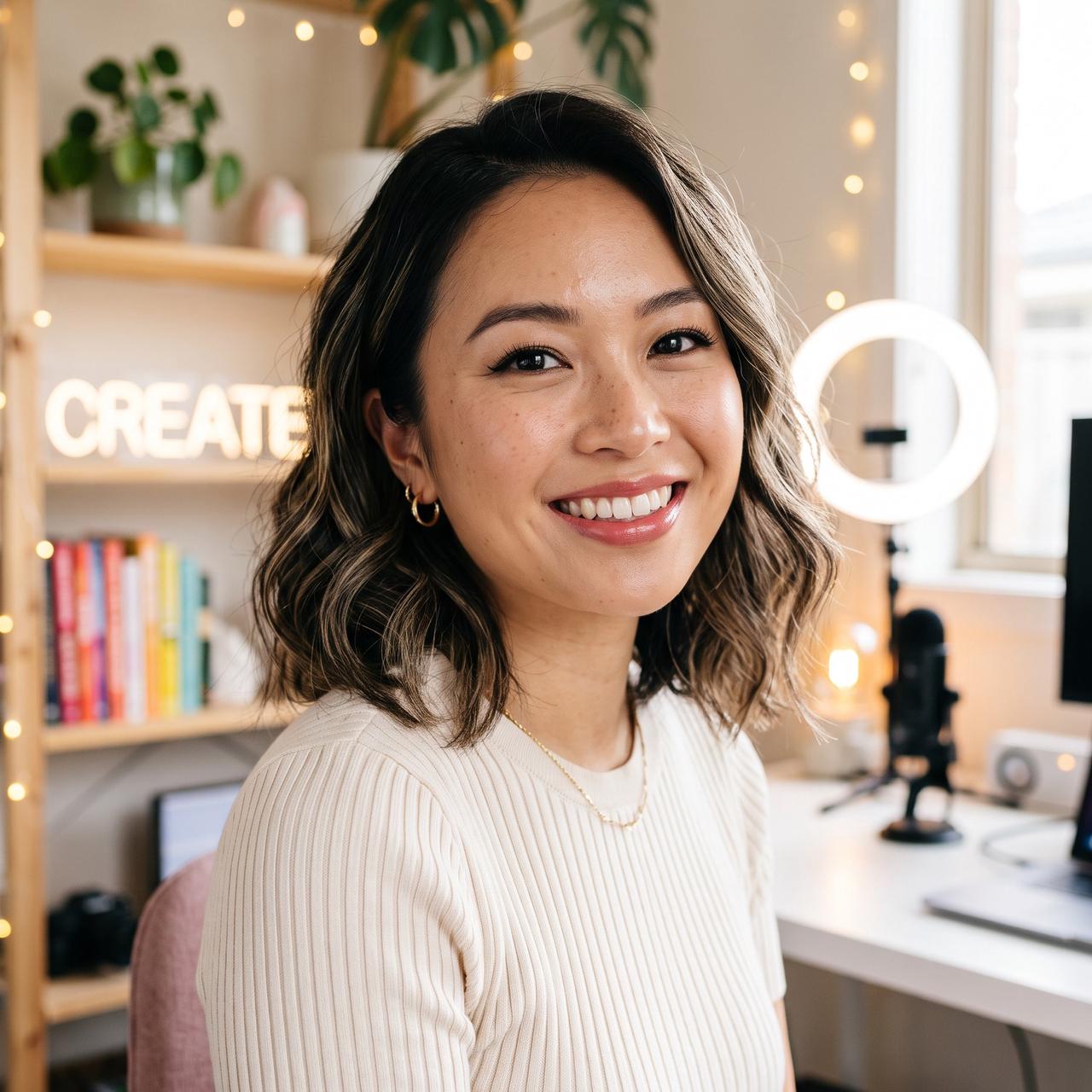
This is amazing. I have never experienced a fast and high-quality video production solution like Vidu AI. With this model, I can produce daily videos for my social channels without hours of editing.
Hanni J.
Hanni J.
Social media creator
Whenever it comes to a new product launch campaign, I feel very stressed when brainstorming and editing product footage. Vidu studio AI solves my problems. I need to share my product materials, and attractive, clear product videos are available in seconds.
Bard V.
Bard V.
Product marketing specialist
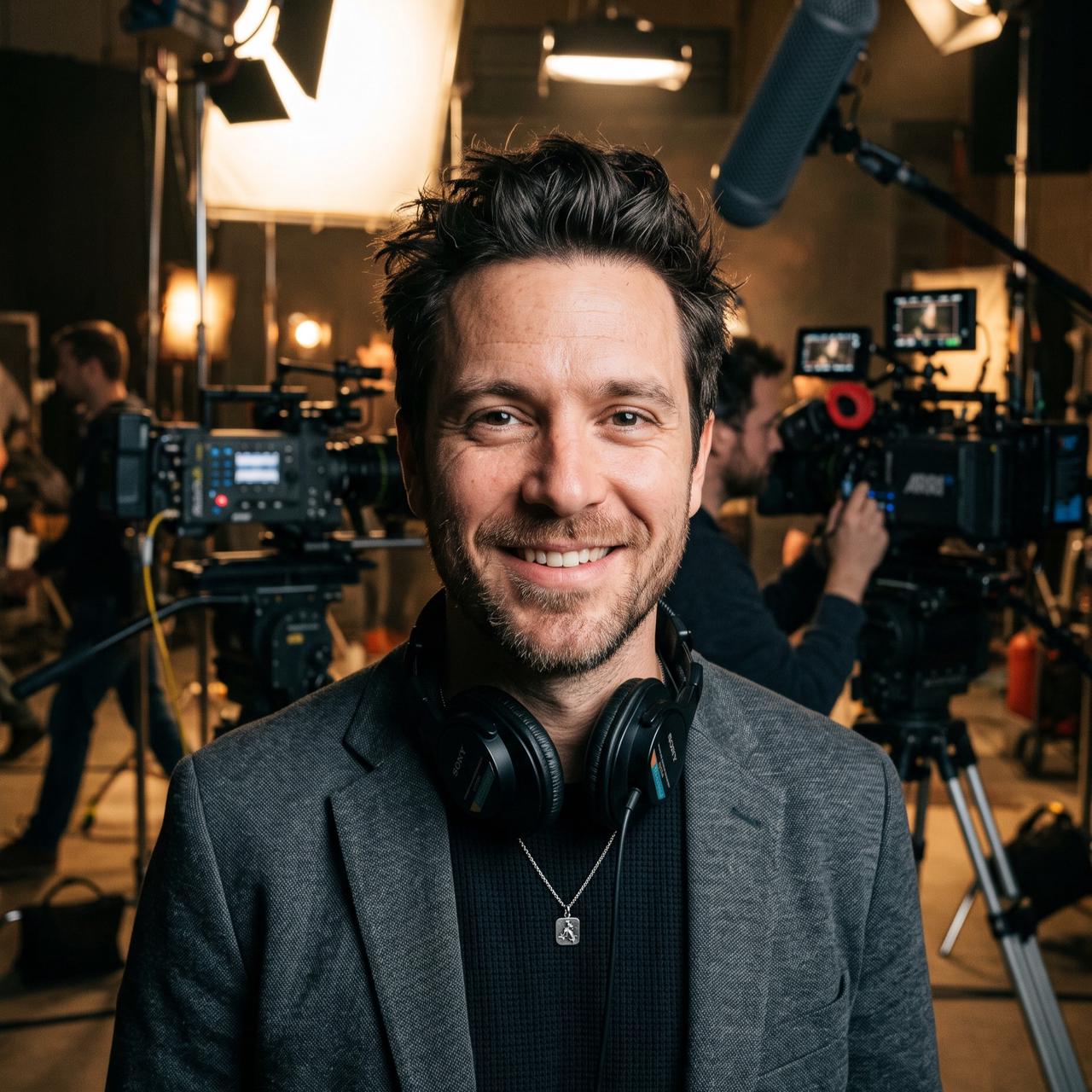
Thanks to perfect camera control and dynamic motion effects at Vidu AI, it saves me a lot of time for producing natural and authentic cinematic footage. I can spend more time on post-production or reviewing scenes with this special tool.
Ricky M.
Ricky M.
Movie director
Creating videos is my daily job. I have been searching for tools to reduce manual steps. Vidu AI video generator comes like magic. It allows me to generate videos from existing assets and easily adapt sizes and styles with prompts.
Jennie K.
Jennie K.
Freelance video editor
I had little experience creating video content before, but I want to do UGC content as my second job. With Framia Pro's Vidu AI video generator, I can create high-quality UGC content with talking avatars and clear voiceovers in seconds. Save me a lot of time.
Jack H.
Jack H.
Freelance UGC
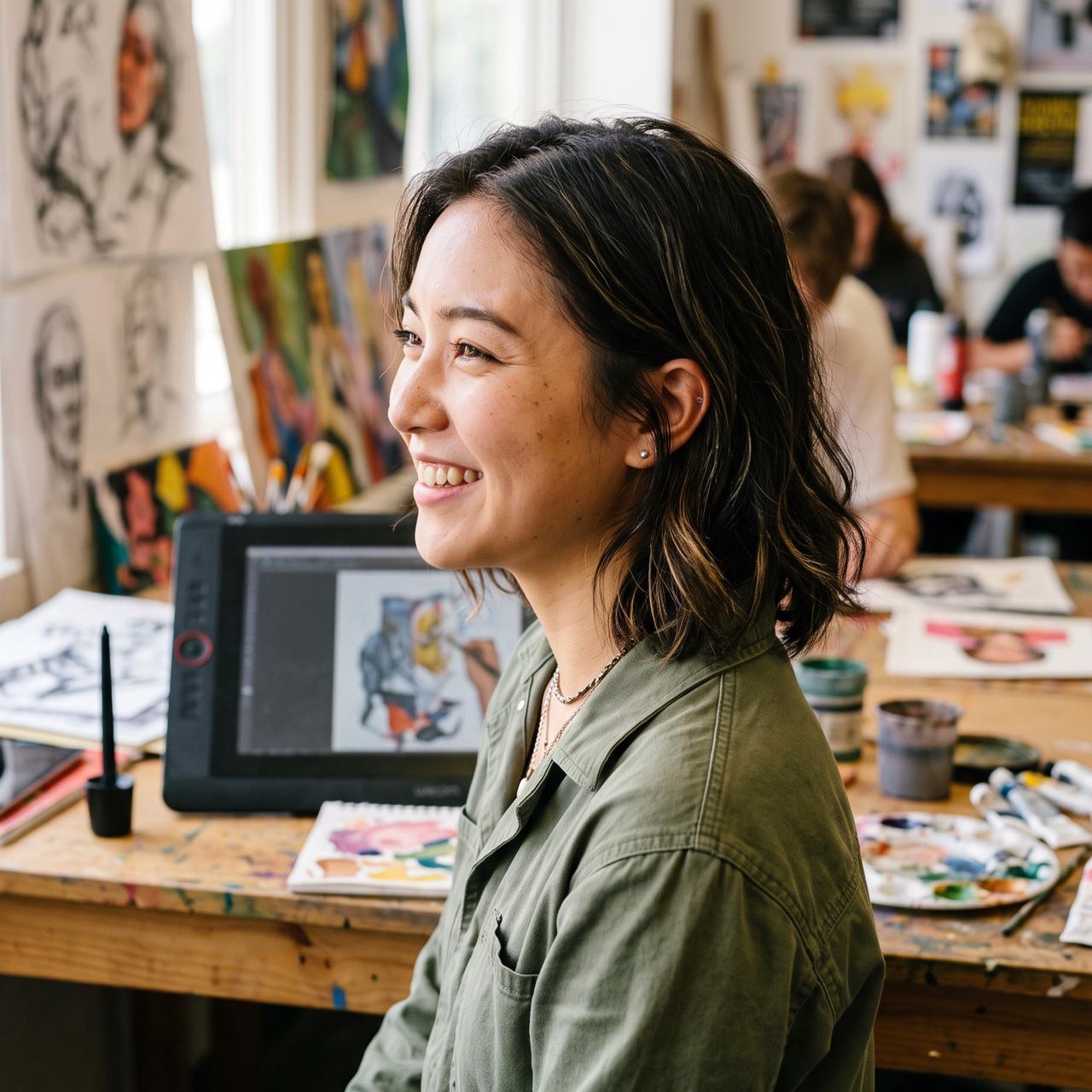
I use this video generator whenever I need to create cartoons and anime-style videos for my class projects. All videos have dynamic motions, appealing visuals, and premium quality for ready sharing.
Emi M.
Emi M.
Art student
We've compiled the most important information to help you get the most out of your experience. Can't find what you're looking for?Contact us

Frequently asked questions

How does Vidu AI video generator work?
The model leverages generative models and deep learning algorithms to turn your ideas (prompts or images) into captivating outputs with dynamic motions, immersive sound effects, and consistent subjects.
What kinds of videos can I create with Vidu studio AI?
With Framia Pro's Vidu AI studio, enjoy a variety of styles and video concepts for social media, business, movie production, or personal interests. This model also supports special Vidu AI hugging or Vidu AI kiss for niche occasions.
Is Vidu AI free?
Framia Pro gives free credits on signup. Vidu AI is available as a model within those credits. Check the in-product credit estimate before each run so the cost is visible before you generate.
Can I use Vidu studio AI videos for commercial use?
Yes, you can use your produced videos freely on Framia Pro for commercial purposes. Adjust your video output with additional prompts or settings to fit professional use cases in seconds.
Is my data secured at Vidu studio AI?
Free yourself from worries about data security. All your video outputs are stored in a secure cloud space. You can easily revisit, arrange, or delete your video whenever you want with Framia Pro.
What is Vidu AI's limitation?
Vidu AI might have some problems if you produce too-long videos or complex scenes. Feel free to use additional prompts to explain ideas or concepts, helping the model understand and craft perfect video outputs.
What is Vidu AI's multi-reference consistency feature?
Multi-reference consistency lets you upload up to fifteen images of a character, object, or environment, and the model reads all of them before generating. The result keeps that character's face, outfit, color palette, and visual details consistent in every scene generated from those references. It is the main reason Vidu AI is used for anime series, product videos, and character-driven multi-shot content.
What resolution and aspect ratios does Vidu AI support?
Vidu AI's available output resolutions depend on the selected model version and settings. Vidu Q4 supports 2K and 4K output options. Check the model's settings in Framia Pro for the available resolutions and aspect ratios before generating, as these options may vary by configuration.

Still have questions?

Have questions or need assistance? Our team is here to help!

Explore a new world of creativity with Vidu AI video generator

Turn ideas or assets into creative and dynamic videos without professional skills. Ready for perfect auto-sync, immersive sound effects, and more.

Free Vidu AI Video Generator: Turn Ideas into Attractive Videos