
 Share


Key takeaways:
- An AI video prompt needs to cover both visual detail and time, since video adds motion, pacing, and camera movement on top of what an image prompt handles.
- The core formula: [Subject] + [Action/Motion] + [Setting] + [Cinematography] + [Lighting] + [Style/Atmosphere].
- Vague prompts produce vague results. Specific camera terms (slow pan, tracking shot) and lighting terms (golden hour, chiaroscuro) give the model something concrete to work with.
- Common failure points include overloading a single scene, using vague motion words, ignoring lighting, and asking for physics the model can't render.
- Veo 3.1, Kling 3.0, and Seedance 2.5 each handle resolution, duration, and reference inputs differently, so the right prompt style shifts depending on which model you're using.
- Framia Pro's Script Creator Expert writes and refines these prompts for you, then sends them to multiple models without switching platforms.
A good AI video prompt turns a plain idea into a full cinematic clip, and getting there takes more than a few keywords. This guide covers the formula pros use, real weak-versus-strong examples, and the pitfalls that wreck a scene before it even renders. You'll also see how Framia Pro's Script Creator Expert writes these prompts for you, so you don't spend time memorizing camera terms and lighting jargon by hand.
What is an AI video prompt technique?
An AI video prompt technique is the strategic wording fed to generative AI models to produce specific, high-quality video content. Unlike a basic text-to-image prompt, video prompting adds the dimension of time. It calls for camera movement, frame rate, pacing, and transitions on top of the usual subject, lighting, and style details.
Mastering the technique of writing effective AI prompts for creating viral videos on YouTube closes the gap between a vague concept and a finished cinematic clip. Once you understand the core logic, you can direct motion, physics, and continuity through nothing more than precise wording, or hand that wording over to an agent that writes it for you.
Core elements and formula of an AI video prompt
Crafting a reliable AI video prompt requires a structured approach to ensure the model understands both the visual and temporal requirements.
The most effective formula follows this structure:
[Subject] + [Action/Motion] + [Setting] + [Cinematography] + [Lighting] + [Style/Atmosphere]
Here are the core elements you must include:
- Subject and appearance: Clearly define the main entity, whether it is a human, animal, or object. Detail their specific clothing, distinct physical features, and exact emotional expressions.
- Action and dynamic motion: Describe exactly what the subject is doing. Because this is a video, detailing the pace and nature of the movement over time is critical.
- Setting and environment: Establish the background and location. Specify the geographical setting, the current weather conditions, and the exact time of day.
- Cinematography and camera movement: Directing AI like a filmmaker. Use specific camera angles (like wide shot or extreme close-up) and exact camera movements (such as a slow pan, tilt, or tracking dolly shot).
- Lighting and illumination: Define the light sources. Mention terms like cinematic lighting, golden hour glow, neon reflections, or harsh shadows to create depth.
- Style and atmosphere: Note the aesthetic medium, like photorealism, 3D animation, or vintage 35mm film.
Quick prompting examples:
Depending on your starting point, whether you are using a free AI video generator from text prompts or utilizing AI image to video prompts, the input will vary slightly as follows.
- Text-to-Video: "A glowing neon sports car speeding down a rainy cyberpunk street. Low-angle tracking shot, vibrant neon reflections, photorealistic 8K."
- Image-to-Video: [Using an uploaded static image of a campfire] "The flames flicker dynamically as glowing embers float upward into the night sky. Slow cinematic zoom in, warm illuminating light, smooth continuous motion."
Compare weak and strong AI video prompts in 6 styles
Here are six real comparisons, each pulled from a different visual style, so you can see exactly what detail changes the output.
Example 1: Cinematic sci-fi scene
Weak prompt: "A spaceship flying in space near a planet."
Strong prompt: "A highly detailed sleek silver spaceship gliding slowly past a glowing red gas giant. Cinematic lighting, deep space background filled with distant stars. Slow tracking shot moving from the rear of the ship to the front. 4K resolution, photorealistic, epic sci-fi atmosphere."
Analysis: The weak prompt lacks visual direction and temporal cues. The strong prompt adds specific textures, a distinct background, clear lighting, and exact camera movement, resulting in a clean, dynamic clip instead of a flat animation.
Example 2: Commercial product reveal
- Weak prompt: A bottle of perfume on a table with water.
- Strong prompt: "Extreme close-up of an elegant glass perfume bottle sitting on a sleek black marble podium. Slow-motion macro shot as crystal-clear water splashes dynamically behind the bottle. Dramatic studio lighting, sharp focus, 8K resolution, high frame rate."
- Analysis: The first prompt is lifeless. The strong prompt uses commercial cinematography terms such as "macro shot" and "slow-motion," setting both the pacing and the high-end aesthetic a product ad needs.
Example 3: Nature and wildlife
- Weak prompt: A tiger walking in the jungle.
- Strong prompt: "A majestic Bengal tiger prowling through a dense, misty tropical rainforest. The camera pans smoothly alongside the tiger. Golden hour sunlight filtering through the dense green canopy, creating volumetric light rays. National Geographic documentary style, hyper-realistic, vivid colors."
- Analysis: The weak prompt leaves the environment and lighting to chance. The strong version names the weather, the lighting, and the camera movement, giving the clip a cohesive documentary look.
Example 4: Abstract artistic visualizer
- Weak prompt: Colorful paint swirling around.
- Strong prompt: Vibrant neon pink and cyan fluid paint slowly swirling and mixing together in mid-air against a pitch-black background. Macro lens, smooth continuous motion, glossy texture, 3D render, octane render, mesmerizing and relaxing atmosphere.
- Analysis: Abstract concepts easily become messy without strict boundaries. The detailed prompt defines the exact colors, the background contrast, the texture (glossy), and the specific rendering style, guaranteeing a clean, high-quality artistic sequence.
Example 5: 2D anime style
- Weak prompt: "A ninja on a rooftop at night."
- Strong prompt: "A cyberpunk warrior drawing a glowing katana on a neon-lit rooftop. Cel-shaded, Studio Ghibli-inspired style, dynamic anime motion blur, high-octane action pacing."
- Analysis: Anime styles vary a lot by studio and era. Naming a reference style and a rendering technique narrows the look, while the motion and pacing details tell the model how fast the action should read.
Example 6: 3D animation (Pixar/Disney style)
- Weak prompt: "A red panda jumping over a stream."
- Strong prompt: "A fluffy red panda wearing a tiny backpack, happily jumping over a stream in bright, vibrant colors. Pixar-style 3D animation, soft studio lighting, highly detailed fur, playful bounce to the motion."
- Analysis: The weak prompt leaves texture and animation style up to the model. The strong version names a studio style, specifies fur detail, and describes the motion quality, giving the model a clear artistic target instead of a generic render.
Best practices for AI video prompts: navigating pitfalls and proven tips
Creating flawless AI videos requires navigating technical limitations while maximizing creative potential. Understanding exactly what techniques to embrace and what common errors to avoid is the ultimate key to success.
| Pitfalls | Tips |
| • Overloading the Prompt: Cramming too many subjects into one scene confuses the AI, often resulting in morphed, unnatural objects. Focus on one primary action or subject per video clip for optimal clarity. • Using Vague Motion Terms: Relying on abstract motion descriptors like "moving nicely" leads to unpredictable, jittery outcomes. Always use specific cinematic terms like "slow pan left" to maintain complete control over the scene. • Ignoring Lighting Directives: Leaving lighting up to the AI often yields flat, lifeless visuals. Failing to specify lighting directions, sources, or styles strips the final video of its necessary depth and cinematic mood. • Demanding Complex Physics: Requesting unnatural physics, like glass shattering backward while water flows upward, breaks current generation models. The AI struggles with these conflicts, causing bizarre visual artifacts and heavily distorted video renderings. • Mixing Contradictory Styles: Combining conflicting styles, such as "photorealistic cartoon," severely confuses the rendering engine. The output usually becomes a muddy, low-quality hybrid rather than the distinct artistic vision you originally intended. • Neglecting the Temporal Element: Forgetting the dimension of time makes your video look like a static image with wiggling edges. You must thoroughly describe how the overall scene evolves and transitions over time. | • Isolate the Priority Shot: if a scene truly needs multiple elements, generate each as a separate clip and combine them in post, rather than asking one prompt to juggle everything at once. • Leverage Film Terminology: adopt a director's vocabulary. Words such as bokeh, depth of field, tracking shot, and 24fps act as cheat codes for realistic, cinematic output. • Specify the Visual Medium: Clearly dictate the exact medium you want, such as 35mm film, GoPro footage, or CGI render. This instantly aligns the AI's core generation process with your desired visual aesthetic perfectly. • Control the Action Pacing: Use descriptive adverbs to dictate the speed of the action. Words like "drifting slowly," "frantically running," or "smoothly transitioning" help the AI understand the emotional rhythm of the scene. • Utilize Negative Prompts Effectively: If your tool allows it, aggressively use negative prompts to banish unwanted elements like watermarks, blurry text, extra limbs, or warped faces. This ensures pristine and professional visual quality. • Iterate, Tweak, and Evolve: Treat your initial generation as a rough draft. Always tweak one variable at a time, like changing the camera angle, to observe how the AI interprets different phrasing nuances. |
How I tested these prompts
I ran each of the strong prompts above through Veo 3.1, Kling 3.0, and Seedance 2.5, using identical wording for all three models rather than tailoring the phrasing to each one. That let me compare how differently the same prompt gets interpreted depending on the model, rather than judging each model against its own best-case example.
| Test element | Details |
| Setup | Same prompt text, run unedited across Veo 3.1, Kling 3.0, and Seedance 2.5 |
| Judged on | Prompt adherence, motion accuracy, lighting fidelity, and how well camera direction (pans, tracking shots) actually came through |
| Weak vs. strong comparison | Ran both the weak and strong version of each example to confirm the gap wasn't just luck |
| Iteration | Adjusted one variable at a time (camera angle, then lighting) to isolate what changed the output |
Compare the top AI video generation models in 2026
The AI video landscape is moving fast, with new models pushing the limits of cinematic storytelling. Leading the pack are Veo 3.1, Kling 3.0, and Seedance 2.5. Before you dig into Veo 3 AI video prompt examples or Kling AI video prompt examples, it's worth understanding the motion control and multimodal strengths of each generator, so you can pick the right one for the shot.
| Feature | Veo 3.1 | Kling 3.0 | Seedance 2.5 |
| Max Duration | 8 seconds | Up to 15 seconds | Up to 30 seconds in a single continuous take |
| Native Audio | Yes (48kHz dialogue and sync) | Yes (lip-sync in 8+ languages) | Yes, 10+ languages |
| Reference Inputs | 1-3 images for character consistency | 1-4 images for multi-element control | Up to 50 references (30 images, 10 video, 10 audio) |
| Core Strength | Broadcast-grade cinematic realism | Industry-leading motion physics | Long single-take clips and deep reference control |
Note: ByteDance hasn't published a full technical report for Seedance 2.5 yet, so some of these figures come from launch materials rather than independent benchmarking. Worth a quick double-check before publishing if exact specs matter for your audience.
Knowing these models matters, but juggling three different interfaces gets tedious fast. That's where a single platform such as Framia Pro streamlines the whole production pipeline.
Turn AI video prompts into cinematic videos using Framia Pro
Memorizing that six-part formula every time you sit down to write a prompt gets old fast, and skipping a piece is an easy mistake to make. That's the exact problem Framia Pro's Script Creator Expert solves. Type a simple idea onto the canvas, something as plain as "A luxury perfume bottle slowly rotates 360 degrees on a clean studio surface," and the agent fills in the camera angle, the lighting, the material details, and the pacing on its own. What you get is a full, structured prompt, and you never wrote a single cinematography term yourself.
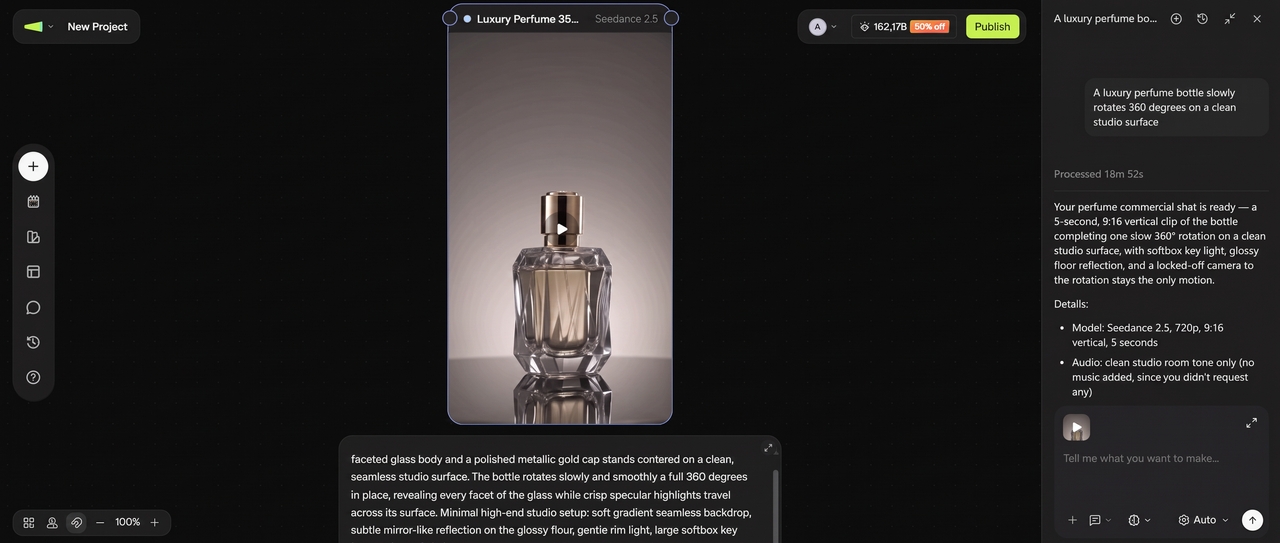
From there, the agent routes that finished prompt to whichever model fits a product shot best, such as Veo 3.1 for broadcast-grade lighting or Seedance 2.5 if the brand wants a longer single take of the bottle turning in frame. The clip comes back ready to drop straight onto the canvas, no separate export or reformatting step in between.
If the bottle rotates too quickly, select the relevant video segment and describe the change, such as “slow the bottle’s rotation.” You can also adjust the lighting by requesting “softer studio lighting with fewer reflections.” Framia applies the changes to the selected segment, helping you refine the shot without rebuilding the entire prompt.
| Task | Separate platforms | Framia Pro |
| Writing the prompt | You write every camera and lighting term by hand | Script Creator Expert fills in the details from a simple idea |
| Switching models | Copy and adjust the prompt for each new tool | Route the same prompt to Veo 3.1, Kling 3.0, or Seedance 2.5 in one canvas |
| Character consistency | Re-describe the character for every scene | Lock appearance once with the Character Consistency engine |
| Fixing a shot | Regenerate the whole clip | Select the segment and describe the fix in plain language |
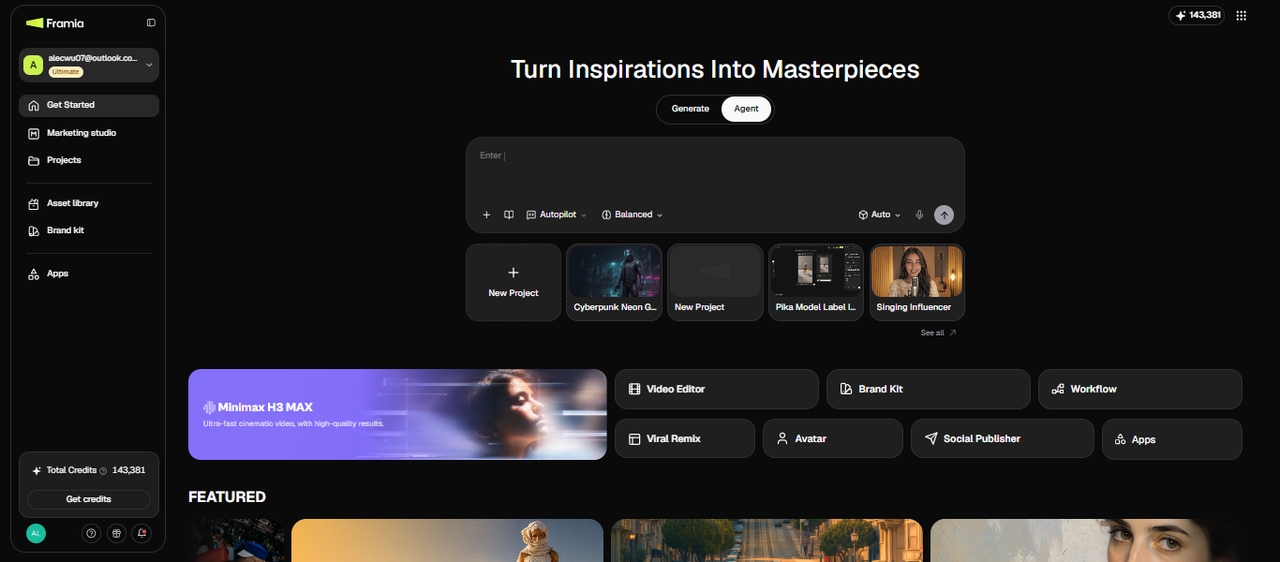
Key video generation features of Framia Pro
- Workflow Canvas: build connected workflow nodes from a single prompt, then edit prompts, swap models, or test variations without starting over.
- Expert nodes for specialized tasks: add an Expert node, such as Video Recreator, Creative Reviewer, Trend Researcher, Script Creator, or Prompt Refiner, to handle one specific part of the creative process.
- Chat-to-edit functionality: Instead of regenerating an entire video, creators can select a specific segment and simply describe what needs fixing in plain language for highly targeted, precise visual corrections.
- Character consistency engine: Framia Pro allows creators to lock in a cast's appearance at the beginning, maintaining perfect visual continuity of faces, expressions, and clothing across every single generated shot.
- Brandkit: Save colors, fonts, and logo once, and apply them automatically across every video you generate.
Best practices to follow when using Framia Pro
- Leverage chat-based refinement: Treat the AI like a co-director. Start with a broad concept and use the chat interface to iteratively tweak specific shots or camera angles without starting over.
- Lock characters early: Establish your characters' physical attributes and styling immediately. Locking these parameters upfront ensures that the Character Consistency engine keeps your subjects perfectly identical across multiple scenes.
- Utilize the storyboard editor: Always review the auto-generated storyboard before finalizing. Use the visual timeline to easily regenerate individual shots and ensure perfect audio-visual synchronization prior to your final render.
- Choose the right agent: Match your prompt to the correct agent. Use the Shorts Agent for high-energy 9:16 vertical clips and the Movie Agent for deeper, cinematic 16:9 narrative sequences.
Wrapping up
Good AI video prompts come down to treating the AI as a film crew. Give it clear details about the subject, the action, the camera, and the lighting, and skip vague phrasing or overloaded scenes. The formula above gets you there by hand. You can skip the manual work completely. Framia Pro's Script Creator Expert writes the full prompt from a plain idea, then routes it to Veo 3.1, Kling 3.0, or Seedance 2.5 inside the same canvas, so what started as one sentence ends up as a finished clip you can drop straight onto your timeline.
Frequently asked questions
Do I need to write out the full AI video prompt formula myself?
No. You can write it out by hand using the formula above, or let Framia Pro's Script Creator Expert build the prompt for you from a plain idea, filling in the camera work, lighting, and material details on its own.
Why does my AI video look blurry or morphed?
Blurry or morphed outputs usually stem from overloaded prompts, vague motion instructions, or conflicting physics. Focus on one primary action and use specific camera terminology to ensure clarity.
How do I maintain character consistency across scenes?
Detailed upfront descriptions help, but using specialized platforms like Framia Pro with built-in Character Consistency engines is the best way to lock facial features and clothing across shots.
Are AI-generated videos suitable for professional marketing?
Absolutely. With advanced tools offering 4K resolution, precise camera control, and automated editing pipelines, AI videos are increasingly used for commercial ads, product reveals, and cinematic social media campaigns.
How long should a good AI video prompt be?
A strong prompt is concise but highly descriptive, typically ranging from 40 to 80 words. Focus strictly on essential visual, environmental, and temporal details without unnecessary filler words.
What's the difference between a text-to-video prompt and an image-to-video prompt?
A text-to-video prompt builds the whole scene from a written description. An image-to-video prompt starts from an existing image and describes the motion, camera movement, or changes you want added to bring it to life.
Can I use the same prompt across Veo, Kling, and Seedance?
You can, but expect different results. Each model interprets cinematography terms and pacing slightly differently, so a prompt tuned for one may need small adjustments to get the same effect on another.
Do negative prompts work the same way for video as they do for images?
Mostly, yes. A negative prompt tells the model what to exclude, such as blurry text, extra limbs, warped faces, watermarks. For video, it's also worth adding motion-specific exclusions, like "no jittery movement" or "no frame skipping," since video introduces failure points that don't exist in a still image.