Google's Veo 3 is one of the most powerful AI video generation models available today — and like any powerful tool, the results you get depend entirely on how you use it. The difference between a blurry, off-topic clip and a polished, cinematic video often comes down to one thing: your prompt. Whether you're generating social media shorts, product demos, or cinematic storytelling, understanding how to write a strong Veo 3 prompt is the skill that separates great creators from everyone else. This guide walks you through everything you need — from the core framework to real-world examples — so you can generate better videos faster using Framia Pro's AI video generator.
What makes a great Veo 3 prompt?
A Veo 3 prompt is a text instruction that tells the model exactly what kind of video to create. Unlike a basic search query, a good prompt functions more like a director's brief: it describes what's happening in the scene, how the camera should move, what the lighting looks like, and what the viewer should hear.
Veo 3 is capable of generating high-definition video with native audio — including synchronized dialogue, ambient sound, and music — directly from your text. That power only works in your favor when your prompt is specific, structured, and intentional.
Vague prompts produce generic results. Detailed prompts produce cinematic ones.
The 8-part Veo 3 prompt framework
The most reliable approach to Gemini Veo 3 prompting is to address eight core elements in every prompt. Think of this as your director's checklist:
1. Scene — One clear sentence describing the overall action and setting.
2. Visual style — Define aesthetic: cinematic, documentary, animated, surreal, or corporate.
3. Camera movement — Specify how the camera behaves: static, slow pan, dolly-in, tracking shot, overhead, or handheld.
4. Main subject — Detail who or what is in focus, including appearance and action.
5. Background — Describe the environment, era, or location.
6. Lighting & mood — Set the emotional tone through lighting: golden hour, chiaroscuro, studio key light, or overcast daylight.
7. Audio cue — Include music genre, ambient sounds, dialogue, or silence.
8. Color palette — Guide the visual color scheme to match your brand or mood.
You don't always need all eight elements in every prompt, but including more of them, gives Veo 3 clearer direction and reduces the need for regenerations.
Veo 3 prompt examples that deliver results
Here are proven Google Veo 3 prompt examples across different use cases. Use these as starting templates and adapt them to your project.
- Cinematic Desert Drone Shot
A lone traveler in worn desert clothing walks slowly across a vast sunlit desert while shielding his face from the heat. The camera starts behind him at shoulder height, then smoothly rises into a cinematic aerial drone shot, revealing endless dunes and shimmering heat waves on the horizon. Pale sunlight creates soft atmospheric haze and realistic shadows across the sand. Style: cinematic realism, dramatic, minimalist, ultra detailed, 4K film look. Audio: distant wind, soft cinematic tension score.
Why it works:
- Clear subject and environment
- Strong camera direction
- Specific cinematic mood
- Realistic lighting and motion cues
- Realistic Skin Close-Up Portrait
Extreme close-up portrait of a young woman standing near a rain-covered window at night, soft neon reflections moving across her face. Natural skin pores, subtle freckles, realistic subsurface skin scattering, detailed eyelashes, moist skin texture, cinematic shallow depth of field. The camera slowly pushes inward while she maintains calm eye contact. Style: hyper realistic, cinematic portrait photography, soft blue and magenta lighting, 85mm lens look, film grain.
Why it works:
- Uses realistic skin texture keywords
- Adds lens and lighting details
- Focuses on one simple action
- Creates cinematic realism
- Cyberpunk Alley Tracking Shot
A hooded hacker walks through a narrow cyberpunk alley during heavy rain at night. Neon signs flicker across wet pavement while steam rises from underground vents. The camera performs a smooth tracking shot beside the character as reflections ripple beneath moving footsteps. Style: Blade Runner inspired, gritty cinematic realism, atmospheric lighting, ultra detailed, moody shadows, anamorphic lens flare. Audio: distant sirens, rain hitting metal pipes, low electronic hum.
Why it works:
- Detailed environmental storytelling
- Strong motion and atmosphere
- Realistic audio integration
- Effective cinematic references
- Luxury Fashion Commercial Prompt
A luxury fashion model walks confidently through an elegant marble hallway inside a modern Paris hotel. The camera performs a slow dolly-in while soft golden sunlight streams through tall windows, creating realistic highlights on flowing fabric and natural skin tones. Slow-motion hair movement, cinematic depth of field, premium commercial aesthetic, high-end fashion marketing campaign style, photorealistic textures, 4K cinematic lighting. Audio: soft ambient piano music and subtle high heel footsteps.
Why it works:
- Commercial-style pacing
- Precise lighting instructions
- Strong material and fabric realism
- Professional camera movement
- Nature Documentary Prompt
A majestic snow leopard carefully walks across a rocky mountain ridge during sunrise. The camera captures a wide cinematic wildlife shot using smooth telephoto movement while golden sunlight illuminates drifting snow particles in the cold air. Realistic fur detail, natural mountain fog, documentary-style realism, National Geographic aesthetic, ultra detailed landscape, cinematic atmosphere, HDR lighting. Audio: cold mountain wind and distant eagle calls echoing across the valley.
Why it works:
- Uses documentary visual language
- Combines movement with environmental realism
- Adds cinematic wildlife framing
- Creates immersive atmosphere
6. Product Showcase Prompt
Premium smartwatch rotates elegantly on a glass surface in a minimalist studio. Smooth 360-degree camera movement revealing all angles and details. Clean bright lighting with subtle reflections on metallic surfaces. Professional female voice-over highlights key features. Audio: soft corporate music, clear narration. Color palette: pristine white, metallic silver, accent blue. Modern tech aesthetic, no subtitles.
Why it works:
- Clear product-focused composition
- Professional commercial-style camera movement
- Strong lighting and reflection details
- Includes audio direction for realistic ads
- Minimalist aesthetic improves product visibility
Veo 3 camera prompt techniques
Camera direction is one of the highest-leverage areas of Veo 3 prompt engineering. Here are the camera terms that consistently produce accurate results:
| Camera Instruction | What It Does |
| Slow dolly-in | Builds intimacy, pulls viewer toward subject |
| Tracking shot | Follows subject through space, creates energy |
| Locked-off wide shot | Static, observational — strong for context |
| Overhead reveal | Shows relationships between elements in a space |
| Handheld | Adds naturalism and documentary authenticity |
| Rack focus | Shifts focus mid-shot, creates narrative depth |
Veo 3 prompt best practices
Writing a strong Veo 3 prompt is the key to creating cinematic, realistic, and visually consistent AI videos. Combine clear subjects, camera movement, lighting, motion, and atmosphere in a structured format. Here are the most effective Veo 3 prompt best practices used by professional creators and AI filmmakers.
- Be highly specific with scene descriptions: Clearly describe the subject, environment, action, clothing, emotions, and atmosphere to help Veo 3 generate more accurate and cinematic visuals.
- Use cinematic camera instructions: Add camera movements like tracking shots, dolly-ins, drone views, orbit shots, and handheld motion to create dynamic and immersive AI videos.
- Define lighting and mood carefully: Include details such as golden hour lighting, neon reflections, soft shadows, volumetric fog, or HDR illumination for realistic visual depth.
- Keep prompts structured and organized: Follow a consistent format like: Subject + Environment + Action + Camera + Lighting + Style + Audio for better scene consistency.
- Add realism-focused details: Use terms like realistic skin texture, natural motion blur, shallow depth of field, cinematic grain, and photorealistic reflections to enhance realism.
- Avoid conflicting or overloaded instructions: Too many styles, camera directions, or visual effects in one prompt can confuse the model and reduce output quality.
- Experiment and refine prompt variations: Test multiple versions of the same prompt by adjusting camera motion, lighting, pacing, or mood to discover the best Veo 3 results.
Executing Veo 3 prompts directly inside Framia Pro
While engineering the perfect Veo 3 prompt is half the battle, the real magic happens when you deploy it inside a production workflow. Traditional AI video tools output isolated, flat files that force you to jump into external editing software just to piece a timeline together.
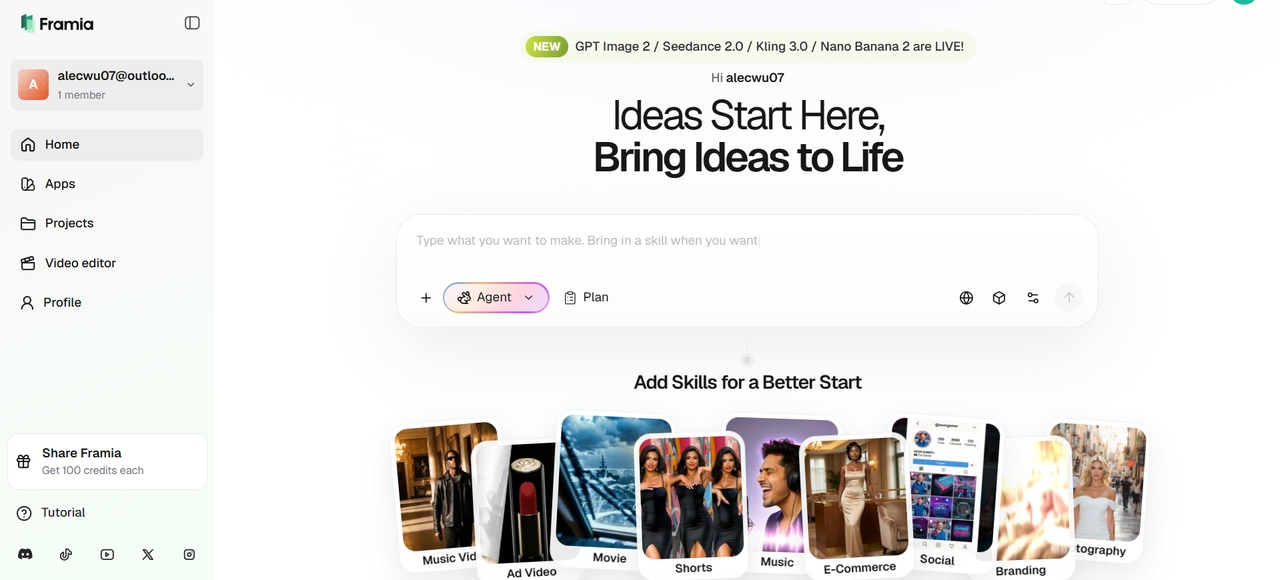
Framia Pro changes that by acting as an all-in-one conversational creative workspace. Instead of forcing you to stack individual software subscriptions, Framia Pro bundles over 20 elite AI engines—including Google's Veo framework—under a single dashboard.
With Framia Pro, you can chat naturally with the AI, generate stunning videos using Veo 3 prompts, refine them with image-to-video or motion controls, and organize your entire creative pipeline — all in a single, fast, and seamless environment.
Key features of Framia Pro
- Seamless Veo 3.1 Access: Direct integration with Google’s most advanced video model without needing a separate Google Labs account or waiting in queues.
- Character consistency & multi-reference control: Upload up to 3 reference images for superior character consistency across shots. Combined with Framia Pro’s agents and storyboard, you can maintain the same characters, style, and look throughout multi-scene projects.
- Built-in storyboard & post-generation editing: Go beyond single clips — arrange, regenerate, and fine-tune Veo 3.1 videos directly in an intelligent timeline editor. Edit shots, sync audio, and co-create with AI agents without needing external video editing software like CapCut or Premiere.
How to turn Veo 3 prompts into stunning videos with Framia Pro
Follow the steps below to turn AI video prompts into professional videos effortlessly.
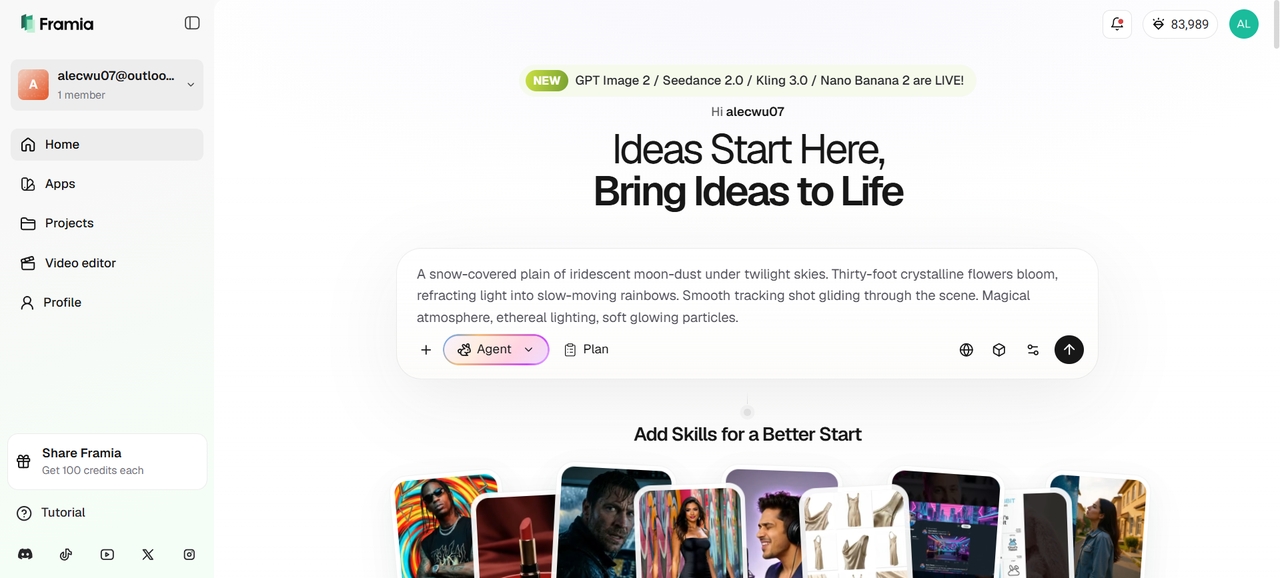
Step 1: Sign up and enter your Veo 3 prompt
Create your account on Framia Pro, open the AI video workspace, and enter a detailed Veo 3 prompt describing the subject, camera movement, lighting, style, and atmosphere. Use the "Plan" option for multi-scene storytelling.
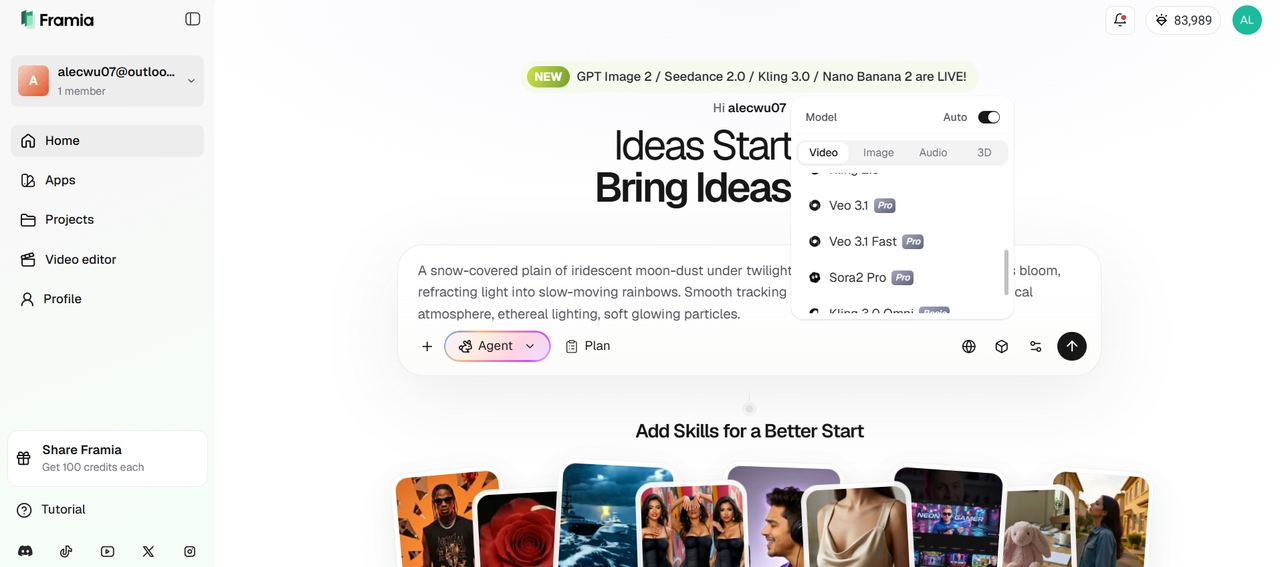
Step 2: Choose Veo 3.1 and customize settings
Select Veo 3.1 from the model menu, then adjust video duration, aspect ratio, motion intensity, and quality settings to match your cinematic or commercial video style requirements.
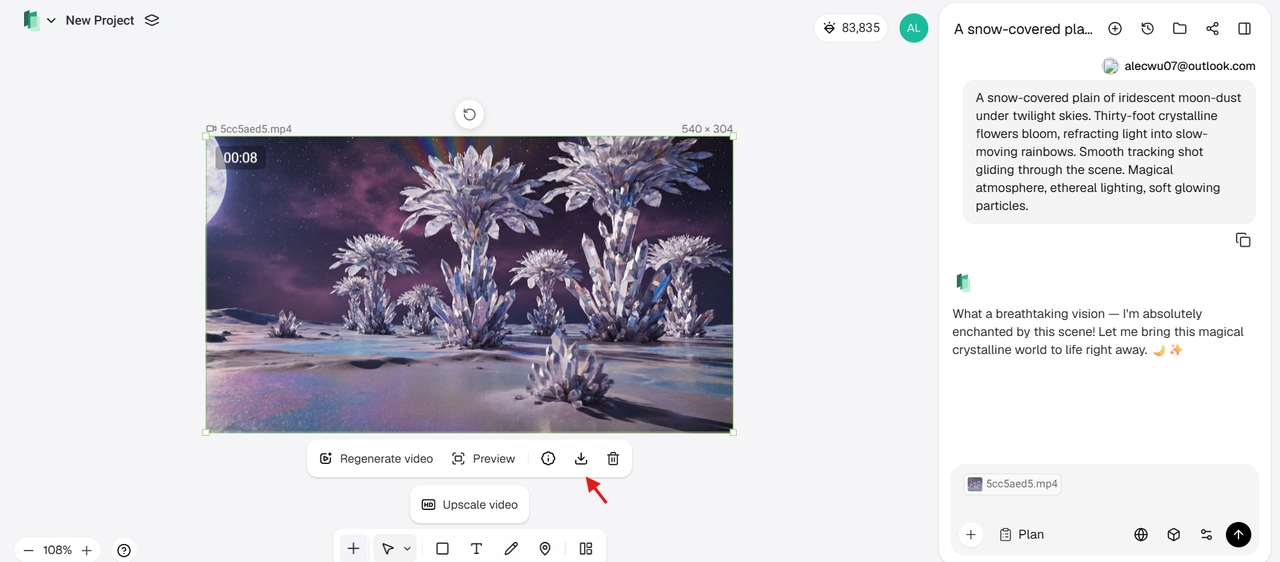
Step 3: Generate, refine, and download the final video
Click "Generate" to preview your Veo 3 AI video output. Improve scenes using Edit in Chat or Storyboard editing tools, fine-tune visuals and pacing, then export and download the final high-quality MP4 video.
Common Veo 3 prompting mistakes to avoid
Even with Google’s powerful Veo 3.1, many creators get average results because of poor prompting habits. Avoiding these common mistakes can dramatically improve video quality, motion, realism, and prompt adherence.
- Being too vague or too short: Writing prompts like “a man walking on the beach” leads to generic outputs. Always add specific camera angles, lighting, mood, and details. Aim for 80–180 words for best results.
- Ignoring camera directions: Many users forget to specify shot types (close-up, medium shot) and camera movement (dolly-in, crane shot, handheld). Veo 3 performs significantly better when camera instructions are given at the beginning of the prompt.
- Forgetting audio instructions: Not mentioning dialogue, sound effects, or background music often results in silent or mismatched audio. Always specify “He says: ‘Exact dialogue’”, “no subtitles”, and desired audio elements.
- Poor realistic skin & human prompts: Using basic descriptions like “beautiful woman” often produces plastic-looking skin. Always add “detailed skin texture, natural pores, subtle imperfections, subsurface scattering” for photorealistic humans.
- Overloading the prompt: Cramming too many conflicting ideas or excessive details (over 200+ words) confuses the model. Keep prompts focused and well-structured instead of throwing in everything at once.
Conclusion
Mastering Veo 3 prompts is the difference between average AI clips and truly cinematic, professional-looking videos. By using structured prompts, precise camera directions, realistic skin details, and proper audio instructions, you can unlock the full potential of Google’s Veo 3.1.
Framia Pro makes this creative journey seamless by combining Veo 3.1 with an all-in-one conversational workspace, powerful editing tools, and character consistency features. Whether you’re creating content for social media, marketing, or storytelling, strong prompting skills paired with the right platform will dramatically elevate your results.
Start experimenting today with the prompts in this guide and take your AI video creation to the next level.
FAQs
- How long should a Veo 3 prompt be?
Ideal length is 80–180 words. Too short produces generic videos, while overly long or complex prompts (200+ words) can confuse the model and reduce quality. Focus on clarity over length.
- How do I write better prompts for Veo 3?
Write clear and structured prompts with subject details, actions, camera directions, lighting, atmosphere, and visual style. Specific prompts usually produce more accurate, cinematic, and visually consistent AI-generated videos.
- How do I get realistic skin in Veo 3?
Use detailed descriptors like “natural skin pores, subtle imperfections, subsurface scattering, fine facial hair, and soft natural lighting.” Avoid generic terms like “beautiful woman” and combine with realistic lighting for photorealistic results.
- Why are my Veo 3 videos coming out blurry or low quality?
This usually happens due to vague prompts, conflicting instructions, or poor lighting details. Add specific lighting, style references (cinematic, photorealistic), and use negative prompts like “blurry, low resolution.”
- How does native audio prompting work in Veo 3?
Veo 3 natively handles audio engineering by syncing sound direct to scene visuals. Add an "Audio:" section at the tail end of your prompt detailing clear sound effects, ambient environmental tracks, or explicit spoken dialogue contained inside quotation marks