
AI Video Enhancer Online

Upscale, sharpen, and restore any video with our AI video enhancer. Improve resolution, reduce grain, and export clean footage in no time.

Start for Free

How to enhance video with Framia Pro?

You can follow these simple steps to use Framia Pro's AI video enhancer and upscale videos:

Step 1: Upload video
Open Framia Pro, type a short prompt to guide the AI video enhancer, click "+" to upload your video file, and prepare it for quality improvement.
Step 2: Upscale video with AI
Select an AI video enhancer model, choose aspect ratio and duration, set resolution like 720p or 1080p, then click "Generate" to improve video quality.
Step 3: Export enhanced video
Select the processed clip on canvas, click "Upscale Video" to reach 4K quality, and then choose "Download" to save the enhanced video to your device.

Key features of Framia Pro AI video quality enhancer

Improve video quality with smart AI tools on Framia Pro that fix blur, restore details, and upscale resolution!

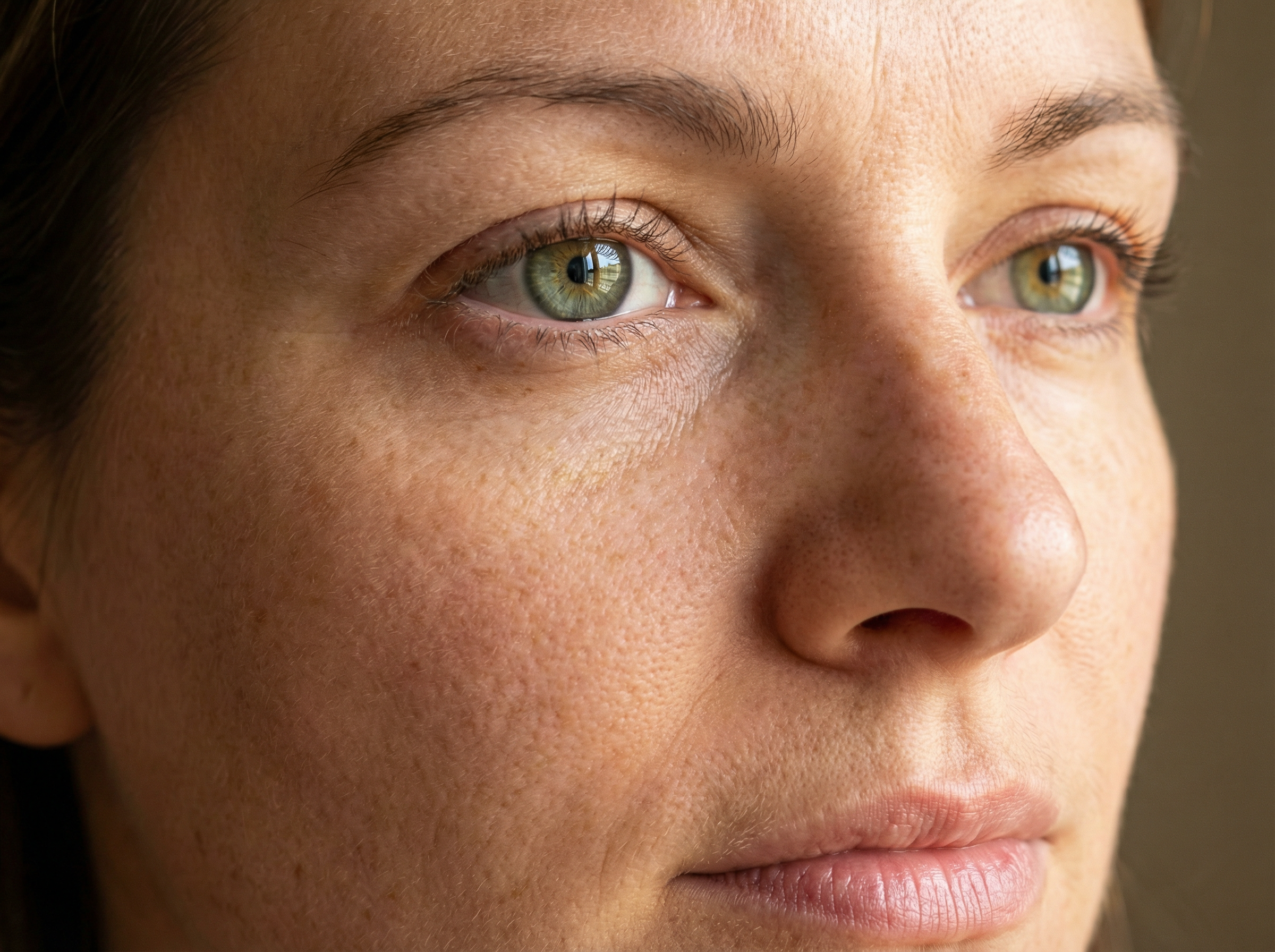
Quickly restore facial details

Get natural texture and detail in your videos using Framia Pro. Much like an AI photo retouch tool handles still portraits, it improves skin texture, edges, and small features so faces look clear instead of soft or washed out. This works well for phone clips, AI-generated clips, and old footage.

Quickly restore facial details
Fix motion blur in video scenes

Fix motion blur in video scenes

Add sharper frames to any high-speed clip with our AI video enhancer. The tool uses semantic motion analysis to reconstruct blurry subjects edge by edge. It can also add new frames to make motion smoother and easier to watch.

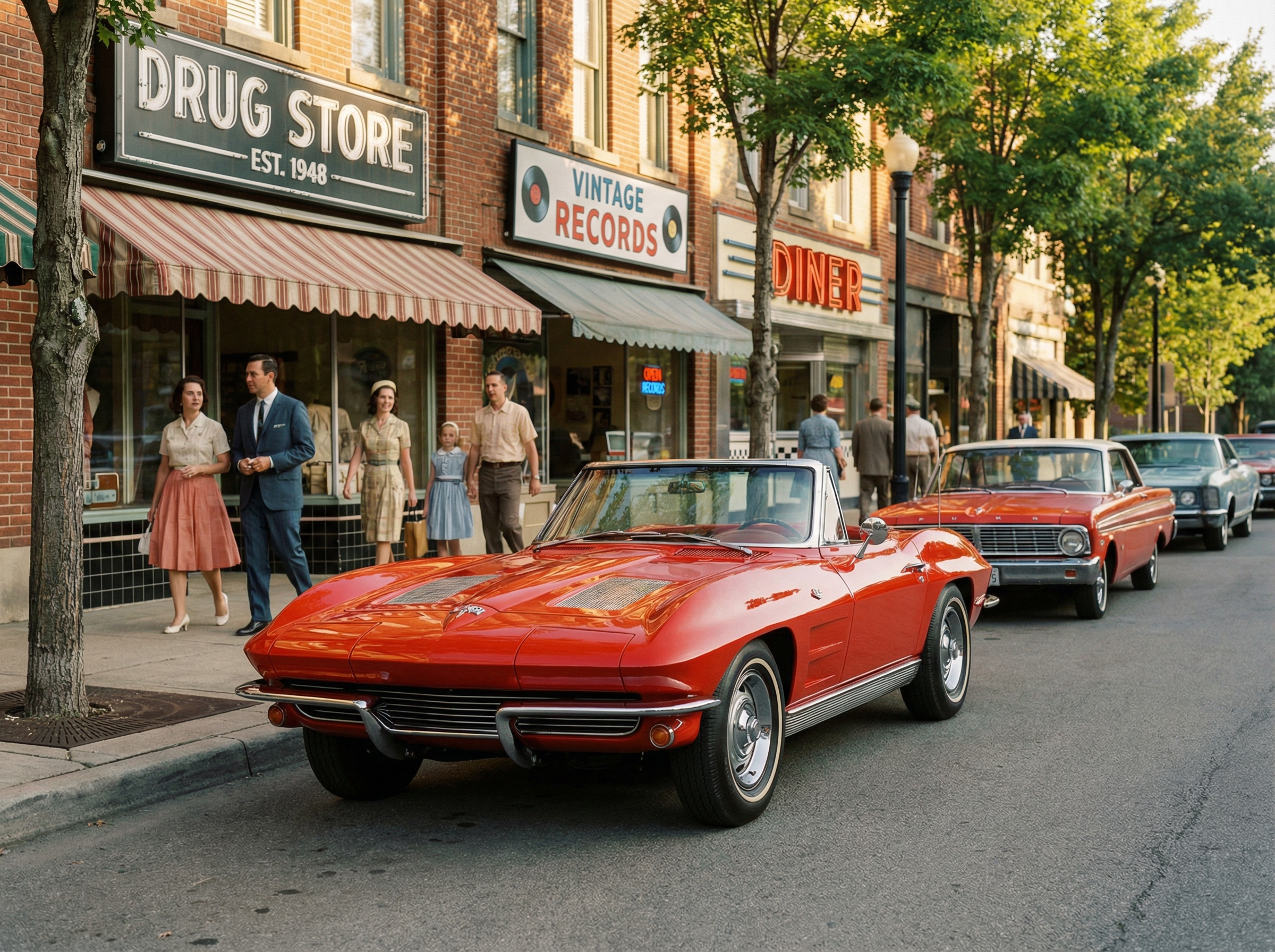
Restore old or damaged footage

Fix artifacts and lost details in your low-quality or damaged clips! With Framia Pro, you can upload your content, add a prompt, and let AI models remove scratches, stabilize shaky motion, correct color fade, and sharpen blurry edges.

Restore old or damaged footage
Fix blur noise and poor lighting

Fix blur noise and poor lighting

Quickly remove grain in dark or noisy videos. Our free AI video enhancer acts as a seamless video denoiser that reduces digital noise, sharpens soft edges, and brightens frames while preserving highlight detail. This works on night scenes, indoor recordings, and compressed social clips shot in low light.

Upscale your videos to 4K

Push any low-res clip to 4K using the Framia Pro generative upscaling. It increases resolution to HD or 4x, recreates fine textures, and removes compression artifacts. Your 360p video clip reaches 4K clarity with no visible warping.


Upscale your videos to 4K
Balance colors and light with AI

Balance colors and light with AI

Correct color, white balance, exposure, and contrast in any clip automatically. Framia Pro reads color data frame by frame, restores natural tones in faded footage, and fixes yellow tints common in old video. You don't have to manually adjust anything.

Support multiple video formats

Upload MP4, MOV, AVI, WebM, or MKV and Framia Pro processes it directly. You can download the AI-enhanced video clip in 4K at up to 30fps. Easily resize your clips for TikTok, YouTube Shorts, or Instagram during the enhancement process.
Support multiple video formats

Who is Framia Pro's video quality enhancer AI for?

Get sharper, cleaner video whether you post to social media, shoot for clients, or teach online.

Content creators & social media team
Creators and teams can use Framia Pro to fix blur, noise, and poor lighting in short videos made for social platforms. It adjusts resolution and format for each platform, so clips appear clear, sharp, and easy to watch on mobile screens and feeds.
E-commerce & performance marketers
With Framia Pro's AI video enhancer, you can improve product videos by sharpening edges, correcting colors, and cleaning noise in each frame. It shows product texture, shape, and details clearly, so viewers can understand items better.
Filmmakers & videographers
You can easily restore recorded footage with our AI video enhancer for free. It prepares clips for your preferred AI video editor by improving clarity and detail. This way, the final exports look clean and sharp on large screens or professional displays.
Streamers & gaming creators
Bring blurry, compressed gameplay clips back to life. You can sharpen blocky highlights from YouTube or Twitch, smooth out motion blur in fast scenes, and push older recordings to 1080p or 4K for crisp, satisfying replays.
Wedding & event videographers
Rescue dark, grainy, or shaky footage instantly. Our AI video enhancer clears up low-light ceremony clips and handheld shots, so every moment stays sharp, visible, and true to how you actually lived it.
Educators & corporate teams
Use Framia Pro to improve training and presentation videos by sharpening text, slides, and visual elements in each frame. It balances brightness and clarity, so viewers can read and understand content easily during lessons, meetings, or recorded sessions.

Why enhance videos with Framia Pro?

Upload any clip and get back a sharper & high-quality video with our AI video enhancer.

Online processing, no setup
Framia Pro runs fully online, so there is no need to install any software on your device. It opens in a browser, and you can upload videos directly, which makes the process simple and easy to start.
Max-resolution output
Upgrade any video to HD or 4K with Framia Pro. It fills in missing details as it processes, so your footage stays sharp, rich, and looks great even when stretched on a big screen.
Multiple AI models
Access Veo 3.1, Sora 2, Kling 3, Seedance 2.0, and more on Framia Pro. Each model tackles a different job, so whether you're sharpening, denoising, or restoring detail, you always get results built for your specific footage.
Preview before you commit
After you enhance your video, you can preview it on the canvas to see if it meets your expectations. Framia Pro then lets you upscale the clip to 4 K. You see the exact output quality before spending any extra credits.
Batch processing
You can add multiple videos, choose one AI model, and configure your settings once. Framia Pro queues and processes every file in sequence. Each video exports in the same quality, resolution, and format with no repeated setup steps.
Fast rendering with stable output
Framia Pro processes videos quickly while keeping output quality stable during rendering. It handles frame adjustments carefully, so the final video remains smooth, clear, and consistent from start to finish.

Social proofs about Framia Pro's AI video enhancer

Read how creators fixed blurry, dark, and low-res videos using Framia Pro's AI video enhancer.

I found an old clip from my phone that looked dull and blurry. After using Framia Pro, faces became clear and colors natural. It felt amazing to see a forgotten memory come back to life.
Ava Mitchell
Ava Mitchell
Content Creator
Our product video looked dark and uneven. With Framia Pro, lighting improved instantly, and every detail was visible. The team could share it immediately, and the results increased confidence in our campaign visuals.
Liam Parker
Liam Parker
E-commerce Marketer
I recorded a fast-paced gaming clip, but the motion made it messy. Framia Pro smoothed everything out, and the gameplay looked much cleaner. Watching it again was way better than the original messy recording.
Zoe Hernandez
Zoe Hernandez
Gaming Streamer
Some low-light wedding clips had soft faces and lost details. This amazing tool restored them perfectly. The couple and our team were thrilled; the video now looks like the moment really happened, bright and sharp.
Ethan & Maya Brooks
Ethan & Maya Brooks
Wedding Videographers
Our training video had text and slides that were hard to read. After running it through Framia Pro, everything became sharper. Students can now easily follow along, and the team is happy with the polished result.
Lily Chen
Lily Chen
Educator
I shared a travel clip multiple times, and it lost quality. Framia Pro cleaned the noise and brightened colors, making it feel like the original scene again. The team and I were impressed by the crisp, fresh result.
Arjun Mehta
Arjun Mehta
Travel Vlogger
We've compiled the most important information to help you get the most out of your experience. Can't find what you're looking for?Contact us

Frequently asked questions

How can AI enhance video quality?
AI improves video quality by analyzing each frame and fixing blur, noise, and lighting. It regenerates missing details and sharpens edges so the video looks clearer and more balanced.
Is Framia Pro's AI video enhancer free to use?
Framia's AI video enhancer offers limited free access for basic use. Advanced features, higher resolution exports, and longer videos usually require a paid plan for full access.
What are the best AI features for enhancing UGC video quality?
Noise reduction, face restoration, and auto color correction work best for UGC. These three fix the most grainy skin, flat colors, and soft focus issues in your videos, even if they were originally created with an AI video generator.
4. Can you AI enhance a video that looks blurry?
Yes, AI can enhance blurry videos by sharpening edges and regenerating lost details. It reduces blur and improves clarity, though results depend on how much information exists in the original clip.
How does AI video enhancement work?
The AI analyzes each frame individually, identifies quality issues like noise and blur, and then reconstructs detail using a generative model trained on high-resolution footage.
How long does AI video enhancement take?
AI video enhancement time depends on video length, resolution, and selected settings. Short clips process quickly, while longer or higher-resolution videos take more time to complete.

Still have questions?

Have questions or need assistance? Our team is here to help!

Enhance your videos now!

Stop settling for low-quality footage. Framia Pro's AI recreates every frame, lifts resolution, and gives you clean results!

AI Video Enhancer for Smoother Motion and Clearer Faces