Key Takeaways
- Follow the seven-block prompt formula: Subject → Action → Setting → Camera → Style → Audio → Quality cues for more accurate Seedance 2.5 videos.
- Keep prompts specific and organized. Clear descriptions of the subject, movement, environment, and camera direction produce better results than long, vague prompts.
- Break complex scenes into separate shots instead of combining multiple actions in one prompt to avoid inconsistent outputs.
- Use examples as a guide for different video types, including product ads, cinematic scenes, dialogue clips, and social content.
- Seedance 2.5 supports up to 50 multimodal references, including images, videos, audio, and 3D assets, helping maintain scene and character consistency.
- On Framia Pro, you can generate Seedance 2.5 videos through either the Video Agent for quick creation or the Workflow Canvas for more detailed control.
Seedance 2.5 is a strong AI video model, but your results depend on how you write your prompts. A vague prompt gives you a vague video, while a clear one gets you closer to what you pictured. This Seedance 2.5 prompt guide walks you through the exact structure that works. You'll learn what details matter, which words confuse the model, and how small tweaks change your output. By the end, you'll know how to turn a rough idea into a description that gets you the shot you actually want.
Understand how Seedance 2.5 reads your prompts
Seedance 2.5 doesn't just turn one line of text into a video. It reads your AI video prompt as a full scene, with a subject, an action, a setting, and a camera move all working together at once. That's a big shift from older tools, where you'd describe objects and hope the model figured out the rest.
Structure matters here more than word count. A short prompt with clear parts (who's in the shot, what they're doing, how the camera moves, and what mood it carries) beats a long paragraph packed with extra adjectives and no real order.
The model also looks at your scene as a whole story, not a list of separate items. When you describe a person walking through rain under neon lights, it connects the person, the motion, the weather, and the lighting into one moving picture, rather than generating each piece on its own.
To get consistent results, you have to give it specific details in the right order: subject first, then action, then camera and lighting. If you use vague words like "nice" or "cool," it leaves too much open to guessing, and that's usually when clips come out random or off-target.
The same principle applies across different AI generation models. For example, learning how to structure prompts in a Veo 3 prompt guide can help creators better understand how AI video models interpret camera movement, scenes, and cinematic details.
The core Seedance 2.5 prompt formula
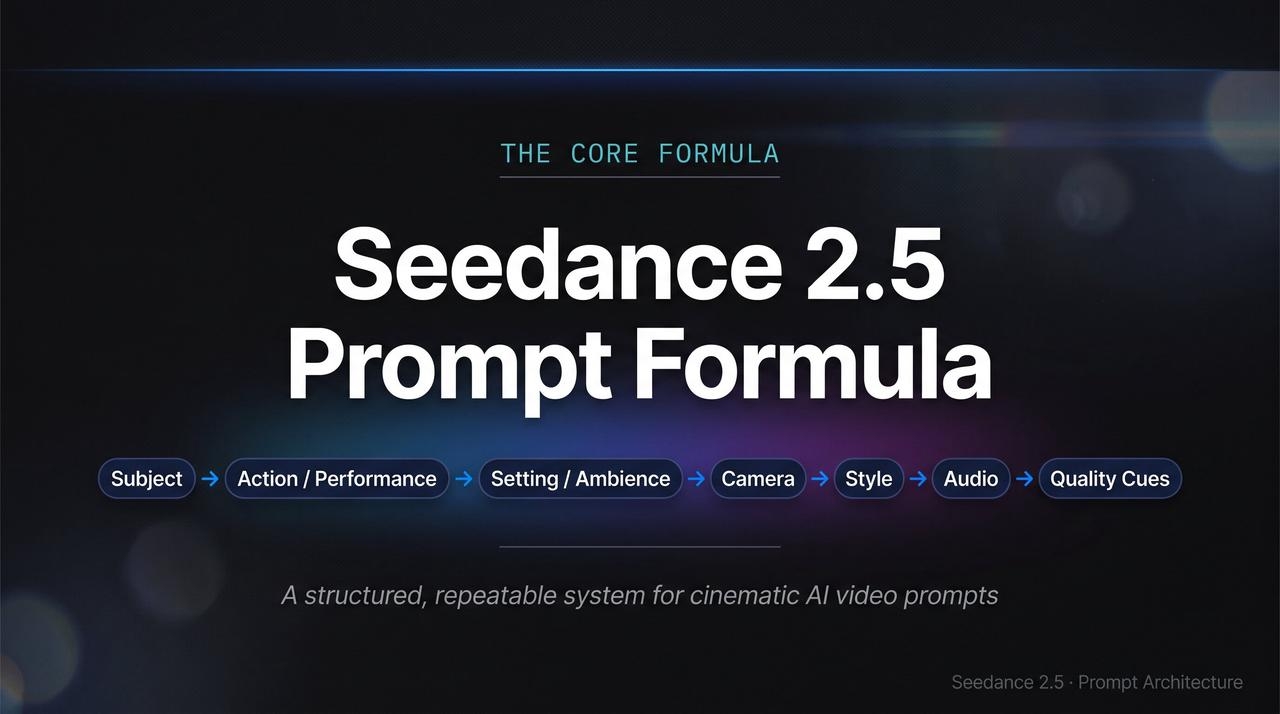
A strong Seedance 2.5 prompt follows seven blocks, and each one tells the model something different. Skip a block, and the model fills in the gap on its own, which is usually where a video goes off script. Here's the formula that keeps every part working together:
Subject → Action/Performance → Setting/Ambience → Camera → Style → Audio → Quality cues
If you're starting with a rough idea, an AI prompt generator can help expand simple concepts into more detailed video prompts by adding subjects, environments, camera directions, and style references.
The 7-block prompt mapping table
| Block | Purpose | What to Write (Examples) |
| 1. Subject | Defines the main focal point | A 30-year-old female architect wearing a dark grey turtleneck |
| 2. Action / Performance | Describes motion, gestures, or expressions | Turns head toward the window, smiles subtly, and sips coffee |
| 3. Setting / Ambience | Establishes the physical location | Modern rain-slicked office in Tokyo at dusk, city lights blurring |
| 4. Camera Movement | Controls lens action and framing | Slow tracking shot moving left to right, medium close-up shot |
| 5. Lighting & Style | Sets color grading and illumination | Cinematic warm rim lighting, soft volumetric haze, 35mm film grain |
| 6. Audio & Dialogue | Directs native sound effects or speech | Soft rain hitting glass, background jazz music, dialogue: "We begin tomorrow." |
| 7. Quality Constraints | Sets technical parameters | 60 FPS, smooth motion, no character warping, crisp focus |
Note: You can also use negative prompts to tell AI models what to avoid, helping reduce issues such as unwanted objects, visual artifacts, distorted faces, or inconsistent details.
Note: Seedance 2.5 accepts up to 50 reference assets in a single generation, and that pool can include images, video clips, audio files, and even 3D blockout models. Each reference does a different job, so it helps to label what you're uploading and why.
Step-by-step: How to write a Seedance 2.5 prompt
Once you know the seven blocks, the next part is filling each one with the right kind of detail. Here's how to work through a prompt from start to finish.
Describe the subject
Every prompt starts with a clear answer to one question: who or what is this video about? Don't just say "a woman" or "a product." Give the model something to hold onto, like her age range, what she's wearing, or the exact shape and color of the product. Think of it the way you'd describe someone to a friend who's never met them. The more specific you are here, the less the model has to guess, and guessing is usually where things get wobbly.
When using image references, detailed visual descriptions are especially important. Similar techniques used in Nano Banana prompt guide can help you define characters, objects, and visual styles more accurately before converting them into AI videos.
Add actions and movement
This is where a lot of Seedance 2.5 prompts go wrong. People try to cram three or four actions into one sentence, and the model ends up confused about which one to prioritize. Pick one clear verb and stick with it. "Walks toward the camera" gives you a clean result. "Walks, then turns, then waves, then smiles" gives you a mess. If you want a sequence of actions, break it into separate shots instead of one crowded line.
Define the environment
Your setting does more work than most people realize. Saying "outside" tells the model almost nothing, but "a rainy street at night" already paints half the picture, like the wet pavement, the dim light, the mood. Add the time of day and a location detail, and the model fills in the rest with far more accuracy.
Control camera movement
Most creators skip this block constantly, and it's often the reason a clip looks flat or amateurish. Name the shot type (close-up, wide shot) and add a movement if you want one, like a slow push-in or a tracking shot. Even one camera detail changes how alive a scene feels.
Specify lighting and style
Light sets the mood before anything else in the frame does. Describe where the light comes from and what tone it carries, warm and soft, or harsh and cold. Then name the visual style you're after, such as cinematic, animated, or documentary-style, so the model doesn't default to something generic.
Include audio and dialogue
Seedance 2.5 builds sound and picture in the same pass, so don't treat audio as an afterthought. Put any spoken lines in quotes, and describe the background sound or music tone you want playing underneath.
Add quality constraints
Save the technical details for last. Resolution, aspect ratio, and clip length belong here, separate from your creative description, so they don't get lost or accidentally treated as part of the scene itself.
Quick "weak vs strong prompt" comparison table
Small wording changes make a bigger difference than most people expect. Here's a quick look at how a few extra details turn a flat Seedance prompt into one that actually renders well:
| Weak prompt | Strong prompt |
| A woman walks in a city | A woman in a red coat walks through a rainy Tokyo street at night, tracking shot, neon reflections on the pavement, cinematic lighting |
| A car driving | A vintage red convertible drives along a coastal highway at sunset, drone shot pulling back, warm golden light, soft ambient music |
| Person talking | A chef in a white apron says "Order up!" over the sound of a busy kitchen, close-up shot, warm restaurant lighting |
Seedance 2.5 prompt examples for different videos
The formula makes more sense once you watch it work in real prompts. Here's how the same seven blocks change depending on what you're creating.
Product/ad videos
A sleek matte-black wireless speaker rotates slowly on a marble table inside a minimalist studio lit with soft ambient light. The camera holds a slow 360-degree rotation shot in a minimalist commercial style, while upbeat electronic music swells underneath. Render this in 4K over 10 seconds.
Cinematic/short film shots
An old fisherman stands on a weathered pier and stares out at the horizon under a stormy, overcast sky. The camera opens on a wide shot that slowly pushes in, carrying a moody film-noir style, with only the sound of crashing waves and distant thunder in the background. Shoot this at 24fps for 15 seconds.
Character-driven/dialogue scenes
A young barista steams milk behind the counter of a busy café, then looks up and says, "One oat milk latte, coming right up." The camera holds a medium close-up shot under warm café lighting, with the background hum of espresso machines and quiet chatter filling the scene. Keep this clip to 8 seconds.
For creators producing content for platforms like YouTube, combining structured prompts with proven AI prompts for creating viral YouTube videos can help generate more engaging scenes and improve audience retention.
Social/UGC-style clips
A woman tries on a new skincare product in front of her bathroom mirror, lit by natural daylight. She films it handheld in a casual TikTok aesthetic and says, "Okay guys, this is my new favorite." Deliver this at 720p over 10 seconds.
Once your Seedance 2 prompts are dialed in, the next step is picking a platform that runs them smoothly, and that's exactly where Framia Pro comes in.
How to quickly generate Seedance 2.5 videos for free on Framia Pro?
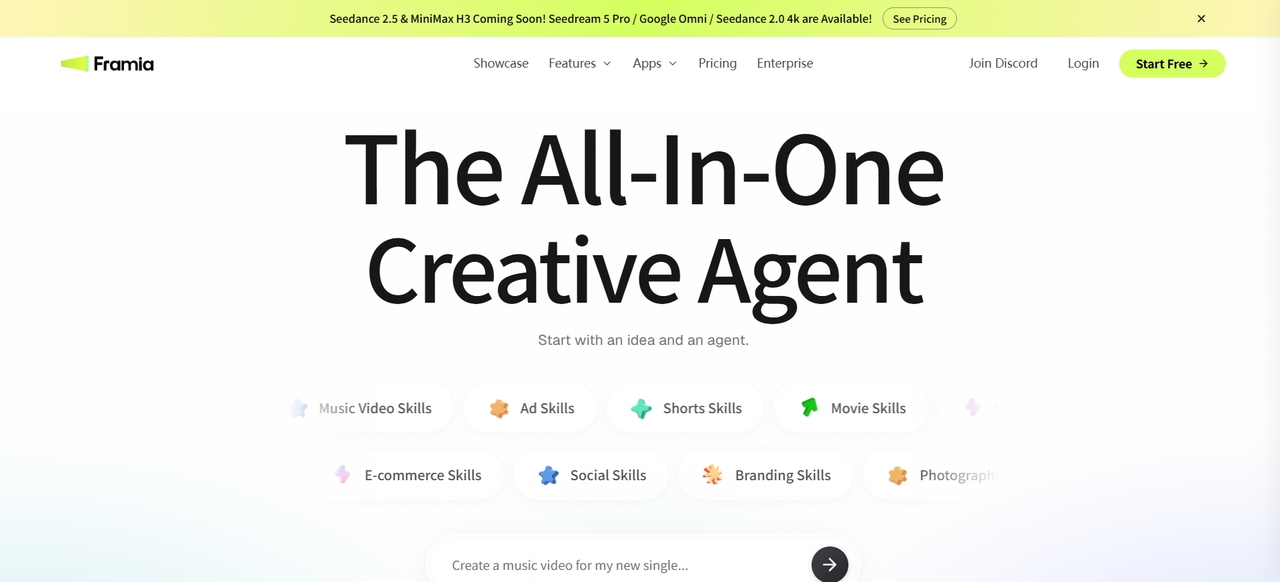
Framia Pro has an AI video agent that includes Seedance 2.5 alongside Veo 3.1, Kling, and other leading video models, so you can switch between models without leaving the same workspace. The platform removes the need for developer setup that usually comes with accessing a model through its own API. It also has a built-in project library that keeps every generated video organized in one place. The credit-based system lets you use multiple models under one account instead of managing separate subscriptions.
Steps to access Seedance 2.5 with Framia Pro's Video Agent?
The Video Agent is the fastest route if you'd rather describe your idea in plain words than build a workflow node by node.
Step 1: Open the Video Agent from your dashboard
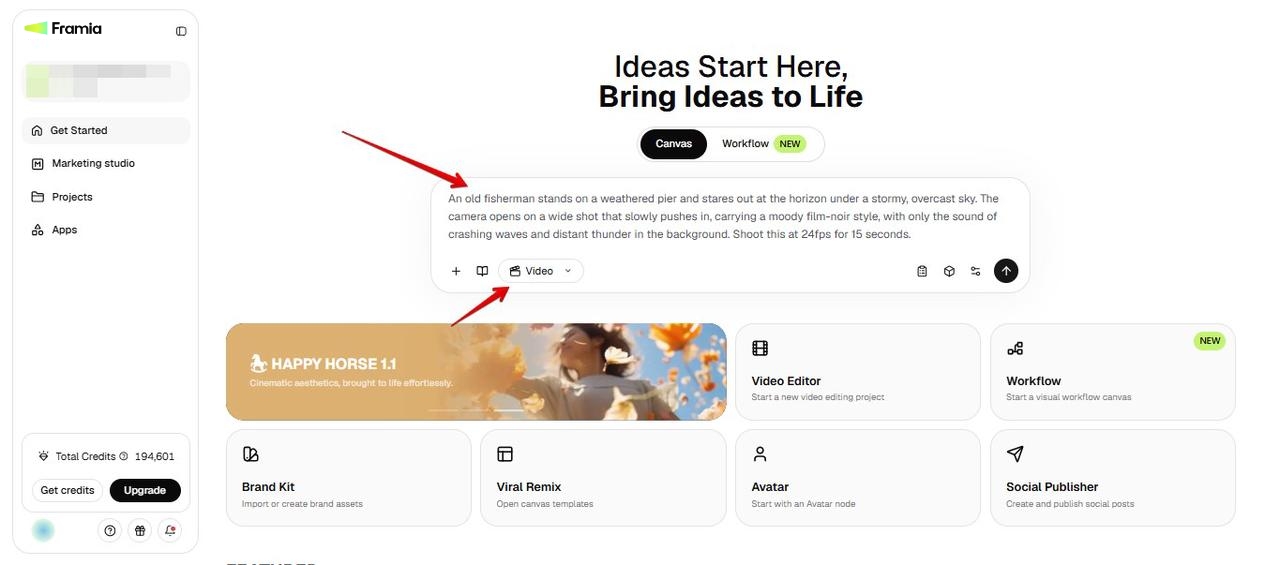
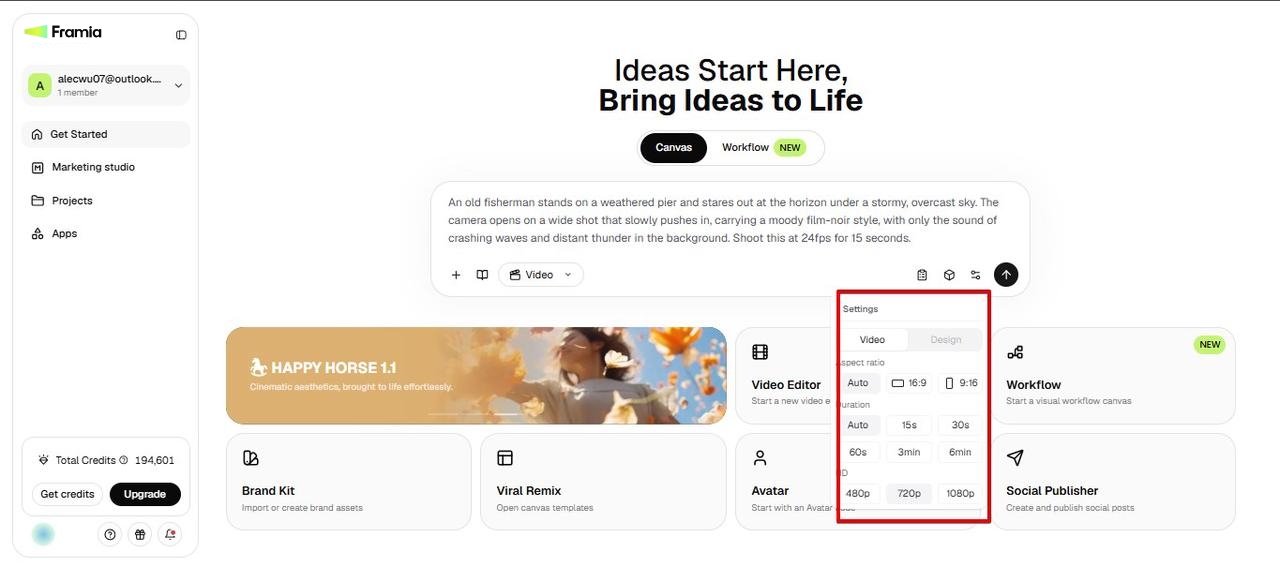
Log into your Framia Pro account and head to the homepage, then select "Video" from the drop-down menu in the Canvas on the main dashboard. This tells Framia you're generating a video rather than an image or a design asset.
Step 2: Choose Seedance 2.5 as your model
Click "Select Model" to pick the Seedance 2.5 AI model from the list of options. This step decides which engine renders your final clip, so match it to the model you planned your prompt around. Go to "Settings" to choose the video aspect ratio, duration, and quality.
Step 3: Enter your prompt and generate
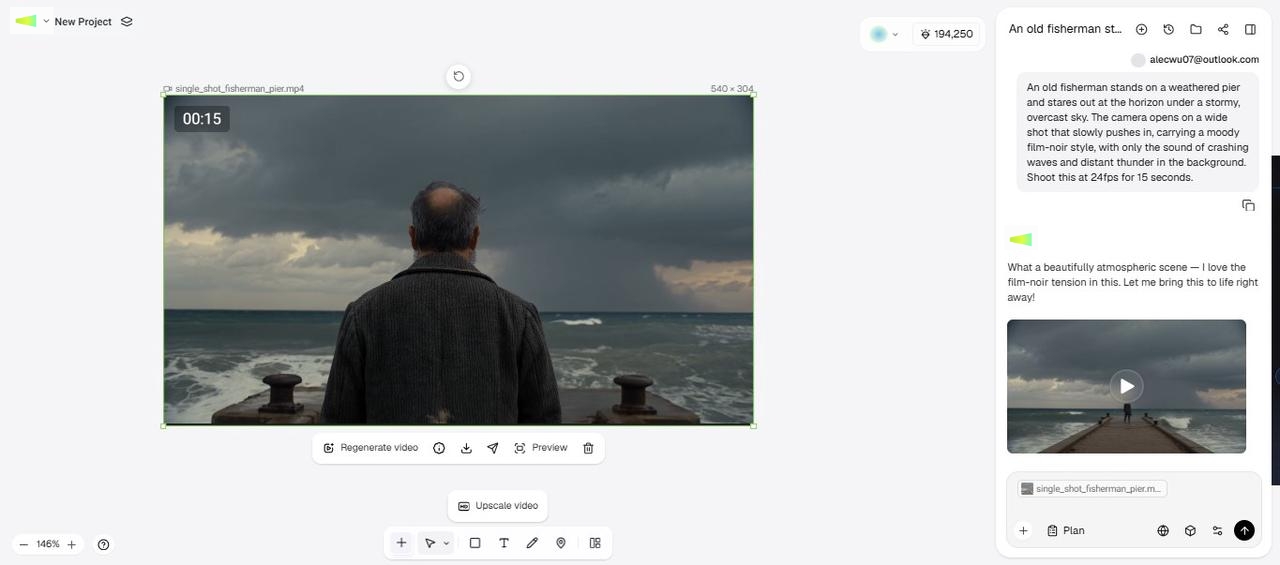
Type your structured prompt into the chatbox and make sure to follow the subject-to-quality-cues order you built earlier, then hit Generate. The Agent plans out the execution and delivers your clip straight to the canvas, where you can review it or ask for revisions in the same chat.
Steps to use Seedance 2.5 on Framia Pro's Workflow Canvas?
If you want more hands-on control over each part of the generation, the Workflow Canvas gives you that at the node level.
Step 1: Open Workflow from the main dashboard
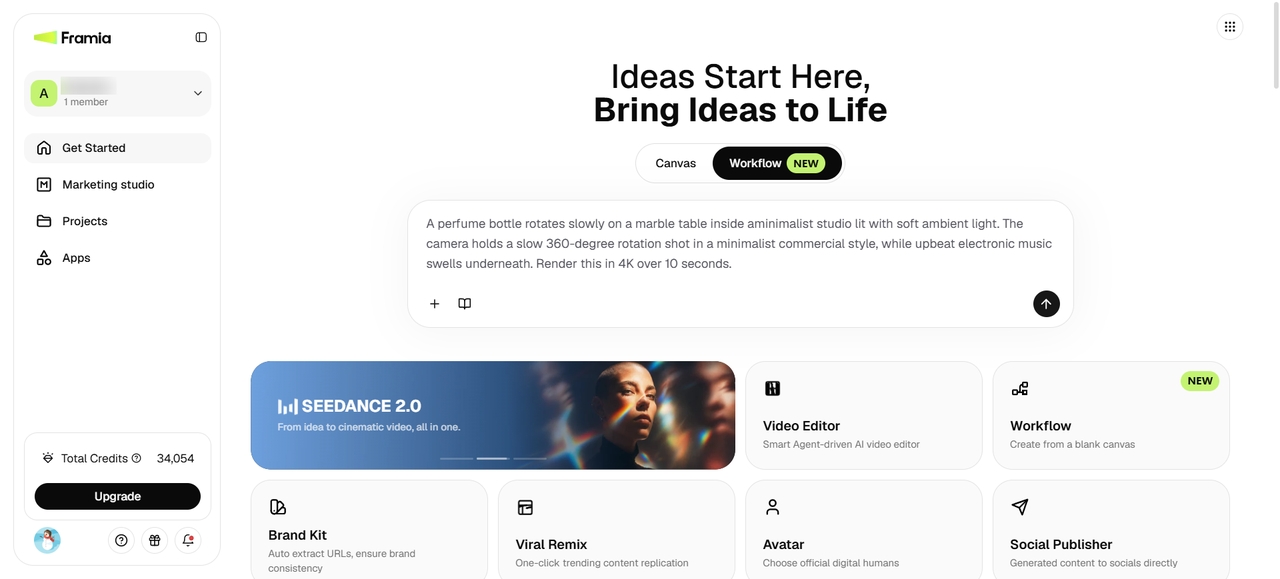
On your Framia Pro homepage, go to the Workflow tab. Add a prompt describing your video concept, and make sure it follows the subject-to-quality-cues order covered earlier. Click + to upload attachments such as reference images or audio files to guide the generation.
Step 2: Build out your video workflow
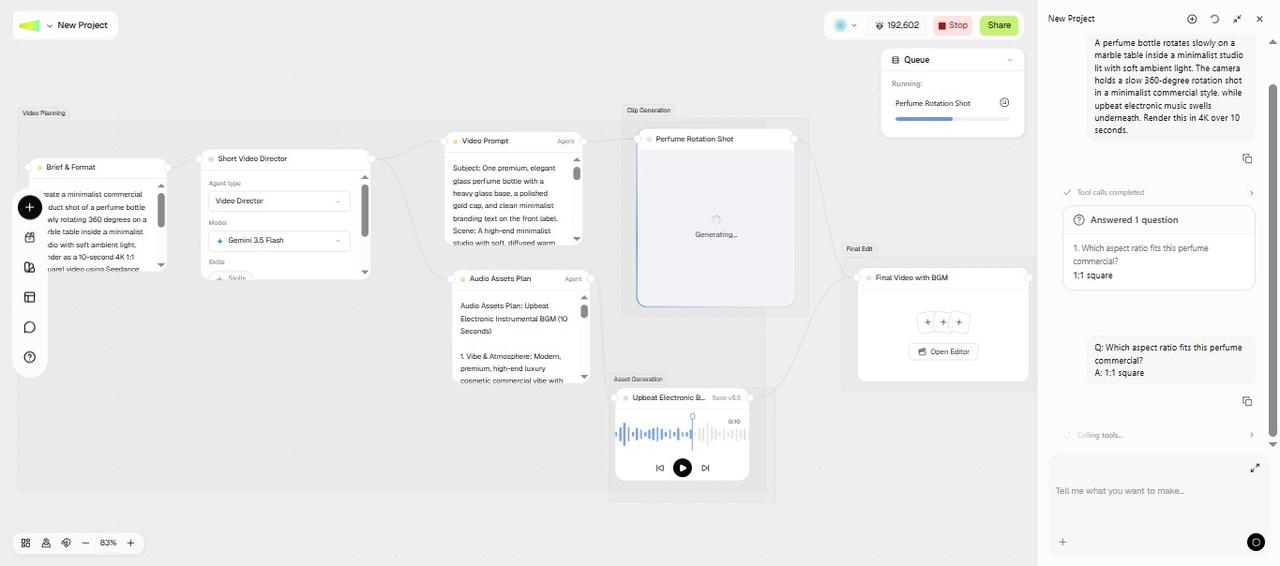
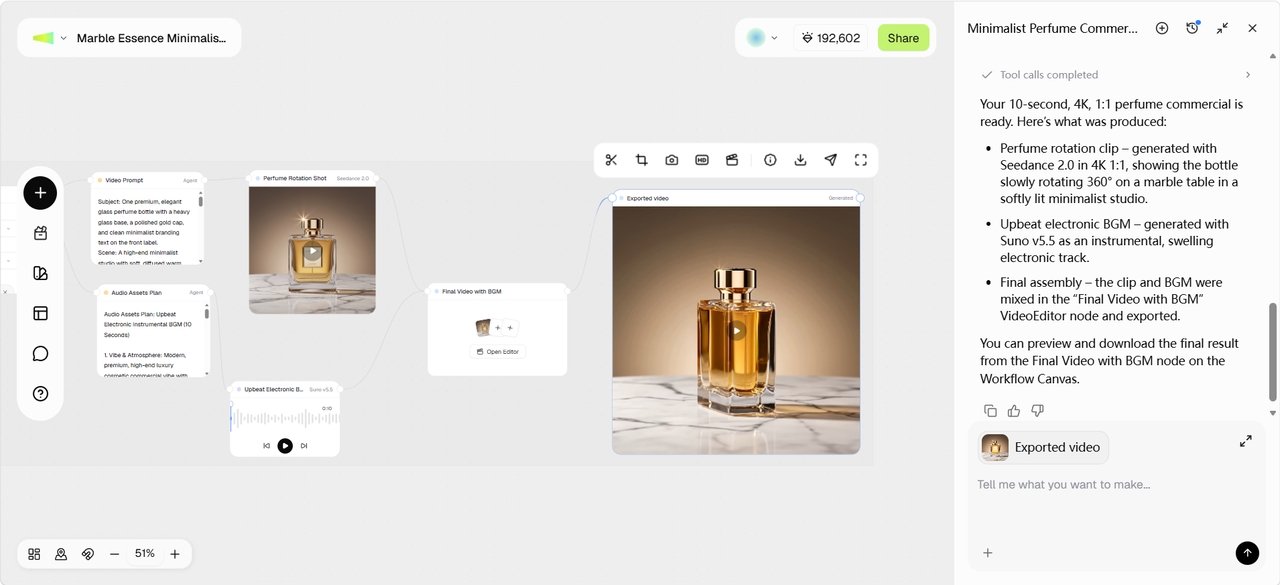
Framia Pro puts together a connected workflow for video planning, assets generation, clip generation, and final edits. You can simply review what's generated and adjust individual nodes to match your creative direction. It lets you refine the prompt further to change camera angle, lighting mood, or pacing, while keeping the same subject and action. Not only that, but you can change the image, trim or update the audio, and tweak the video generation settings so the output stays true to what you originally planned.
Step 3: Generate and export your finished video
Once the workflow is set, Framia Pro renders your clip while following the prompt and references you fed into each node. You can open the video in the Video Editor to add captions, trim scenes, or regenerate sections. After you are done, click Export to save the clip to your device.
What do you get with Seedance 2.5 on Framia Pro?
Seedance 2.5 brings a handful of upgrades that change what's actually possible in a single generation, and each one shows up directly inside your Framia Pro workflow.
- 30-second native single-shot generation
A full clip renders in one pass at up to 30 seconds, double the roughly 15-second ceiling of Seedance 2.0. That means an opening, a middle beat, and a closing frame all come out of the same generation, so there's no stitching two clips together and hoping the transition holds.
- Up to 50 multimodal reference inputs
A single project can pull from as many as 50 references at once, spanning images, video clips, and audio files. Each reference locks down a different piece of the scene: a character's face, a product's shape, a specific camera move, so a multi-subject video stays consistent instead of drifting between takes.
- 3D and green-screen workflow control
Seedance 2.5 supports advanced production workflows with 3D white-model references and green-screen footage transformation. Combined with precise camera movement, performance blocking, and scene control, it helps creators turn previsualized concepts into complete cinematic videos.
- Cinematic macro shots and detailed close-ups
Seedance 2.5 delivers film-style macro shots with precise focus control, realistic depth of field, and detailed textures. It helps creators capture product details, character expressions, and small-scale scenes with a more cinematic visual style.
- Region-level (in-clip) editing
When one part of a frame isn't quite right, you don't have to regenerate the whole clip to fix it. Region-level editing lets you redraw just that section while the rest of the shot stays untouched, which saves both time and credits.
- Native audio generation
Seedance 2.5 on Framia Pro generates video and sound in one pass rather than getting added on as a separate step later. Because of that, dialogue, ambient tone, and background music stay locked to whatever's happening on screen, so nothing feels a beat off or out of sync.
- Long-form shot consistency
In the full 30-second runtime, characters keep the same face, outfit, and setting from the first frame all the way to the last. This solves one of the most common frustrations with earlier AI video models, where a subject's appearance would shift or warp the longer a clip ran.
Conclusion
That's all for this Seedance 2.5 prompt guide. The core idea to carry forward is simple: structure beats cleverness. Make sure to name your subject first, then your action, and never skip the camera move, since that's the block most people forget. Label every reference by what it's meant to do, and get in the habit of drafting at a lower resolution before you push to full 4K. Once you're ready to see how Seedance stacks up against other models, you can use Framia Pro to test your prompts and generate your first clip. It even lets you generate images, audio, and script for your video. Try it now!
Frequently asked questions
- How do I write a good Seedance 2.5 prompt?
A good prompt follows the seven-block structure covered above: subject, action, setting, camera, style, audio, and quality cues, in that order. Framia Pro lets you test this structure quickly inside the Video Agent or the Workflow Canvas, so you can see what changes with each tweak. For more guidance on writing effective AI prompts, explore our guides on how to prompt image generators and other AI prompt techniques.
- What is the difference between Seedance 2.0 and 2.5 prompts?
Seedance 2.0 works with a shorter runtime and around a dozen reference inputs, while Seedance 2.5 stretches to a full 30-second single-shot clip and accepts up to 50 references across images, video, and audio. That extra room means 2.5 prompts can carry more complex, multi-beat scenes without losing consistency partway through. Both models sit alongside Kling 3.0, Wan 2.7, and Veo 3.1 inside Framia Pro, so you can pick whichever fits the length and complexity of your project.
- How many references can I use in a Seedance 2.5 prompt?
Seedance 2.5 accepts up to 50 reference inputs in a single generation, combining images, video clips, and audio files. Each reference locks down a different detail: a face, a product, a camera move, so a multi-subject scene holds together instead of drifting. On Framia Pro, you upload these directly into your Text, Image, or Music Generation nodes before connecting them to your Video node.
- How long should a Seedance prompt be?
Most Seedance prompts work best somewhere between 120 and 280 words, since shorter prompts tend to leave too much open to guessing, while much longer ones can bury the main details. Inside Framia Pro, you can draft, test, and adjust prompt length right on the Marketing Studio canvas before committing to a full 30-second render.
- Where can I run Seedance 2.5 for free?
Framia Pro gives new users their first project free, which is enough to test a Seedance 2.5 prompt from start to finish. You can access the model through either the Video Agent or the Workflow Canvas, without needing a separate developer account or API key.