
Change Video Background With AI

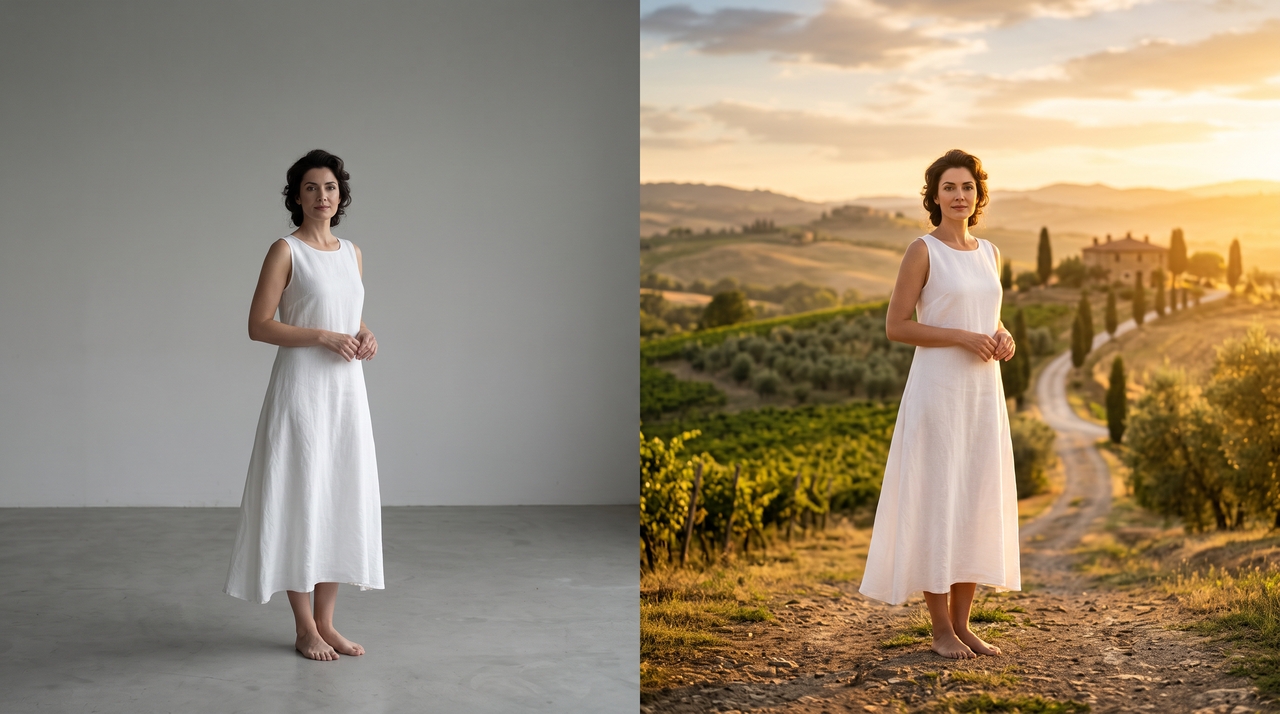
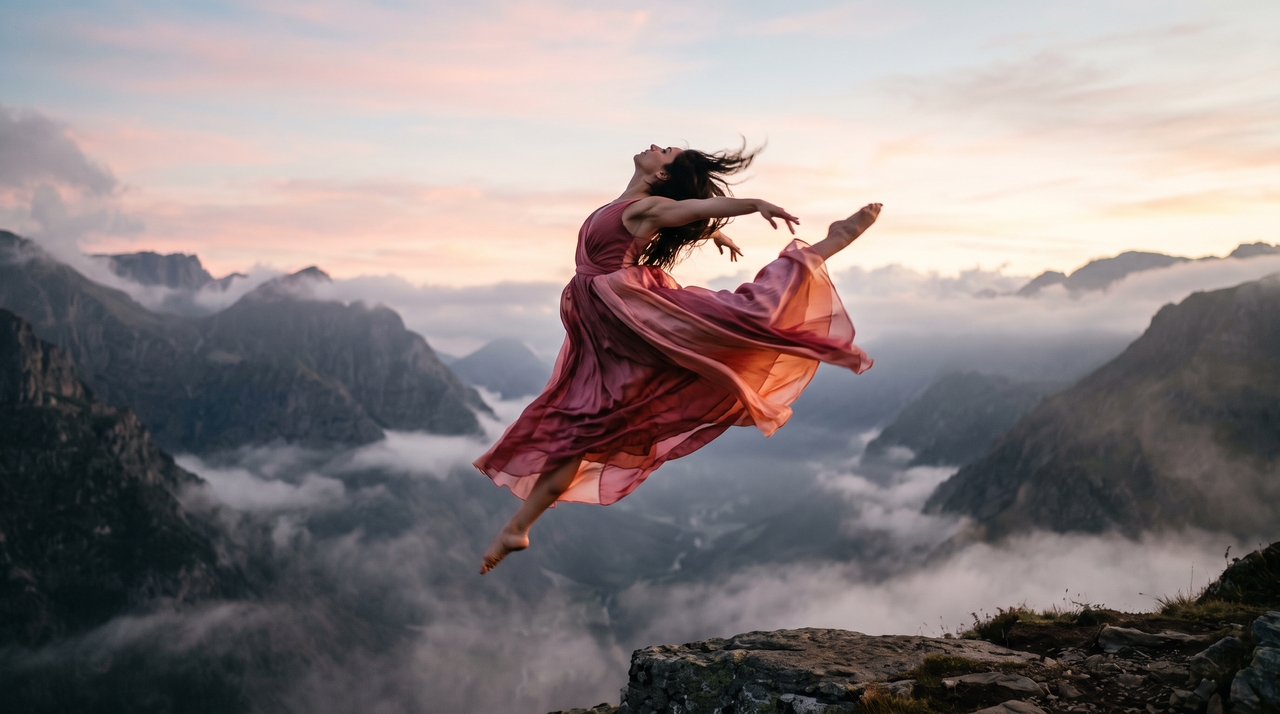
Replace or generate video backgrounds with AI. Remove distracting backgrounds, add custom scenes, and create HD videos without a green screen.

Start for Free

What makes our AI video background changer different?

Framia Pro pairs editing tools with AI generation in a single, streamlined workspace.

Replace backgrounds with text prompts

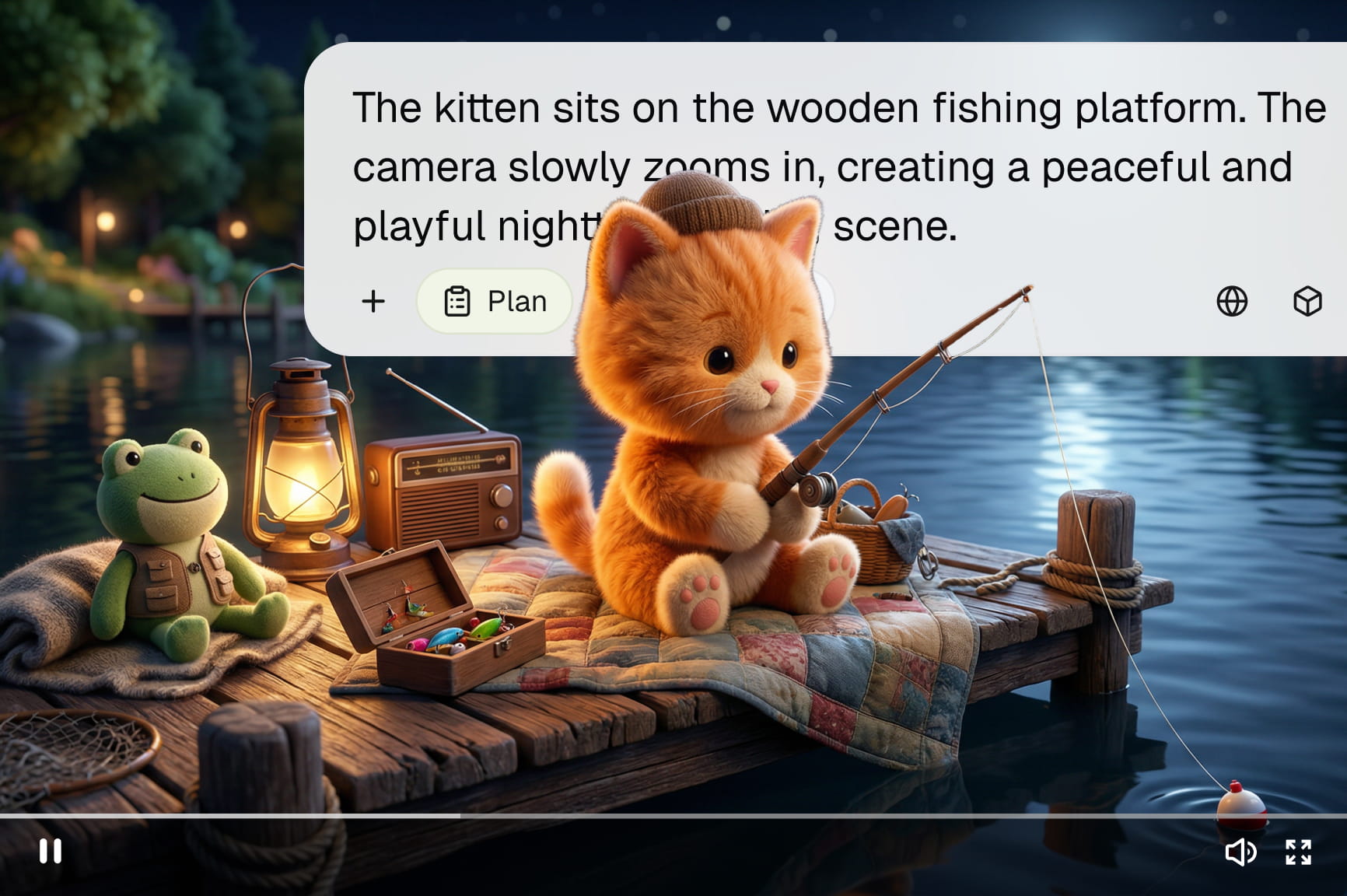
Change ordinary surroundings by describing the scene you want in plain language. AI changes the video background while maintaining perspective and subject placement throughout the clip for smoother visual continuity.

Replace backgrounds with text prompts
Remove backgrounds without a green screen

Remove backgrounds without a green screen

Skip the screen, lighting rig, and studio space entirely. Framia Pro uses AI to trace your subject's outline pixel by pixel across every frame. It reaches an edge accuracy that once required a controlled backdrop and hours of manual chroma keying.

Keep the subject natural during movement

Track motion across frames using optical flow, so masks stay steady as you walk, turn, or gesture. This temporal consistency reduces flicker around edges, so hair, hands, and clothing look sharp even during fast, unscripted action.

Keep the subject natural during movement
Edit your videos with storyboard editor

Edit your videos with storyboard editor

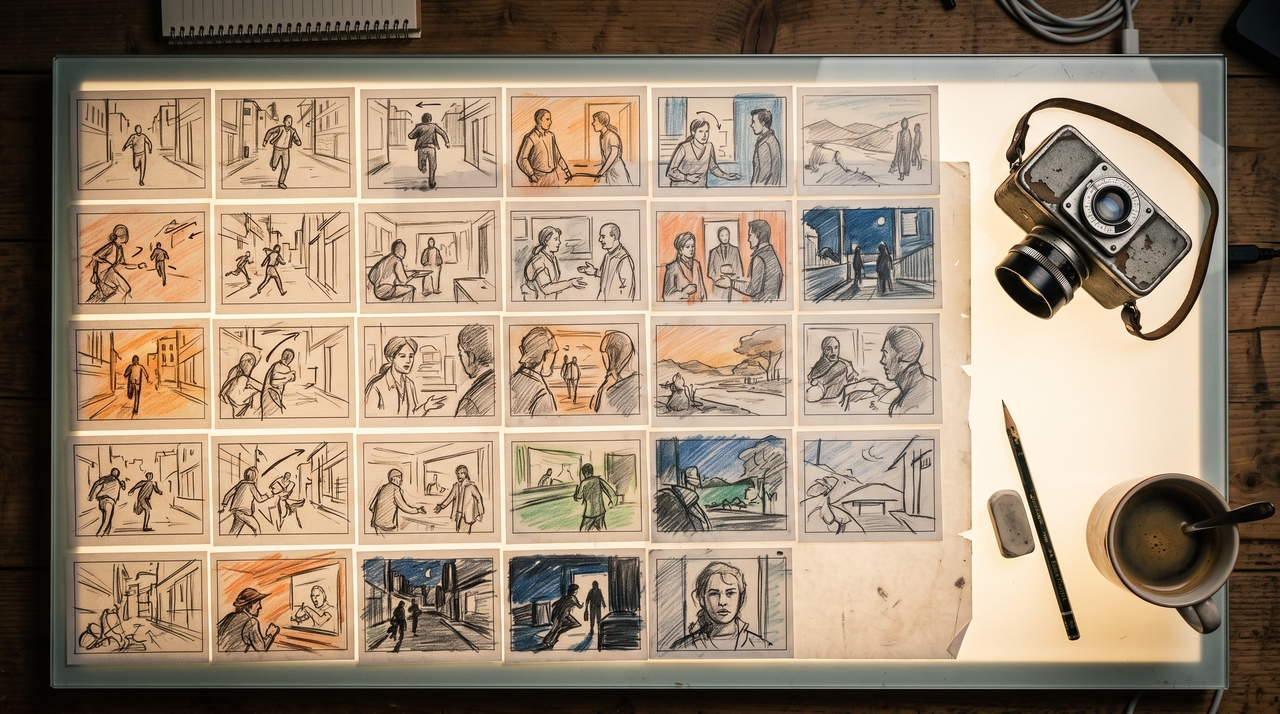
Split and arrange scenes on a visual storyboard before exporting your final cut. Drag clips into sequence, preview changes instantly, add captions, and use chat to apply edits without switching between separate editing and background tools.

Batch process multiple videos in one go

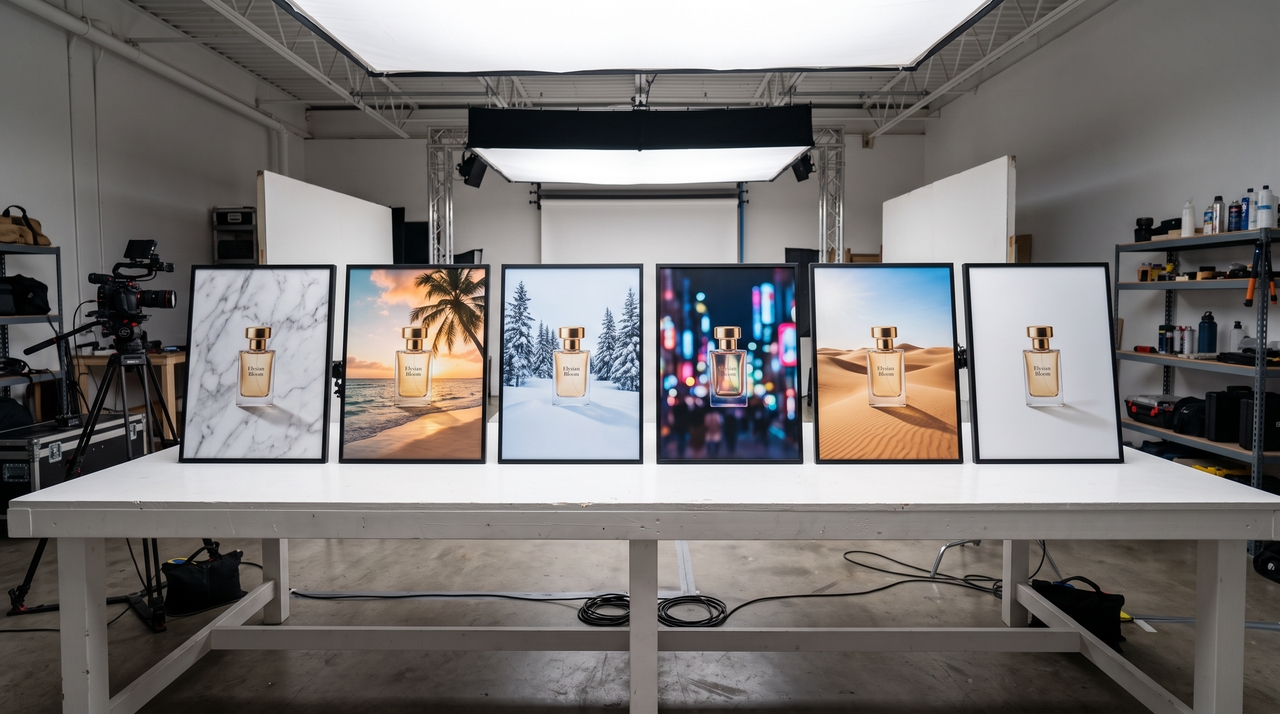
Upload an entire folder of clips and apply the same background change across all of them at once. This cuts hours from repetitive tasks like product catalog videos, course libraries, or multi-episode content series.

Batch process multiple videos in one go

How to change video backgrounds with Framia Pro's Workflow Canvas?

Use Workflow Canvas to chain background replacement into a repeatable, node-based process!

Open Workflow
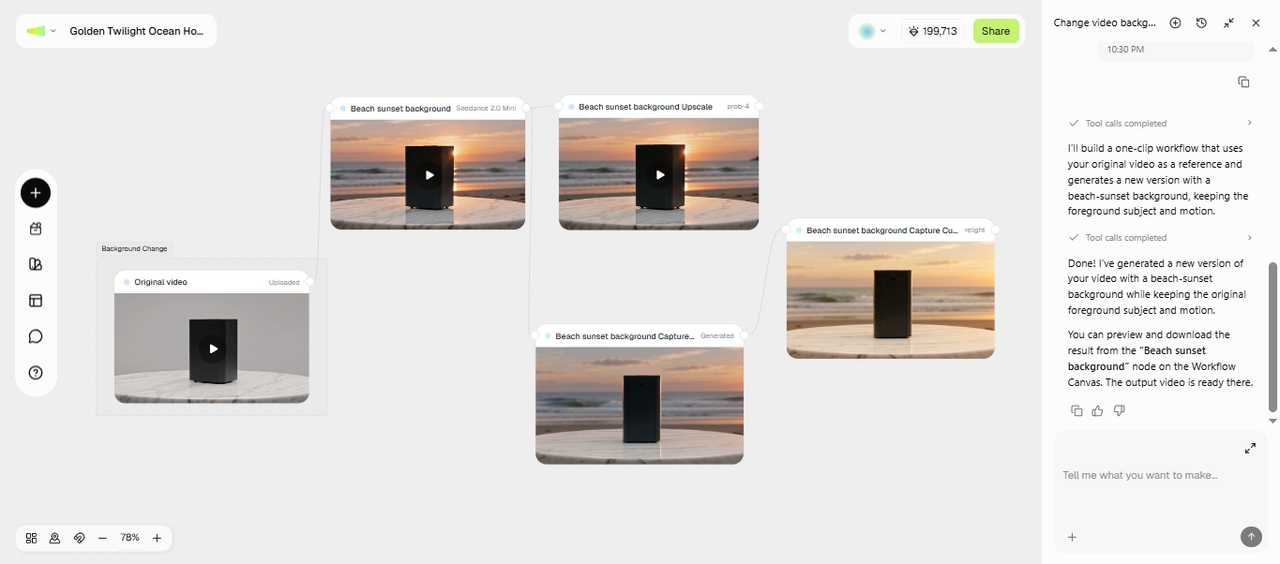
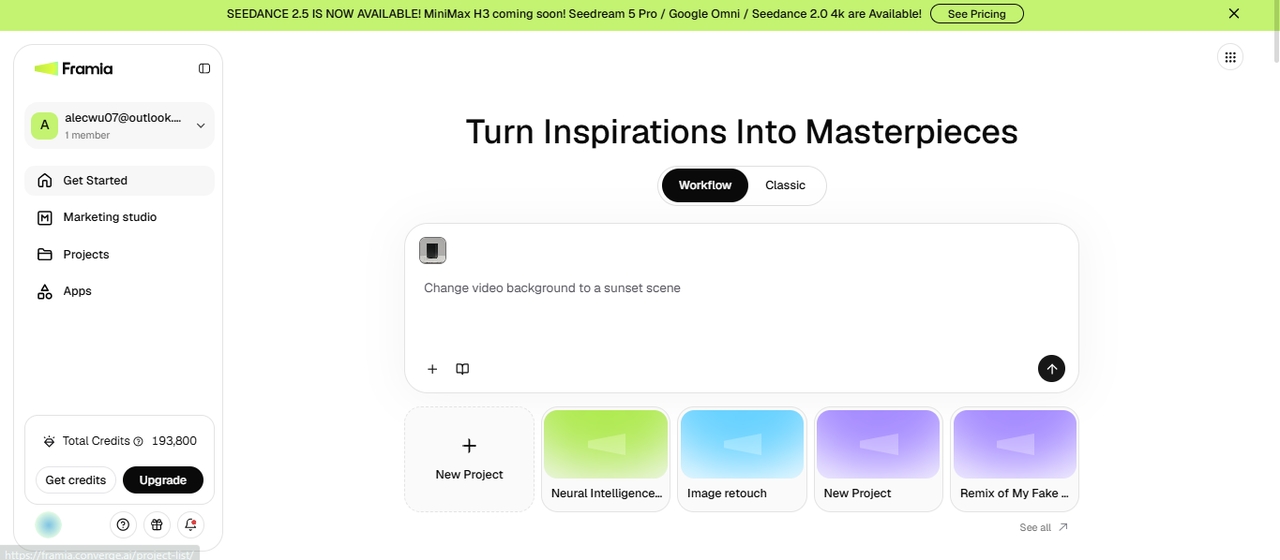
After signing up for Framia Pro, go to Workflow Canvas from the main screen and upload the video to change the background.
Open Workflow
Use AI to change video background
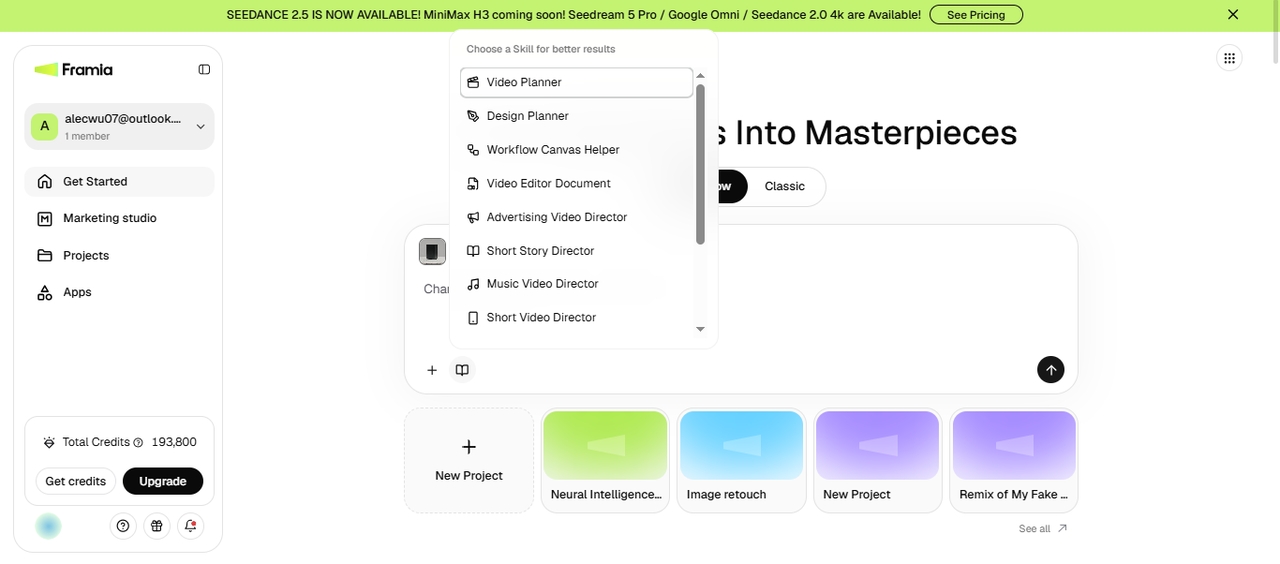
Select the "Video Editor Document" from skills, add your prompt to describe the new background, and click "Generate."
Use AI to change video background
Export
Framia Pro creates a one-click workflow to change the backdrop. Use text, image, or video nodes to update the output and then download it to your device.
Export

How to change a video background instantly using AI with Framia Pro's Classic Canvas?
How to change a video background instantly using AI with Framia Pro's Classic Canvas?
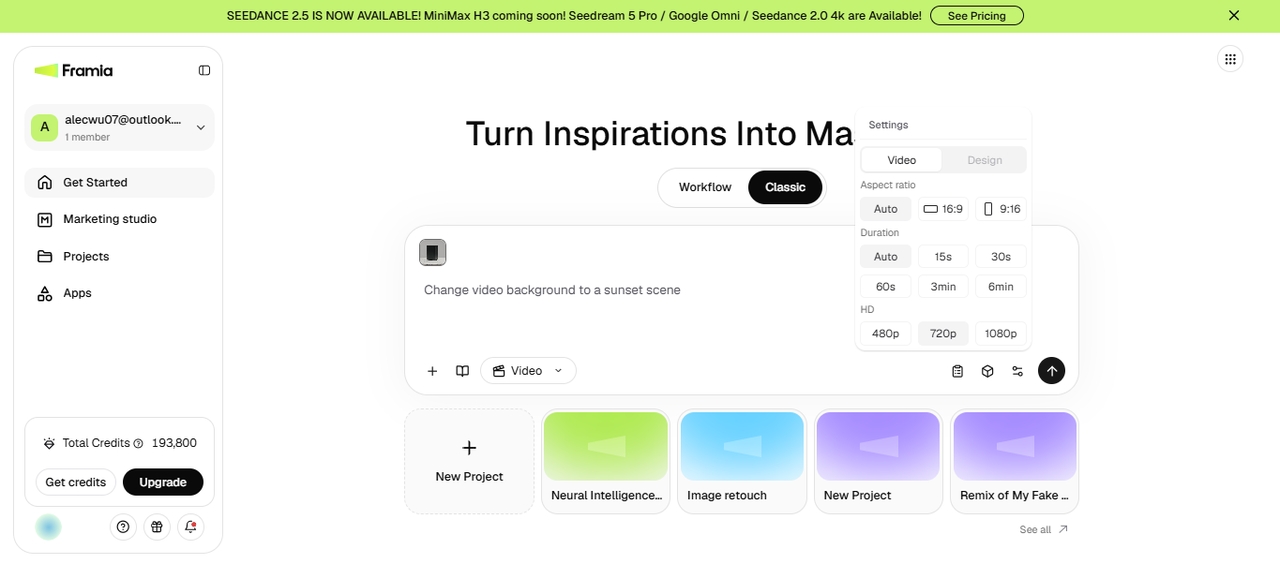
Open Classic Canvas
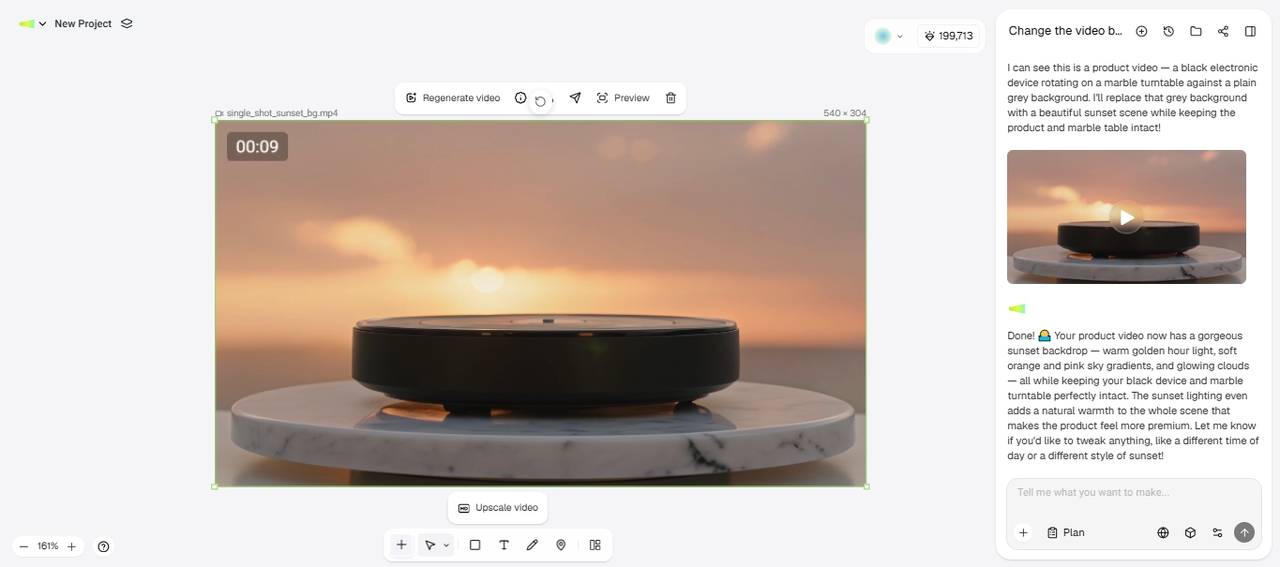
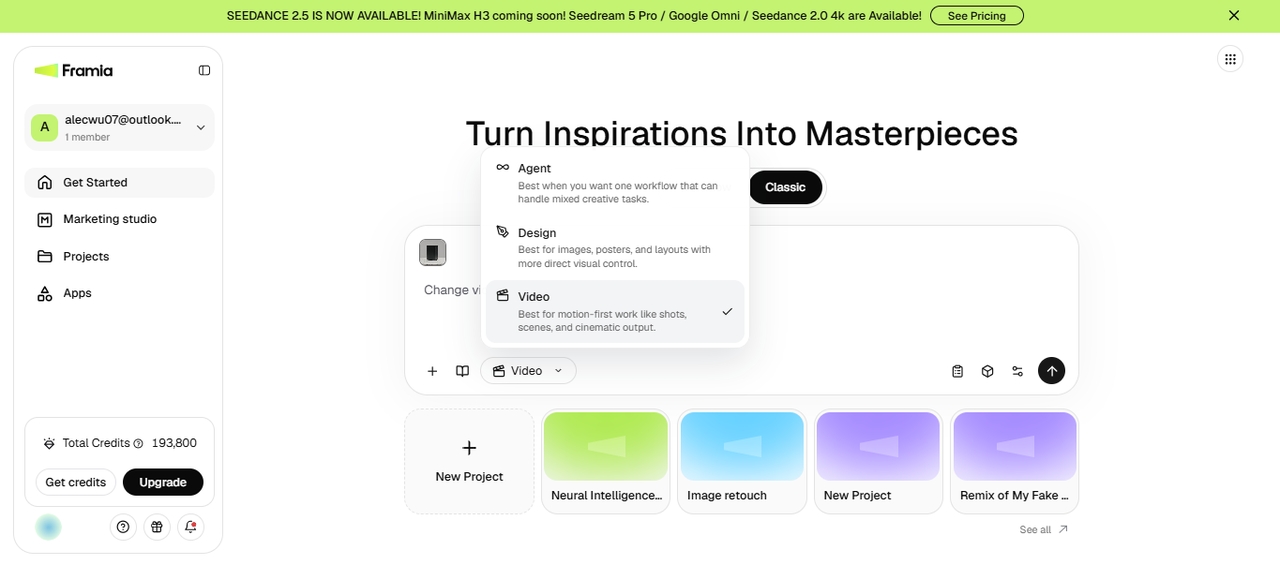
Sign up for Framia Pro, select "Agent" or "Video" in Classic Canvas tab, and click "+" to upload the video from your device. Describe the new background.
Open Classic Canvas
Configure settings
Click "Select Model" to choose the video model, pick an aspect ratio & quality from "Settings," and click "Generate" to change the video background.
Configure settings
Export
Preview the generated video and use a text prompt or the built-in editing tool to make any further changes. Click Download to save it to your device.
Export

Why choose Framia Pro's AI video background changer?

Create polished videos with flexible AI tools that simplify editing from upload to final export.

One workspace for editing and AI generation
Combine timeline editing and AI background generation in one workspace, so you never export footage to a separate app. Cut, trim, and replace scenes, then render everything together for a consistent final result.
Generate custom AI backgrounds
Generate backdrops from a text prompt instead of searching stock libraries for a close match. Describe a beach, office, or fantasy setting, and the model renders a scene sized and lit to fit your footage.
Works on any existing footage
Upload clips shot on a phone, camera, or webcam without any special setup beforehand. Framia Pro uses leading AI models to analyze existing lighting and framing, so older recordings work alongside footage captured specifically for this purpose.
Use leading AI video models
Choose Seedance 2.5, Veo 3.1, Kling 3.0, or other video models for different creative requirements and visual styles. Switch between generation options within the same project. This makes it easier to balance quality, speed, and artistic direction.
Commercial rights on every export
Export completed videos for commercial projects with confidence under the Framia Pro licensing terms. Produce marketing materials, client content, or branded campaigns without adding visible watermarks to supported exports.
Faster than manual rotoscoping or masking
Change the background imagery of a video with AI without tracing subjects frame by frame or creating manual masks. The Framia Pro AI video background changer detects people and objects automatically, so you can finish edits faster while keeping clean edges throughout your video.

Best ways to use AI to change video background

Use the Framia Pro video background changer across formats where a clean scene matters most.

Talking-head videos

Swap a cluttered room for a branded studio look without setting up a physical backdrop. Focus the attention on the speaker while the background stays steady in every cut, take, and camera angle used in the recording.
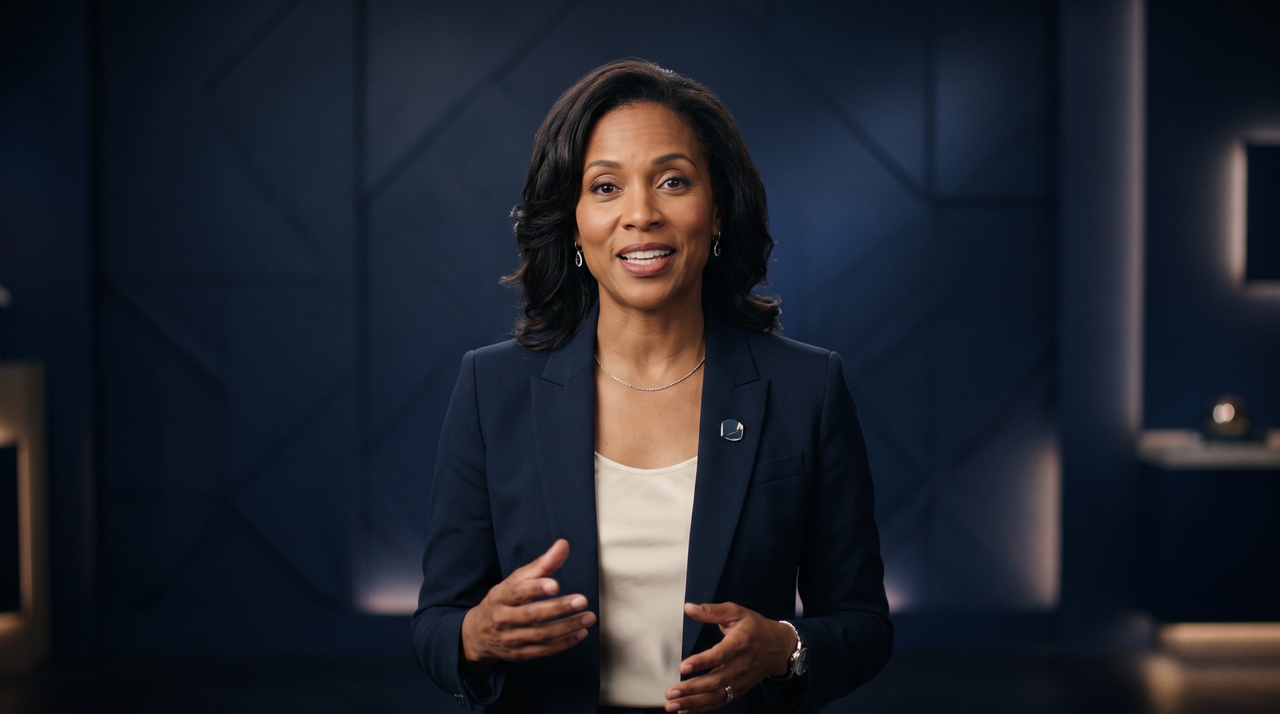
Talking-head videos
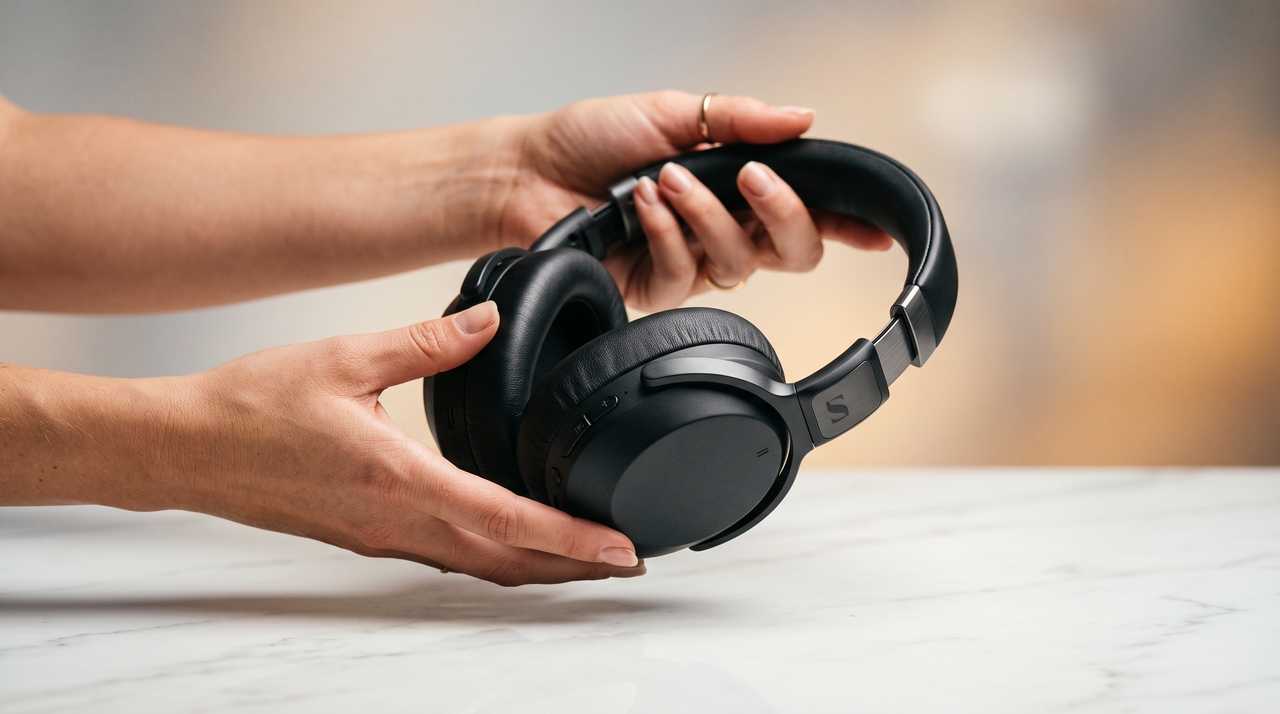
Product demonstrations

Product demonstrations

Present products against customized environments that match your brand or campaign theme. Replace busy filming locations with cleaner settings that highlight important product details without additional studio production.

Marketing advertisements

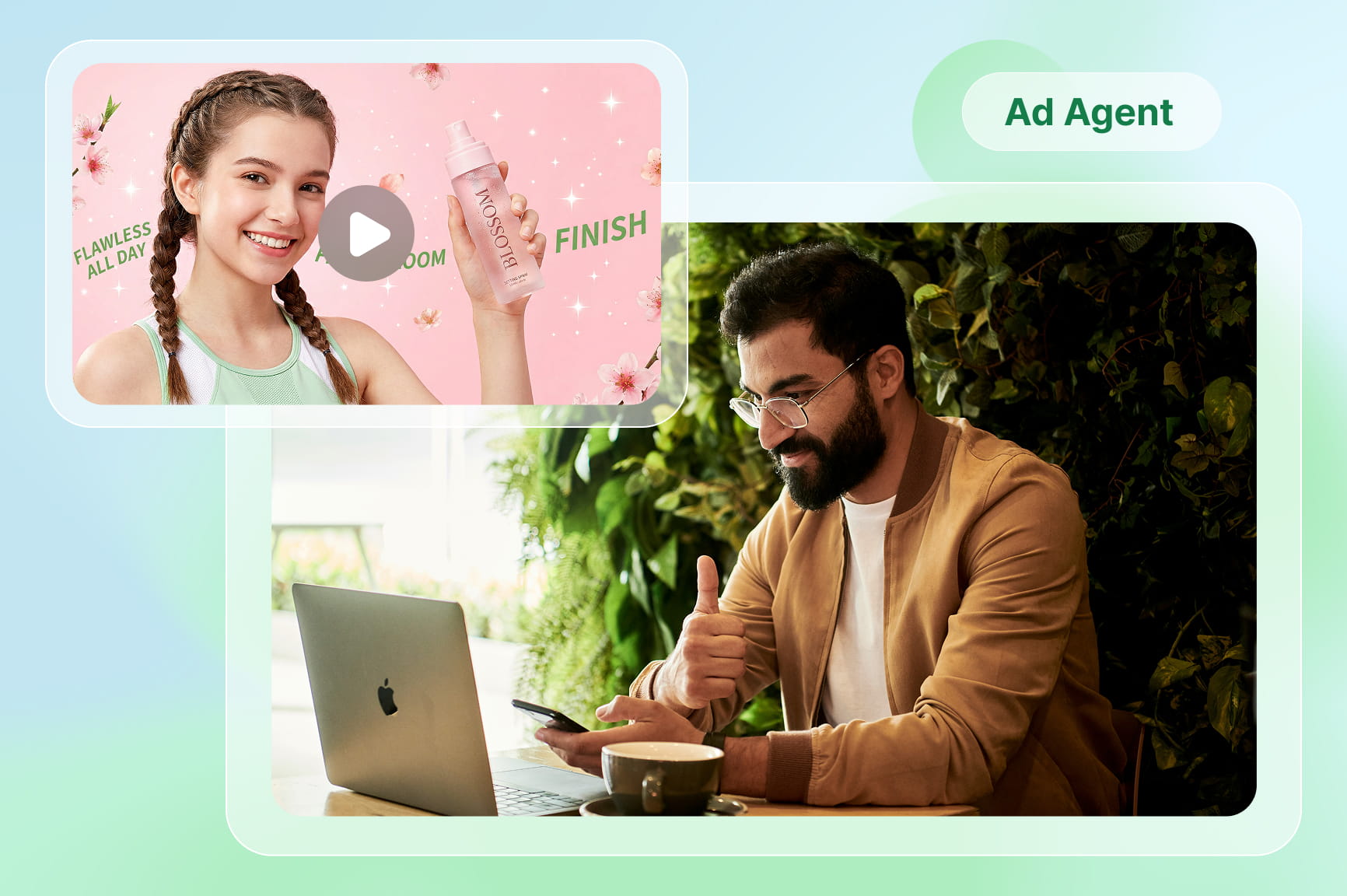
Produce promotional videos using backgrounds that fit seasonal campaigns, launches, or regional audiences. Generate multiple creative versions from the same footage to reduce the need to organize separate filming sessions.
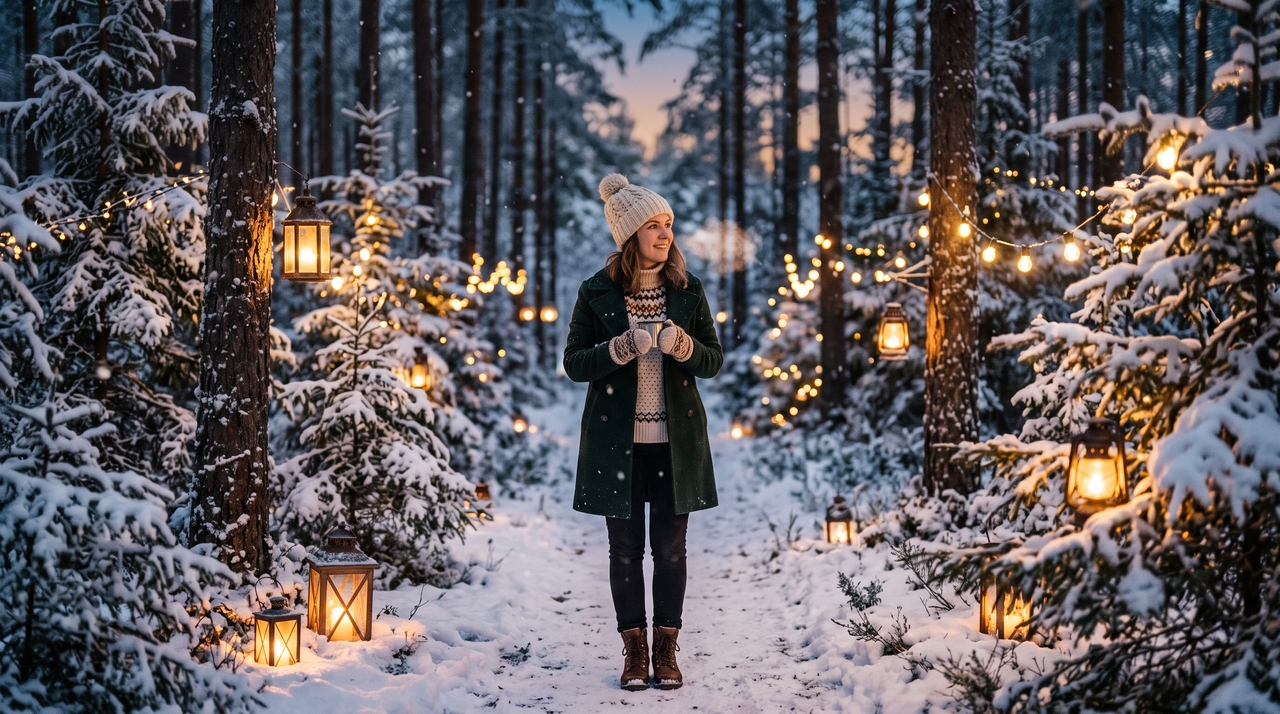

Marketing advertisements
Social media content

Social media content

Adapt one recording into multiple platform-ready versions using different visual environments. Create fresh content for short-form videos while preserving the original performance unchanged in every variation.

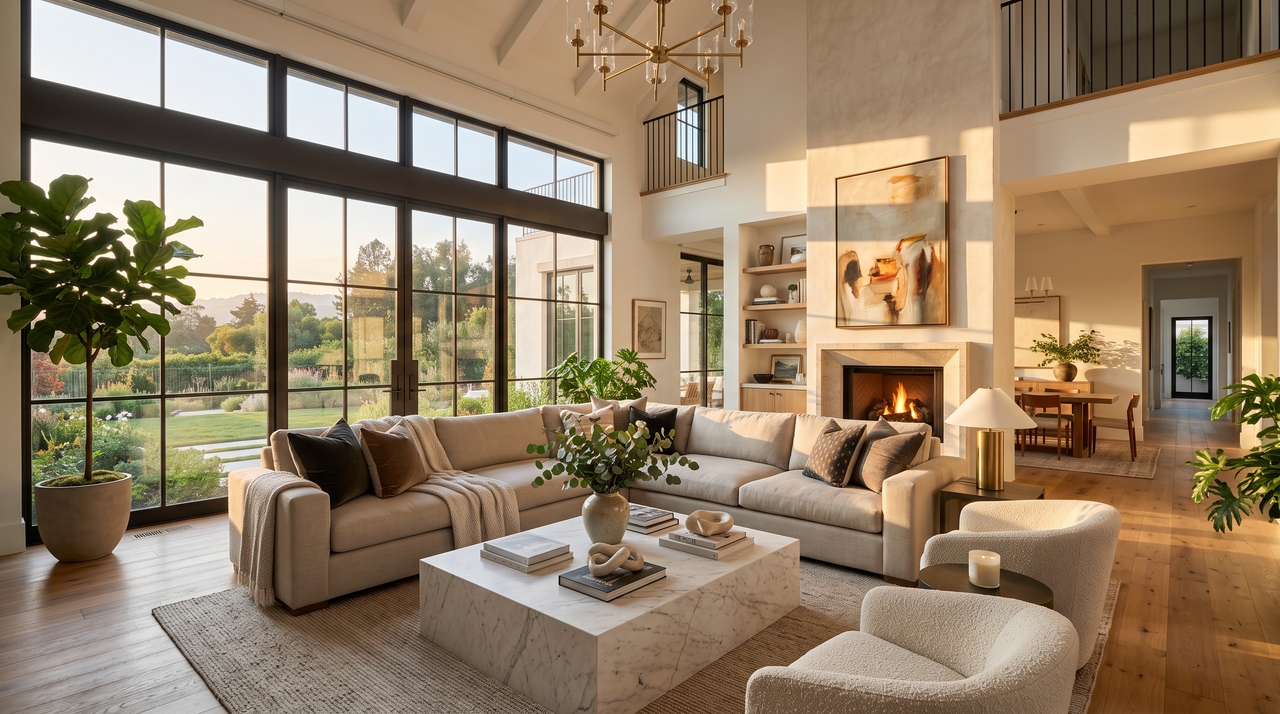
Real estate property showcases

Enhance property presentations with polished virtual surroundings that complement unfinished or vacant spaces. Present listings more professionally while maintaining the original structure and layout captured on camera.

Real estate property showcases
Online training and education

Online training and education

Improve educational videos by replacing distracting rooms with clean classrooms, offices, or presentation spaces. Keep learners focused on the lesson while giving instructional content a more professional appearance.

What do users say about the Framia background changer for video?

See how creators, marketers, and businesses use Framia Pro to replace video backgrounds with ease.


I used to spend hours masking hair and edges by hand. Framia Pro's segmentation handles most of that automatically now, and I only need to touch up a few frames per project instead of every single one.
Maria Chen
Maria Chen
Freelance Video Editor
We reshoot the same product across seasonal campaigns. Generating new backdrops from a prompt instead of booking a studio again has cut our turnaround time in half and kept our budget closer to what we planned.
Devon Walsh
Devon Walsh
Marketing Manager
My recording space is small and messy on camera, so I always dreaded filming talking-head videos. Now I swap in a clean studio background in minutes, and my channel finally looks consistent from episode to episode.
Priya Patel
Priya Patel
YouTube Creator
Batch processing saved our small team weeks of work. We ran an entire catalog of product clips through Framia Pro overnight instead of editing each video separately, and the backgrounds matched across the whole set.
Tomasz Nowak
Tomasz Nowak
E-commerce Founder
Our training library was filmed across different offices with different backdrops. Framia Pro let us unify the look afterward instead of reshooting, and new hires now watch a course that feels like one continuous series.
Rachel Kim
Rachel Kim
Corporate Trainer
Green screens take up space I don't have in a home studio. Switching to AI background replacement freed up my apartment and still gave me clean edges around hair and fabric during handheld shots.
Samuel Ortiz
Samuel Ortiz
Independent Filmmaker
We've compiled the most important information to help you get the most out of your experience. Can't find what you're looking for?Contact us

Frequently asked questions

Can I change the background of a video using AI?
Yes. Upload your footage, describe the new backdrop in a prompt, and AI replaces the background automatically while keeping your subject sharp; no green screen needed.
How do I change a video background with AI?
Upload your clip to Framia Pro, describe the new background in a prompt, and let the AI change the video background automatically before you export the result.
What is the best background changer for videos?
Framia Pro's background changer for videos combines background removal, AI video generation, and editing in one workspace, so you can replace a scene and finish your edit without switching between separate applications.
Can I upload my own background image or video?
Yes. Framia Pro lets you upload a custom image or video clip as the new background instead of generating one, so you can match existing brand visuals. You can also use the AI video editor to further refine your clip.
Which video formats are supported?
Framia Pro accepts common formats including MP4, MOV, and AVI for uploads, and exports finished videos in MP4 at resolutions up to 4K for most plans when you are using AI to change the video background.
Is there a free AI background changer available online?
Framia Pro offers a free tier for basic background changes, with paid plans unlocking higher resolution exports, batch processing, and extended usage limits.
Does the AI keep hair and fine details intact?
The AI video models on Framia Pro are trained to handle hair, fabric edges, and motion blur, though very fine or transparent details may need a quick manual touch-up.
Can ChatGPT change video background?
No. ChatGPT doesn't process or edit video files directly. For AI background swaps, you need a dedicated video tool like Framia Pro that handles frame-by-frame masking and generation.

Still have questions?

Have questions or need assistance? Our team is here to help!

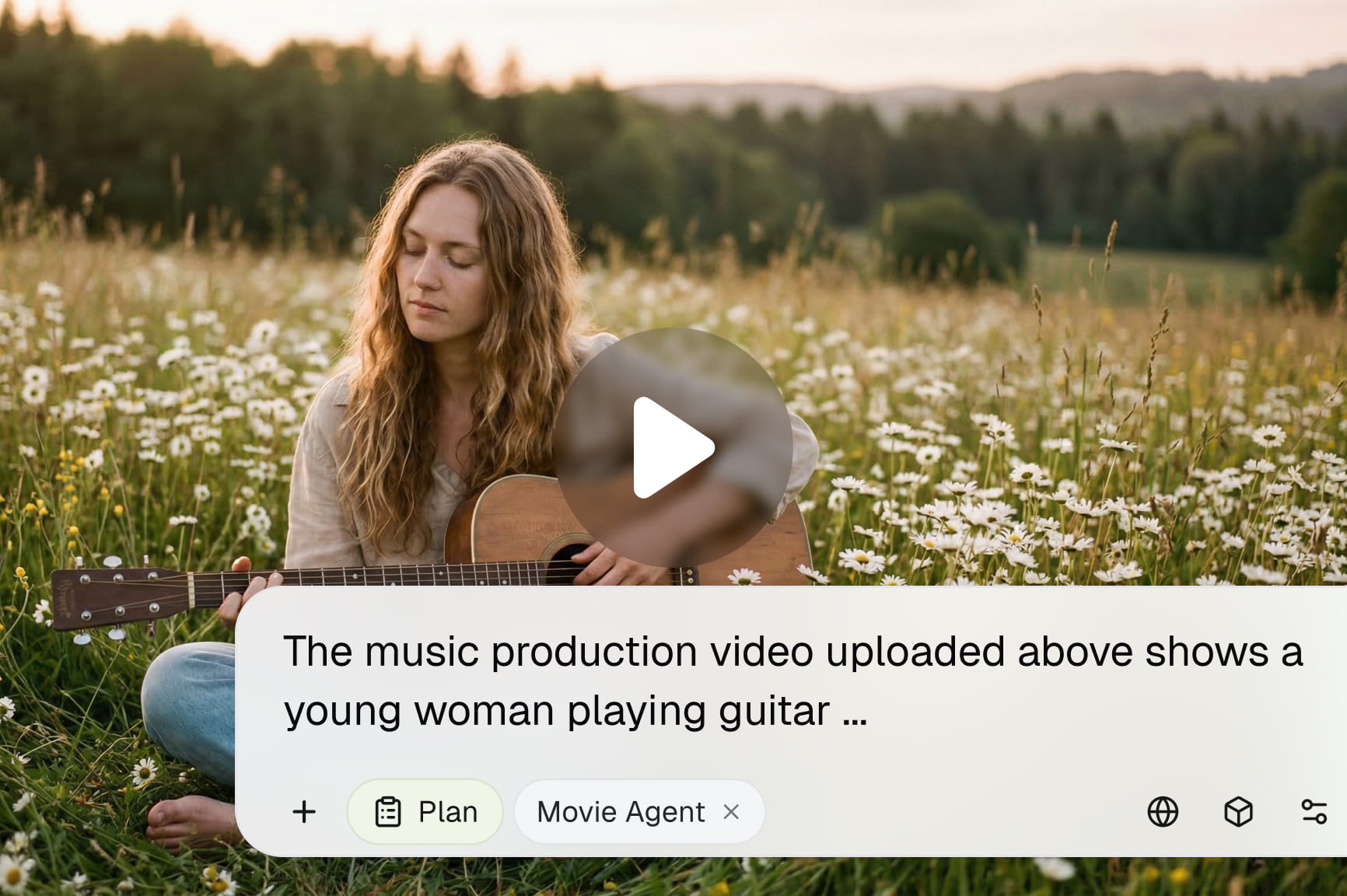
Change your video background online!

Swap any video background instantly with Framia Pro. Upload your clip, describe the scene, and export a polished result in seconds
Change Video Background with AI: Framia Pro by Converge AI